Ever wished you could turn your old desktop or laptop into a smart TV that runs Android 14 and streams YouTube, Pluto TV, and more?
With LineageOS 21 (Android TV Edition), that dream becomes a reality. In this detailed guide, we’ll walk through every step—downloading the correct build, creating a bootable USB, installing it safely, and even adding the Google Play Store for apps and entertainment.
Let’s transform your PC into an Android TV system that rivals commercial streaming boxes!
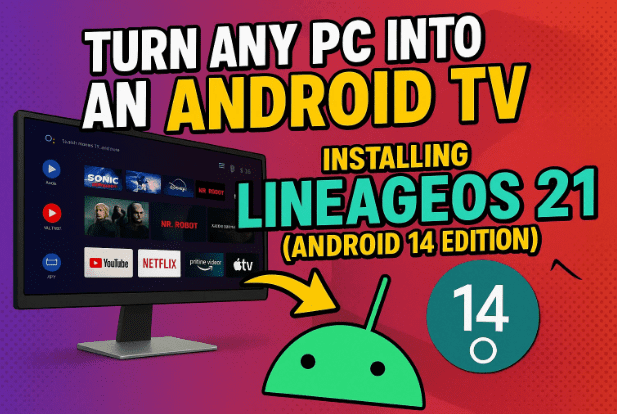
1️⃣ What Is LineageOS 21?
LineageOS 21 is the latest open-source operating system derived from Android 14. It provides a lightweight, customizable experience that can run not only on smartphones but also on PCs and laptops.
When configured with its Android TV interface, LineageOS becomes a complete TV experience—offering:
- Google Play Store and Android apps
- Streaming services like YouTube TV, Pluto TV, and Spotify
- Bluetooth support for remotes and gamepads
- Smooth 1080p playback and responsive UI
It’s entirely free, community-driven, and can breathe new life into outdated hardware.
🧩 Official Site: https://lineageos.org
2️⃣ System Requirements and Preparation
Before you begin, make sure you have everything ready.
| Component | Minimum Requirement | Recommended |
|---|---|---|
| Processor | Intel or AMD x86/x64 | Modern dual-core or higher |
| RAM | 4 GB | 8 GB for smooth performance |
| Storage | 40 GB | SSD for fast boot |
| USB Drive | 4 GB minimum | 8 GB recommended |
| Internet | Optional | Required for Play Store |
| BIOS | Legacy or UEFI | Both supported |
You’ll need:
- LineageOS 21 (Android TV 14) ISO
- Rufus software
- (Optional) GApps package to add Google Play Store
🧩 3️⃣ Choosing the Right LineageOS TV x86 Build (from GitHub)
The LineageOS TV x86 project offers two primary builds, hosted on GitHub and SourceForge. Choosing the right one ensures optimal performance.
| Variant | Description | Best for |
|---|---|---|
| x86_64_tv | Generic build using the BlissOS Zenith kernel | Standard desktops & laptops |
| x86_64_tv_go | Lightweight build optimized with BlissOS Go + ATV Low RAM config | Older PCs or low-RAM systems |
📥 Official Download Links
- ISO Images: SourceForge – LineageOS TV x86
- GitHub Releases: x86_64_tv | x86_64_tv_go
⚙️ GApps (Play Services Packages)
💬 Community Support
Telegram Group: https://t.me/androidtvcanactuallyrunonpc
💡 Tip: If you own a modern 64-bit PC, go for
x86_64_tv. If your machine has less than 4 GB RAM, choosex86_64_tv_go.
4️⃣ Step 1: Download LineageOS 21 (Android TV 14) ISO
Let’s start the process.
- Visit the official project page above.
- Select the desired build (x86_64_tv or x86_64_tv_go).
- Click Releases and download the latest
.isofile. - Save it to your Downloads folder.
Once downloaded, you’ll use this ISO to create a bootable USB installer.
5️⃣ Step 2: Create a Bootable USB with Rufus
To install LineageOS, we’ll use Rufus, a trusted tool for creating bootable USB drives.
🔗 Download Rufus: https://rufus.ie
Steps
- Plug in your USB drive (≥ 4 GB).
- Launch Rufus (no installation needed).
- Under Device, select your USB stick.
- Under Boot Selection, click Select and choose the LineageOS ISO.
- Leave other options default.
🧭 Verify System Architecture
If unsure of your Windows type:
- Open File Explorer → Right-click This PC → Properties → Check System Type.
- 64-bit = x64 build | 32-bit = x86 build.
6️⃣ Step 3: Enable Dual BIOS Mode for Compatibility
Before clicking Start, enable Rufus’s Dual BIOS/UEFI mode for maximum compatibility.
- In Rufus, press Alt + E.
- You’ll see “Dual BIOS Mode Enabled.”
- Set the Volume Label to
Android TV 14. - Click Start, confirm data erasure, and wait until 100 %.
Close Rufus after the USB is ready.
7️⃣ Step 4: Boot from USB and Start the Installer
Now comes the exciting part — booting into Android TV mode.
🔌 How to Boot from USB
- Insert the USB into your target PC.
- Power it on and press the boot key:
| Brand | Key |
|---|---|
| Dell | F12 |
| HP | F9/F11 |
| ASUS | F8 |
| Lenovo | F12 |
| Acer | F12 |
| MSI | F11 |
- Choose your USB drive and press Enter.
- In the boot menu, select Install LineageOS TV → press Enter.
- When asked for bootloader type, choose GRUB for better Linux compatibility.
8️⃣ Step 5: Configure Installation Options
Once the installer loads, you’ll see a series of configuration screens.
Let’s take it step by step.
🗣️ Language Selection
Pick your preferred language (English recommended) → Next.
💾 Storage Choice
You’ll see three installation modes:
- Install alongside existing OS (dual-boot)
- Replace a specific partition
- Erase disk and install LineageOS 21 (Recommended)
Choose option 3 for a clean setup.
⚙️ Enable Core Features
To ensure everything works properly:
- Under ADB, enable ADB Debugging.
- Under Media Codecs, choose FFMPEG (Default).
- Under Disks & Partitions, check Mount Internal Partitions.
- Under Battery, set calibration value to 98 and enable both checkboxes.
- Under Recovery, enable ADB App Installation.
Click Next → Install Now → Confirm.
Wait a few minutes until it reaches 100 %, then click Done and reboot.
9️⃣ Step 6: First Boot and Basic Setup
On first boot, the system may pause while searching for Bluetooth devices.
If it stays on that screen, press F11 (or Fn + F11 on laptops) to skip.
- Choose your language and region.
- Click Next.
- You’ll land on a clean Android TV home screen — no apps yet, just the base OS.
Congratulations! Your PC is now running Android TV 14.
🔧 10️⃣ Step 7: Install Google Play Store and Apps
Out of the box, LineageOS doesn’t include Google Play Services. You must flash a GApps package.
⚙️ Flash GApps from USB
- Shut down your PC.
- Boot again and choose Recovery Mode.
- Select Apply Update → From External Storage.
- Pick your USB labeled
Android TV 14. - Choose the GApps zip file (e.g., MindTheGapps A14).
- Confirm “Yes” → wait until complete.
- Select Reboot System Now.
Once back on the home screen, open Play Store, sign in with your Google account, and start installing apps like:
- YouTube
- Pluto TV
- VLC
- Spotify
- Kodi
⚠️ Netflix and Disney+ may show compatibility issues due to DRM. You can sideload them from Aptoide TV instead.
🧰 11️⃣ Troubleshooting and Known Limitations
| Issue | Cause | Fix |
|---|---|---|
| No Power-off Button | Android TV UI lacks software shutdown | Use PC power button to turn off |
| Volume Controls Not Working | Keyboard mapping missing | Use Fn + F2/F3 keys |
| Bluetooth Pairing Fails | Driver missing on some chipsets | Use USB dongle or enable ADB Bluetooth fix |
| Remote Control Apps Don’t Work | No mobile pairing support yet | Use keyboard/mouse |
| Streaming App Crashes | Widevine DRM not supported | Use Aptoide TV or non-DRM versions |
❓ 12️⃣ Frequently Asked Questions
Q1. Can I dual-boot Windows and LineageOS TV?
Yes. Choose Install alongside existing OS during setup. GRUB will add a menu entry.
Q2. Will this work on a mini-PC or NUC?
Absolutely — LineageOS x86 runs smoothly on Intel NUCs, Chromeboxes, and mini PCs.
Q3. Is it safe to erase the whole disk?
Yes, but back up first. This option formats the entire drive.
Q4. Do Bluetooth gamepads work?
Yes, after enabling ADB and FFMPEG options during installation.
Q5. How do I update LineageOS later?
Use Settings → System → Updater, or download the latest ISO and flash manually.
🏁 13️⃣ Conclusion
And that’s it!
You’ve successfully converted your PC into a powerful Android TV 14 machine running LineageOS 21.
You can stream, game, browse, and install apps just like on a real Android TV box—but with PC-grade hardware and unmatched flexibility.
It’s an excellent way to revive older computers and build your own DIY media center. Just remember to experiment with different builds (x86_64 vs Go) and keep your GApps updated for best results.
⚠️ Disclaimer
Flashing or installing custom operating systems may erase your data.
Backup everything first. This guide is for educational purposes only, and you follow it at your own risk.
#LineageOS #AndroidTV #Android14 #SmartTV #DIYPC #OpenSource #TechGuide #Rufus #MediaCenter #LinuxAndroid








