After nearly a decade of faithful service, Microsoft’s support for Windows 10 officially ends on October 14, 2025.
That means your PC will no longer receive monthly security updates or patches — unless you opt for the Extended Security Updates (ESU) Program, which offers additional support for three more years (2025–2028).
But many users are reporting a common issue:
“I’m trying to enroll for extended support, but the enrollment option doesn’t appear in my Windows Update settings.”
If that sounds familiar, don’t panic. This guide will walk you through how to force the ESU enrollment prompt to appear safely by editing the Windows Registry.
We’ll also explain what ESU actually is, who needs it, and what to expect once you enable it.
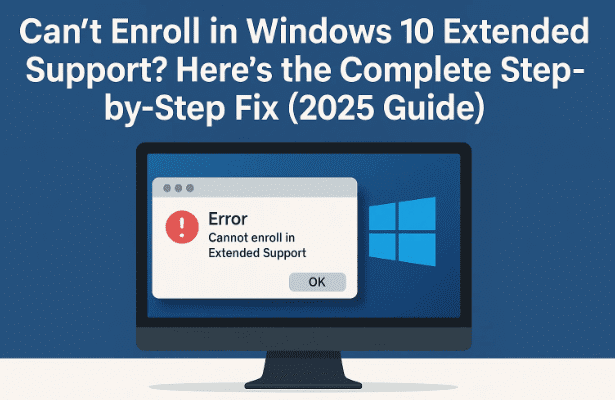
1. What Happens After Windows 10 Support Ends
As of October 2025, Microsoft will no longer release regular updates for Windows 10 Home and Pro editions. That includes:
- Monthly security updates
- Bug fixes and stability patches
- Driver compatibility improvements
Without these updates, your system becomes increasingly vulnerable to new security threats and malware exploits.
If you continue using Windows 10 after the deadline, you’ll still be able to use your PC — but at your own risk.
That’s why Microsoft introduced the Extended Security Updates (ESU) option.
2. What Is the Extended Security Updates (ESU) Program?
The ESU program is Microsoft’s paid subscription service designed for individuals and businesses who can’t immediately upgrade to Windows 11.
It provides:
- Critical and important security updates beyond the official end-of-support date.
- Three years of coverage (until October 2028).
- Availability for both Windows 10 Home and Pro versions.
This program ensures users can continue to operate older systems securely while planning upgrades.







However, Microsoft doesn’t automatically show the “Enroll in Extended Security Updates” option to everyone — which brings us to the next issue.
3. Why Some Users Don’t See the Enrollment Option
The enrollment option appears only under specific conditions.
If you’re missing it, one of the following reasons might apply:
- Your Windows 10 version is older than 22H2.
- Pending updates haven’t been installed.
- The registry key controlling the ESU eligibility hasn’t been created.
- Your device region or edition doesn’t yet qualify for public enrollment.
The good news?
You can manually prompt Windows to display this option using a safe registry tweak, which we’ll cover in detail below.
4. Before You Start: Three Prerequisites
Before making any changes, ensure these three conditions are met.
✅ 1. Check Your Windows Version (Must Be 22H2)
Open:
Settings → System → About
Scroll to the middle of the page and look for:
“Windows 10 Version 22H2”
If you see an older version (like 21H2 or 1909), go to:
Settings → Update & Security → Windows Update → Check for updates
and install all pending updates.
✅ 2. Confirm You Have All Windows Updates Installed
The registry trick won’t work unless your system is fully up to date.
- Open Settings → Update & Security
- Click Check for updates
- Install everything available and restart your PC
✅ 3. Trust the Process (and Make a Backup)
We’ll be editing the Windows Registry, a critical database that controls how Windows operates.
Don’t worry — the process here is safe if followed exactly.
Still, backing up the registry is always good practice.
Here’s how:
- Press Windows + R, type
regedit, and press Enter - Click File → Export
- Name it
registry_backup.reg - Select All under “Export Range” and click Save
If anything goes wrong, double-click this file to restore your original registry.
5. Understanding the Windows Registry (and Safety Tips)
The Windows Registry is like the operating system’s master instruction manual.
Every program, setting, and feature in Windows checks this database to know what to do.
When we add a registry key, we’re not hacking or breaking anything — we’re simply adding an instruction that Windows will read and follow.
For example, in this guide, we’ll add an entry telling Windows:
“Display the ESU Enrollment option on the Update page.”
Before proceeding, remember:
- Avoid random registry edits found online.
- Type values exactly as shown (case-sensitive).
- Restart after changes for them to take effect.
Now let’s dive into the main part.
6. Step-by-Step: How to Enable the Enrollment Option
Let’s move to the actual registry editing steps.
Take your time — follow this slowly and carefully.
Step 1: Open the Registry Editor
You can open it in two ways:
- Type regedit in the Start search box and press Enter,
or - Press Windows + R, type
regedit, then hit OK
When prompted by User Account Control, click Yes.
Step 2: Navigate to the Following Path
Use the left pane to expand these folders in order:
HKEY_CURRENT_USER
   └── Software
       └── Microsoft
           └── Windows NT
               └── CurrentVersion
                   └── Windows
This “Windows” key contains configuration data that affects update behavior.
Step 3: Create a New Key Called “ConsumerESU”
Right-click on the Windows folder →
Select New → Key
Name it exactly:
ConsumerESU
⚠️ Important:
- “C” and “ESU” must be uppercase.
- No spaces between them.
Press Enter when done.
Step 4: Create Two DWORD Values Inside That Key
- Click the ConsumerESU key to select it.
- In the right-hand pane, right-click → New → DWORD (32-bit) Value
- Name this:
ESUEligibility - Press Enter
- Name this:
- Right-click again → New → DWORD (32-bit) Value
- Name this:
ESUEligibilityResult - Press Enter
- Name this:
Step 5: Modify the Values
- Double-click ESUEligibility → set Value Data to
2→ click OK - Double-click ESUEligibilityResult → set Value Data to
1→ click OK
It should now look like this:
| Name | Type | Data |
|---|---|---|
| (Default) | REG_SZ | (value not set) |
| ESUEligibility | REG_DWORD | 0x00000002 (2) |
| ESUEligibilityResult | REG_DWORD | 0x00000001 (1) |
Step 6: Close the Registry and Restart
Click the X to close the window.
Restart your computer to ensure Windows reads the new registry entries.
7. Confirming That the Enrollment Option Appears
After restart:
- Open Settings → Update & Security → Windows Update
- Click Check for updates
- Wait a few moments
You should now see a message or button saying:
“Enroll in Extended Security Updates for Windows 10.”
Click it to proceed with ESU enrollment.
8. Important Notes About the ESU Program
Now that you’ve got the enrollment box to appear, here are a few things to understand about how ESU works.
- It’s a paid subscription: Microsoft may charge annually for extended coverage.
- It covers only security updates, not new features.
- Internet connection is required for verification and update delivery.
- Business users can manage ESU activation via volume licensing tools like Azure or Intune.
- Home users can enroll directly from the Settings app after this registry tweak.
If you choose not to enroll, Windows 10 will continue running — just without any new protection or patches.
9. Common Mistakes and Troubleshooting Tips
If the option still doesn’t appear, double-check these points:
- You didn’t spell ConsumerESU, ESUEligibility, or ESUEligibilityResult incorrectly (capitalization matters).
- Your Windows version must be 22H2 — older builds will ignore this tweak.
- Windows Update services are running. You can restart them using:
net stop wuauserv net start wuauserv(Run these in Command Prompt as Administrator.) - Reboot your PC once more after editing the registry.
If none of this helps, use the Windows Update Troubleshooter under:
Settings → Update & Security → Troubleshoot → Additional Troubleshooters → Windows Update.
10. FAQs About ESU and Registry Edits
Q1. Is editing the Windows Registry safe?
Yes — if you follow the instructions carefully. This tweak only adds a harmless flag telling Windows to display the enrollment option.
Q2. What happens if I type something wrong?
Nothing serious. You can simply delete the incorrect key or restore your registry using the backup created earlier.
Q3. Will this automatically enroll me in ESU?
No. It only reveals the enrollment option in Windows Update. You still need to confirm enrollment through Microsoft’s official process.
Q4. Is ESU free?
No. Microsoft typically charges an annual fee for ESU access. Pricing details will be published on Microsoft’s official ESU support page.
Q5. Can I skip ESU and still use Windows 10?
Yes, but without future security updates. You should avoid connecting that PC to the internet or consider switching to Windows 11 or a Linux distribution for safety.
Q6. Will this work for Windows 11?
No. This registry tweak applies only to Windows 10 (22H2).
11. Final Thoughts
So far, we’ve done a great job walking through every step — from understanding ESU to safely modifying the registry and verifying enrollment.
This small tweak can save you hours of frustration if the ESU option wasn’t showing up on your system.
It’s a simple, technical fix — but one that extends your PC’s life for up to three more years.
Still, remember: ESU is only a temporary bridge. Windows 10’s days are numbered, and Microsoft’s long-term focus is firmly on Windows 11 and cloud-integrated PCs.
If your hardware doesn’t support Windows 11, consider planning your next move — perhaps upgrading to a compatible device or exploring Linux alternatives like Zorin OS or Linux Mint for continued security without licensing costs.
12. Disclaimer
Editing the Windows Registry is safe when done correctly, but proceed at your own risk.
The steps provided here are for educational purposes only and follow official registry editing principles used for legitimate customization.
We do not recommend using registry hacks from unverified sources.
Always create a system restore point or registry backup before making any changes.
For official documentation on ESU, visit:
🔗 https://learn.microsoft.com/en-us/windows/whats-new/extended-security-updates
Tags: Windows 10 extended support, ESU enrollment, registry editor guide, Windows 10 end of life, Windows updates 2025, Microsoft security updates, Windows 10 22H2, upgrade to Windows 11, Windows registry tweak, Windows support fix
Hashtags: #Windows10 #MicrosoftESU #RegistryFix #WindowsSupport #Windows10EndOfLife #TechGuide #WindowsUpdate #WindowsTips #PCMaintenance #MicrosoftSupport







