So, you’ve just built or bought a brand-new PC and are wondering which free apps will make your setup more productive, efficient, and gamer-ready. Well, you’ve landed in the right place! In this guide, I’ll walk you through 10 essential free PC apps that I personally recommend. These tools are not only lightweight and easy to use but also cover security, productivity, file transfer, customization, and even gaming utilities.
I’ll also sprinkle in some bonus apps for enthusiasts who want benchmarking or extra control over their system.
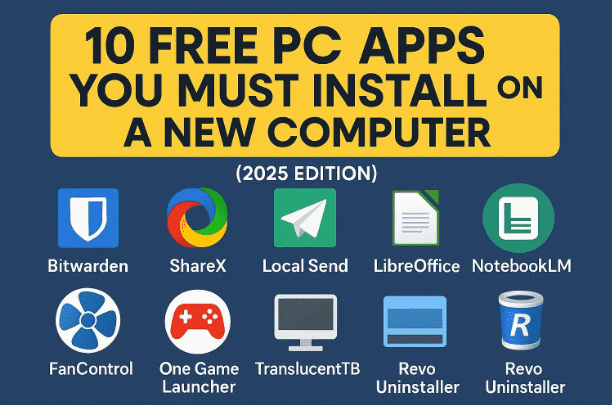
Let’s take it step by step.
🔑 1. Bitwarden – Free Password Manager
One of the first things everyone should install is a password manager. With countless logins across websites, email, and apps, reusing simple passwords is dangerous. Bitwarden is an open-source password manager that allows you to securely store:
- Unlimited passwords
- Notes
- Credit card information
- IDs
All synced across unlimited devices for free. Unlike Apple Keychain, which only works inside the Apple ecosystem, Bitwarden works on Windows, Linux, macOS, Android, and iOS.
💡 Why Bitwarden?
- It’s secure, audited, and open-source.
- It has browser extensions for quick autofill.
- You can create a free organization and share logins with a family member.
⚠️ Disclaimer: Always protect your Bitwarden account with a strong master password and preferably two-factor authentication (2FA).
📸 2. ShareX – The Swiss Army Knife of Screenshots
Yes, Windows has a built-in Snipping Tool (Win + Shift + S), but ShareX is on a whole other level. It’s the ultimate screenshot and screen recording tool for power users.
What you can do with ShareX:
- Capture fullscreen, region, or a specific app window.
- Take scrolling screenshots of entire webpages or email threads.
- Extract text from images using OCR.
- Record your screen or make GIFs.
- Generate QR codes.
- Add annotations, highlights, arrows, and even stickers.
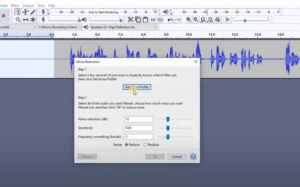
One of my favorite features is scroll capture, which saves you from stitching multiple screenshots together when capturing a full page.



💡 Tip: Configure ShareX to auto-upload screenshots to your preferred service (Imgur, Dropbox, Google Drive, etc.) or generate a quick Bit.ly link for instant sharing.
📂 3. LocalSend – AirDrop for All Devices
Tired of emailing yourself files or using cloud storage for quick transfers? LocalSend is essentially AirDrop for Windows, macOS, Linux, Android, and iOS.
Key features:
- Transfers files over local Wi-Fi (no internet required).
- No compression – keeps original quality.
- Fully encrypted and open-source.
- Works across all devices, regardless of brand.
💡 How to use:
- Install LocalSend on your PC and smartphone.
- Select the file → Choose the target device on the same Wi-Fi → Hit Send.
- Accept the transfer, and the full-resolution file appears instantly.
Perfect for moving 4K videos, photos, or work files between devices without cables or third-party servers.
📑 4. LibreOffice – Free Microsoft Office Alternative
Why pay for Microsoft Office when you can get nearly the same functionality for free? LibreOffice is a powerful, open-source office suite and the successor to OpenOffice.
It includes:
- Writer (Word alternative)
- Calc (Excel alternative)
- Impress (PowerPoint alternative)
- Draw & Base for graphics and databases
💡 Why use it?
- 100% free and open-source.
- Works offline.
- Fully compatible with Microsoft Office formats (.docx, .xlsx, .pptx).
Of course, Google Docs/Sheets are also great, but LibreOffice is the better option if you want offline editing without depending on Chrome.
🤖 5. NotebookLM – Google’s AI Research Assistant
This isn’t a traditional app you download—it’s a Google AI tool powered by Gemini that works in your browser.
What it does:
- Summarizes PDFs, websites, videos, and Google Docs you upload.
- Lets you chat with your documents by asking natural questions.
- Can even generate a podcast-style conversation between AI voices summarizing your content.
💡 Use cases:
- Students can feed in textbooks or notes to prepare for exams.
- Professionals can upload reports and get quick insights.
- Content creators can use it to research faster.
⚠️ Note: Since this is AI-powered, always verify critical information rather than relying blindly.
🔍 6. HWInfo – System Monitoring Tool
If you’re into PC building or want to keep your hardware healthy, HWInfo is essential. It provides real-time monitoring of:
- CPU temps, voltages, and frequencies
- GPU utilization and temperature
- RAM usage
- Fan speeds
- Power draw
💡 Why it matters:
Monitoring helps you catch problems early. For example, if your CPU is throttling due to high temps, HWInfo will show it instantly.
Bonus apps:
These provide detailed technical breakdowns of CPU/GPU specs.
🌬️ 7. FanControl – Take Charge of Cooling
Keeping your system cool without turning your PC into a jet engine is tricky. FanControl solves this by letting you:
- Set custom fan curves.
- Link GPU and case fans to specific temperature sensors.
- Adjust pump speeds for liquid coolers.
💡 Example: You can configure bottom intake fans to ramp up only when your GPU crosses 70°C, reducing noise when idle but keeping performance stable under load.
🎮 8. One Game Launcher – Unify All Game Libraries
Gamers often juggle Steam, Epic Games, GOG, Ubisoft Connect, and more. One Game Launcher unites all your libraries into one clean interface.
Benefits:
- Keep your desktop uncluttered (no need for multiple shortcuts).
- Track all installed games regardless of platform.
- Customize layouts for better organization.
Perfect if you’re not a Steam-only loyalist and want one place to manage everything.
🪟 9. TranslucentTB – Clean Up Your Taskbar
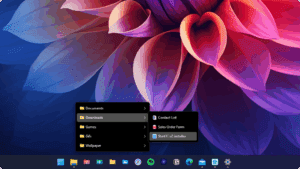
This lightweight customization app makes your taskbar transparent, blurred, or tinted, blending beautifully with your wallpaper.
💡 Extra tip: In Windows settings → Taskbar Behavior, disable “Show my taskbar on all displays” if you have multiple monitors. This makes your setup cleaner, with one main taskbar on your primary monitor.
🗑️ 10. Revo Uninstaller – Clean Uninstalls Done Right
Whenever you uninstall software in Windows, leftover registry entries and files often remain. Revo Uninstaller ensures a deep clean, removing:
- Residual registry keys
- Hidden leftover folders
- Pre-installed bloatware on OEM laptops/desktops
💡 Use with caution: Revo can remove almost anything, so be careful not to delete critical drivers or system components.
Bonus: If you’re only uninstalling GPU drivers, use DDU (Display Driver Uninstaller) → Download DDU. It’s safer for graphics card driver resets.
🎁 Bonus Apps for PC Enthusiasts
If you like stress-testing, benchmarking, or troubleshooting, here are extras worth installing:
These let you test stability, compare performance, and push your system under heavy loads.
❓ Frequently Asked Questions
Q1. Do I need all 10 apps?
Not necessarily. Start with the essentials (Bitwarden, ShareX, LocalSend, LibreOffice), then add enthusiast tools if you build or game heavily.
Q2. Are these apps safe?
Yes, all the apps listed are from official sources and widely trusted. Always download from the official websites linked above.
Q3. Will these slow down my PC?
No, most are lightweight. Monitoring tools like HWInfo only use resources when open.
Q4. Is there an alternative to LibreOffice?
Yes, Google Docs is excellent if you don’t mind being online. WPS Office is another free option.
⚠️ Disclaimer
All apps listed here are free and safe from their official sources. Do not download cracked or modified versions from unknown sites, as these may contain malware. Some tools (like Revo Uninstaller or registry cleaners) can remove critical files if misused—so proceed carefully and always back up your system.
✅ Conclusion
Building a new PC is exciting, but installing the right free software makes it truly shine. From keeping your passwords secure with Bitwarden, to sharing files instantly with LocalSend, to monitoring temps with HWInfo—these tools ensure your computer stays productive, secure, and gaming-ready.
Whether you’re a casual user or a PC enthusiast, this list covers all the essentials you need. And the best part? Every single app here is completely free.
Tags
free pc apps, must have windows software, best free tools 2025, optimize new pc, gaming utilities windows, libreoffice vs microsoft office, fancontrol, hwinfo, sharex, bitwarden password manager
Hashtags
#Windows11 #FreeSoftware #PCApps #PasswordManager #ShareX #LibreOffice #PCGaming #Productivity








