🌅 Introduction
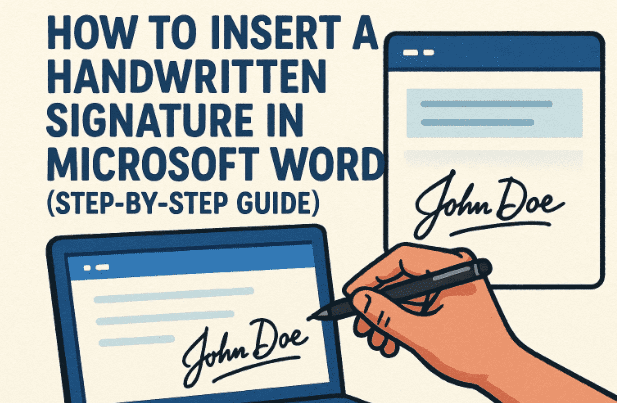
Adding a signature to your Word documents gives them a professional touch — whether it’s for signing letters, agreements, or academic certificates. Instead of printing, signing, and scanning every time, Microsoft Word lets you insert a digital version of your handwritten signature directly into your file.
In this article, you’ll learn how to create, insert, and format a digital signature in Microsoft Word using nothing but your pen, paper, and a bit of image editing inside Word. We’ll also see how to save your signature for reuse in future documents.
Let’s begin with a quick understanding of what a digital signature image is and why it’s useful.
✨ 1. Why You Should Use a Digital Signature in Word
Before we start creating one, let’s understand why this feature is useful.
- Professionalism: Digital signatures make reports, proposals, and letters look authentic.
- Convenience: You can reuse the same signature on multiple documents without rescanning it.
- Paperless workflow: Perfect for digital submissions, contracts, and official approvals.
- Accessibility: You can send and sign documents instantly, even while working remotely.
So, whether you’re a student submitting projects or a business professional signing invoices, adding a digital signature saves time and keeps your workflow modern.
🖊️ 2. Step 1: Prepare Your Signature on Paper
Let’s start by capturing your handwritten signature properly.
Here’s what you need to do:
- Take a clean white sheet of paper.
- Use a black marker or dark pen with a slightly thick tip. This helps Word detect your signature lines more clearly.
- Write your full signature in the center of the paper — try to keep it neat and without smudges.
💡 Tip: Avoid lines, folds, or shaded areas on the paper. A high-contrast black ink on white paper gives the cleanest digital result.
Once your signature looks good, we’ll move on to digitizing it.
📲 3. Step 2: Transfer the Signature to Your Computer
Now that your signature is ready on paper, you need to get it onto your computer.
You can do this in several ways:









- Option 1: Take a clear photo using your phone and email it to yourself.
- Option 2: Use Bluetooth or AirDrop (on Mac) to transfer the file.
- Option 3: Use a scanner if you want higher image quality.
In this example, we’ll use the email method:
- Open your email app on your phone.
- Compose a new email to yourself.
- Attach the photo of your signature.
- Send it and open that email on your computer.
Once it arrives, download the photo to an easy-to-find location — such as your Downloads folder or Desktop.
🧭 4. Step 3: Insert the Signature Image into Microsoft Word
Let’s move to the next step — inserting that image into your Word document.
- Open Microsoft Word.
- Click on the Insert tab from the top ribbon.
- In the Illustrations group, click Pictures → This Device.
- Browse to the location where you saved your signature photo.
- Select the image and click Insert.
You’ll now see your handwritten signature appear inside your Word document.
At this point, it may look too large or may have unnecessary borders — don’t worry, we’ll fix that next.
📏 5. Step 4: Resize and Crop the Signature
The image may have extra space around the actual signature, or it might appear oversized. Let’s clean that up.
- Click on the inserted image to select it.
- You’ll see sizing handles appear around the corners — drag them inward to reduce the image size.
- To crop the unwanted area:
- Go to the Picture Format tab.
- In the Size group, click Crop.
- Drag the edges of the crop box closer to the signature lines.
- When you’re satisfied, click anywhere outside the image to apply the crop.
Now your signature will appear neat, centered, and appropriately sized for your page.
🎨 6. Step 5: Remove the Grey or White Background
If your signature photo has a grey or white background, it might look odd on colored pages. Let’s remove it and make the signature transparent.
Option A: Adjust Color Shades
- Select the image.
- Open the Picture Format tab → Adjust group → click Color.
- Scroll to the Recolor section.
- Try Black and White 75%, 50%, or 25% depending on what looks best.
This reduces background shading and enhances signature visibility.
Option B: Remove Background Entirely
- With the image selected, click Remove Background (also in the Adjust group).
- Word will highlight the removable areas in pink.
- If any part of your signature gets faded, click Mark Areas to Keep and highlight the missing lines.
- Click Keep Changes once you’re done.
Now your signature will have a clean, transparent look — ready to be placed anywhere in the document.
✍️ 7. Step 6: Add a Signature Line with Name and Title
So far, you’ve added your handwritten signature. But in professional documents, you also need a signature line with your name, title, and sometimes date or email address.
Here’s how to add it:
- Place the cursor where you want to insert the signature line.
- Go to Insert → Text group → Add a Signature Line.
- In the Signature Setup dialog box, fill in the fields:
- Suggested signer: Your full name
- Suggested signer’s title: Your job title or designation
- Email address (optional): Add if relevant
- You can also check the box to show date in signature line.
- Click OK.
Word will now create a signature placeholder — a thin line with your name and title below it.
📄 8. Step 7: Position the Signature Correctly
Now it’s time to combine both — your handwritten signature image and the signature line.
Let’s fine-tune their alignment.
- Click your signature image.
- Select the Layout Options icon (a small button next to the image).
- Choose Behind Text or In Front of Text — these two options make it easy to move the signature freely.
- Drag the image carefully over the signature line.
💡 Tip: Zoom in if needed to align it perfectly. A slight overlap looks realistic and professional.
💾 9. Step 8: Save the Signature for Future Documents
If you sign documents regularly, there’s no need to repeat this process every time. You can save your signature and signature line together as a reusable Quick Part.
Follow these steps carefully:
- Highlight both the signature image and the signature line together.
- Navigate to the Insert tab → Text group → Quick Parts → Save Selection to Quick Part Gallery.
- In the Create New Building Block dialog box, enter a name like “MySignature”.
- Click OK.
Now, anytime you need your signature:
- Go to Insert → Quick Parts → select your saved signature.
- Word will instantly insert your pre-formatted signature and line — saving you time and maintaining consistency.
💬 10. Frequently Asked Questions (FAQ)
Q1: Can I use this method to legally sign documents?
A scanned handwritten signature in Word is mostly for appearance or informal use. For legal or verified e-signatures, use Microsoft Sign or a certified digital signature service like Adobe Sign or DocuSign.
Q2: What file format is best for the signature image?
Use .PNG for transparent backgrounds or .JPG for smaller file sizes.
Q3: My signature looks blurry — how do I fix it?
Try rescanning or photographing in good light. Avoid zooming too close, and ensure your pen strokes are bold.
Q4: Can I insert multiple signatures in one document?
Yes. Simply copy and paste your saved Quick Part multiple times and adjust positions as needed.
Q5: Can this work on Microsoft Word for Mac or Office 365?
Absolutely. The same tools — Insert → Pictures, Picture Format, and Remove Background — exist on both platforms.
Q6: What if I don’t have the “Remove Background” button?
Ensure you’re using a newer version of Word (2016 or later). Older versions may require using external tools like Paint 3D or Photoshop to remove backgrounds.
🏁 11. Conclusion
We’ve successfully completed all the steps to insert a handwritten signature in Microsoft Word — from scanning your signature to polishing it with background removal and saving it for future use.
So far, you’ve done an excellent job following through each part:
- You created a physical signature.
- You digitized it for Word.
- You formatted and positioned it neatly.
- And finally, you saved it for effortless reuse.
The next time you need to sign an official letter or form, you can do it digitally in seconds — no printer required.
🔗 Official Microsoft Resource
For more official documentation on inserting signatures and digital signing options, visit:
https://support.microsoft.com/word
#MicrosoftWord #DigitalSignature #OfficeTips #WordTutorial #DocumentSigning #Office365 #Productivity #HowTo #MSOffice
Disclaimer:
This guide is intended for educational and general office use. The described method creates a visual (non-encrypted) signature, which is suitable for informal or internal documents. For legal or contractual digital signatures, use certified solutions compliant with digital signature laws.
