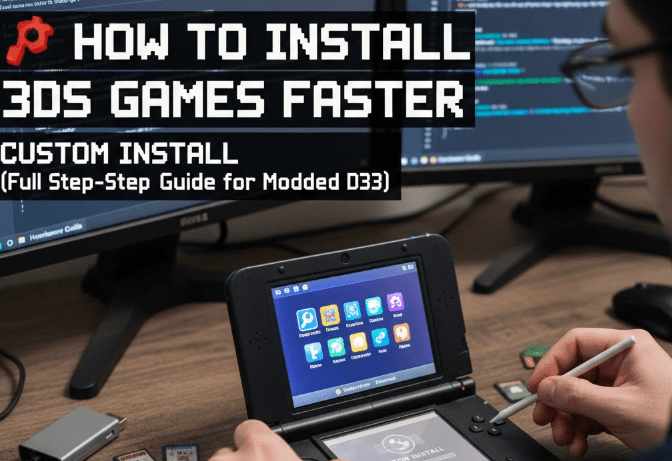
If you’ve been using your modded Nintendo 3DS for a while, you probably know how slow traditional game installations can be when using tools like FBI. While FBI remains an excellent homebrew app for installing .CIA files directly onto your console, it’s not exactly known for speed. Installing large games one by one can take hours — especially if you plan to load multiple titles.
Fortunately, there’s a much faster way to install .CIA games using a PC program called Custom Install, created by developer ihaveamac. This method bypasses the console’s slower data transfer process and instead writes directly to your SD card, making it as fast as your card reader and computer allow.
In this comprehensive guide, we’ll go through every step of the process — from preparing your 3DS and backing up essential files to installing multiple games in minutes. Whether you’re setting up your first modded system or upgrading your existing library, this walkthrough will save you valuable time.
🧩 Table of Contents
- Introduction to Custom Install
- Requirements Before You Begin
- Step 1: Backing Up Console Files Using GodMode9
- Step 2: Downloading the Required Files
- Step 3: Setting Up Custom Install on PC
- Step 4: Adding and Installing CIA Game Files
- Step 5: Finalizing Installation on the 3DS
- Troubleshooting and Common Issues
- Frequently Asked Questions (FAQ)
🎮 1. Introduction to Custom Install
Before jumping into the steps, let’s understand what Custom Install actually does.
The Custom Install utility for Windows allows you to install .CIA games (3DS titles, Virtual Console games, DLC, and updates) directly to your 3DS SD card. Instead of transferring files wirelessly or using slow console-based installs, this method writes the data on your PC — at much higher speeds.
Here’s the basic workflow:
- You back up a few essential console files (like
boot9.binandmovable.sed) using GodMode9. - You connect your SD card to your PC.
- You use Custom Install to add your
.CIAfiles and install them onto the SD card. - You finalize the installation on your 3DS through a small homebrew app.
The result? Games install up to 10× faster compared to the FBI method.
⚙️ 2. Requirements Before You Begin
Let’s get all the prerequisites ready before diving into the setup.
What You’ll Need:
- A modded Nintendo 3DS running Luma3DS custom firmware
(If you haven’t installed CFW yet, follow an official guide such as 3ds.hacks.guide) - GodMode9 (installed as part of your CFW setup)
- A Windows PC (Custom Install officially supports Windows)
- A microSD card inserted in your 3DS
- A USB SD card adapter for connecting it to your computer
- CIA game files (.cia format only)
- Custom Install tool by ihaveamac
👉 Download from GitHub - SeedDB list file
👉 Download SeedDB
💡 Note for Mac/Linux users:
You can still use Custom Install through Python. Check the official instructions here:
👉 Custom Install for Mac/Linux
Now that everything’s set, let’s move to the first major step — backing up your console files.
🗃️ 3. Step 1: Backing Up Console Files Using GodMode9
Before we can use Custom Install, we need two unique system files from your 3DS:







movable.sedboot9.bin
These files authenticate your SD card data so the games can be properly installed.
Let’s go step by step:
Steps:
- Turn off your 3DS.
- Hold the START button and then press POWER to boot into GodMode9.
- If you see the Luma Boot Chainloader Menu, choose GodMode9 by pressing A.
- In GodMode9, navigate using the D-Pad:
- Go to:
SYSNAND CTRNAND → private - Locate the file movable.sed.
- Go to:
- Once highlighted, press A → choose Copy to gm9/out.
This will copy the file to your SD card’s output folder. - Now press B twice to go back.
- Navigate to:
Memory virtual → boot9.bin - Again, press A → Copy to gm9/out.
- Press Home → Power Off System.
That’s it! You’ve successfully backed up your essential files. These will be required for the Custom Install program to recognize your console.
💾 4. Step 2: Downloading the Required Files
Now that we have the 3DS files ready, it’s time to grab the tools we’ll use on the PC side.
Files to Download:
- Custom Install (Standalone version)
→ Go to Custom Install GitHub Releases
→ Download custom-install-standalone.zip - SeedDB List File
→ Go to SeedDB List
→ Download seeddb.bin - (Optional) Extraction software
You’ll need WinRAR or 7-Zip to extract ZIP archives.
Once downloaded, move these files into a single folder (for example, C:\3DS Setup) so they’re easy to find later.
⚡ 5. Step 3: Setting Up Custom Install on PC
Now that all files are ready, let’s prepare the Custom Install tool.
Steps:
- Insert your 3DS SD card into your computer using an SD card reader.
- Extract the Custom Install ZIP you downloaded earlier.
- Right-click → “Extract Here” (or use 7-Zip).
- Move the extracted folder (for example,
custom-install-standalone) to your Desktop.
- Open the folder and double-click
custom-install-gui.exeto run it. - If Windows gives a warning (“Windows protected your PC”), click More Info → Run Anyway.
The program is safe to use and open-source. - Once open, you’ll see a window asking for:
- SD card root path
- movable.sed
- boot9.bin
- seeddb.bin
Let’s configure these one by one.
🎯 6. Step 4: Adding and Installing CIA Game Files
Now comes the fun part — installing your .CIA games!
Before you begin, make sure:
- Your SD card has enough free space.
- You’ve already placed the following files in the correct folders:
movable.sedandboot9.biningm9/out(GodMode9 already did this)seeddb.binin your Downloads folder (or wherever you saved it)
Configuring Custom Install:
- In the Custom Install program:
- Click the “…” button beside SD Card Root and select your SD card drive (e.g., E:).
- It should automatically detect the
boot9.binandmovable.sedfiles.
- Under SeedDB file, click the “…” again and select the
seeddb.binyou downloaded earlier. - Next, click Add CIA (bottom left) and browse to your folder containing
.CIAgames.- You can select multiple
.CIAfiles at once (use Shift + Click). - Alternatively, click Add Folder to import an entire directory.
- You can select multiple
- Once the list of games appears in the window, double-check everything is correct.
- When ready, click Start Install in the bottom-right corner.
You’ll see a progress bar, and installation will begin immediately.
💡 Tip: The installation speed depends on:
- SD card class (Class 10 or UHS recommended)
- USB adapter quality
- Your computer’s read/write speed
Typical results:
5 GB of .CIA files can install in under 3 minutes, compared to over 20 minutes using FBI.
When the installation completes, you’ll see a confirmation popup — all games are now on your SD card and ready to be finalized on your console.
🧠 7. Step 5: Finalizing Installation on the 3DS
After writing the games to your SD card, you’ll need to “finalize” the installation using a small 3DS app that comes with the process.
Steps:
- Safely eject your SD card from your computer and reinsert it into your 3DS.
- Turn on your console and open the Homebrew Launcher.
- Find the app named Custom Install Finalize (automatically added by the PC program).
- Launch it — the program will perform the final linking and verification steps.
- When prompted, press Start to continue.
- Once complete, go back to your Home Menu and wait a few seconds.
You’ll see a notification:
“New software has been added to the Home Menu.”
Open your Home Menu — your newly installed games should appear immediately!
That’s it. You’ve successfully installed multiple 3DS games at lightning speed.
🧩 8. Troubleshooting and Common Issues
Even though the process is straightforward, a few common issues can occur. Let’s look at how to fix them.
| Issue | Possible Cause | Solution |
|---|---|---|
| Custom Install can’t detect SD card | Incorrect drive letter or SD not mounted | Reinsert the SD card, check drive name, or try another USB port |
| Missing movable.sed or boot9.bin | Files not copied from GodMode9 correctly | Reboot to GodMode9 and re-copy files to gm9/out |
| CIA file fails to install | Corrupted file or insufficient space | Re-download the .CIA file, check SD card space |
| Games not appearing after finalizing | Finalization skipped | Reopen “Custom Install Finalize” app and run again |
| Slow installation speed | Low-quality SD or reader | Use a faster UHS-I SD card or better card reader |
💬 9. Frequently Asked Questions (FAQ)
Q1. Can I use this on an unmodded 3DS?
No. You must have Luma3DS custom firmware installed, as it enables the use of homebrew apps and .CIA installations.
Q2. Is it safe to use Custom Install?
Yes. The tool is open-source and widely used in the 3DS community. Just make sure to download it from the official GitHub page linked in this article.
Q3. Can I install DLC or Virtual Console games?
Yes! Custom Install supports .CIA files of all types — including retail games, DLC, updates, and VC titles.
Q4. Will this method work on Mac or Linux?
Yes, but only if you have Python installed. Follow the instructions for your OS here:
👉 Custom Install with Python
Q5. Do I still need FBI after using this method?
FBI is still useful for managing tickets, deleting titles, or verifying installations — but for speed, Custom Install is the better option.
Q6. Can this damage my SD card or console?
No, as long as you follow the steps carefully. Always back up your SD card before major operations.
🏁 10. Conclusion and Tips
Installing 3DS games doesn’t have to be a slow and tedious process. With the Custom Install tool, you can load your favorite games, DLC, and updates onto your SD card in a fraction of the time it used to take through FBI.
Here’s a quick recap:
- Use GodMode9 to extract your console’s unique files.
- Set up Custom Install on your Windows PC.
- Add all your
.CIAfiles at once and let the program handle the installation. - Finalize everything through the 3DS homebrew app.
If you plan to install multiple titles or rebuild your library, this method is the most efficient and time-saving approach available today.
⚠️ Disclaimer:
This guide is for educational purposes only. Always use legally obtained .CIA backups of games you own. Downloading or distributing copyrighted material without permission is illegal and not endorsed by this article.
#3DS #Nintendo #Homebrew #Luma3DS #GamingGuide #CustomInstall #GodMode9 #3DSMods #RetroGaming #TechTutorial







