Have you ever wondered what really goes on inside your desktop computer? This guide takes you on a detailed, step-by-step journey through a full desktop computer dissection — inspired by biology class dissections, but for tech lovers. From the visible parts like the motherboard and CPU cooler to the microscopic world of transistors inside your CPU and GPU, this article will give you a deep understanding of what powers your machine.
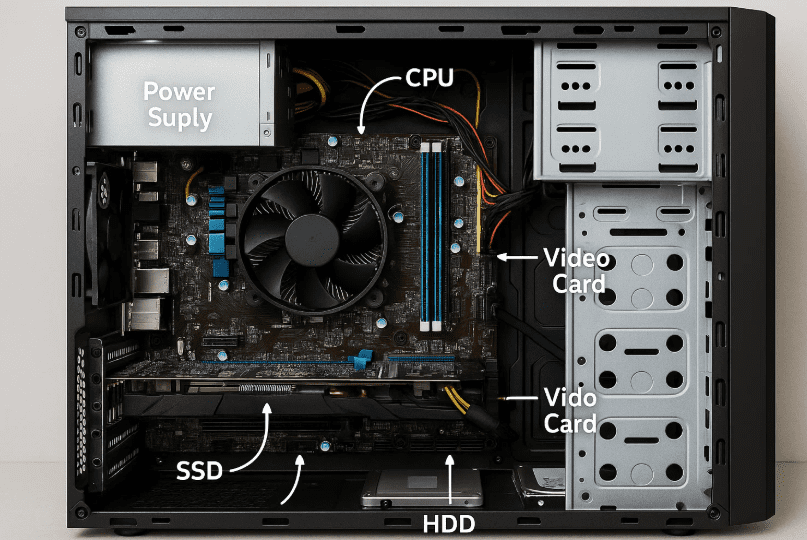
Let’s dissect this marvel of engineering one part at a time.
🧠 Step 1: The CPU – The Brain of Your Computer
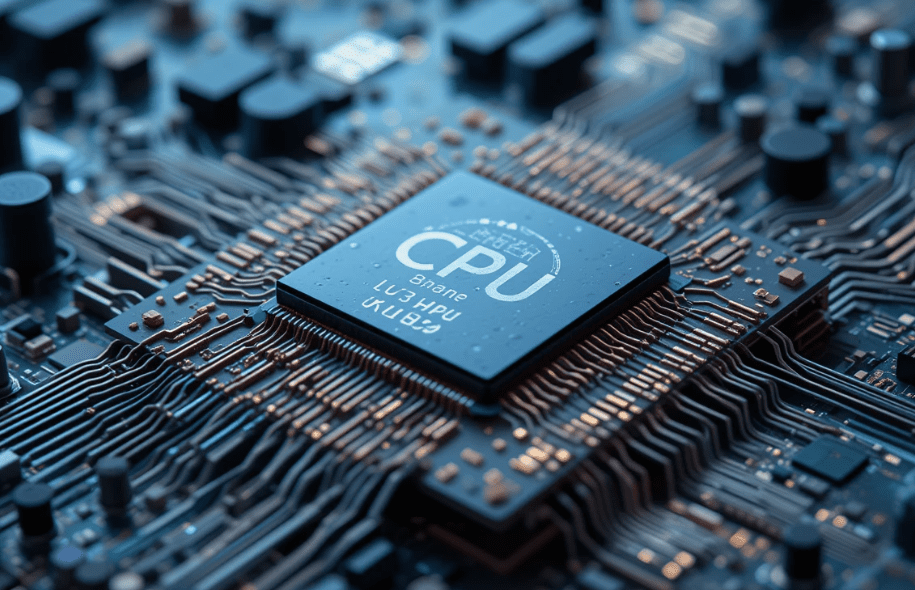
The CPU (Central Processing Unit) is like the brain of your PC.
- It’s covered by an Integrated Heat Spreader (IHS) which hides a smaller metal package called the die.
- The die contains billions of transistors, along with several cores (e.g., 10-core CPUs) where instructions are processed.
- Each core includes arithmetic units, instruction schedulers, caches, and pipelines — the building blocks of modern computation.
Nanoscopic View:
Zooming into the die:
- You’ll find transistors only a few nanometers wide.
- Above them are multiple metal layers and vertical vias, forming an intricate multilayer electrical highway.
- A modern CPU die might have 8 to 10 billion transistors.
CPU Sections:
- L3 Cache & Ring Interconnect: Share memory among cores.
- Integrated Graphics Processor (iGPU): A basic GPU built into the CPU.
- Memory Controller: Sends data to/from DRAM.
- System Agent & Platform I/O: Manages communication with the motherboard chipset.
🧩 Step 2: The Motherboard – The Nervous System
The motherboard is a massive printed circuit board connecting all major components.
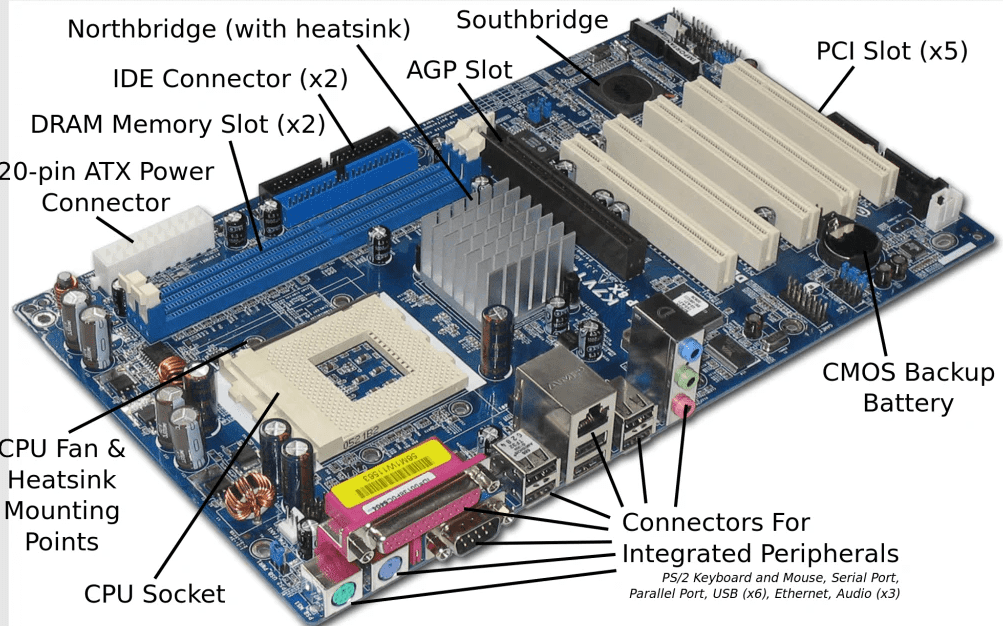
Key Components:
- CPU Socket
- RAM Slots
- M.2 Slots for SSDs
- PCIe Slots
- USB, Audio, SATA, Power Headers
The Chipset is the motherboard’s central IC and acts as a bridge between the CPU and external peripherals (Ethernet, Wi-Fi, SATA, USB, audio).
Here’s how things connect:
- The CPU talks directly to RAM, GPUs, and M.2 SSDs.
- The Chipset handles everything else, including I/O devices and storage.
⚡ Step 3: Power Delivery – VRMs & Power Supply
VRM (Voltage Regulator Module):
Located near the CPU, VRMs regulate voltage from 12V down to around 1.3V for the CPU. Since they operate at ~85% efficiency, they need heatsinks to manage excess heat.
Power Supply Unit (PSU):
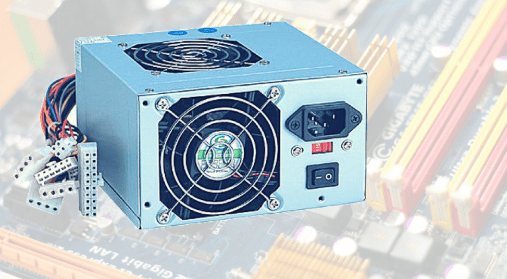
- Converts high-voltage AC to lower-voltage DC for internal use.
- The main transformer bridges high and low voltage sides.
- Features like opto-isolators and control PCBs ensure stable output.
💡 An SSD might consume just a few watts, while a GPU can draw hundreds.
💨 Step 4: CPU Cooling – How Heat Is Managed
A typical liquid CPU cooler consists of:
- Pump with brushless DC motor
- Liquid tubes
- Radiator with fans
Heat from the CPU is absorbed by the liquid, pushed to the radiator, and expelled by fans. Thanks to magnetic rotors and sealed barriers, the liquid never leaks into the electronics.












🎮 Step 5: GPU – Graphics Processing Unit
The Graphics Card or GPU is another core component of performance machines.
What’s Inside:
- GPU Die (11.8 billion transistors)
- VRAM Chips around the die
- Voltage Regulator Module
- PCIe Interface, HDMI/Display Ports
A GPU is optimized for parallel processing:
- Contains thousands of simple cores (e.g., 3,584 cores in 28 multiprocessors).
- Processes tasks like rendering pixels and video faster than CPUs.
Unlike CPUs with few complex cores, GPUs have many simple cores, ideal for graphics and machine learning.
💾 Step 6: Memory – DRAM and SSD
DRAM (RAM):
- Communicates directly with CPU.
- Each chip contains millions of 1T1C memory cells (1 transistor + 1 capacitor).
- Data access: nanoseconds.
SSD (Solid State Drive):
- Uses 3D NAND flash memory.
- Each cell stores multiple bits using charge trap technology.
- Slower than DRAM but more durable and persistent.
- NVMe and SATA SSDs contain:
- 3D NAND chips
- DRAM buffer
- SSD controller
🧲 Step 7: Hard Drive – Mechanical Storage
Hard Disk Drives (HDDs) use:
- Spinning disks (platters)
- Read/Write head that moves across tracks
- Data stored as magnetic domains
HDDs are:
- Cheaper per TB
- Slower (access time in milliseconds)
- Still useful for archival storage
🖱️ Step 8: Mouse & Keyboard – Input Devices
Inside a Mouse:
- Scroll wheel
- Infrared light and image sensor
- Lenses for motion tracking
- Processor and battery (for wireless mice)
Inside a Keyboard:
- Plastic trace layers carry electric signals.
- Pressing a key completes a circuit, detected by a controller.
🧠 Why It Matters: Engineering Education & Multidisciplinary Thinking
Understanding the internal architecture of your computer teaches you:
- Electronics
- Computer architecture
- Thermodynamics
- Manufacturing
- Parallel computing
- Materials science
Just like the computer itself, learning is more powerful when disciplines unite — art, science, engineering, animation — everything matters.
❓ FAQs
Q: Are CPU and GPU dies made in the same way?
A: Yes, both are fabricated using semiconductor processes in cleanroom fabs, but their architectures and core counts differ greatly.
Q: Can I upgrade the components shown here?
A: Most desktop parts (RAM, SSD, GPU, CPU cooler) are upgradable, depending on your motherboard socket and power supply.
Q: What’s faster — DRAM or SSD?
A: DRAM is ~3,000x faster than SSD in terms of latency but volatile. SSDs are slower but non-volatile (persistent).
📌 Tags:
computer hardware, cpu architecture, gpu transistors, ssd nand memory, dram structure, how desktop computers work, motherboard explained, vrm power supply, internal pc components
📢 Hashtags:
#ComputerHardware #InsideYourPC #TechEducation #CPU #GPU #SSD #DRAM #Electronics #EngineeringExplained #TechDeepDive
🔗 Useful Resources:
- Rufus (Bootable USB Tool): https://rufus.ie
🛡️ Disclaimer:
This article is for educational purposes and general information. Images, structures, and examples are based on modern PC components as of the time of writing. The exact specs may vary depending on your computer model or generation.
🎓 Final Thought:
The internal components of your PC are a symphony of silicon, electricity, and software. What seems like a box of plastic and metal is actually a marvel of human engineering. Understanding it not only makes you tech-savvy — it makes you curious, inventive, and connected to the invisible forces that run our modern world.
So next time your PC boots up, remember… there’s a microscopic universe inside, working hard for every click, scroll, and stream.
Got questions or want to share your own tech dissections? Drop them in the comments below.
Stay curious, stay passionate about tech!








