Windows 10 has been one of Microsoft’s most widely used operating systems, running on millions of PCs worldwide. But like all software, it has an official end date. Microsoft announced that Windows 10 support ends on October 14, 2025, which means no more free security patches after that day.
For many people, this raises an important question:
👉 What if I can’t or don’t want to upgrade to Windows 11 yet?
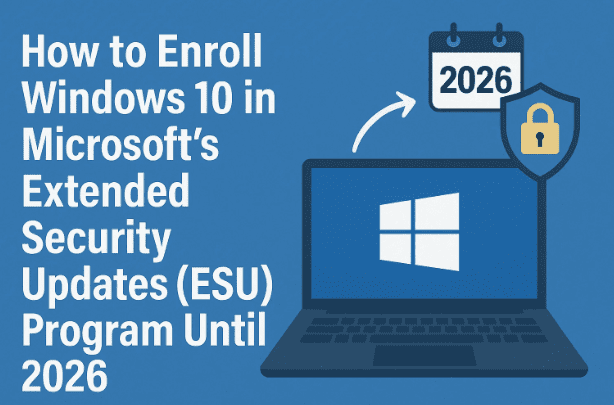
The good news is that Microsoft offers an Extended Security Update (ESU) program. This allows you to keep receiving critical security patches for Windows 10 until October 2026. And thanks to a community tool called Flyobi, you can easily enroll your device—even if the update option doesn’t appear automatically.
In this article, we’ll cover:
- What ESU is and why you may want it.
- Why Microsoft is ending Windows 10 support.
- Step-by-step instructions to enroll your PC using Flyobi.
- Verification steps to confirm enrollment.
- Pros and cons of using ESU vs. upgrading to Windows 11.
- Common problems and solutions.
Let’s dive in.
📌 What Is ESU and Why Do You Need It?
Extended Security Updates (ESU) is Microsoft’s way of giving Windows 10 users extra time before they must move to a newer operating system.
- ESU does not provide new features or design changes.
- It only includes critical security updates.
- With ESU, your PC remains protected against newly discovered vulnerabilities until October 2026.
This is particularly important for:
- Businesses that rely on legacy applications.
- Users with unsupported hardware who cannot move to Windows 11.
- Individuals who simply prefer Windows 10’s interface.
Without ESU, you could still run Windows 10, but you’d be at greater risk from malware, ransomware, and hackers exploiting unpatched vulnerabilities.
📌 Why Microsoft Is Ending Windows 10 Support
Microsoft follows a lifecycle policy:
- Windows XP ended in 2014.
- Windows 7 ended in 2020 (with ESU available until 2023).
- Now Windows 10 reaches its end of support in 2025.
This pushes users to adopt Windows 11, which includes:



- Modern security standards (TPM 2.0, Secure Boot).
- Longer support timeline.
- Integration with cloud and AI services.
But for those who cannot upgrade due to hardware restrictions or personal choice, ESU is the safety net.
🛠️ Step-by-Step: How to Enroll Windows 10 in ESU Using Flyobi
Microsoft does not always make ESU enrollment straightforward. Many users report that the option does not appear in Windows Update even when the system is fully patched.
That’s where the Flyobi tool comes in. It is a free utility that helps with Windows upgrades, custom ISOs, debloating, and now, automatic ESU enrollment.
Let’s walk through the process.
🔹 Step 1: Download Flyobi
- Visit the official Flyobi GitHub page or trusted source.
- Download the latest Flyobi executable file.
- There is nothing to install; it runs as a standalone
.exe.
- There is nothing to install; it runs as a standalone
⚠️ Note: Always download from the official GitHub to avoid tampered versions.
🔹 Step 2: Run Flyobi as Administrator
- Right-click the
Flyobi.exefile. - Select Run as Administrator.
- This ensures the tool has permission to make system-level changes.
🔹 Step 3: Open More Options
Once Flyobi loads, you’ll see a dashboard with several features:
- Upgrade to Windows 11 (even on unsupported hardware).
- Create custom ISO images.
- Tweaking and debloating tools.
For ESU:
- Click Download / Upgrade to Windows 11.
- Then click on More Options.
- Select Enroll in ESU.
🔹 Step 4: Confirm ESU Enrollment
- At the bottom of the options list, you’ll see:
Enroll in ESU – Keep Windows 10 secure until 2026. - Click this option.
- If prompted, the tool may say:
“The ESU enrollment scripts are missing and will be downloaded from GitHub.”- Click Yes to allow the download.
🔹 Step 5: Run Enrollment Script
Flyobi will launch a command prompt to run Microsoft’s Consumer ESU Enrollment Tool.
- If successful, you’ll see a message like:
Success. Press Enter to exit.
Press Enter, and the process is complete.
🔹 Step 6: Verify Enrollment
To confirm ESU is active:
- Open Settings > Update & Security > Windows Update.
- You should now see a message saying:
Your PC is enrolled to get Extended Security Updates.
You can also run a verification command (shared in Microsoft documentation or community forums) to double-check the enrollment status.
✅ Benefits of Using Flyobi for ESU
- Works even if ESU doesn’t appear in Windows Update.
- Simple, one-click enrollment.
- No registry hacks or risky manual scripts.
- Tool also supports other useful tweaks and Windows 11 upgrades.
❌ Potential Drawbacks
- Relies on community tools (always verify source before downloading).
- ESU provides security updates only—no new features.
- Some third-party software may still drop Windows 10 support before 2026.
📌 Alternatives to ESU
Not everyone wants to stay on Windows 10. Here are your main choices:
- Upgrade to Windows 11 (official or via bypass tools).
- Switch to Linux (popular beginner-friendly options: Linux Mint, Zorin OS, Ubuntu).
- Use LTSC editions of Windows 10 (business-focused, longer support).
❓ FAQs – Windows 10 ESU Enrollment
Q1: Is ESU free?
Yes, for consumer editions it is currently free. Businesses may have different licensing terms.
Q2: Can I still use Windows 10 after 2025 without ESU?
Yes, but it won’t receive security patches, making it riskier over time.
Q3: Does ESU affect my files or installed apps?
No, ESU only affects the update mechanism. Your apps and data remain untouched.
Q4: What happens in October 2026?
That’s the final deadline. After that, Windows 10 will no longer receive official updates of any kind.
Q5: Can I unenroll from ESU?
Yes, by uninstalling the enrollment script, but there’s little reason to do so.
⚠️ Disclaimer
- Flyobi is a third-party tool. While widely trusted, always download from the official GitHub to avoid tampered versions.
- Changing system update settings carries some risk. Back up important data before enrolling.
- This guide is for educational purposes. You are responsible for ensuring compliance with Microsoft licensing policies.
🔚 Final Thoughts
Microsoft’s decision to end Windows 10 support in October 2025 is a big deal. But thanks to the Extended Security Updates (ESU) program, you don’t have to panic. With just a few steps—and the help of the Flyobi tool—you can continue receiving security updates until October 2026.
This gives you more breathing room to:
- Keep using your current hardware safely.
- Plan an eventual upgrade to Windows 11.
- Or explore Linux alternatives without rushing.
Whatever you choose, make sure you’re not running an unpatched system. Cybersecurity risks grow every day, and ESU is your last official safety net for Windows 10.
Tags
Windows 10 ESU enrollment, Extended Security Updates Windows, Flyobi Windows 10 tool, Windows 10 end of support, update Windows 10 security
Hashtags
#Windows10 #ESU #Flyobi #MicrosoftUpdates #CyberSecurity #Windows11








