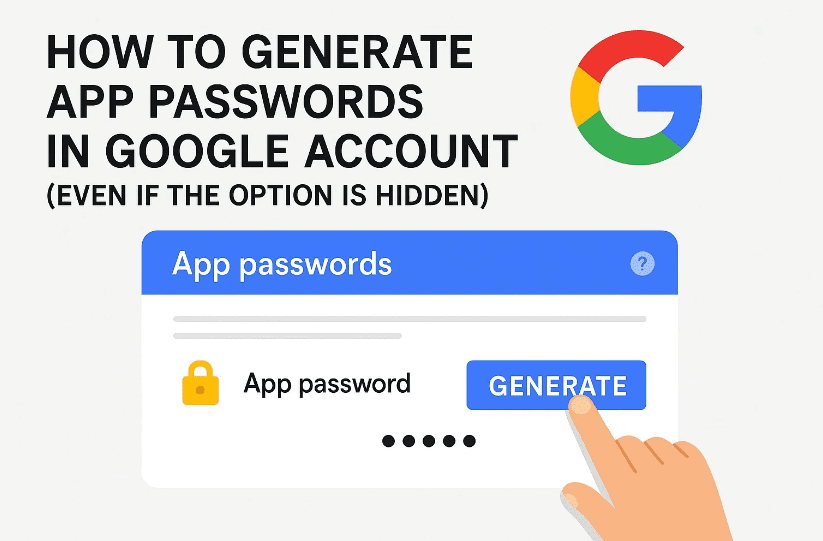
Managing your Google account securely is essential, especially if you use Gmail, Google Workspace, or third-party apps like Outlook, Thunderbird, or even custom email clients on your smartphone. One feature that often confuses users is App Passwords.
App passwords allow you to connect apps and devices to your Google account securely without exposing your main password. The twist is—sometimes this option is not visible in your Google Account settings.
In this detailed article, I’ll walk you through step by step on how to generate app passwords in your Google account, even if you don’t see the option at first. Along the way, we’ll discuss why app passwords exist, when to use them, and how to manage them safely.
Let’s dive right in.
1. What Are App Passwords and Why Do You Need Them?
Before we move into the steps, let’s clarify the concept. An App Password is a special 16-character passcode generated by Google for apps or devices that don’t support modern sign-in methods like two-factor authentication (2FA).
For example:
- If you want to connect Outlook to your Gmail.
- If you’re using an older email app that doesn’t support the newer sign-in screens.
- If you have a third-party backup app that needs access to your Google account.
In these cases, instead of typing your main Google password, you create an app-specific password. This password works only for that app, and you can revoke it anytime.
This provides both security and convenience. Even if someone steals the app password, they cannot log into your main account because it only works for the specified app.
2. Pre-Requirements Before Generating App Passwords
Here’s an important note: Google will not let you create app passwords unless you enable Two-Step Verification (2FA).
Why? Because app passwords are designed to bypass the second step (like OTP or prompt on your phone) for apps that don’t support it. So, if 2FA is disabled, Google won’t even show you the option.
👉 Requirements:





- A Google account (Gmail, Workspace, or personal).
- Your phone number linked to the account.
- Ability to receive OTPs (via SMS, phone call, or Google Prompt).
Now that’s clear, let’s move on.
3. Step 1 – Sign in to Your Google Account
Naturally, the first step is to log in to your Google account.
- Open your browser and go to Google Account Login.
- Enter your email and password.
- If you already use two-step verification, you’ll also need to approve the sign-in with your phone.
Once you’re logged in, you’ll see your Google account homepage.
4. Step 2 – Navigate to Google Account Settings
After logging in:
- Click on your profile icon at the top-right corner.
- Select Manage your Google Account.
This will open the main Google Account settings dashboard.
On the left-hand menu, you’ll see different tabs like Personal Info, Data & Privacy, Security, People & Sharing, Payments & Subscriptions.
👉 Click on Security.
5. Step 3 – Enable 2-Step Verification
This step is crucial. Without it, you won’t see the app password option at all.
- In the Security page, scroll down until you find 2-Step Verification.
- If it’s disabled, click on it.
- Enter your Google password again for verification.
- Add your phone number.
- Choose whether you want OTPs via SMS or phone call.
- Enter the OTP you receive and confirm.
Once enabled, your account will show 2-Step Verification: On.
Now you’re ready to move forward.
6. Step 4 – Accessing the App Passwords Option
Here’s where things can get a little tricky.
Earlier, Google displayed App Passwords directly under the 2-Step Verification section. But recently, many users noticed it’s no longer visible. That doesn’t mean it’s gone—it’s just hidden.
👉 To find it:
- Stay on the Security page.
- Use the search bar inside the Google Account page (not your browser search bar).
- Type: App passwords.
You’ll see the option appear. Click on it.
7. Step 5 – Generating Your App Password
Now comes the most important part.
- On the App Passwords page, Google will again ask you to sign in for verification.
- After logging in, you’ll see a dropdown to Select App.
- Choose the app or device you want to generate the password for.
- Example: Mail, Calendar, Contacts.
- If your app isn’t listed, select Other (Custom name) and type the name (e.g., Outlook).
- Click Generate.
Google will instantly give you a 16-character password.
⚠️ Important: You will only see this password once. After you click Done, you cannot view it again.
👉 So make sure you:
- Copy it.
- Save it in a secure password manager.
- Or directly paste it into the app where you need it.
8. Step 6 – Using the App Password in Apps Like Outlook
Let’s take an example with Outlook.
- Open Outlook and go to Account Settings > Add Account.
- Enter your Gmail address.
- When it asks for a password, instead of entering your Google account password, paste the App Password you generated.
- Outlook will connect to Gmail successfully.
This works for many other apps too—such as Apple Mail, Thunderbird, or backup clients.
9. Step 7 – Deleting or Managing Existing App Passwords
You may not always need an app password forever. Maybe you uninstall an app or stop using Outlook.
In that case:
- Go back to App Passwords in your Google account.
- You’ll see a list of generated app passwords.
- Click Delete next to the one you don’t need anymore.
This instantly revokes access. That app will no longer be able to log in with that password.
If you ever lose your app password or forget to copy it, don’t panic. You can always generate a new one.
10. Best Practices for App Password Security
Let’s pause for a moment and highlight some safety tips:
- ✅ Always enable 2FA before creating app passwords.
- ✅ Use a password manager to store your app passwords securely.
- ✅ Generate separate app passwords for each app, instead of reusing one.
- ❌ Never share your app password with anyone.
- ❌ Don’t save them in plain text files or notes apps.
11. Troubleshooting – What If You Still Don’t See the Option?
Sometimes, even after enabling 2-Step Verification, you still won’t see App Passwords. Here are possible reasons:
- You’re using a Google Workspace account and your admin has disabled this feature.
- You haven’t fully completed the 2FA setup (maybe skipped adding a phone number).
- You’re signed in on a browser with security restrictions.
👉 Solutions:
- Try logging in from Google Account Page.
- Make sure 2FA is properly enabled.
- If it’s a work or school account, contact your admin.
12. FAQs on Google App Passwords
Q1: Can I recover an app password after clicking Done?
No. Once you close the screen, you can’t retrieve it. You’ll need to generate a new one.
Q2: Do app passwords expire?
Not automatically. They remain valid until you delete them manually.
Q3: Can I use one app password for multiple apps?
Technically yes, but it’s not recommended. Generate separate ones for better security.
Q4: Are app passwords safer than my main Google password?
Yes, because they’re app-specific and can be revoked without affecting your main account.
Q5: Why did Google hide the app password option?
Likely because Google wants users to move to modern sign-in methods. But for now, the feature still works if you search for it.
13. Final Thoughts
App passwords might seem like an old-school method, but they remain essential when connecting Google with apps or devices that don’t support modern authentication.
By following the steps we discussed—signing into your account, enabling 2FA, searching for app passwords, generating them, and then using them carefully—you can easily manage your account without running into issues.
Remember: your main Google password is your digital master key. Protect it at all costs. Use app passwords only when necessary, keep them secure, and delete them when no longer in use.
Disclaimer: This guide is for educational purposes. Always ensure you generate and use app passwords only on trusted devices and apps. Misuse can lead to unauthorized access.
Tags
google account, app passwords, gmail, outlook, two step verification, google security, generate app password, google login, secure login, gmail setup
Hashtags
#Google #AppPassword #Gmail #AccountSecurity #TwoStepVerification #Outlook #CyberSecurity #dtptips








