With the release of Windows 11 version 23H2, many users noticed that Co-Pilot AI, Microsoft’s intelligent assistant, disappeared from their desktops. If you’re wondering why this happened and how you can enable or disable Co-Pilot manually, this guide walks you through all the available methods.
🤔 Why Did Co-Pilot Disappear After the Update?
When users updated to Windows 11 23H2, Microsoft temporarily removed the Co-Pilot feature due to compatibility issues, especially on systems using multiple monitors. Some users experienced UI glitches or system instability when using Co-Pilot with dual-screen setups.
Although Microsoft plans to restore the feature in future updates, you can re-enable it manually if you miss it—or disable it again if you want it gone.
🧠 What is Windows Co-Pilot?
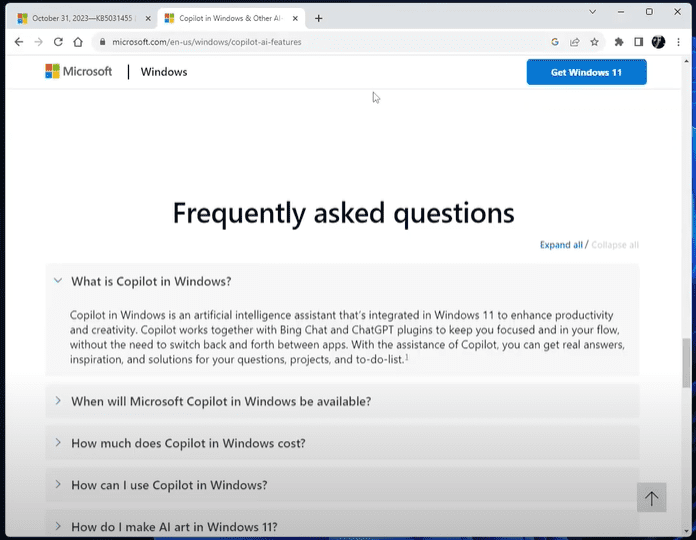
Windows Co-Pilot is an integrated AI assistant powered by Bing Chat and ChatGPT plugins. It enhances your productivity by helping with tasks, answering questions, and integrating with various Windows features—without needing to switch apps constantly.
⚙️ Method 1: Enable Co-Pilot Using the Registry Editor
- Open Registry Editor:
- Press
Start, typeregedit, right-click it, and select Run as Administrator.
- Press
- Navigate to the Path:
- Go to:
HKEY_CURRENT_USER\Software\Microsoft\Windows\CurrentVersion\Explorer\Advanced
- Go to:
- Create or Modify the Entry:
- Look for
ShowCopilotButton. - If it exists, double-click and set the value to
1. - If it doesn’t exist:
- Right-click in the right panel → New → DWORD (32-bit).
- Name it
ShowCopilotButton. - Set its value to
1.
- Look for
- Restart your computer to apply changes.
🛡️ Method 2: Enable/Disable Co-Pilot Using Group Policy
- Open Group Policy Editor:
- Press
Start, type Edit Group Policy, and open it.
- Press
- Navigate to the Setting:
- Go to:
User Configuration > Administrative Templates > Windows Components > Windows CoPilot
- Go to:
- Change the Setting:
- Double-click Turn off Windows CoPilot.
- To enable Co-Pilot, select Not Configured or Disabled.
- To disable Co-Pilot, select Enabled.
- Click Apply and OK, then restart your computer.
🧰 Method 3: Enable Co-Pilot Using ViveTool (Advanced)
⚠️ This method involves using a third-party tool from GitHub. Proceed with caution and make sure to follow steps exactly.
Steps:
- Download ViveTool:
- Visit the ViveTool GitHub page and download the latest release.
- Extract and Move to C Drive:
- Extract the ZIP and move the folder to your C:\ drive.
- Run Command Prompt as Admin:
- Press
Start, type CMD, right-click, and select Run as Administrator.
- Press
- Navigate to the Folder:
- Use the command:
cd C:\ViVeTool(or whatever your folder path is).
- Use the command:
- Enable Co-Pilot Feature:
- Run this command:
vivetool /enable /id:44774629
- Run this command:
- Restart your computer, and Co-Pilot should now appear.
🚫 How to Disable Co-Pilot (Undo the Changes)
Using Task Manager:
- Right-click on the Taskbar > Taskbar settings.
- Find Co-Pilot Preview under Taskbar Items.
- Toggle it Off.
Using ViveTool:
- Repeat steps 1–4 above to open ViveTool in CMD.
- Run this command to disable Co-Pilot:
vivetool /disable /id:44774629 - Restart your PC to remove Co-Pilot from the taskbar.
Using Registry Editor:
- Navigate back to the same key:
HKEY_CURRENT_USER\Software\Microsoft\Windows\CurrentVersion\Explorer\Advanced - Set
ShowCopilotButtonvalue to0.
Using Group Policy:
- Go to Group Policy Editor.
- Navigate to:
User Configuration > Administrative Templates > Windows Components > Windows CoPilot - Set Turn off Windows CoPilot to Enabled.
🧩 For Windows 10 or Unsupported Devices
If your PC doesn’t meet the system requirements for Windows 11 or you’re stuck on Windows 10, there are workarounds to install Windows 11 23H2. These allow you to experience new features like Co-Pilot on unsupported hardware.
Check out our full guide on how to install Windows 11 23H2 on unsupported PCs using safe methods.
📁 Tags and Hashtags
Tags: Windows 11 Co-Pilot, Co-Pilot AI, Enable Co-Pilot, Disable Co-Pilot, Windows 11 23H2, Registry Editor, Group Policy, ViveTool, Windows 11 Tips, AI Assistant Windows
Hashtags:
#Windows11 #CoPilotAI #AIassistant #WindowsTips #TechFix #RegistryEditor #GroupPolicy #ViVeTool #MicrosoftUpdate #TipsToFix