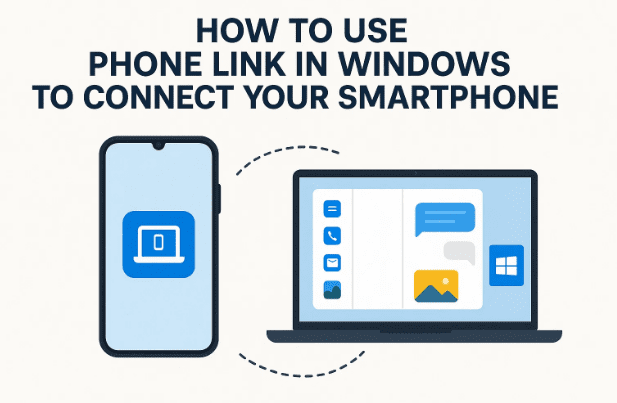
Staying connected between your smartphone and PC has become a necessity in today’s digital world. Microsoft understands this, which is why Windows comes with a built-in Phone Link feature. This tool allows you to seamlessly link your Android or iPhone with your Windows computer. Once connected, you can answer calls, send and receive text messages, view recent photos, and even sync notifications — all without picking up your phone.
When it was first released, Phone Link only supported Android devices. But Microsoft has since expanded compatibility, and now iPhone users can also enjoy the convenience. In this guide, we’ll cover everything step by step: from enabling Phone Link on your PC to pairing your phone, and finally exploring all the useful features.
Let’s dive in slowly, making sure no important detail is skipped.
1. What Is Phone Link in Windows?
Before we get into setup, it’s worth understanding what this feature is. Phone Link (formerly known as “Your Phone”) is a Microsoft application built into Windows 10 and Windows 11. It works together with the Link to Windows app on your smartphone to provide cross-device connectivity.
Think of it as a bridge: your computer and phone can talk to each other without cables. Messages, calls, and even images can flow between them, making multitasking far easier. Imagine replying to an urgent text while working on a Word document — without ever touching your phone.
2. System Requirements
Let’s make sure your devices are eligible before we proceed.
- Windows: Works on Windows 10 (May 2019 update or later) and all versions of Windows 11.
- Android: Requires Android 8.0 (Oreo) or higher. Almost all modern smartphones meet this.
- iPhone: Requires iOS 15 or later. That covers iPhone 6s and newer.
- Microsoft Account: Both your PC and your phone should be signed in with the same Microsoft account for seamless integration.
👉 Official Microsoft link for Phone Link: Phone Link App
3. How to Enable Phone Link on Windows
The first step is turning on Phone Link on your Windows computer.
- Open Settings.
- Navigate to Bluetooth & Devices.
- Click on Mobile Devices.
- Toggle the switch for Phone Link to On.
- Now click the arrow beside it and select Open Phone Link.
This will launch the Phone Link app where you’ll choose your device type (Android or iPhone).
💡 Tip: Ensure that your PC has Bluetooth enabled since it plays a role in the pairing process.
4. Connecting Your Android Phone
Android phones tend to integrate more deeply with Phone Link compared to iPhones. Here’s how to connect:


- In the Phone Link app, click Android.
- You’ll be prompted with a QR code on your computer screen.
- On your phone, install or open the Link to Windows app (available on the Play Store).
- Use the app to scan the QR code displayed on your PC.
- Approve the permissions it asks for:
- Camera & photos (so you can view your gallery on PC).
- Call logs and contacts (so calls and messages sync).
- Notifications (so alerts from WhatsApp, Telegram, etc., show up).
- Enter the PIN code shown on your computer if asked.
- Approve sign-in with your Microsoft account on both devices.
After this, your phone and PC will be paired.
👉 Download here: Link to Windows on Google Play
5. Connecting Your iPhone
Apple devices are a little more restrictive, but Microsoft has still made it work:
- In the Phone Link app, click iPhone.
- A QR code will appear on your PC.
- On your iPhone, open the camera and scan the QR code.
- You’ll be guided to connect via Bluetooth.
- Accept pairing requests on both devices.
- Sign in with your Microsoft account if prompted.
Currently, iPhone support is limited to calls, messages, and notifications. You won’t have full photo syncing like Android users, but it still covers the essentials.
6. Features You Can Use with Phone Link
Once connected, Phone Link unlocks a variety of features. Let’s go through them one by one so you know exactly what to expect.
6.1 Notifications
All notifications from your phone appear directly on your PC screen. For example:
- WhatsApp message alerts
- Instagram notifications
- Banking or OTP messages
You can even dismiss them from your PC, which also removes them from your phone. This keeps your workflow uninterrupted.
6.2 Text Messages
Phone Link allows you to send and receive SMS directly from your PC.
- Click Messages in the app sidebar.
- Browse your conversation history.
- Type new texts or reply instantly.
💡 Pro Tip: Even though it says SMS, it also works with some apps like RCS messages depending on your carrier.
6.3 Calls
Yes, you can answer and make calls from your PC if your phone is connected via Bluetooth.
- Click the Calls tab.
- Set up call permissions when prompted.
- Once linked, you’ll see your call history and a dialer.
This feature is particularly handy during work hours when your phone is charging across the room.
6.4 Photos
For Android users, Phone Link syncs the last 2,000 photos from your camera roll.
- Open the Photos tab.
- Scroll through recent shots.
- Click any photo to open it on your PC.
This is excellent for quickly attaching images to emails or editing them without manually transferring.
6.5 File Transfers
You can drag and drop files between your phone and PC. For example:
- Save a PDF on your phone and drag it into your PC desktop.
- Take a screenshot on your phone and instantly paste it into a Word document.
Transfers are usually faster on Wi-Fi than on mobile data.
7. Settings You Should Explore
Phone Link has several settings worth tweaking:
- Badges and Notifications: Decide which apps can send alerts to your PC.
- Theme: Switch between light and dark mode.
- Auto-start: Choose whether Phone Link launches at Windows startup.
- Storage Location: Define where received files will be saved.
- Audio Player: Enable sound control between devices.
Taking a few minutes to configure these will make your experience smoother.
8. How to Disconnect Your Phone
Sometimes you may want to unlink your phone, perhaps when switching devices.
- Open Settings > Bluetooth & Devices > Mobile Devices.
- Toggle Phone Link off.
- Alternatively, in the Phone Link app, select your device and click Remove Device.
This instantly cuts off the connection.
9. FAQs
Q1. Can I connect multiple phones to the same PC?
Yes, but only one device can be active at a time.
Q2. Why don’t I see my photos on iPhone?
Apple limits access — currently, only Android supports full photo sync.
Q3. Does Phone Link work without Wi-Fi?
Yes, it can use mobile data, but Wi-Fi is recommended for stability.
Q4. Is Phone Link safe to use?
Yes, data is encrypted. But always use your own trusted Microsoft account.
10. Final Thoughts
Phone Link is one of those underrated features in Windows that, once set up, becomes indispensable. It removes the constant distraction of juggling between phone and PC. Whether you want to check a quick text, pick up a call, or grab a photo for editing, it’s all possible from your desktop.
Take a few minutes to follow the setup steps, and you’ll unlock a level of convenience that makes your digital life much smoother.
⚠️ Disclaimer
Phone Link requires permission access on your smartphone. Always read what you are allowing before clicking “Accept.” Do not use on shared or public computers to avoid exposing personal data.
Tags
windows phone link, connect android to windows, connect iphone to windows, windows 11 features, microsoft link to windows, sms on pc, calls on pc
Hashtags
#Windows11 #PhoneLink #Microsoft #Android #iPhone #PCIntegration








hi i want my cell to be link with my pc