If you’ve just bought a new Android phone or recently reset your device, one of the first things you’ll need to do is set up a Google Play Store account. Without it, you can’t download apps, access updates, or sync your data across Google services.
In this article, we’ll walk through the complete process of creating a new Google Play Store ID (Gmail account) — from start to finish. You don’t need any technical knowledge; just follow along carefully, and you’ll have your Play Store working perfectly in minutes.
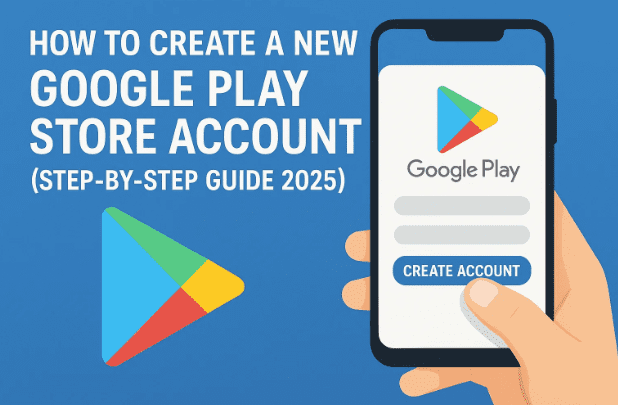
🔍 1. Why You Need a Google Play Store Account
Every Android phone requires a Google account (often referred to as a Gmail ID) to use the Play Store. This account allows you to:
- Download and update apps from the Play Store.
- Access Google services like Gmail, Drive, Maps, Photos, and YouTube.
- Sync contacts, calendar events, and app data across devices.
- Restore apps and settings after a factory reset.
Without a Play Store ID, you won’t be able to install even free apps — so this is an essential first setup step for any Android device.
🧾 2. Before You Begin: Things You’ll Need
Let’s make sure you have everything ready before starting the setup process.
You’ll need:
- A working internet connection (Wi-Fi or mobile data).
- Your Android smartphone or tablet.
- A mobile number (optional but helpful for recovery).
- A few minutes of your time and some patience.
Once you’re ready, let’s move to the next step — opening the Play Store.
📲 3. Step 1: Open the Play Store on Your Device
On your new or freshly reset Android device:
- Find and open the Google Play Store app (its icon looks like a colorful triangle).
- Once it opens, you’ll see an option that says “Sign In”.
If this is your first time using the Play Store on this phone, it will prompt you to sign in or create a new account.
🔑 4. Step 2: Start the Sign-In or Create Account Process
At this point, you’ll have two choices:
- Sign in with an existing Gmail ID — if you already have one.
- Create a new Google account — if you’re starting fresh.
Since we’re focusing on creating a new Play Store ID, tap on “Create account.”








You’ll then see three options on your screen:
- For my personal use
- For my child
- For work or business
👤 5. Step 3: Choose “For My Personal Use”
Select “For my personal use.”
This tells Google that you’re setting up a standard personal account — not one managed by a school, company, or family plan.
After choosing this option, the setup will begin. It might take a few seconds to load, depending on your connection speed.
✍️ 6. Step 4: Enter Your Name and Basic Details
Now you’ll be asked to enter your first name and last name (surname).
For example:
- First name: Deepak
- Last name: Maurya
If you want, you can leave the surname blank — it’s optional. However, adding your full name helps make your account more personal and professional.
After filling in your name, tap Next.
🎂 7. Step 5: Add Your Date of Birth and Gender
Next, Google will ask for your date of birth and gender.
Here’s why it matters:
- Your age helps Google personalize your experience (for example, hiding restricted apps if you’re under 18).
- Gender information is optional but can help personalize communication and recommendations.
Steps:
- Tap the date fields to select your day, month, and year of birth.
- Choose your gender (Male, Female, or Prefer not to say).
- Tap Next.
After this, you’re ready to create your Gmail address.
📧 8. Step 6: Create Your Unique Gmail Address
Now you’ll see a screen titled “Create a Google Account.”
Here, you can either:
- Choose from Gmail suggestions (like example@gmail.com), or
- Type your own unique Gmail name.
If the ID you want is unavailable, you’ll see a message saying “That username is taken.” In that case, try adding:
- Numbers (e.g., example82@gmail.com)
- Or a middle name or nickname.
Keep it simple and professional — this Gmail ID will be used for app purchases, emails, and account recovery.
Once you find an available address, tap Next to continue.
🔒 9. Step 7: Set a Strong Password
Creating a strong password is very important for keeping your Google account safe.
Your password should include:
- At least 8 characters
- A mix of uppercase and lowercase letters
- At least one number (0–9)
- At least one special character (like @, #, $, or %)
Example of a strong password:
Deepak@2025Secure
Avoid using your name or simple sequences like “123456.”
After typing your password, retype it again to confirm, then tap Next.
📞 10. Step 8: Add or Skip Your Phone Number
Google will now ask if you’d like to add a phone number to your account.
Adding your number is optional but highly recommended — it helps in:
- Recovering your account if you forget your password.
- Getting verification codes for security.
If you don’t want to link your number, select “Yes, I’m in” or simply tap Skip.
Then proceed by tapping Next.
🧾 11. Step 9: Review Terms and Complete Account Setup
Next, you’ll see Google’s Terms of Service and Privacy Policy.
Scroll through the text and tap “I Agree.”
Once you accept, Google will finalize your account setup — it may take a few seconds.
After this, you’ll be automatically signed in, and your Play Store ID will be created successfully.
✅ 12. Step 10: Access the Play Store and Verify Everything
After completing all the steps, you’ll see the Play Store’s home screen with app recommendations.
Congratulations — your new Play Store account is now active!
Try downloading any free app like Google Keep or WhatsApp to ensure everything is working.
You can also verify your Gmail by visiting https://mail.google.com — the same credentials work there too.
⚠️ 13. Troubleshooting Common Errors
Sometimes, users face small errors during account creation. Here’s how to fix them:
❌ Error: “This email address is not available.”
Fix: Try adding numbers or different spellings until it’s unique.
❌ Error: “Check your connection.”
Fix: Switch to Wi-Fi, restart your phone, or clear cache in Play Store settings.
❌ Error: “Could not verify your info.”
Fix: Wait a few minutes, restart the device, and try again. Ensure your date of birth is valid (age above 13).
❌ Forgot Password?
Go to https://accounts.google.com/signin/recovery and follow Google’s password reset steps.
❓ 14. Frequently Asked Questions (FAQs)
Q1. Can I create multiple Play Store accounts on one phone?
Yes, you can. Android allows adding multiple Google accounts. Go to Settings → Accounts → Add account → Google.
Q2. Is a phone number mandatory for account creation?
No. You can skip it, but adding one helps with security and password recovery.
Q3. What if I forgot my old Gmail ID?
Visit https://accounts.google.com/signin/recovery and use the “Forgot email?” option to recover it.
Q4. Can I use the same Google ID on multiple devices?
Absolutely. You can log in with the same ID on several phones or tablets, and all apps and purchases will sync.
Q5. How do I delete an old Google account from my phone?
Go to Settings → Accounts → Google → Select the account → Remove account.
🏁 15. Conclusion
Creating a new Google Play Store account is simple and only takes a few minutes. Whether you’ve bought a new smartphone or reset your existing one, following these steps ensures smooth access to the Play Store and all of Google’s essential services.
Here’s a quick recap of the process:
- Open Play Store → Tap “Sign In.”
- Select “Create account → For my personal use.”
- Enter name, date of birth, and gender.
- Create your Gmail ID and strong password.
- Add a phone number (optional).
- Accept the terms and sign in.
And that’s it — your Play Store is ready to use! You can now download apps, games, movies, books, and more from the world’s largest Android app marketplace.
Disclaimer:
The steps and interface may vary slightly depending on your Android version or device brand (Samsung, Xiaomi, OnePlus, etc.). This guide is based on the standard 2025 Android experience with Google Play pre-installed.
Tags: Play Store, Google Account, Gmail Setup, Android Tips, Account Creation, Google ID, Mobile Setup, App Installation, Android Help
Hashtags: #GooglePlayStore #AndroidSetup #GmailAccount #PlayStoreTips #TechGuide #dtptips #AndroidHelp #GoogleID #MobileGuide








