Transferring your data from one Android phone to another can feel like a big task — especially if you’ve just upgraded to a new device and don’t want to lose your photos, videos, contacts, or apps. Thankfully, with the right tools, you can do this for free, safely, and quickly, without any cables or complicated settings.
In this detailed guide, you’ll learn exactly how to transfer all data from one Android phone to another using a simple and reliable app — EasyShare (also known as Easy Sir). Whether you’re moving from a Realme to a Samsung, or any other Android brand, the steps remain the same.
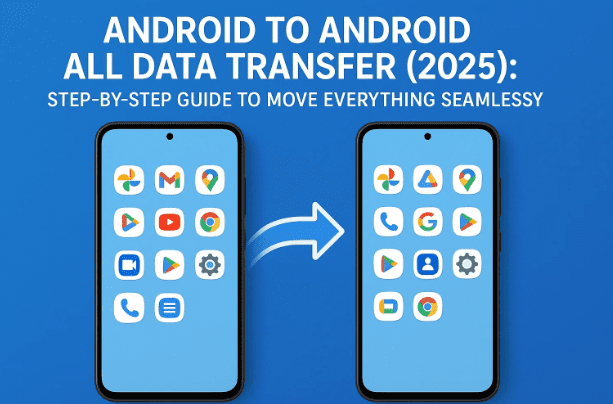
Let’s get started and move your entire digital world to your new device.
1️⃣ Why You Need a Data Transfer App
When you buy a new Android phone, moving data manually can take hours. Bluetooth is slow, cloud uploads depend on internet speed, and cables are often incompatible with new USB-C ports.
That’s where peer-to-peer transfer apps come in — they create a local Wi-Fi hotspot between two phones and send files directly at high speed.
The benefits are:
- No internet data required.
- Transfer speeds up to 40 MB/s.
- Works for apps, photos, videos, contacts, and documents.
- Simple interface — even non-technical users can manage it.
Now, let’s move to the next step and learn about the tool that makes this process effortless.
2️⃣ Meet EasyShare: The Free All-in-One Transfer App
EasyShare (sometimes listed as Easy Sir on Google Play) is a lightweight Android app by Vivo/Xender Technologies that helps users transfer all kinds of data from one phone to another without cables.
🔗 Download link: EasyShare on Google Play Store
It supports:
- Android-to-Android transfers
- iPhone-to-Android and vice versa
- File sharing with Windows PCs
The best part? It’s 100% free, ad-free in most regions, and doesn’t need an internet connection once installed.


Let’s go ahead and see how to set it up properly.
3️⃣ Installing EasyShare on Both Devices
To ensure a smooth setup, follow these preparation steps first.
Step 1: Open Google Play Store
On your old phone, open the Play Store and search for “EasyShare.” Tap Install.
Do the same on your new phone as well.
Step 2: Launch the App
Once installed, open EasyShare on both devices. The first time you open it, you may see a permission request screen. Allow all the required permissions for:
- Storage Access (to read files)
- Contacts (if you want to transfer phone numbers)
- Nearby Devices or Wi-Fi
These permissions ensure that both phones can detect and communicate securely.
So far, we’ve done a good job preparing the devices. Now, let’s move on to the real process of transferring data.
4️⃣ Step-by-Step: Sending and Receiving Data
Here’s how to move everything between your two Android phones.
Step 1: Identify Sender and Receiver
- Old Phone → Sender (This is where your current data is).
- New Phone → Receiver (This is where the data will arrive).
Step 2: Choose File Transfer Mode
On your old phone, open EasyShare and tap “File Transfer” → “Send”.
On your new phone, open EasyShare and tap “Receive”.
Step 3: Establish Connection
Once you tap “Send” on the old phone, a QR code scanner will appear on the new phone.
- Use your new phone to scan the QR code displayed on the old phone.
- Both devices will automatically connect over Wi-Fi Direct.
Within seconds, you’ll see a “Connected Successfully” message.
No internet or mobile data is used — this is a local secure link.
Now that both phones are connected, it’s time to choose what you want to transfer.
5️⃣ Transferring Photos, Videos, and Files
Let’s start with media files since they take up the most space and are usually the most valuable.
Step 1: Select Photos and Videos
On your old phone, after pressing “Send,” you’ll see several categories such as:
- Apps
- Photos
- Videos
- Music
- Files
- Contacts
Tap on Photos or Videos.
You can either:
- Select specific files manually, or
- Tap Select All to include everything.
Example: You may see something like 8,571 images selected.
Step 2: Add Files and Documents
If you want to transfer PDFs, Word files, or downloaded documents, go to Files → Select All.
Step 3: Start the Transfer
Once you’ve chosen everything, tap the Send button.
You’ll see real-time progress such as:
Transferring: 297 MB of 300 MB complete.
The transfer speed depends on your phone’s Wi-Fi chip, but even a few gigabytes move in minutes.
6️⃣ Transferring Contacts and Apps
Contacts are just as important as media, and EasyShare makes that simple too.
Step 1: Choose Contacts
Inside EasyShare, tap the Contacts tab.
You can select:
- Specific contacts, or
- Tap Select All to move your entire phonebook.
This ensures that your new device immediately has every saved number — no SIM export or cloud sync needed.
Step 2: Select Apps
If you want your installed apps to move over too, tap the Apps tab.
- EasyShare sends the APK installation files for each selected app.
- Once received, your new phone will prompt you to install them.
⚠️ Note: App data (like WhatsApp messages) is not included in this process. You’ll need separate backups for that, which we’ll discuss below.
So far, you’ve successfully selected and transferred photos, videos, files, and contacts. Let’s now verify that everything has arrived correctly.
7️⃣ Checking and Saving Received Data
After the transfer finishes, open your new phone’s gallery and file manager.
You’ll notice:
- Photos and videos appear in your Gallery automatically.
- Contacts are visible inside your Phone app.
- Apps show in Downloads or EasyShare’s folder, ready to install.
To confirm, open the EasyShare > Received Files section. You’ll find all media organized neatly by file type.
If something seems missing, you can reconnect and resend just that category without redoing the entire process.
8️⃣ Troubleshooting and Common Tips
Even though EasyShare works smoothly, here are a few useful things to keep in mind:
- Both phones must have Wi-Fi enabled. Even though no data is used, Wi-Fi Direct is the connection method.
- Avoid switching apps while transferring large files. Stay on the screen until completion.
- Allow all permissions when prompted — denying one may prevent certain files (like contacts) from copying.
- Keep phones near each other for stable connection (within 1 meter).
- For WhatsApp chats, use the built-in WhatsApp “Transfer Chats” feature under Settings → Chats → Transfer Chats to Android instead of EasyShare.
Let’s quickly look at a few questions people usually have about Android-to-Android transfers.
❓ 9️⃣ Frequently Asked Questions (FAQs)
Q1: Can I transfer WhatsApp chats using EasyShare?
No. EasyShare can transfer the app itself but not your chat data. Use WhatsApp’s official built-in transfer feature or Google Drive backup.
Q2: Do I need an internet connection for this process?
No internet or mobile data is needed. EasyShare uses Wi-Fi Direct, which is faster and works offline.
Q3: Will my photos and videos lose quality after transfer?
No. Files are transferred exactly as they are — without compression or quality loss.
Q4: Can I transfer data between different Android brands?
Yes. You can transfer from any Android to any Android — Realme to Samsung, Xiaomi to OnePlus, Vivo to Pixel, etc.
Q5: What if I only want to transfer contacts or documents?
That’s fine! Just select those categories. EasyShare allows custom transfers for specific file types.
Q6: How much data can I transfer at once?
There’s no strict limit. Users have successfully moved over 10 GB in one session, depending on the storage and Wi-Fi strength.
✅ 10️⃣ Final Thoughts
Migrating to a new phone doesn’t have to be stressful. With apps like EasyShare, you can move your photos, videos, apps, and contacts within minutes — safely and without cables.
Let’s recap what we learned:
- Install EasyShare on both phones.
- Set one phone to Send and the other to Receive.
- Select what you want to transfer (apps, media, contacts).
- Scan the QR code to connect.
- Wait a few minutes — and your new phone is ready to use!
It’s fast, reliable, and works across all Android brands.
Now you can enjoy your new phone with all your memories, contacts, and files intact — just the way you like them.
⚠️ Disclaimer
This article is intended for educational purposes to help users transfer data between Android devices. The EasyShare app belongs to its respective developer, and users are advised to download it only from the official Google Play Store. Always verify app permissions and ensure both devices are trusted before transferring sensitive data.
#Android #DataTransfer #EasyShare #MobileTips #AndroidToAndroid #SmartphoneSetup #TechGuide #2025Tech #AndroidApps #FileTransfer







