File compression and extraction tools are essential in our digital lives. Whether you’re downloading software, sharing documents, or archiving old projects, chances are you’ve come across RAR or ZIP files. One of the most popular tools for handling them is WinRAR.
Despite being a paid software, WinRAR is known for its unique lifetime trial that lets users access almost all features without restrictions. That’s why it has become a staple for Windows, Mac, Linux, and even Android users.
In this guide, I’ll walk you through everything you need to know about using WinRAR — from downloading and installing it to compressing files, extracting archives, setting passwords, and even splitting large files into smaller parts. By the end, you’ll be comfortable handling almost any compressed file format you encounter.
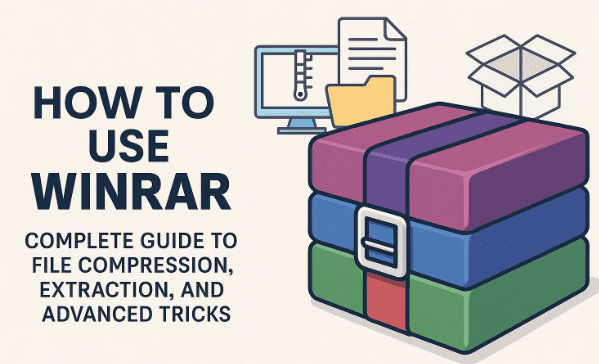
1. What Is WinRAR and Why Do You Need It?
Before we jump into the technical steps, let’s take a moment to understand why WinRAR remains one of the most widely used utilities worldwide.
WinRAR is a file archiver utility. Its main job is to:
- Compress files into smaller packages (reduces storage space).
- Extract files from archives like
.rar,.zip,.7z,.tar, and many more. - Encrypt data with password protection.
- Split large files into smaller volumes for easier sharing.
Imagine you want to email a folder that’s 500 MB. Many email providers have a limit of 25 MB. Using WinRAR, you can compress and split the file into 25 MB parts and send them separately. On the receiving end, your friend can combine and extract them.
This combination of flexibility, reliability, and extra features is why WinRAR has stood the test of time.
2. Downloading WinRAR Safely
Now, let’s move to the practical part. Downloading WinRAR is very simple, but you must ensure you download it from the official website to avoid malware-infected copies.
- Open your web browser and search for “WinRAR download”.
- Go to the official WinRAR website.
- On the homepage, the site automatically detects your operating system and shows the right version for download.
The file size is small — around 4 MB, which makes it very quick to download.
👉 Tip: If you want to download a different version (for Mac, Linux, FreeBSD, or Android), scroll down on the official website. You will see multiple platform options and even localized language versions like German, Italian, and Portuguese.
3. Installing WinRAR on Your Computer
Once you’ve downloaded WinRAR, installation is straightforward.







- Locate the downloaded
.exefile and double-click it. - A dialog box will appear asking for permission — click Yes.
- Click Install to proceed.
- You will see some optional settings, such as file associations. Most users can leave them as default.
- Click OK, and then Done.
Congratulations — WinRAR is now installed and ready to use!
4. First Steps: Exploring the Interface
After installation, right-click any file or folder on your computer. You will notice new context menu options under WinRAR. Depending on your Windows version, these may look slightly different, but they usually include:
- Add to Archive
- Compress and email
- Extract Here
- Extract to [folder name]
These options are the backbone of file compression and extraction. Now, let’s explore them one by one.
5. How to Compress Files with WinRAR
Let’s say you have two files you want to package together into a compressed archive.
- Select the files.
- Right-click and choose Add to Archive… from the WinRAR menu.
- A window will open where you can:
- Name your archive.
- Choose a format (RAR or ZIP).
- Select compression method (Store, Fastest, Normal, Good, Best).
👉 Compression Methods Explained:
- Store – no compression, just packaging (fastest).
- Fastest – compress quickly but with less size reduction.
- Normal – balanced speed and size.
- Good/Best – maximum compression but takes more time.
Click OK to create your archive. You’ll see a .rar or .zip file appear in the same directory.
6. Extracting Files from Archives
Now that you’ve compressed files, let’s see how to extract them back.
- Right-click the archive file.
- Choose one of the following:
- Extract Here → Extracts all files into the same folder.
- Extract to [folder name] → Creates a new folder with the same name as the archive and extracts files into it.
- Extract Files… → Lets you manually choose a destination folder.
This flexibility is useful. For example, if your desktop is messy, you might prefer extraction into a dedicated folder rather than cluttering everything.
7. Creating ZIP Archives Instead of RAR
Although RAR is WinRAR’s native format, sometimes ZIP is a better choice.
- ZIP is supported natively on Windows, macOS, and even smartphones.
- Many websites require uploaded archives to be in ZIP format.
To create a ZIP archive:
- Select your files and right-click → Add to Archive.
- In the archive settings window, change Archive Format from RAR to ZIP.
- Click OK.
Now you have a ZIP file that is universally accessible.
8. Setting Passwords for Compressed Files
One of WinRAR’s most powerful features is encryption. You can lock your archives with a password so only those who know it can open the files.
- While creating an archive, click Set Password.
- Enter your password twice (for confirmation).
- Optionally, enable Show Password to double-check typing.
- Click OK.
Now, when someone tries to extract that archive, they’ll be prompted to enter the password. This is especially useful for sensitive documents.
9. Extracting Files to Custom Locations
Sometimes you don’t want files extracted into the same folder. Maybe your C: drive is almost full, and you prefer storing data on D: or an external drive.
Here’s how to do it:
- Right-click the archive and choose Extract Files….
- A dialog box appears — browse and select your desired destination.
- Click OK.
- If the file is password protected, enter the password to continue.
This ensures you can organize extracted files exactly where you want them.
10. Splitting Large Files into Smaller Parts
Here’s where WinRAR shines for heavy users. Suppose you have a 4 GB file but need to upload it to a service with a 2 GB upload limit.
You can split it into smaller chunks:
- Right-click the file → Add to Archive.
- Under Split to Volumes, Size, choose your split size (e.g., 500 MB, 1 GB).
- Click OK.
WinRAR will create multiple files (e.g., file.part1.rar, file.part2.rar, etc.).
To restore them, simply keep all parts in the same folder and extract the first one. WinRAR automatically merges them.
11. Handling Split Archives and Common Errors
If any part of a split archive is missing or corrupted, extraction fails. You’ll see an error like:
“You need to find part 2 of this archive.”
This means all parts are mandatory. If even one is deleted, you cannot extract the files. Always keep all split files together until extraction is complete.
12. Best Practices for File Compression
Here are some golden rules for making the most of WinRAR:
- Use RAR format for personal storage (better compression).
- Use ZIP format for sharing online (universal support).
- Always set passwords for sensitive files.
- For very large files, use the split feature to avoid upload limits.
- Keep backups of important archives — compressed files can get corrupted if the storage device fails.
13. FAQs About WinRAR
Q1. Do I need to buy WinRAR to keep using it?
No. WinRAR shows a trial reminder after 40 days, but the software keeps working indefinitely with all features enabled.
Q2. Which is better — RAR or ZIP?
RAR compresses better and supports advanced features. ZIP is more universal. Choose based on your use case.
Q3. Can I open 7z files with WinRAR?
Yes, WinRAR supports 7z along with many other formats like TAR, ISO, and CAB.
Q4. What happens if I forget the password to a protected archive?
You cannot open it without the correct password. There are password recovery tools, but success is not guaranteed.
14. Final Thoughts and Safety Tips
WinRAR remains one of the most trusted tools for file management. Whether you’re compressing files to save space, encrypting sensitive data, or splitting archives for easier sharing, WinRAR handles it all with ease.
But remember:
- Always download from the official website.
- Keep backups of important archives.
- Use strong passwords if security matters.
By mastering the techniques explained above, you’ll be able to handle nearly any archive format and situation with confidence.
Disclaimer
This article is for educational purposes only. Always ensure you download software from official sources to avoid security risks. Password protection in WinRAR is strong, so do not forget your chosen password.
Tags: WinRAR, file compression, file extraction, RAR files, ZIP files, password protection, split archives, data storage
Hashtags: #WinRAR #FileCompression #RAR #ZIP #DataManagement #TechTutorial








