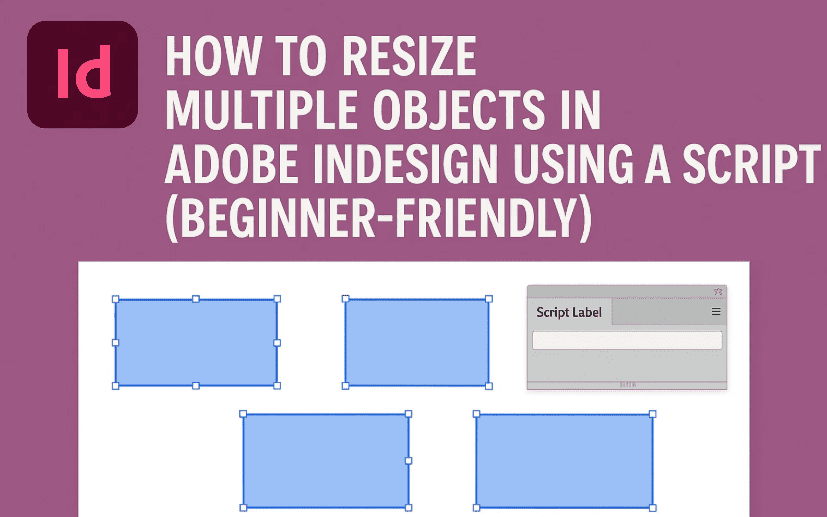
Ever needed to resize dozens of text boxes, images, or shapes in Adobe InDesign all at once? Doing it manually is painful, especially if they’re scattered across different pages.
Luckily, with a tiny script and a few clicks, you can resize all selected objects in bulk—saving time and frustration.
This blog is designed especially for beginners who have never written or used a script in InDesign before. We’ll walk you through everything, from where to paste the code to running your new resizing tool.
✂️ What This Script Does
This script allows you to resize all selected items in your InDesign document to a specific percentage of their original size. You can define the width and height scaling separately.
Here’s the basic script:
// Resize all selected objects in InDesign
var scaleX = 80; // Resize width to 80%
var scaleY = 80; // Resize height to 80%

if (app.selection.length > 0) {
    for (var i = 0; i < app.selection.length; i++) {
        var obj = app.selection[i];
        obj.resize(
            CoordinateSpaces.INNER_COORDINATES,
            AnchorPoint.CENTER_ANCHOR,
            ResizeMethods.MULTIPLYING_CURRENT_DIMENSIONS_BY,
            [scaleX / 100, scaleY / 100]
        );
    }
    alert("Selected items resized to " + scaleX + "% width and " + scaleY + "% height.");
} else {
    alert("Please select one or more objects to resize.");
}
🛠️ Let’s Set It Up from Scratch
If you’ve never used or created a script before in InDesign—don’t worry. We’ll walk you through the full process, just like we did in the last blog.
🗂️ Step 1: Open the Scripts Panel in InDesign
First, we need access to the place where InDesign stores and runs your custom scripts.
- Open Adobe InDesign.
- Go to:
Window > Utilities > Scripts - The Scripts panel will appear (usually on the right-hand side).
- Under User, you’ll add your custom script.
📁 Step 2: Find the Script Folder on Your Computer
Here’s how to find where to save your custom script:
- In the Scripts panel, right-click the User folder.
- Click “Reveal in Explorer” (Windows) or “Reveal in Finder” (macOS).
- This will open the correct folder for saving your custom scripts.
Keep this window open—we’ll come back here in a moment.
📝 Step 3: Create the Script File
Let’s create the .jsx script file that InDesign will run.
A. Open Notepad (or any plain text editor)
- Open Notepad (
Win + R→ typenotepad→ Enter). - Copy and paste the full script mentioned above.
B. Save It With the .jsx Extension
- Go to File > Save As.
- In the File name, enter:
resizeBulk.jsx - Set Save as type to:
All Files (*.*) - Click Save.
✅ Tip: Make sure the file is not accidentally saved as resizeBulk.jsx.txt. If so, we’ll fix that next.








If there is still a problem creating a jsx file you can download it from here as a zip file, Extract it paste it in the user folder, Your script is ready to use.
You may be intrested in this also … How to Count Selected Objects in InDesign Using a Simple Script
👁️ Step 4: Show File Extensions (if hidden)
If you can’t see file extensions in your folder, you may be fooled into thinking it’s a .jsx file when it’s really a .txt.
Here’s how to check:
- Open a folder in Windows Explorer.
- Go to the View tab.
- Tick the checkbox that says “File name extensions”.
- Now check if your file ends in
.jsx. If it says.txt, rename it by right-clicking > Rename > remove.txt.
📥 Step 5: Move Your Script to the InDesign Script Folder
- Go back to the folder revealed earlier by InDesign.
- Copy your
resizeBulk.jsxfile. - Paste it inside the User folder.
🧪 Step 6: Run the Script in InDesign
Time for the magic! Here’s how to test your script:
- Select a few objects (text boxes, images, shapes) in your InDesign document.
- Go to the Scripts panel.
- Right-click the User folder > click Refresh if needed.
- Double-click on
resizeBulk.jsx.
You’ll see your selected objects instantly resize to 80% of their original width and height. A confirmation alert will also appear.
🔧 Want to Customize the Resize Percentage?
You can easily change the scaling values:
var scaleX = 100; // width
var scaleY = 50;  // height
- To shrink only vertically, change
scaleYand leavescaleXas 100. - To enlarge, use values over 100, like
120for 120% size.
❓FAQ – Frequently Asked Questions
Q: What happens if I select grouped objects?
Grouped items will resize as a whole. Ungroup them first if you want individual resizing.
Q: Does it distort objects?
Only if you use different scale values for X and Y (like 100% width and 50% height). Equal values maintain proportions.
Q: Will text inside a text frame resize too?
Yes. This method resizes the frame, but not the font size. Font scaling would require a separate script.
Q: Can I undo the changes?
Yes! Press Ctrl + Z right after running the script to undo the resize.
⚠️ Disclaimer
Always work on a copy of your document before running custom scripts—especially on large projects. Unexpected results may occur if objects are locked, on master pages, or behave differently due to anchored positioning.
🔖 Tags and Hashtags
Tags: InDesign resize script, resize objects InDesign, InDesign automation, bulk editing, jsx script for InDesign, beginner InDesign scripting, InDesign script tutorial
Hashtags:
#InDesignScript #ResizeObjects #AdobeInDesign #DesignAutomation #JSXScript #InDesignTips #InDesignForBeginners #CreativeWorkflow
And that’s it—you’ve just created your very own bulk object resizer inside Adobe InDesign. 💪
This is just the beginning of what scripting can unlock for your workflow. Want to go deeper? Stay tuned for more beginner-friendly InDesign scripting guides coming soon.
Let me know in the comments if you’d like a guide on aligning elements via script, applying styles in bulk, or even creating an automated PDF exporter. Happy designing!