One of the most requested features since the release of Windows 11 has been the ability to ungroup taskbar icons. In Windows 10, users could see every open window as a separate taskbar entry. But in the early versions of Windows 11, apps and windows were automatically grouped, making it harder to switch between multiple files or browser windows.
With the release of Windows 11 version 23H2, Microsoft finally brought this feature back. Now you can ungroup taskbar buttons and even show labels next to them—just like the old days.
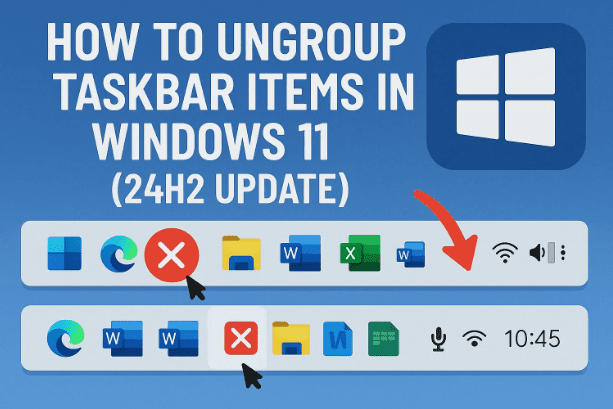
In this detailed guide, we’ll explain exactly how to enable it, step by step. We’ll also discuss why this feature matters, possible downsides, and answer some common questions users have about the new update.
1) 🤔 Why Was Ungrouping Taskbar Buttons So Important?
In Windows 11 (prior to 23H2), taskbar icons for the same app—like multiple Word documents or browser windows—were grouped into a single icon. To access different windows, you had to hover over the icon and then select the window from a preview.
While some users prefer this cleaner look, power users and multitaskers found it inefficient.
Ungrouping brings:
- One-click access to each open window.
- Better visibility of what’s running.
- Labels that show the file or app name (not just the icon).
Now, let’s see how you can check your update and turn it on.
2) 🔎 Step 1 – Check if You Have the Windows 11 23H2 Update
Before enabling ungrouping, confirm you’re running version 23H2.
- Open Settings (
Win + I). - Navigate to: System → About.
- Under Windows specifications, look for Version.
- If it shows 23H2, you’re good to go.
- If not, you’ll need to wait for the update via Windows Update, or manually install it from Microsoft’s official site.
👉 Without version 23H2, the ungroup option will not appear.
3) ⚙️ Step 2 – Enable Ungrouped Taskbar Icons
Once you have the update installed:
- Right-click on the taskbar.
- Select Taskbar settings.
- Scroll down to Taskbar behaviors.
- Look for Combine taskbar buttons and hide labels.
Here you’ll see three options:








- Always (default) – Groups icons and hides labels.
- When taskbar is full – Shows labels until the taskbar runs out of space.
- Never – Keeps windows ungrouped and shows labels for each open app/file.
Select Never to fully ungroup taskbar items. Hope you are enjoying this article for more such articles that fix the taskbar and windows related issue, here is the complete list of articles on Windows Taskbar.
4) 🔄 Step 3 – Taskbar Button Behavior Options Explained
It’s worth taking a moment to understand these settings so you can choose the right one.
- Always, hide labels (default)
- Icons for the same app are grouped.
- Labels (text names) are hidden.
- This is the cleanest but least informative option.
- When taskbar is full
- Icons are separated with labels while space is available.
- Once the taskbar fills up, Windows automatically groups them again.
- Never
- Every window shows individually.
- Labels stay visible all the time.
- Taskbar may look crowded at lower resolutions, but it’s the best for multitasking.
So far, we’ve done a good job exploring the settings—now let’s look at the benefits.
5) 🌟 Benefits of Ungrouping Taskbar Icons
- Easier Multitasking: Quickly switch between multiple files without hovering.
- Labels Provide Context: See which file or website tab is open at a glance.
- Reduced Misclicks: No more accidentally opening the wrong window from a preview.
- Feels Familiar: Brings back the workflow from Windows 7/10 for long-time users.
6) ⚠️ Possible Drawbacks to Consider
- Takes More Space: Each window uses its own taskbar slot.
- Cluttered at Low Resolution: On smaller screens, ungrouped items can push the Start button further left.
- May Look Old-School: Some users prefer the minimalist, grouped style of modern Windows.
If you often work with dozens of windows, you might prefer the When taskbar is full option as a balance.
7) ❓ Frequently Asked Questions (FAQ)
Q1. Why don’t I see the ungroup option in my Taskbar settings?
You need to be on Windows 11 version 23H2. Update via Windows Update or manually install it.
Q2. Can I ungroup taskbar icons on Windows 11 Home edition?
Yes. The feature is available for all editions starting from 23H2.
Q3. Will this affect performance?
No, this is purely a UI feature.
Q4. What happens if my taskbar runs out of space?
If you select Never, Windows will keep adding icons. If you select When taskbar is full, Windows will regroup items automatically.
Q5. Can I keep icons centered while ungrouped?
Yes, ungrouping doesn’t affect alignment. Icons may shift slightly if the taskbar becomes crowded.
8) ⚠️ Disclaimer
The ungroup option is only available starting Windows 11 23H2. If you’re on an older version, you cannot enable this setting without upgrading. Always install Windows updates from official Microsoft sources to ensure security and stability.
Tags
Windows 11 23H2, ungroup taskbar icons, Windows taskbar settings, Windows 11 customization, Windows 10 vs Windows 11 taskbar
Hashtags
#Windows11 #Taskbar #Customization #UngroupIcons #WindowsUpdate
✅ With this update, Microsoft finally listened to user feedback. If you’ve been missing the ungrouped taskbar from Windows 10, you can now enjoy the same functionality in Windows 11—making multitasking easier and your workflow smoother.








