If you are one of the more than 1.6 billion people worldwide who rely on a Windows PC—whether for work, study, gaming, or keeping up with family—there are two absolute guarantees in the world of computing: One, your computer will eventually fail. And Two, at some point, that Windows PC holding all your personal files is going to become unbootable.
It’s not a matter of if your system breaks, but when.
This isn’t meant to scare you; it’s a simple, undeniable truth forged over decades of experience in the trenches of computer repair. When that inevitable day comes—perhaps after one bad Windows update, a rogue driver, or a simple hardware hiccup—you’ll be staring at the dreaded Blue Screen of Death (BSOD), and all your files will be locked away. Without the right tools, your computer is highly likely to end up in a landfill or a costly repair shop.
I’ve made countless articles about Windows troubleshooting, and the most common complaint is always the same: the Windows built-in recovery and troubleshooting menus either lack the necessary options or simply fail to work when you need them most. Most people ignore their computers until disaster strikes, but this time, we’re going to be proactive.
As someone who has spent over 30 years in computer repair, I can tell you unequivocally that you want these tools before the problem starts, not after. That’s why I’m going to walk you through how to create the two most powerful, indispensable USB flash drives that every single Windows user needs. With these two drives, you will have the ability to access your files, repair Windows, or even perform a fresh re-installation without the panic of losing everything.
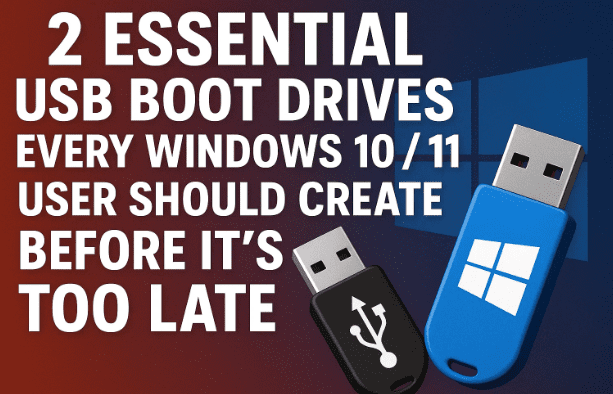
It’s super easy, and if you follow the instructions step-by-step, you will be prepared for virtually any crisis.
Part I: Gearing Up and Gathering the Essentials
Before we dive into the exciting part of actually building these digital lifeboats, we need to gather our materials. Think of this as preparing your emergency toolkit—you wouldn’t wait until your basement is flooding to buy sandbags, right?
Here’s what you’ll need for this initial phase:
- A Working Computer: This can be your own PC (while it’s still functional) or a trusted friend’s machine. We need this to download the necessary software and media files.
- Two USB Flash Drives: You will need one drive for each tool we are creating. A minimum capacity of 8 Gigabytes (GB) is sufficient for each drive. It’s crucial that these drives are empty, as the creation process will completely erase (format) any data currently on them. You may want to label them clearly once complete—perhaps “Windows Installer” and “Hiren’s BootCD.”
Once you have your working computer and the two blank USB drives ready, we can move on to creating our first essential tool: the Windows Installation Media.
Part II: Creating the Windows Installation Media Drive
The first drive we are going to create is the Windows Installer Disk. This isn’t just for installing Windows from scratch; it is your primary weapon for initiating the built-in Windows recovery environment when your computer refuses to boot normally. With this disk, you’ll be able to perform critical operations such as checking the integrity of your hard drives, removing problematic updates, running System Restore, and checking your Windows file system.
To create this essential disk, we use an official, free tool provided by Microsoft.




The Tool: The Media Creation Tool
The Media Creation Tool is a utility designed by Microsoft to download a full, legitimate copy of the Windows operating system and prepare a USB drive to be bootable. This ensures the drive contains all the necessary files and is configured correctly to start the Windows setup or recovery process outside of the operating system itself.
Here is the step-by-step process for creating your Windows Installation Media:
Step 1: Downloading the Tool
- Open your web browser and navigate to Google.
- In the Google search bar, type in: Windows media creation tool.
- The very first link should take you directly to the official Microsoft support page. Click on that link.
- Note: Always ensure you are downloading system tools like this from the official source, in this case, a microsoft.com domain, to avoid malicious software.
- On the Microsoft page, scroll down until you find the section that says something like “Create Windows 10/11 Installation Media” and click the button that says “Download tool now”.
- Choose a location on your computer (like your Downloads folder) to save the executable file, and click OK to begin the download.
Step 2: Running the Tool and Preparing the Drive
- Once the file is downloaded, go to your Downloads location and double-click the file to open the Media Creation Tool.
- The tool will begin by showing the message: “Getting a few things ready.” Be patient; this can take a few minutes as it prepares the initial setup environment.
- You will then be prompted to Accept the license terms and notices. Read them, if you wish, and click Accept.
- At this point, plug in your first, empty USB flash drive into an available USB port. Wait for Windows to recognize it, and make a note of the Drive Letter assigned to it (e.g., Drive J:, Drive E:). This is crucial for the next steps.
Step 3: Configuring the Media Drive
- A few moments after accepting the license terms, the tool will ask: “What do you want to do?” You need to select the option: “Create installation media (USB flash drive, DVD, or ISO file) for another PC.”
- Do not choose the “Upgrade this PC now” option, as we are creating a repair tool, not an immediate upgrade.
- Click Next.
- The next screen will ask for the Language, Edition, and Architecture (32-bit or 64-bit). In most cases, it is fine to leave the box “Use the recommended options for this PC” checked, as the tool will detect the correct version based on the computer you are running the tool on. If you know you need a specific version (e.g., you are making a drive for an older 32-bit machine), uncheck the box and make your selections.
- Click Next.
- The final selection screen asks: “Choose which media to use.” Select the option: “USB flash drive.”
- Click Next.
- The tool will now ask you to select the correct drive. Choose the Drive Letter that you noted earlier (e.g., J: drive) from the list. Be absolutely certain you select the correct drive, as all data on the chosen drive will be permanently erased.
- Click Next, and the creation process will begin.
Step 4: Finalizing the Disk
- The tool will now download the full Windows installation files and write them to the USB drive. This process usually takes 10 to 15 minutes or more, depending on your internet speed.
- When it’s complete, a message will appear saying, “Your USB flash drive is ready.”
- Click Finish.
Congratulations! You have successfully created your first vital bootable drive. You can now safely remove it and put it in a secure location. The Windows Installation Media is now your emergency key to unlocking the Windows recovery environment.
Part III: Building the “Swiss Army Knife” – Hiren’s BootCD PE
We’ve created our first life raft, the official Windows installer, which gives us access to Windows’ native repair tools. This is a great start, but sometimes, Windows itself is too corrupted, or the problems are too deep-seated (like a damaged bootloader or a complex virus) for the native tools to handle.
This is where our second drive, the Hiren’s BootCD PE (HBCD PE), comes in. I call this the “Swiss Army Knife” of computer repair because it is a collection of hundreds of specialized, third-party troubleshooting and recovery tools, all housed on a lightweight, dedicated operating system that runs entirely from the flash drive. It is an invaluable resource for any serious recovery or repair work.
Hiren’s BootCD PE is a modified, portable version of Windows that includes everything from hard drive diagnostics and partitioning tools to antivirus and file recovery utilities. Crucially, it lets you access your computer’s files even if Windows won’t load at all, making it the ultimate tool for data rescue.
Creating this drive is a two-step process: first, downloading the ISO file (the disc image of the HBCD PE operating system), and second, using a specialized tool to correctly transfer that ISO file to the USB drive to make it bootable.
Step 1: Downloading the Hiren’s BootCD PE ISO File
- Open Google and type in: download hiren’s boot USB.
- Look for the official website, which should be hirensbootcd.org, and click on the link.
- Always verify the source, as Hiren’s BootCD is a collection of tools, and you want the official, clean version.
- On the official website, navigate to the “Download” section at the top.
- Scroll all the way down the download page until you see the actual file link, which will be the large, compressed ISO file (it will typically be a file named similarly to HBCD_PE_x64.iso).
- Click on the file link to start the download. Note the location where you save this large file.
Step 2: Downloading the Bootable Creator Tool
To properly transfer the ISO file onto the USB drive and make it bootable, we need a small utility. Hiren’s BootCD recommends a few tools, but we will follow the instructions from the source material.
- Go back up the Hiren’s BootCD page to find the ISO to USB link. This will be a link to a small utility that specializes in writing the ISO image to a USB flash drive.
- Click on the ISO to USB link and download this small executable file to your computer.
Step 3: Writing the ISO to the USB Drive
- Plug in your second, empty USB drive. Wait for the computer to recognize it, and note the Drive Letter assigned to it.
- Now, run the ISO to USB tool you downloaded in the previous step.
- The tool should prompt you to select the ISO file (the large HBCD PE file) and the Target USB drive.
- Click the browse button to locate the HBCD PE ISO file you saved earlier.
- Select the correct Drive Letter for your second USB flash drive. Again, confirm the drive letter to avoid erasing the wrong drive!
- Once both the ISO file and the USB drive are selected, click Process or Start (the exact button name may vary by tool).
- A warning will appear stating that all data on the USB drive will be erased. Confirm this to begin the installation.
Step 4: Finalizing the Hiren’s BootCD PE Drive
- The utility will now copy and configure all the Hiren’s files onto the drive. This may take several minutes.
- When it’s finished, you will see a confirmation message, typically saying *”ISO content successfully copied to [Drive Letter].”
- You can now safely close the tool and remove the second flash drive. You have created the ultimate computer repair arsenal.
Part IV: How to Use Your Emergency Boot Drives
You now hold two of the most powerful diagnostic and repair tools available to any computer technician. But how do you actually use them?
To utilize either of these drives, you must first instruct your malfunctioning computer to boot from the USB drive instead of its primary hard drive. This is done by accessing the Boot Menu during the initial startup process.
Accessing the Boot Menu
- Research Your PC’s Boot Key: The key needed to access the Boot Menu is different for every computer manufacturer and sometimes even varies by model.
- For example, on many Dell computers, you need to press F12 immediately after pressing the power button.
- On many HP computers, you need to press the Escape key and then F9.
- On many Lenovo machines, it might be F12 or a dedicated Novo button (a small pinhole button).
- Power On and Press the Key: With the USB drive plugged in, press the computer’s power button, and immediately begin rapidly pressing the correct Boot Menu key (e.g., F12).
- Select the Drive: If done correctly, a Boot Menu will appear, listing all available boot devices. You need to select your USB drive from this list. It may appear listed under a brand name like “SanDisk” or “Kingston,” or simply as “USB Device.”
- Confirm and Boot: Select the USB drive and hit Enter. The computer will now load the operating system or installer directly from the flash drive.
The Power of the Windows Installation Media
Once you boot from the Windows Installation Media drive, you will see the initial setup screen. DO NOT click “Install now.” Instead, you will look for the small, crucial link, usually located in the bottom-left corner, that says “Repair your computer.”
Clicking “Repair your computer” grants you access to the Windows Recovery Environment (WinRE), which contains numerous built-in troubleshooting utilities:
| WinRE Utility | Purpose and How It Helps |
| Startup Repair | This is the first thing to try. It automatically scans your computer for critical system file problems and bootloader errors and attempts to fix them. |
| System Restore | Allows you to revert your computer’s system files, registry, and drivers to a previous restore point when the computer was working correctly. This is one of the best ways to reverse a bad Windows update or driver install. |
| Uninstall Updates | If the problem started immediately after a Windows update, this option allows you to remove the most recent Quality or Feature updates, which can often resolve the “unbootable” issue. |
| Command Prompt | This provides direct, elevated access to your system. You can run manual repair commands like chkdsk (to check the hard drive for errors) or sfc /scannow (to scan and repair corrupt Windows system files). |
The Unstoppable Arsenal: Hiren’s BootCD PE
The Hiren’s BootCD PE drive is a different beast entirely. When you boot to it, the computer loads a miniature, fully functional Windows desktop environment right from the flash drive. This is your digital life raft for when all else fails.
The main reason you need HBCD PE is its ability to:
- Access Your Files When Windows Won’t Boot: The HBCD PE desktop loads a file explorer that allows you to browse your computer’s hard drive, even the one Windows is currently failing to load from. This means you can easily copy all your personal files (photos, documents, etc.) to an external drive for backup. This is the most critical data-saving capability available.
- The Utilities Folder: This folder is found right on the desktop of the HBCD PE environment. It is a treasure trove of diagnostic and repair programs, a literal Swiss Army Knife of tools:
- Hard Drive Tools: Contains utilities for running deep-level diagnostics to check for physically failing hard drives, as well as powerful tools to manipulate, copy, or wipe data.
- Partition Tools: Utilities that let you view, create, delete, resize, and recover damaged partitions on your hard drive, essential for advanced disk management.
- Antivirus Tools: Includes scanning programs that can check your hard drive for deep-seated malware that may be preventing Windows from loading.
- Bootloader Repair Tools: Specialized programs for directly editing the boot configuration data (BCD) file, which is often the source of “corrupt boot” errors.
- Cloning Utilities: Tools to clone your entire failing hard drive onto a new one, saving you from a lengthy reinstallation process if you suspect a hardware failure.
The sheer depth of tools in Hiren’s BootCD PE is the perfect complement to the built-in simplicity of the Windows Installation Media. Together, these two drives cover virtually any PC issue you could possibly encounter.
Question & Answer: Final Thoughts on Emergency Preparedness
Q: Do I need two separate USB drives? Can’t I put both tools on one?
A: While it is technically possible to combine multiple boot environments onto a single drive using specialized multi-boot tools, it is highly recommended to use two separate drives for simplicity and reliability.
- Simplicity: The official Media Creation Tool and the ISO to USB tool are designed to take over the entire drive and only load their specific files. Using two drives eliminates the need for complex multi-boot setup software.
- Reliability: In an emergency, you want a tool that you know will work. Dedicated, single-purpose boot drives are far less likely to have configuration errors than a multi-boot drive, ensuring that your emergency tools are ready when you need them most.
Q: Why is the Command Prompt useful on the Windows Installation Media drive?
A: The Command Prompt is a powerful troubleshooting tool because it allows you to bypass the graphical user interface (GUI) and perform direct system commands. When Windows fails, it’s often because a file is corrupted or a disk volume has an error. The Command Prompt lets you run commands like:
chkdsk /r: This command checks your hard drive for file system and physical errors and attempts to recover or fix them.bootrec /fixmbrandbootrec /fixboot: These commands are used to write new boot sectors to your system partition, a common fix for boot failure messages like “No boot device found.”
It gives you the control of a technician, even if you are just following instructions from a troubleshooting guide.
Q: Where can I find the official software?
A: To ensure you are using legitimate and safe software, here are the primary sources for the two tools mentioned:
- Windows Media Creation Tool: This tool is from Microsoft and you can search for it on Google. The link you want will be from the Microsoft website.
- Hiren’s BootCD PE: The official website for the Hiren’s BootCD PE project is hirensbootcd.org. Please be diligent about verifying the domain name before downloading.
⚠️ Important Disclaimer
The instructions and advice provided in this article are for informational and educational purposes only. They are intended to equip users with tools for self-service repair and data recovery. The use of diagnostic and partitioning tools, particularly those found in Hiren’s BootCD PE, carries an inherent risk of data loss or further system damage if misused. Always back up your data before attempting any system repair or disk manipulation. The author and publisher are not responsible for any damage or data loss that may result from following the instructions herein. Proceed with caution and at your own risk.
Tags
USB Boot Drive, Windows Repair, Data Recovery, Windows 10, Windows 11, Hiren’s BootCD PE, Media Creation Tool, PC Troubleshooting, Computer Maintenance, System Restore
Hashtags
#WindowsPC #TechTips #PCRepair #BootDrive #DataRescue #HBCDPE #ComputerHacks #WindowsTroubleshooting #DIYRepair #DigitalLifeboat








