We’ve been hearing it everywhere: AI PCs are the future. But what exactly makes a computer an AI PC, why do companies keep talking about NPUs, and how does any of this change your life at work, in school, while creating content, or when you’re gaming?
In this article, we’ll unpack the buzz in plain English. We’ll explain the core ideas first, then move step-by-step through real benefits, buyer guidance, setup tips, workflows to try on day one, limitations you should know about, and a clean FAQ at the end. Along the way, you’ll find gentle transitions before big sections so nothing feels abrupt—think of this as a calm walk through a noisy topic.
What is an AI PC—really?
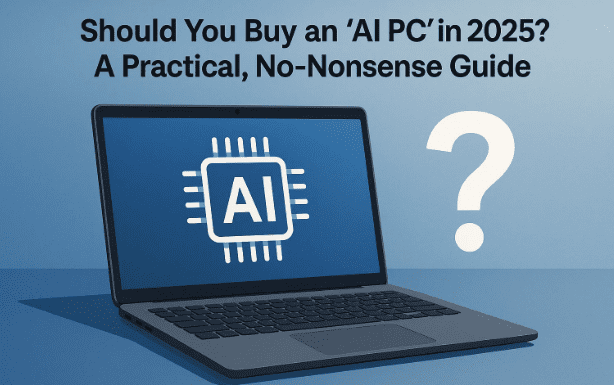
Before we dive into features, let’s ground the term. An AI PC is a computer designed to run AI tasks locally—fast and efficiently—thanks to a new chip block called an NPU (Neural Processing Unit), alongside your CPU and GPU. You’ll see this across families like Intel® Core Ultra, Qualcomm® Snapdragon X (Elite/Plus), and newer AMD chips with Ryzen AI. These machines can handle speech transcription, image generation, background object removal, real-time effects, and more on-device, often without sending your data to the cloud.
Why is that special? Because on-device AI brings lower latency, better privacy, and longer battery life compared to doing everything online.
Why AI PCs now? (Hardware + software finally clicked)
We’ve talked about AI for years, but 2024–2025 is when laptops and desktops started shipping with powerful NPUs and OS-level AI features. The result is a PC that learns habits, accelerates creative tools, and makes once-tedious tasks disappear quietly in the background.
Let’s ease in with a simple framing before we get technical:
- Hardware matured: NPUs deliver dedicated acceleration for things like noise removal, object selection, face detection, live captions, and more.
- Software caught up: Editors, office suites, browsers, and OS features now tap NPUs to run effects without blasting your battery.
- Privacy gained ground: More AI tasks can run locally, minimizing what leaves your device.
Together, this shifts the PC from being just responsive to becoming proactively helpful.
How do AI PCs work? CPU vs GPU vs NPU—clear and simple
Let’s keep this friendly and go step-by-step.
- CPU (Central Processing Unit): the generalist. Great at logic, tasks, and the operating system.
- GPU (Graphics Processing Unit): the sprinter for massive parallel math—3D graphics, video effects, some AI.
- NPU (Neural Processing Unit): the specialist for AI inference. It runs models like transcription, denoising, segmentation, and certain generation tasks with low power draw.
Think of a busy kitchen:
- The CPU is your head chef.
- The GPU is a brigade of fast grill cooks.
- The NPU is the pastry wizard who handles delicate, repetitive techniques ridiculously efficiently.
When apps are coded to use the NPU, your laptop can do AI things longer and cooler on battery—without roaring fans.
Everyday wins: from battery life to a calmer workflow
So far we’ve discussed how AI PCs work; now let’s talk about what you feel day to day. We’ll ease into it with a short narrative and then fan out into specifics.




Imagine opening your laptop at 9 AM and closing it at 9 PM—with fewer distractions, smoother calls, and less “waiting for things.” The AI parts aren’t flashy; they just cut micro-frictions.
Where AI PCs help right away:
- Longer battery life: NPUs chew through AI tasks with less power. Live captions, background blur/noise removal, and transcription don’t drain your battery as quickly.
- Snappier multitasking: On-device summarization, search, and smart sorting feel instantaneous.
- A calmer desktop: OS-level assistants (e.g., Copilot or Gemini in your browser) draft emails, rewrite paragraphs, or create outlines without leaving your apps.
- Habit learning: Suggestions become context-aware—open the right doc, propose calendar slots, or draft a quick reply with attachments recognized from recent work.
Creators’ corner: video, photo, audio, and design become lighter
Before we list tools, a quick scene-setter. If you create videos, thumbnails, social posts, podcasts, or course materials, the hours you spend masking, cleaning audio, cutting dead air, and exporting often dwarf the time spent on ideas. AI PCs attack those time sinks.
Practical boosts you’ll notice:
- Video editing: Auto scene detection, transcript-based editing, noise removal, reframing, and smart color improvements run faster—sometimes even live—thanks to the NPU/GPU combo.
- Photo work: One-click object selection, background removal, upscaling, and lighting fixes are quicker and less “laggy.”
- Audio cleanup: Voice isolation and noise suppression behave well in real time during recordings and calls.
- Text ↔ media bridges: Dictate ideas, generate captions, create b-roll prompts, or storyboard with quick mockups.
Students & professionals: study, meetings, docs, and spreadsheets
Let’s slow down and walk through realistic, not sci-fi, gains. If you study or work in documents all week, AI PCs primarily save time.
- Lecture/meeting capture: Real-time transcription and speaker labeling (on-device) mean you can listen now and search later.
- Summaries that respect context: Condense long PDFs or email threads into bullet points you can trust (and verify).
- Spreadsheet helpers: Generate formulas, clean data, or create pivot-table-ready summaries on command.
- Calendar & email drafting: Propose times, attach relevant files, and keep tone consistent across messages.
- Language support: Translate or rewrite passages with control over tone and length.
The key is workflow chaining: capture → summarize → outline → draft → refine. AI PCs make that chain smoother without juggling five websites.
Gaming & entertainment: smarter visuals and smoother play
Before we talk frame rates, a short reality check: AI PCs aren’t a magic wand—but they do make gaming cleaner and, in many cases, prettier.
- AI upscaling & frame generation (e.g., NVIDIA DLSS on supported GPUs) can deliver higher apparent resolution and smoother motion while using less raw horsepower.
- AI noise suppression & mic cleanup improve team comms.
- Game tips & coaching (where allowed) can analyze your style and suggest loadouts or strategies—use responsibly and within game rules.
- Media enhancement: Real-time HDR tone mapping, dialog clarity, and scene-aware adjustments help streaming feel cinematic without manual tweaking.
Security & privacy: what gets better, and where to stay cautious
Security deserves a measured tone. AI PCs don’t magically make threats vanish, but they raise the baseline.
- Smarter threat signals: On-device models can flag unusual behavior faster (suspicious prompts, credential stealing patterns, etc.).
- Permission hygiene: AI-assisted prompts can explain why an app wants camera/location and block silently abusive behavior.
- Biometrics: Face/fingerprint checks benefit from better spoof detection.
- Local processing = smaller footprint: If transcription, summarization, or classification stays on your machine, there’s less data exposed to the internet.
But keep perspective:
- You still need OS updates, reputable AV, SmartScreen, and safe browsing habits.
- No assistant should get blanket access to files, camera, or mic. Review permissions monthly.
- If a feature uploads data for “cloud enhancement,” read the toggle description first.
Buyer’s guide: how to choose the right AI laptop/desktop
Let’s take a breath and map a stress-free path to buying. We’ll start with a quick checklist and then a compact comparison table.
A. Decision checklist (read this first)
- Platform fit:
- Intel Core Ultra / AMD Ryzen AI: broad Windows ecosystem, strong GPU options.
- Qualcomm Snapdragon X: excellent battery/thermals; ensure your apps are compatible or have ARM-native versions.
- NPU capability: Look for strong TOPS ratings, but prioritize real app support (video editors, conferencing, office tools you actually use).
- RAM & storage: 16 GB is a sensible floor; 32 GB for creators. Prefer fast NVMe SSDs (1 TB if you work with media).
- Display: Calibrated color (sRGB/Adobe RGB coverage), 120 Hz+ if you game, OLED/IPS per preference.
- Battery & thermals: Ultraportables need efficient platforms; creator laptops need robust cooling.
- Ports & connectivity: USB-C/Thunderbolt/USB4, HDMI, SD card if you shoot, Wi-Fi 6E/7.
- OS features you care about: Copilot availability, Studio Effects, live captions, dictation, and screen-sharing privacy.
B. Quick comparison (rules of thumb)
| Persona | CPU/NPU Preference | RAM/Storage | Display | Why |
|---|---|---|---|---|
| Student / Office | Any modern NPU platform | 16 GB / 512 GB | 14–15″, 60–120 Hz | Battery + note capture + light creation |
| Content Creator | Intel/AMD with strong GPU or high-TOPS NPU | 32 GB / 1–2 TB | 15–16″ color-accurate | Faster renders, reliable color |
| Mobile Worker | Snapdragon X or efficient Intel/AMD | 16–32 GB / 1 TB | 13–14″, bright | Cool/quiet, all-day battery |
| Gamer-Creator Hybrid | Intel/AMD + discrete GPU | 32 GB / 1–2 TB | 15–17″, 120–240 Hz | DLSS/FG, editing headroom |
If you depend on specialized software (plugins, enterprise VPN, color tools), check ARM compatibility before buying a Snapdragon X system.
Quick setup: enabling the right features without the headaches
We’ve chosen a machine—nice. Now let’s enable helpful features without flipping scary switches. We’ll keep this vendor-neutral and practical.
- Update first: Install the latest Windows/macOS updates and GPU/NPU drivers.
- Enable AI camera/mic effects (Windows: Settings → Bluetooth & devices → Cameras / System → Sound): background blur, auto-framing, noise removal.
- Turn on live captions & dictation (Windows: Settings → Accessibility → Captions; Windows key + H for dictation).
- Sign into your assistant of choice:
- Copilot for Windows: https://www.microsoft.com/copilot
- Gemini in Chrome/Android: https://gemini.google.com
- Apps to integrate with AI:
- Editors (Premiere Pro, Photoshop) for smart selection, transcript-editing, and audio tools.
- Note apps that support transcription/summarization.
- Privacy pass: Review camera/mic/file permissions. Turn off what you won’t use.
- Battery pass: In your vendor’s control center, choose a balanced or efficiency profile for travel days; switch to performance when editing or gaming.
Try these 12 day-one AI workflows
Let’s make it concrete. Pick three today—feel the difference.
- Auto-transcribe a meeting and summarize action items.
- Dictate a first draft of an essay or report; then have AI rewrite for clarity.
- Transcript-based video editing: delete filler words directly from text.
- One-click background removal for product shots in Canva or Photoshop.
- Generate alternative titles & thumbnails from a brief outline.
- Create a study guide from a long PDF—definitions, flashcards, and key dates.
- Audio cleanup for a podcast clip—denoise and balance with one pass.
- Image enhancement—upscale a low-res logo into something usable.
- Brainstorm slide content from bullets; then ask for a 5-minute version.
- Smart search your local files by topic (“show me Q2 reports mentioning churn”).
- Caption a short video for social with correct line breaks and timing.
- Personalized calendar planning—ask for a focus block plan for the week.
Limitations & myths: what AI PCs don’t do
We’ve accomplished a lot so far; now let’s be candid about edges so you don’t hit them unexpectedly.
- No magic FPS: AI features improve perceived quality and stability; they don’t turn an entry GPU into a flagship.
- Model size reality: Some generative tasks still need the cloud (large models can exceed local VRAM/RAM).
- Privacy ≠ absolute: On-device helps, but online accounts, sync features, and cloud models still involve data transfer.
- Battery trade-offs: Heavy generative workloads (e.g., long video upscales) will still tax the system.
- Compatibility gaps: On ARM laptops, verify niche plugins and pro tools before committing.
Knowing these helps you choose the right machine and set realistic expectations.
What’s next: ambient AI, wearables, and smarter homes
A short look ahead—because it’s fun to see where this is going.
- Ambient assistants: PCs will notice context (doc open, calendar slot, call starting) and offer help without being intrusive.
- Richer multimodal tools: Seamless movement between text, voice, image, and video in a single canvas.
- Health & accessibility: Live captioning everywhere, gentle screen-time nudges, and predict-to-prevent ergonomics.
- Smarter homes: PC assistants coordinating lights, AC, and presence detection with fine-grained control and local automations.
- Edge + cloud harmony: Local NPUs handle privacy-sensitive or latency-critical tasks; the cloud tackles heavyweight creativity on demand.
FAQ
Q: Do I need an AI PC right now?
If you edit media, live on video calls, or handle long documents daily, you’ll notice real quality-of-life gains. For casual use, it’s a “nice to have” that future-proofs your next 3–5 years.
Q: What’s an NPU and why should I care?
It’s a chip block optimized for AI tasks. It lets laptops run features like live captions, denoise, and smart selections with minimal battery impact.
Q: Does an AI PC keep my data private?
On-device AI reduces what leaves your machine. Still, review app permissions and cloud toggles—privacy is better, not absolute.
Q: Snapdragon X vs Intel/AMD—how do I choose?
Snapdragon X often wins on battery/thermals; verify app/plugin compatibility (especially niche pro tools). Intel/AMD offer strong GPU options and broad compatibility.
Q: Will AI help gaming?
Yes, via upscaling/frame-gen (when supported), better comms, and auto-tuning. It won’t replace a capable GPU for high-end titles.
Q: Which creative apps benefit today?
Major suites already do: Adobe Premiere Pro/Photoshop, DaVinci Resolve (for some features), Canva for quick design, and many conferencing tools for AI effects.
Q: Can I run everything offline?
Many features work on-device, but the largest models still prefer the cloud. Expect a hybrid reality for now.
Conclusion
AI PCs aren’t about flashy demos; they’re about shaving minutes off routine tasks, saving battery on travel days, and making creative/knowledge work feel lighter. If you’re a student or professional who juggles notes, meetings, and writing, or a creator who edits videos and images every week, the upgrades are tangible.
Choose your platform wisely (compatibility vs battery), aim for enough RAM and fast storage, and enable the right features—without over-granting permissions. Start with a few of the day-one workflows above and you’ll quickly get a sense of what “AI on your PC” actually means: less friction, more flow.
Disclaimer
This article is for educational purposes. Features vary by device, OS version, and app support. Always review privacy settings and app permissions, keep your OS and security tools updated, and verify software compatibility (especially on ARM-based systems) before purchasing. The example tools linked above are official vendor pages provided for reference; evaluate them against your specific needs.
Tags: AI PC, NPU, Intel Core Ultra, Qualcomm Snapdragon X, Windows Copilot, Google Gemini, Adobe Premiere Pro, Photoshop, Canva, NVIDIA DLSS, productivity, creators, gaming, security, privacy, buyer’s guide, setup tips
Hashtags: #AIPC #NPU #CoreUltra #SnapdragonX #Windows #Copilot #Gemini #ContentCreation #Gaming #Productivity








