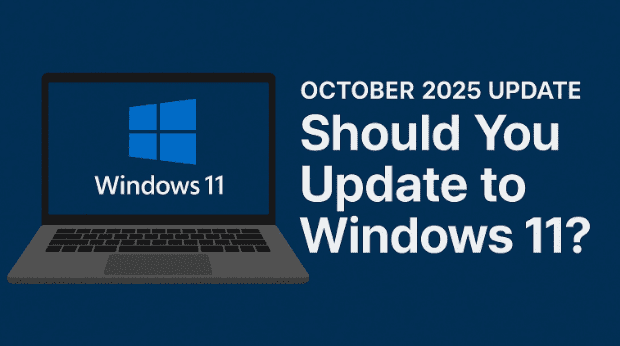
October 14, 2025 marks a major milestone in the history of Windows operating systems: the end of official support for Windows 10. With more than a billion users worldwide, Windows 10 has been the backbone of personal and business computing for nearly a decade. Now that its support window is closing, the big question on everyone’s mind is:
👉 Should you update to Windows 11, or should you stick with Windows 10 (or something else)?
This article will carefully walk you through everything you need to know—whether upgrading is the right choice, what alternatives you have, the myths surrounding Windows 11, and what practical steps you should take before making a move.
📌 Table of Contents
- Windows 10 End of Support – What It Really Means
- Do You Really Need to Update Right Away?
- Extended Security Updates (ESU) – Buying Extra Time
- What Happens to Your Apps After Support Ends
- First Look at Windows 11 – Is It Really Different?
- System Requirements and Compatibility Issues
- Bypassing Requirements – Should You Do It?
- The “Every Other Version” Curse – Fact or Fiction?
- Debunking Common Windows 11 Complaints
- Upgrade Options You Have Right Now
- Practical Precautions Before Any Upgrade
- Alternative Paths – Staying on Windows 10 or Switching to Linux
1. ⏳ Windows 10 End of Support – What It Really Means
Microsoft officially ends support for Windows 10 on October 14, 2025. After this date, the company will:
- Stop releasing security updates.
- Discontinue bug fixes and stability patches.
- End official technical support through Microsoft channels.
This does not mean your Windows 10 machine will suddenly stop working on October 15. It will continue to function exactly as it does now. The issue is that, over time, without regular patches, it becomes more vulnerable to new security threats.
Think of it like owning a car where the manufacturer stops providing spare parts. You can still drive it, but eventually maintenance becomes riskier.
2. 🤔 Do You Really Need to Update Right Away?
No—you don’t have to rush into updating to Windows 11 on the very first day after support ends.
If you’re comfortable with taking on more responsibility for your system’s security (such as using strong antivirus software, firewalls, and safe browsing practices), you can continue running Windows 10 for some time.
That said, it’s wise to start planning your next step now. Hardware decisions, software compatibility, and security considerations all come into play.
3. 🛡️ Extended Security Updates (ESU) – Buying Extra Time
Microsoft offers an Extended Security Update (ESU) program for users who need more time.
- This gives you up to one extra year of security patches for Windows 10.
- Ideal for businesses or users who can’t immediately upgrade due to hardware or software restrictions.
- It’s not a permanent solution—just a way to “push the clock” a little further.
👉 Learn more here: Microsoft ESU Program


4. 📦 What Happens to Your Apps After Support Ends
Third-party software developers usually follow Microsoft’s lead. While your apps won’t stop working on October 15, 2025, many vendors will gradually drop support for Windows 10:
- New versions of apps may not install.
- Cloud services may cut off Windows 10 clients.
- Security updates for apps might end earlier than you expect.
If you rely on critical apps, it’s important to check their long-term support plans.
5. 👀 First Look at Windows 11 – Is It Really Different?
Windows 11 has now been around for four years. From a daily-use perspective:
- It feels like a big feature update to Windows 10 rather than a radical redesign.
- The taskbar has moved to the center (though you can adjust it).
- There’s a cleaner look and more modern feel.
- The underlying system is largely the same.
For most users, moving from Windows 10 to 11 doesn’t involve a steep learning curve. If you know Windows 10, you’ll be comfortable with Windows 11 in a day or two.
6. ⚙️ System Requirements and Compatibility Issues
Here’s the tricky part: Windows 11 has stricter system requirements than Windows 10.
- TPM 2.0 (Trusted Platform Module) is mandatory.
- Secure Boot must be enabled.
- Modern CPUs only—many older machines, even from 2018–2019, don’t qualify.
You can check your system with the PC Health Check App.
If your system is compatible → Upgrading is straightforward.
If not → You’ll face a choice: bypass requirements, stick with Windows 10, or switch operating systems.
7. 🛑 Bypassing Requirements – Should You Do It?
There are unofficial ways to install Windows 11 on unsupported machines. However, Microsoft warns:
- Such systems may not receive updates.
- They may run into performance issues or instability.
- Future updates could disable these installations.
So while bypassing is technically possible, it’s risky—especially for your primary work machine.
8. 🌀 The “Every Other Version” Curse – Fact or Fiction?
Many users believe in the so-called “every other version curse”:
- Windows XP – Loved
- Windows Vista – Hated
- Windows 7 – Loved
- Windows 8 – Hated
- Windows 10 – Loved
- Windows 11 – ???
Is there truth to it? Not really. It’s more superstition than fact. But history shows alternating popularity trends, so users remain skeptical.
This pattern is interesting but not a strong reason to avoid Windows 11.
9. 🗣️ Debunking Common Windows 11 Complaints
Let’s address the biggest criticisms of Windows 11:
- “Everyone hates it.” → Not true. You mostly hear from people with problems. Millions use it daily without complaint.
- “Microsoft spies on us.” → Telemetry concerns began with Windows 10. Windows 11 hasn’t made it significantly worse.
- “Windows 11 pushes features I don’t want.” → Every version introduces changes. Some features disappear later; others become useful.
- “It’s a conspiracy to sell new PCs.” → No one is forcing you. You can stay on Windows 10, switch to Linux, or bypass requirements.
- “You’re just a Microsoft shill.” → Recommending Windows 11 isn’t blind support—it’s realism. For many users, Windows remains the practical choice.
10. 🛤️ Upgrade Options You Have Right Now
Here’s a simple breakdown of your paths forward:
- Upgrade to Windows 11 now → Best if your PC passes compatibility checks.
- Wait until you buy a new machine → Most new PCs come with Windows 11 preinstalled.
- Stick with Windows 10 → Accept the risks, use ESU, and take security precautions.
- Switch to Linux → A good alternative if you’re ready for change.
11. 🛠️ Practical Precautions Before Any Upgrade
Before making any big move:
- Create a full system image backup. This ensures you can roll back if something breaks.
- Check software compatibility. Some legacy apps may not run well on Windows 11.
- Update your drivers. Outdated drivers are a common cause of upgrade failures.
Taking time for these precautions can save you days of frustration.
12. 🔄 Alternative Paths – Staying on Windows 10 or Switching to Linux
If upgrading isn’t for you, there are alternatives:
- Stay on Windows 10 → Use ESU and maintain strong security practices.
- Switch to Linux → Modern distros like Zorin OS, Linux Mint, or Ubuntu are beginner-friendly and free. They offer long-term support and freedom from Microsoft’s ecosystem.
For many, Linux is a refreshing alternative, especially if your hardware doesn’t meet Windows 11’s strict requirements.
13. ❓ Frequently Asked Questions (FAQ)
Q1. Will my Windows 10 stop working after October 2025?
No, it will continue to run. It just won’t receive official updates.
Q2. Is Windows 11 really stable now?
Yes. After four years, it’s mature and stable enough for daily use.
Q3. What if I don’t like Windows 11 after upgrading?
You can revert to Windows 10 within a limited window or restore from a system image backup.
Q4. Will Linux run my Windows apps?
Some apps run via compatibility layers like Wine or virtualization. Others may need alternatives.
Q5. Should businesses upgrade immediately?
It depends on critical app compatibility. Many businesses use ESU to delay, but long-term planning is essential.
14. ✅ Final Thoughts – Is Windows 11 Worth It?
So, should you update?
- If your PC meets Windows 11 requirements, it’s worth upgrading. It’s stable, familiar, and supported.
- If not, you can:
- Stay on Windows 10 for a while (with ESU).
- Use it as an opportunity to try Linux.
- Wait until your next PC purchase, where Windows 11 comes preinstalled anyway.
Whatever you decide, remember: backups are non-negotiable. Protect your current system before experimenting.
The end of Windows 10 support is not the end of your options—it’s simply the start of a new chapter.
⚠️ Disclaimer
This article is for informational purposes only. Software support timelines, ESU availability, and security implications may change based on Microsoft’s policies. Always confirm with official Microsoft resources before making critical decisions.
Tags
Windows 10 end of support, Windows 11 upgrade guide, Windows 11 system requirements, Windows alternatives, ESU program, Linux vs Windows
Hashtags
#Windows11 #Windows10 #Microsoft #PCUpgrade #LinuxAlternative #TechGuide #OSUpgrade








