Connecting multiple Windows computers on the same local network is one of the most practical things you can do in a home or small office setup. It allows you to share files, folders, and printers without relying on cloud storage or external drives.
However, networking Windows PCs can often be tricky — especially with different versions like Windows 10 and Windows 11 coexisting in the same environment. Many users run into issues like password prompts, missing shared folders, or unresponsive connections.
In this detailed guide, we’ll break down how to make your Windows computers communicate and share files reliably, using proven methods that simplify authentication and eliminate common headaches.
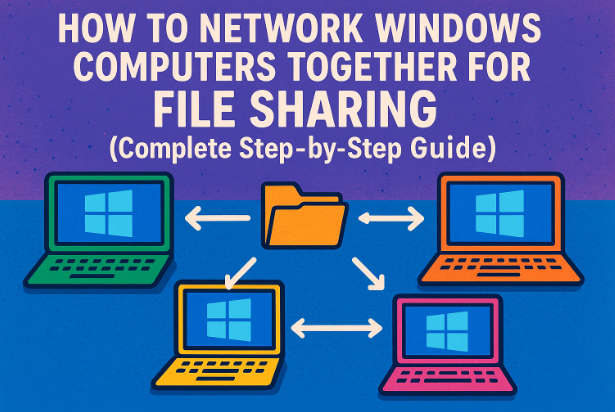
🧠 Understanding Windows Networking Basics
Before diving into steps, let’s take a moment to understand what “networking” really means.
In simple terms, networking allows multiple computers to communicate over a shared local area network (LAN). This communication enables file sharing, printer sharing, and remote access.
While Windows automatically detects other computers on the same network, it sometimes blocks communication due to firewall restrictions, account mismatches, or network type settings.
Our goal here is to configure all participating computers so that they recognize and trust each other.
🌐 Step 1 — Ensure All Computers Are on the Same Network
This step may sound obvious, but it’s often overlooked.
Before troubleshooting complicated settings, make sure every device you want to connect is on the same Wi-Fi or LAN.
Why this matters:
Routers isolate networks for security. If two computers are connected to different routers, or one is connected via a guest Wi-Fi, they will never detect each other.
How to check:
- On each PC, click Start → Settings → Network & Internet → Properties.
- Verify that both systems are connected to the same network name (SSID).
- If one PC is connected to a different router or range extender, reconnect both to the same base router.
💡 Tip: If you have multiple routers or Wi-Fi extenders, label your networks to avoid confusion. File sharing only works when both PCs share the same subnet.
🧾 Step 2 — Use the Same Workgroup Name
Windows uses something called a Workgroup to identify and organize devices on the same local network. While not as strict as a domain, workgroups simplify visibility between computers.





Here’s how to set it up:
- Press Windows + R, type
sysdm.cpl, and press Enter. - In the System Properties window, go to the Computer Name tab.
- Click Change.
- Under Member of, select Workgroup, and type your preferred name (e.g.,
HOME-NETorOFFICE-PC). - Click OK, then Apply.
- Restart your computer for changes to take effect.
Make sure you repeat this step on every computer and use the exact same workgroup name (it’s case-insensitive).
Using a consistent workgroup doesn’t magically fix everything, but it makes file sharing smoother and reduces visibility issues between devices.
👤 Step 3 — Create Identical Local Accounts on All Machines
Windows authentication can fail when one machine doesn’t recognize the user credentials from another. To solve this, we’ll create a local account with the same name across all computers.
For example, if your main account is a Microsoft Account (like john@outlook.com), you can create a separate local account just for networking.
Steps:
- Open Settings → Accounts → Other Users → Add account.
- Choose Add a user without a Microsoft account.
- Enter the same username (e.g.,
SharedUser) on all your PCs. - Assign a password (we’ll discuss this in the next step).
- Click Next.
Once created, you’ll use this local account to access shared folders from other machines.
🔑 Step 4 — Use the Same Password on All Computers
Here’s a small but powerful trick — assign the same password to your local account across every Windows machine you want to network.
When one PC tries to connect to another, Windows uses stored credentials to verify access. Matching usernames and passwords make this handshake seamless.
Why this is safe:
- These are local-only accounts, not online ones.
- Passwords stay within your private network.
- You’re not compromising security for external threats, since your router already acts as a firewall.
To change or set a password:
- Press Ctrl + Alt + Del → choose Change a password.
- Enter the same password you’ll use for all your networked PCs.
So far, we’ve ensured consistency in user identity — now let’s give that user administrative rights.
⚙️ Step 5 — Set Each Account as Administrator
Using administrator-level access helps avoid permission errors when copying files or modifying shared folders.
To make your account an administrator:
- Open Settings → Accounts → Other Users.
- Click on the newly created local account.
- Choose Change account type → Administrator → OK.
Repeat this step on all your systems.
Having admin rights ensures that when one PC connects to another, Windows won’t block certain actions like writing or modifying shared data.
🔐 Step 6 — Set Your Network Type to “Private”
This is one of the most misunderstood steps in Windows networking.
When your PC connects to Wi-Fi, Windows categorizes it as either Public or Private:
- Public: Strict firewall; used in cafes or airports — prevents discovery.
- Private: Trusted network — allows other computers to find and connect.
To check and change it:
- Go to Settings → Network & Internet → Properties.
- Under Network profile type, select Private network.
If you can’t find this option, or Windows refuses to switch modes, you can use PowerShell:
Using PowerShell:
- Right-click Start → Windows Terminal (Admin).
- Type:
Get-NetConnectionProfileNote your network name. - Then type:
Set-NetConnectionProfile -Name "Network" -NetworkCategory Private(Replace “Network” with your actual network name.) - Press Enter — no confirmation appears, but the change applies instantly.
- Restart your computer for good measure.
Now your PC’s firewall will allow local file sharing and device discovery.
🌍 Step 7 — Enable Network Discovery
Even if everything else is configured correctly, your computer still won’t appear in File Explorer unless Network Discovery is turned on.
To enable it:
- Go to Settings → Network & Internet → Advanced network settings → Advanced sharing settings.
- Expand your Private Network settings.
- Turn on:
- Network Discovery
- File and Printer Sharing
After enabling these, restart your system once more.
Now, when you open File Explorer and click on Network from the sidebar, you should see all available computers in your workgroup.
🧩 Why These Steps Work
At its core, Windows file sharing depends on trust and visibility:
- Trust comes from matching usernames/passwords and network authentication.
- Visibility depends on correct network configuration (Private mode, same workgroup).
By aligning these elements, you’re essentially teaching your devices to recognize each other as part of the same trusted environment — making sharing folders or accessing drives seamless.
🧰 Troubleshooting Common Windows Networking Problems
Even after following all steps, sometimes Windows networking can still misbehave.
Here are some of the most common issues and their fixes:
🧩 1. Shared Folder Not Visible
- Check if the folder is actually shared: right-click → Properties → Sharing → Advanced Sharing → Share this folder.
- Ensure Network Discovery is ON (Step 7).
- Confirm both PCs are using the Private network profile.
⚠️ 2. Prompt for Network Password
This usually happens when:
- The username or password doesn’t match across systems.
- The target machine doesn’t have a local account matching yours.
✅ Fix: Recheck the local account credentials — they must be identical on both machines.
🔌 3. Network Path Not Found
- Verify both systems are powered on and connected to the same router.
- Use the computer name instead of IP (e.g.,
\\DESKTOP-PC) in File Explorer’s address bar. - If this fails, try the IP address directly:
Example:\\192.168.1.10
🔒 4. Firewall Blocking Access
Some antivirus or security tools override Windows Firewall.
✅ Fix: Temporarily disable them or add your LAN range (e.g., 192.168.1.0/24) as a trusted network in your firewall settings.
🖨️ 5. Printer Sharing Not Working
- Enable File and Printer Sharing under Advanced Sharing.
- Make sure both devices are in the same workgroup.
- Restart both systems after sharing a printer.
💬 Frequently Asked Questions (FAQ)
Q1. Can I network Windows 10 and Windows 11 computers together?
✅ Yes. Both versions use the same SMB protocol and networking standards. Just ensure both have identical workgroup names and are on the same private network.
Q2. Do I need the same edition of Windows (Home/Pro)?
No. File sharing works across editions, though Windows 11 Pro may offer more control through Group Policy.
Q3. What if I only use Microsoft accounts for login?
You can still create an extra local account (Step 3) just for networking. It simplifies authentication when accessing shared folders.
Q4. Is it safe to use the same password on all computers?
Yes — for local offline accounts only. These passwords are never transmitted over the internet and remain within your private LAN.
Q5. Can I share files between wired and Wi-Fi devices?
Yes, as long as both are on the same router and subnet. Mixed wired/wireless networks are fully supported.
Q6. How do I map a shared folder permanently?
- Open File Explorer → This PC → Map Network Drive.
- Assign a drive letter (like Z:).
- Enter the shared path, e.g.,
\\OFFICEPC\SharedDocs. - Check Reconnect at sign-in → Finish.
Q7. Why does Windows ask for credentials even after matching accounts?
This happens if one computer’s credentials cache is outdated. Delete stored credentials via:
- Control Panel → Credential Manager → Windows Credentials → Remove Saved Entries.
Then reconnect again with the same username/password.
🧾 Final Thoughts
Networking Windows computers used to be easier in older versions like Windows 7, but with evolving security layers in Windows 10 and 11, the process now requires more manual configuration.
However, once you set up:
- The same workgroup,
- Matching local accounts,
- Private network mode, and
- Network Discovery,
you’ll enjoy stable file sharing and reliable visibility between all your PCs.
Whether you’re transferring documents, sharing media libraries, or managing printers, this approach will give you full control over your home or office network.
⚠️ Disclaimer
This guide is intended for home and small-office users operating within a private, secure network. The methods described here are not recommended for public Wi-Fi or enterprise environments where domain controllers and professional IT configurations are used. Always ensure that your router’s firewall and Windows Defender remain active to protect your system from external threats.
#WindowsNetworking #FileSharing #Windows11 #Windows10 #Workgroup #NetworkDiscovery #TechGuide #LANSetup #ComputerNetworking








