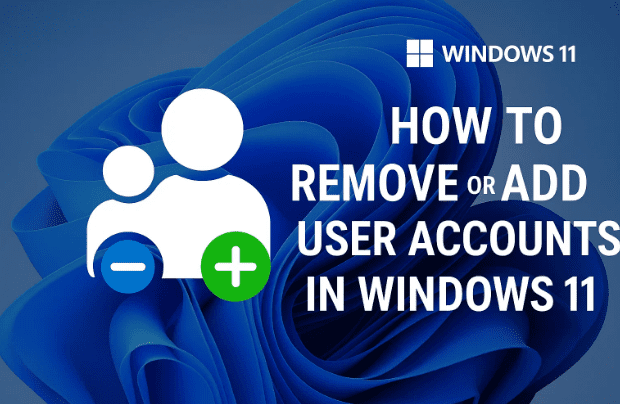
Managing user accounts is an important part of keeping your Windows PC organized and secure. Maybe you’ve created a test account you no longer need, or perhaps a family member has stopped using the computer. In such cases, you may want to remove a user account. On the other hand, sometimes you’ll need to add a new account, whether for work, guests, or personal use.
In this guide, we’ll walk through two reliable methods to manage user accounts in Windows 11:
- Using the Settings app (easy and beginner-friendly).
- Using Computer Management (a more advanced approach).
I’ll also include safety notes, FAQs, and practical tips so you don’t lose important files in the process.
📑 Table of Contents
- Why Remove or Add User Accounts?
- Important Warning: Back Up Data Before Deleting Accounts
- Method 1: Remove or Add a User from Windows Settings
- Method 2: Remove a User Using Computer Management
- Extra Tips for Managing Accounts Safely
- Frequently Asked Questions (FAQs)
- Disclaimer
- Final Thoughts
1) Why Remove or Add User Accounts?
User accounts let multiple people use the same computer while keeping their files, apps, and settings separate.
Here are some common reasons you may want to manage them:
- Remove unused accounts: A family member no longer uses the PC, or you created a test account.
- Reduce clutter: Fewer accounts mean less confusion at the login screen.
- Security: Removing old accounts prevents unauthorized access.
- Add new accounts: For new users, guests, or work profiles.
- Switch account types: For example, adding a local account if you prefer not to use a Microsoft account.
2) Important Warning: Back Up Data Before Deleting Accounts
When you delete a user account in Windows 11, you also delete:
- Files saved in Desktop, Documents, Downloads, Music, Pictures, Videos.
- The user’s app settings and configurations.
- Saved browser data (if not synced with the cloud).
⚠️ Warning: Once deleted, this data cannot be recovered unless it has been backed up.
Always check the user’s folders (C:\Users\Username) and copy files you need to another location (like an external drive, OneDrive, or another account) before removing the account.
Now that you understand the risk, let’s move on to the actual removal steps.
3) Method 1: Remove or Add a User from Windows Settings
This is the most straightforward way, suitable for most users. Let’s break it down into two parts: removing an account and adding one.
3.1 Removing a User via Settings
- Open Settings
- Click the Start menu (Windows icon).
- Select Settings (gear icon).
- Go to Accounts
- In the left panel, click Accounts.
- Select Other Users
- Click Other users (sometimes shown as Family & other users depending on build).
- Choose the Account to Remove
- You’ll see a list of user accounts (except the one you’re currently signed into).
- Expand the account you want to remove by clicking the drop-down arrow.
- Click Remove
- Press the Remove button.
- A warning message will appear:
“Deleting the person’s account will remove all their data from this PC.”
- Confirm Deletion
- If the account’s data is backed up and you’re sure, click Delete account and data.
- Wait for Windows to Complete
- Windows will take a few moments to remove the account. Once finished, the user will no longer appear on the login screen.
3.2 Adding a New User via Settings
Sometimes after deleting an account, you’ll want to create another one.


- Navigate to Accounts → Other Users again.
- Click Add account.
- Choose one of the following options:
- Microsoft account (requires email/phone login, syncs with Microsoft services).
- Local account (offline, no email required).
- Click I don’t have this person’s sign-in information.
- Then choose Add a user without a Microsoft account.
- Enter User Details
- Provide a username and password (optional for local accounts).
- Add security questions if required.
- Finish Setup
- Click Next, and the account will be created.
- You’ll now see it listed under Other users.
✅ Tip: You can change account type later (Standard vs Administrator) by selecting the account and choosing Change account type.
4) Method 2: Remove a User Using Computer Management
For advanced users, Computer Management offers another way to manage accounts.
- Open Computer Management
- Right-click the Start menu → choose Computer Management.
- Expand Local Users and Groups
- In the left panel, click the arrow next to Local Users and Groups.
- Select Users.
- View All User Accounts
- A list of all accounts on the system appears.
- Delete a User
- Right-click the account you want to delete.
- Select Delete.
- Confirm the prompt.
The account is now gone.
This method is especially useful for administrators who manage multiple user accounts or if the Settings method doesn’t work.
5) Extra Tips for Managing Accounts Safely
- Don’t delete your own active account while signed in. Windows won’t allow it, but always double-check.
- Use Administrator privileges: You must be signed in as an admin to remove other users.
- Family vs. Other Users: If you’ve set up Family Safety accounts, remove them via your Microsoft Family portal.
- Rename instead of delete: If you only want to reuse the account, renaming might be simpler.
- Temporary guest accounts: For short-term users, create a Standard local account instead of giving full Administrator rights.
6) Frequently Asked Questions (FAQs)
Q1: Can I delete the only administrator account?
No. Windows requires at least one admin account. If you try to delete the only one, you’ll need to create another administrator account first.
Q2: Does deleting a user free up disk space?
Yes. Deleting a user account also deletes their files, which can reclaim gigabytes of space.
Q3: How can I recover files after deleting a user account?
Unless you backed them up, files are permanently deleted. Always back up before removal.
Q4: What’s the difference between Microsoft and local accounts?
- Microsoft account: Uses email login, syncs data and settings across devices.
- Local account: Offline, data stored only on that PC.
Q5: Can I disable instead of deleting an account?
Yes, via Computer Management you can right-click a user → Properties → check Account is disabled. This keeps their data intact but prevents login.
7) Disclaimer
This guide is for educational purposes. Deleting a user account will remove its files permanently. Always back up important data before proceeding. If the PC is work-managed, consult your IT administrator before making changes.
8) Final Thoughts
So far, we’ve done a good job covering every angle of user account management in Windows 11. The Settings method is perfect for everyday users, while Computer Management provides an advanced tool for administrators.
Whether you’re cleaning up unused accounts, adding a new one for a colleague, or managing family logins, you now know exactly how to:
- Remove accounts safely.
- Add accounts with or without Microsoft login.
- Handle advanced account deletion via Computer Management.
By following these steps carefully, you can keep your PC secure, tidy, and personalized for the right people.
Tags
remove user account windows 11, delete user profile windows 11, add user windows 11, computer management accounts, windows 11 accounts tutorial, microsoft vs local account, windows 11 user management
Hashtags
#Windows11 #UserAccounts #TechGuide #DeleteUser #AddUser #ComputerManagement #MicrosoftWindows #PCManagement








