Designers and publishers often need to generate ISBN barcodes inside their publishing layouts. While you could use third-party tools or websites to generate a barcode image, these methods have limitations—like poor scaling, low print quality, or limited automation. That’s where scripting in Adobe InDesign comes in handy.
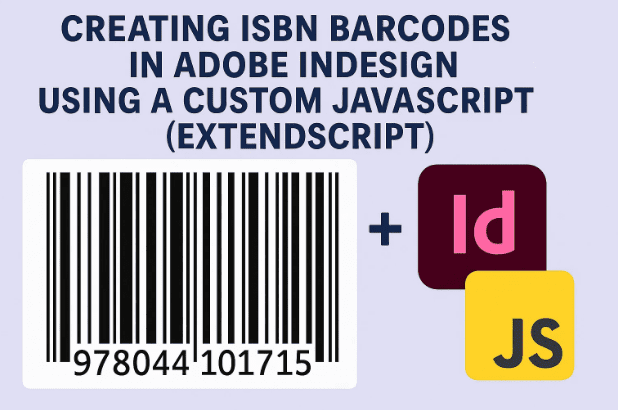
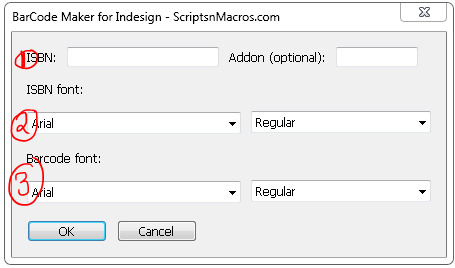
In this article, we’ll go through a detailed breakdown of a powerful Adobe InDesign ExtendScript (JavaScript) called Barcode.jsx, which automates the process of generating ISBN barcodes with optional add-on codes. The script handles check-digit validation, barcode bar drawing, addon handling, and even allows you to pick fonts for both ISBN text and the barcode itself.
🔎 What This Script Does
- Generates ISBN-13 barcodes with check digit validation.
- Supports optional add-on codes (EAN-5) used for price information.
- Draws vector bars and numbers directly inside InDesign (no raster images).
- Allows you to choose fonts for the ISBN text and barcode digits.
- Automatically creates a clean “barcode” layer for easy management.
- Ensures your barcode is print-ready and scalable without quality loss.
This script is perfect for book publishing, library labeling, and any workflow where ISBN barcodes are required. But also if you are looking for how you can resize multiple objects in indesing using script then I have a solution for this also: How to Resize Multiple Objects in Adobe InDesign Using a Script (Beginner-Friendly)
⚙️ How to Install and Use
- Download the script:
👉 Download ISBN Barcode Script - Install in InDesign:
- Extract the downloaded ZIP file.
- Copy
Barcode.jsxinto your InDesign Scripts Panel folder:- Windows:
Documents\Adobe Scripts\Scripts Panel - macOS:
Applications/Adobe InDesign/Scripts/Scripts Panel
- Windows:
- Run the Script:
- Open Adobe InDesign.
- Go to Window > Utilities > Scripts.
- Find
Barcode.jsxand double-click it. - Enter the ISBN and optional add-on.
- Pick your preferred fonts.
- The script will generate a ready-to-use barcode on a new layer.
✅ Conclusion
With this script, you no longer need to rely on external barcode generators. Everything happens inside InDesign, giving you full control, professional output, and a faster workflow. If you regularly design books or publications, this tool can save you hours of manual work and ensure every ISBN barcode is correct and ready for printing.
Tags: Adobe InDesign script, ISBN barcode, EAN-13 generator, Barcode.jsx, InDesign automation, Book publishing tools, Script installation, ISBN check digit, Add-on EAN-5, Publishing workflow
Hashtags:
#InDesign #Barcode #ISBN #BookPublishing #AdobeScript #EAN13 #Automation #DesignTools #ExtendScript #InDesignWorkflow