Downloading large games like Genshin Impact can be a nightmare if you’re on limited data or a slow connection. With the game taking more than 30GB of space (and growing with updates), not everyone can afford to re-download it every time they get a new computer or want to move it to another system.
Thankfully, there’s a simple way to transfer Genshin Impact from one PC to another without starting the installation from scratch. This guide will walk you through the exact steps, explain why the launcher sometimes fails to recognize transferred files, and how you can fix that issue.
Whether you’re moving the game for yourself or sharing files with a friend, by the end of this article, you’ll know how to make the HoYoPlay Launcher recognize your existing installation and save hours of downloading.
🛠️ Why Transfer Instead of Redownloading?
Before diving into the steps, let’s quickly understand why transferring is a better option in many cases:
- Data Caps: Some internet providers impose daily or weekly data limits. Downloading 30–40 GB in one go may not even be possible.
- Slow Connections: Even with unlimited data, downloading could take hours or days.
- Convenience: If a friend already has the latest version installed, it’s easier to copy it directly.
- LAN/Wi-Fi Sharing: On the same network, transferring files over LAN can be much faster than downloading.
With that in mind, let’s get into the actual process.
📂 Step 1: Get a Copy of the Game Files
The first step is to obtain the Genshin Impact game folder from a PC that already has it installed.
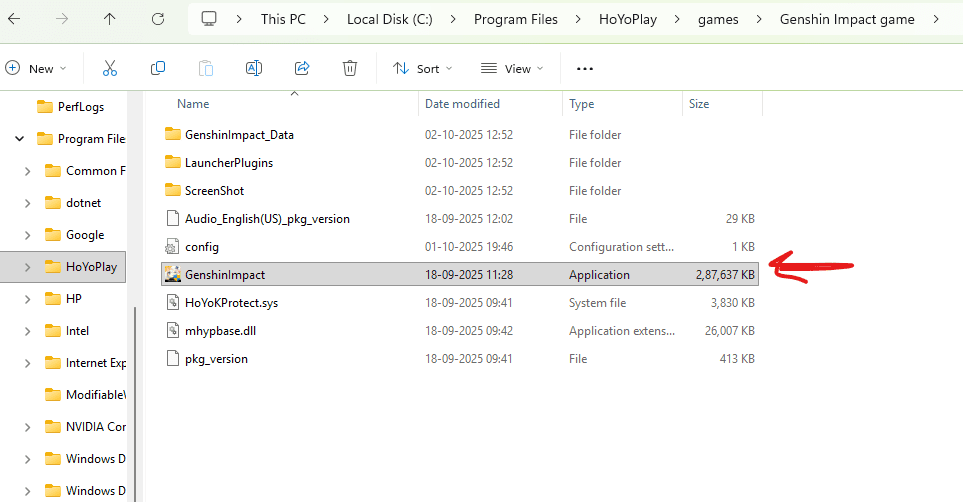
- On your friend’s (or old) PC, locate the game directory. By default, it’s often found in:
C:\Program Files\HoYoPlay\games\Genshin ImpactorC:\Games\Genshin Impact - Copy the entire Genshin Impact folder onto an external storage device like a USB drive or external hard disk.
- If your storage is limited, you can also transfer the files over LAN or Wi-Fi using Windows Networking (faster if both PCs are on the same local network).
👉 Note: Ensure you copy the full folder, not just the launcher. The game files themselves are what matter.
💻 Step 2: Paste the Game Onto the New PC
Now, on your new computer:
- Paste the copied game folder into the same location as it was on the original PC.
- Example: If it was in
C:\Games\Genshin Impacton the old PC, paste it to the same location on the new one.
- Example: If it was in
- Open the HoYoPlay Launcher. Two scenarios can occur here:
- Scenario 1: Success 🎉
The launcher immediately recognizes the existing files, and you can click Launch without redownloading. - Scenario 2: Failure 😕
The launcher does not detect the game and prompts you to download everything again.
- Scenario 1: Success 🎉
If you’re lucky and hit the first scenario, you’re done. But if you’re in the second scenario (like many users), don’t panic — we can fix it.
⚙️ Step 3: Edit the Config.ini File
When the launcher fails to recognize the files, it’s usually because it doesn’t know where the game is installed. This is controlled by a configuration file.
Here’s how to fix it:







- Go to your Genshin Impact installation folder (the one containing the launcher).
- Locate the file named config.ini (sometimes also listed as
config.txt).- ⚠️ Be careful: There are two config files in the folder. You need the one located next to the launcher, not inside the subfolders.
- Open the file with Notepad.
- Find the line that says:
game_install_path= - Navigate to the folder where the game
.exeis located. For example:C:\Games\Genshin Impact\Genshin Impact Game - Copy this full path and paste it after
game_install_path=.
⚠️ Do not edit anything else in this file. Only replace the path.
- Save the file and close Notepad.
At this point, you’ve manually told the launcher where to look for the game files.
🖥️ Step 4: Update the Path in the Launcher
Just one last step to sync everything:
- Open the HoYoPlay Launcher.
- On the bottom left, you should see the option to Change file path.
- Click Change, then browse to the same folder you entered in
config.ini.- Example:
C:\Games\Genshin Impact\Genshin Impact Game
- Example:
- Select the folder and confirm.
- Press Continue.
- Now, click Install.

Since the files are already there, the launcher will verify them instead of downloading. Once complete, the button should change from Install to Launch.
Congratulations — you’re ready to start playing! 🎉
💡 Alternate Method: The Easier Fix
Some players have reported an even simpler solution if you face issues in Step 3. Instead of editing config files, you can:
- Delete the
config.inifile altogether. - Keep the installation directory the same on both PCs (e.g., default path in
Program Files). - After copying the files, open the launcher, and it should recognize the installation immediately.
👉 One user even transferred the 33 GB game folder over LAN instead of USB and found that no file verification was required, since the game was already verified on the source PC.
If the launcher still doesn’t pick up the game, try running the GenshinImpact.exe directly from inside the game folder. It should prompt you to log in with your HoYoverse account and launch without issues.
🛑 Common Issues and Fixes
Let’s go through a few common problems people face when trying this method.
1. Launcher Still Prompts for Full Download
- Double-check the path in
config.ini. - Make sure you pointed it to the Genshin Impact Game subfolder, not just the main folder.
2. File Verification Takes Too Long
- If verification runs, let it complete. It’s normal for the launcher to scan files when moving to a new PC.
- For LAN transfers, sometimes verification is skipped because the files were already confirmed on the original PC.
3. Game Won’t Launch
- Try running the GenshinImpact.exe directly.
- Ensure your graphics drivers and DirectX are updated on the new system.
4. Login Issues
- The game may ask you to re-enter your HoYoverse email ID and password.
- This is normal — your account progress is stored online, so nothing will be lost.
🔄 Why the Launcher Doesn’t Always Recognize Files
The HoYoPlay Launcher relies on configuration files and registry entries to track installations. When you copy files manually, the launcher doesn’t always know they exist. By editing or resetting the config.ini file and updating the path in the launcher, you’re essentially telling it, “Hey, the files are already here, no need to download again.”
❓ FAQs
Q1. Will I lose my game progress by transferring files?
No. Your progress is tied to your HoYoverse account, not your PC. Once you log in, all progress is synced.
Q2. Can I play without the launcher?
Yes, by running GenshinImpact.exe directly. However, the launcher is needed for updates.
Q3. What if my friend’s version is older or newer than mine?
If versions mismatch, the launcher will only download the missing update files, which is still much faster than a full download.
Q4. Is transferring over LAN faster than USB?
Yes, if both PCs are on a fast wired network. Otherwise, an external SSD is often the quickest option.
Q5. Is it safe to delete the config file?
Yes. The launcher will recreate it automatically when you set the new path.
⚠️ Disclaimer
This guide is for educational purposes only. Always ensure you download and play Genshin Impact through the official HoYoPlay Launcher and respect the game’s terms of service. File transfers should only be used to move legitimate installations across your own devices or with permission from the owner of the files.
👉 Official link: Download Genshin Impact
📝 Final Thoughts
Transferring Genshin Impact between PCs is much easier than many players realize. By copying the game folder, editing a simple configuration file, and updating the path in the launcher, you can avoid hours of redownloading.
For those with slow or limited internet, this method is a lifesaver. And with the alternative “delete config” trick, it’s even simpler.
So, the next time you get a new PC or want to help a friend install the game, remember — you don’t need to start from scratch. Just transfer, tweak, and launch. See you in Teyvat! 🌌
Tags
genshin impact pc transfer, genshin impact move game files, genshin impact launcher fix, genshin impact config.ini, genshin impact install without download, hoyoplay game transfer, genshin impact pc guide
Hashtags
#GenshinImpact #PCGaming #GameTransfer #HoYoPlay #GenshinGuide








