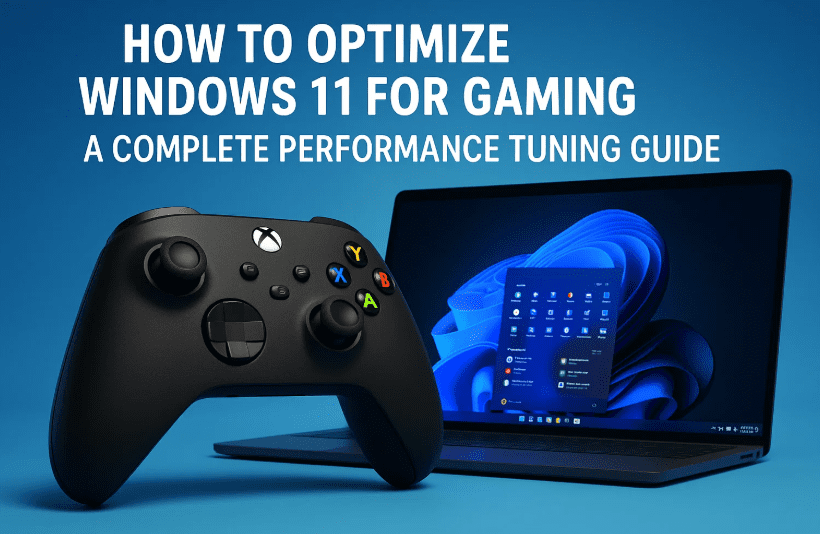
If you’re a gamer looking to squeeze every last frame per second (FPS) out of your system, optimizing Windows 11 is a must. While Windows 10 has long been the go-to OS for gaming, Windows 11 has matured and offers excellent performance—once you know how to fine-tune it.
In this guide, we’ll walk you through a complete, step-by-step process to optimize your Windows 11 setup for gaming. Whether you’re on a high-end rig or an entry-level machine, these tweaks can make a big difference.
✅ Disclaimer: Some of these steps involve disabling Windows features or background services. While these can improve performance, they may reduce functionality for other users or software. Proceed cautiously and always back up your system before making major changes.
🖥️ Step 1: Set Your Monitor’s Refresh Rate Properly
Let’s kick things off with your display. You paid for a high refresh rate—now let’s make sure you’re actually using it.
How to check and set refresh rate in Windows 11:
- Right-click on the desktop and select Display settings.
- Scroll down and click Advanced display.
- Set the refresh rate to the highest available option (e.g., 144Hz or 165Hz).
- Click Keep changes after the screen flickers.
Note: This doesn’t increase your game’s FPS but enhances visual smoothness, making your games feel more fluid.
⚡ Step 2: Adjust Power Settings for Performance
Your PC may be set to a balanced power plan, which limits its potential during heavy gaming sessions. Let’s fix that.
Option A: Use Control Panel
- Open Control Panel → System and Security → Power Options.
- Select High performance.
Option B: Use Windows Settings
- Go to Settings → System → Power & Battery.
- Under Power mode, select Best performance.
🧩 Step 3: Calm Down Windows Defender Scheduled Scans
Windows Defender sometimes runs scans while you’re gaming, causing stutters. Let’s delay those scans.
Steps:
- Open Task Scheduler.
- Navigate to:
Task Scheduler Library > Microsoft > Windows > Windows Defender. - For each task, right-click and choose Properties → Conditions.
- Check Start the task only if the computer is idle → Click OK.
🕵️ Step 4: Disable Telemetry and Background Tasks
Now, let’s reduce unnecessary background processes that hog system resources.
Inside Task Scheduler:
- Navigate to
Application Experienceand disable all tasks. - Do the same for
Customer Experience Improvement Program.
If it gives you a permission error, just delete the task.
🔧 Step 5: Disable Background Services
Now we’ll disable a few Windows services that aren’t essential for gaming.
Open Services:
- Press
Win + R, typeservices.msc, and hit Enter.
Disable these services:
- Connected User Experiences and Telemetry
- SysMain (useless if you have an SSD)
- Windows Search (only if you don’t use search or File History)
- Xbox Services (if you don’t use Xbox Game Pass)
Double-click each → Set Startup type to “Disabled” → Click Stop, then OK.



🎮 Step 6: Install Gaming Utilities
Some tools can help you tweak GPU settings and monitor system performance.
Recommended Software:
- MSI Afterburner – For GPU overclocking. Download here
- NV Clean Install – Installs a clean, bloat-free NVIDIA driver. Download here
- Heaven Benchmark – Useful for GPU stress testing. Download here
📦 Step 7: Slim Down NVIDIA Driver with NV Clean Install
Let’s go through a quick NV Clean Install setup to remove unnecessary bloat.
Steps:
- Open NV Clean Install.
- Choose Install best driver for my hardware.
- Select only:
- Display Driver
- PhysX
- HDMI Audio
- Click Show Expert Tweaks → Enable Message Signaled Interrupts.
- Click Install.
⚙️ Step 8: Tweak NVIDIA Control Panel Settings
Let’s configure the graphics card settings to prefer performance.
How to:
- Open NVIDIA Control Panel → Manage 3D settings.
- Change:
- Power management mode: Prefer maximum performance
- Texture filtering – Quality: High performance
🔕 Step 9: Disable Annoying Notifications
Interruptions while gaming? No thanks.
Steps:
- Go to Settings → System → Notifications.
- Turn off all notifications and tips.
- Scroll down and uncheck all three Additional settings.
🎮 Step 10: Disable Xbox Game Bar & Captures
Unless you’re using it, Xbox Game Bar just wastes resources.
- Go to Settings → Gaming → Xbox Game Bar → Turn off.
- In Captures, disable Record what happened.
🎯 Step 11: Disable Game Mode
Controversial, but for many, Game Mode can hinder performance.
- Settings → Gaming → Game Mode → Turn Off.
🚀 Step 12: Manage Startup Apps
Startup programs often slow down your system and eat RAM.
Steps:
- Open Task Manager → Startup tab.
- Disable non-essential apps like Teams, Edge background tasks, etc.
🧹 Step 13: Uninstall Unnecessary Apps
Keep only what you use.
- Go to Settings → Apps → Installed Apps.
- Remove software you no longer need.
🔒 Step 14: Disable Core Isolation (Memory Integrity)
This can affect gaming performance, especially on older CPUs.
- Search Core Isolation in Start.
- Turn off Memory Integrity.
🧰 Step 15: Disable Windows Features You Don’t Need
- Open Control Panel → Programs → Turn Windows features on or off.
- Uncheck Virtual Machine Platform.
Note: Disabling this will also disable Windows Subsystem for Linux and some Hyper-V security features.
💬 Frequently Asked Questions (FAQ)
Q: Will disabling these services harm my system?
A: Not if you’re using the PC mainly for gaming. However, features like Windows Search, Telemetry, and Xbox services serve specific purposes. Re-enable them if needed.
Q: Is Game Mode really bad?
A: It depends. On some systems, it helps. On others, it introduces stuttering. It’s worth testing both ways.
Q: Can I use these tweaks on Windows 10 too?
A: Yes! Most of these tweaks apply to both Windows 10 and 11. Just follow the correct menu paths.
✅ Final Thoughts
So far, we’ve done a fantastic job optimizing Windows 11 for gaming. From background services to display tweaks, your system should now be leaner, faster, and more responsive in games.
Next week, we’ll do a head-to-head comparison of optimized Windows 10 vs Windows 11 to find out which performs better in real-world gaming.
Until then, enjoy the performance boost—and may your FPS be high and your temps be low!
Tags: Windows 11 optimization, gaming performance, disable telemetry, boost FPS, tweak Windows 11, Nvidia settings, MSI Afterburner, NV Clean Install, PC gaming, Windows 11 services
Hashtags:
#Windows11Gaming #PCOptimization #BoostFPS #GamingPerformance #NVidiaTweaks #WindowsTips #GameMode #Afterburner #CleanInstall #GamingSetup #WindowsTweaks








