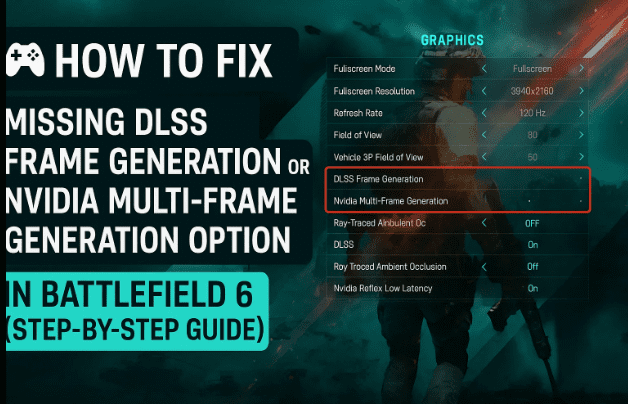
You’ve got a powerful Nvidia graphics card, installed Battlefield 6, and jumped into the graphics settings expecting to see “DLSS Frame Generation” or “Nvidia Multi-Frame Generation” — but they’re nowhere to be found.
Don’t worry — you’re not missing out because of a bug or a broken GPU. In most cases, the reason is simple: hardware-accelerated GPU scheduling is disabled in Windows, preventing the game from detecting Frame Generation support.
In this detailed guide, we’ll go through each step to fix it, explain what these technologies actually do, and ensure that your PC is configured correctly to unlock their full potential.
⚠️ Disclaimer: This article involves system-level graphics changes. Follow the instructions carefully and restart your PC after applying each fix. Results may vary depending on your GPU and Windows build.
1️⃣ Understanding DLSS and Frame Generation
Before we start changing settings, let’s quickly understand what DLSS and Frame Generation actually are and why they’re important for Battlefield 6.
What is DLSS?
DLSS (Deep Learning Super Sampling) is Nvidia’s AI-powered upscaling technology that uses the Tensor Cores on RTX GPUs to render games at a lower resolution and upscale them to higher resolutions using machine learning.
The result is:
- Higher frame rates
- Sharper image quality
- Less GPU strain
Battlefield 6 supports DLSS to provide smoother gameplay, especially in high-resolution modes such as 1440p or 4K.
What is Frame Generation?
Frame Generation (FG) is an extension of DLSS available on RTX 40-series GPUs. It uses AI to create intermediate frames between rendered frames, effectively doubling frame rate in many situations.
So, if your GPU renders 60 FPS natively, Frame Generation can make it feel closer to 100–120 FPS, depending on your hardware and CPU bottlenecks.
What is Nvidia Multi-Frame Generation?
Nvidia’s Multi-Frame Generation (MFG) expands this concept by blending AI frame generation with enhanced motion prediction, further improving responsiveness and visual consistency. It’s designed for modern titles like Battlefield 6, which are optimized for RTX 40-series GPUs.


2️⃣ Why DLSS Frame Generation May Not Appear in Battlefield 6
Even if you have a supported RTX card, the option might not show up in the in-game graphics settings. This can happen due to several reasons, including:
- Hardware-accelerated GPU scheduling is turned off.
- Outdated Nvidia drivers.
- Running the game on unsupported DirectX version.
- Incorrect Windows graphics settings.
- Old Windows builds that don’t support GPU scheduling.
In this article, we’ll focus on the most common and verified fix — enabling Hardware-Accelerated GPU Scheduling — since that’s the primary reason for missing Frame Generation options.
3️⃣ Enable Hardware-Accelerated GPU Scheduling in Windows
Now that we understand the cause, let’s move step by step to fix it. This setting allows Windows to manage GPU resources more efficiently, which is required for Nvidia’s Frame Generation to work properly.
Let’s go through the process carefully.
Step 1 – Open the Start Menu
Click the Start button or press the Windows key on your keyboard. Then type Settings and hit Enter.
Step 2 – Open Display Settings
In the Settings window:
- Click on System from the left-hand menu.
- Select Display on the right panel.
This is where Windows manages all visual and GPU-related options.
Step 3 – Go to Graphics Settings
Scroll to the bottom of the Display page.
Click Graphics (or Advanced Graphics Settings, depending on your Windows version).
This section allows you to customize GPU behavior for games and apps.
Step 4 – Find the “Hardware-Accelerated GPU Scheduling” Option
Inside the Graphics settings window, look for the line that says:
Hardware-Accelerated GPU Scheduling
If it’s set to Off, toggle it to On.
Explanation:
Turning this on enables Windows to offload some CPU tasks directly to your GPU, reducing latency and improving rendering efficiency — especially for DLSS 3 and Frame Generation.
Step 5 – Restart Your PC
Once you’ve enabled hardware acceleration, restart your computer.
The changes won’t apply until after a full reboot.
🟢 Note: This option is available only on Windows 10 (Version 2004 and later) and all versions of Windows 11.
If you don’t see the option, make sure you’ve installed the latest Windows updates and Nvidia Game Ready drivers.
You can download the latest driver directly from Nvidia’s website:
👉 https://www.nvidia.com/Download/index.aspx
4️⃣ Restart and Verify Settings
Once your PC restarts, it’s time to confirm that the new GPU scheduling setting is active.
Here’s how:
- Press Windows + I to open Settings.
- Go back to System → Display → Graphics Settings.
- Check that the toggle for “Hardware-Accelerated GPU Scheduling” is still On.
If it reverted to Off, repeat the previous steps and ensure your drivers are up to date.
At this point, your system is ready to support Nvidia’s Frame Generation features.
5️⃣ Launch Battlefield 6 and Enable DLSS Features
Now that the system-level configuration is complete, it’s time to launch the game and check whether the options are available.
Step 1 – Open the Game
Launch Battlefield 6 through Steam, EA App, or whichever platform you’re using.
Step 2 – Enter the Graphics Settings
Go to Options → Display → Graphics Settings.
You should now see:
- DLSS Super Resolution
- DLSS Frame Generation
- Nvidia Multi-Frame Generation
If these appear, congratulations — the fix worked!
You can now tweak them according to your preference. For example:
- DLSS Quality: Balances image fidelity and performance.
- DLSS Balanced: A mix of both.
- DLSS Performance: Prioritizes higher frame rates.
Step 3 – Experiment with Frame Generation
Turn on Frame Generation and check the FPS improvement. Most RTX 4070 Ti, 4080, and 4090 users report a boost of up to 70–100 FPS depending on resolution and CPU.
6️⃣ Extra Tips for Better Performance
So far, we’ve done a good job enabling DLSS 3 and Frame Generation. Now let’s ensure the experience stays stable and smooth.
✅ Keep Drivers Updated
Use Nvidia GeForce Experience or download directly from Nvidia’s website to keep your GPU drivers up to date.
Outdated drivers may cause the DLSS toggle to disappear again after major Windows updates.
- Official driver page: https://www.nvidia.com/Download/index.aspx
✅ Update Windows
Newer builds of Windows 11 often include performance optimizations for hardware acceleration.
Go to Settings → Windows Update → Check for updates and install everything available.
✅ Use Game Mode
Windows Game Mode prioritizes system resources for the running game and disables background processes temporarily.
To turn it on:
- Go to Settings → Gaming → Game Mode → Turn On.
✅ Avoid Background Apps
Close browsers, video capture software, and overlay tools (like Discord or Afterburner) before launching Battlefield 6. These can sometimes interfere with DLSS detection.
✅ Verify DirectX 12 Is Active
Frame Generation requires DirectX 12.
If Battlefield 6 defaults to an older API, open its launch settings and ensure DX12 is selected.
💬 FAQs
Q1. Why don’t I see the Hardware-Accelerated GPU Scheduling option in Windows?
Your system might be running an older version of Windows 10 (below 2004). Update Windows to the latest version or switch to Windows 11.
Q2. Can I enable DLSS 3 on older RTX cards (20- or 30-series)?
No, DLSS 3 Frame Generation works only on RTX 40-series GPUs because it requires Optical Flow Accelerator (OFA) hardware. However, DLSS 2 (Super Resolution) works on older cards.
Q3. Does enabling GPU scheduling increase temperature or power draw?
Slightly, yes. Offloading more work to the GPU can increase utilization by a few percent, but it generally improves overall efficiency and smoothness.
Q4. My game still doesn’t show Frame Generation after enabling the setting. What should I do?
Try reinstalling or updating Nvidia drivers using the “Clean Installation” option. Also confirm that the game is using DirectX 12 and your GPU meets minimum requirements.
Q5. Is this the same fix for other games like Cyberpunk 2077 or Forza Horizon 5?
Yes. Any DLSS 3-compatible game requires hardware-accelerated GPU scheduling. The same method applies across titles.
🎮 Final Thoughts
Battlefield 6 is visually stunning and technically advanced — but without DLSS 3 and Frame Generation, even high-end PCs can miss out on the smoothness that makes the experience shine.
By simply enabling Hardware-Accelerated GPU Scheduling, you unlock access to Nvidia’s most powerful performance features. After restarting your PC, you’ll find the previously hidden options — DLSS Super Resolution, Frame Generation, and Nvidia Multi-Frame Generation — waiting for you in the graphics settings.
Once active, these technologies transform your gameplay: reduced latency, higher FPS, and sharper visuals even at 4K resolution.
So the next time Battlefield 6 throws you into the chaos of the Spiral, you’ll have both style and speed on your side.
💡 Pro Tip: Pair DLSS Frame Generation with Nvidia Reflex + Boost for the best balance between low input lag and high frame rate.
#Battlefield6 #DLSS3 #NvidiaRTX #FrameGeneration #GamingPerformance #Windows11 #GPUScheduling #GameOptimization








