Do you often find yourself wanting to listen to YouTube videos, interviews, or lectures on the go—without watching the screen? Whether it’s for your car, speaker, or even a waterproof bathroom panel, the solution is simple: convert video to audio (MP3).
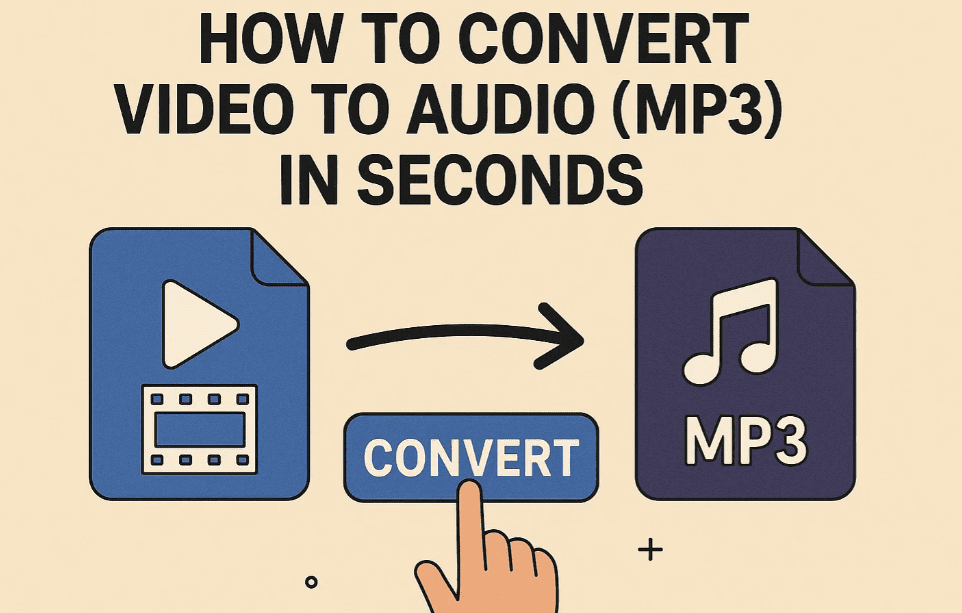
In this article, you’ll learn two easy methods to convert videos into audio using:
- A free desktop file converter (File Converter I/O)
- Wondershare Filmora (Free version with optional watermark)
We’ll walk you through both methods step-by-step and explain how you can even convert Word, PDF, and image files using these same tools!
🛠️ Method 1: Convert Video to MP3 Using File Converter I/O (Free Desktop Tool)
This tool supports converting:
- Video → Audio (MP3)
- Video → Low-res or different format
- Word → PDF/PNG
- PDF → PNG
- and more!
🔗 Step 1: Download the File Converter
- Open Google and search for:
file converter io download - Click on the link to File Converter I/O
✅ Ensure you’re downloading from the official site: https://file-converter.io - Click the Download button and install the software on your PC.
🎬 Step 2: Select the File to Convert
- Navigate to any folder that contains:
- Video files (e.g.,
.mp4,.mkv) - Word documents (
.docx) - PDFs or images
- Video files (e.g.,
For this example, we’ll convert a video file to MP3.
🖱️ Step 3: Convert Video to MP3
- Right-click on the video file
- Click “Show more options” (if using Windows 11)
- Select File Converter > Convert to MP3
That’s it! The software will quickly convert your video into MP3 format in a matter of seconds—even if the video is 1GB in size.
You can also convert:
- To low-res MP4
- To animated GIF
- To other video/audio formats (MKV, AVI, WEBM, etc.)
Optional:
- Compress scale: Reduce size to 75%, 50%, or 25%
- Rotate video
- Adjust tempo or pitch
📄 Convert Word or PDF Files Too!
- Right-click a
.docxfile → Convert to PDF or PNG - Right-click a
.pdffile → Convert to PNG
Perfect for quick document sharing or image previews.
🎬 Method 2: Convert Using Wondershare Filmora (Free Version)
If you already have Wondershare Filmora, this is another powerful way to export audio.
💡 No purchase is necessary if you’re okay with a watermark.
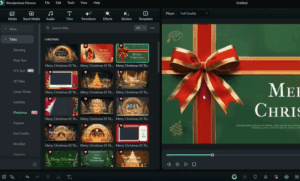
📥 Step 1: Open Filmora and Add Your Video
- Launch Filmora
- Drag and drop your video onto the timeline
- Click on Export
🔊 Step 2: Export as MP3
- In the export window, change the format to MP3
- Click Login (with any Gmail account)
- Proceed with export (even with watermark if prompted)
The MP3 will be saved to your selected destination folder—ready to be played in your car, speaker, phone, or Bluetooth device.








🎧 Looking for a portable MP3 player with Bluetooth support? Check out this one on Amazon: https://amzn.to/3I5YKdo
Perfect for wireless listening in your car, gym, or on the go! [Affiliate link]
❓ Frequently Asked Questions
Q: Can I convert YouTube videos to MP3 directly?
🅰️ Not using these tools directly. First, download the video using tools like 4K Video Downloader and then follow the steps above.
Q: Is File Converter I/O safe?
🅰️ Yes, as long as you download from the official site. It’s lightweight, fast, and doesn’t require internet after installation.
Q: Can I batch convert multiple files?
🅰️ Yes. You can select multiple files and convert them all at once using the same right-click method.
Q: Is there any size limit?
🅰️ There is no strict size limit, but very large videos (5GB+) may take more time and processing power.
✅ Tags:
video to mp3 converter, convert video to audio, free file converter windows, mp4 to mp3 offline, file converter io, wondershare filmora audio export, pdf to image converter, word to pdf converter, mp3 for car, video editing basics
✅ Hashtags:
#VideoToMP3 #FileConverter #AudioExtraction #FreeTools #WindowsTips #MP3Converter #FilmoraTricks #ProductivityTools #FileConversion #OfflineConverter
🔐 Disclaimer: This article is for educational purposes. Always use media conversion tools responsibly and follow copyright laws. Wondershare Filmora may add a watermark in the free version.
Final Thoughts
If you often record or save videos but only need the audio—don’t waste time re-recording or searching for separate audio tracks.
Using these tools, you can convert any video file into MP3 effortlessly and for free.
So the next time you’re heading out, in the shower, or just want a podcast-style experience—use these tools and enjoy your favorite content your way.








