Apple’s iOS 26 brings some of the most impressive and thoughtful updates we’ve seen in recent years. Whether you’re using the developer beta, public beta, or the final stable release, you’ve probably noticed how much Apple has focused on personalization, productivity, and privacy.
After using iOS 26 for over three months, I’ve discovered several hidden gems that genuinely enhance the iPhone experience. These aren’t the flashy AI headlines — they’re the practical upgrades that make daily use smoother, smarter, and more enjoyable.
So, let’s explore the five standout iOS 26 features that deserve your attention.
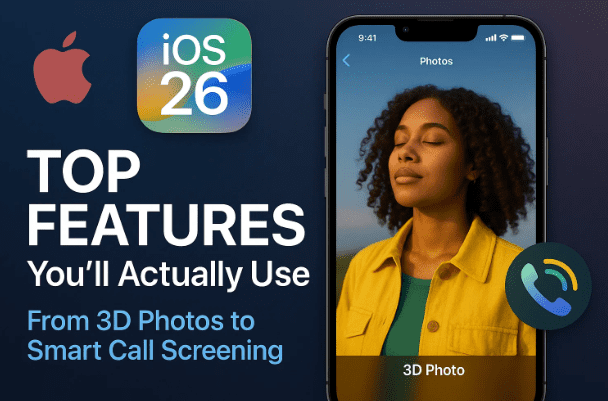
1️⃣ Convert Any Photo Into a 3D Spatial Image
Apple has always excelled at making photos come alive, and with iOS 26, that idea gets a futuristic twist. You can now turn any normal photo into a 3D “Spatial Scene” directly within the Photos app — no third-party tools required.
Why It’s Special
This feature uses Apple’s spatial rendering engine, the same technology behind Vision Pro and Live Photos, to analyze depth and lighting. It then adds layers of perspective, turning a static image into a dynamic 3D view that reacts when you tilt or move your iPhone.
Steps to Create a 3D Photo
- Open the Photos app on your iPhone.
- Choose any image — one you’ve captured yourself or downloaded from elsewhere.
- Look for a small 3D cube or spatial icon on the top or bottom of the screen.
- Tap it to enable “Spatial Scene” mode.
- Wait for iOS to process the image — it will analyze the depth and textures automatically.
Within seconds, your flat image transforms into a lifelike 3D photo that responds to motion and depth.
Use It as a Wallpaper
Once converted, you can even set this photo as your lock screen or home wallpaper:
- Tap Share → Use as Wallpaper.
- Adjust the zoom and framing.
- Tap Set as Wallpaper Pair.
When you pick up or move your phone, you’ll notice a subtle 3D effect — it feels as if the photo has real depth behind the glass.
2️⃣ Safari’s Smarter Tab and Navigation Controls
Let’s move to a feature that most of us use every day — the Safari browser.
iOS 26 has quietly overhauled Safari’s interface, giving you new ways to control tabs, navigate faster, and reduce clutter while browsing.
What’s New in Safari
- Swipe Navigation Between Tabs:
Simply swipe left or right on the address/search bar to switch between open tabs instantly. No need to open the tab overview screen every time. - Tab Management Improvements:
Long-press any open tab and choose “Close Other Tabs” to instantly close everything else and keep only the one you’re reading. - Auto-Hiding Search Bar:
The search bar now intelligently hides while scrolling to give you more space for content, reappearing only when you need it.
These refinements make Safari smoother and more intuitive, especially if you often multitask between multiple research pages or streaming tabs.





👉 For full Safari feature details, visit Apple’s Safari page.
3️⃣ Advanced Wallpaper Customization on Lock Screen
So far, we’ve explored some visual features, but this next one is where personalization truly shines.
In iOS 26, Apple has revamped lock screen customization, offering even deeper control over wallpapers, widgets, and color themes.
How to Customize Your Lock Screen Wallpaper
- On your Lock Screen, long-press an empty area.
- Unlock your phone when prompted.
- Tap the “+” (plus) icon to create a new wallpaper set.
- Select a background image — either from Apple’s gallery or your own photos.
- Use the new color tone slider to match your theme (e.g., orange for iPhone 17 style).
- Adjust widgets like time, weather, battery percentage, or even ChatGPT shortcuts (if you use the web widget).
You can also toggle between:
- Dark Mode
- Light Mode
- Automatic (time-based transition)
What Makes It Special
The transitions are smoother, and the system automatically tints the wallpaper based on your time of day. So your lock screen feels alive and dynamic — not static.
Once satisfied, tap “Set as Wallpaper Pair.” Your new look is applied instantly to both the lock and home screens.
4️⃣ Smart Call Screening: AI Handles Unknown Callers
One of the most practical privacy updates in iOS 26 is Smart Call Screening, which protects you from spam or unwanted calls without requiring any third-party apps.
This feature lets your iPhone’s AI screen calls automatically, asking the caller to state their reason before connecting.
How to Enable Call Screening
- Open Settings on your iPhone.
- Scroll down and select Phone.
- Under Call Handling, tap Call Screening.
- You’ll see three options:
- Never: Disables screening.
- Ask Reason for Calling: iPhone will ask the caller why they’re calling before ringing you.
- Silence Unknown Callers (Source): Silences all unknown or spam numbers automatically.
Why It’s Useful
If you often get telemarketing or fraud calls, this feature can save time and frustration. You’ll receive a transcribed reason (like “This is for delivery verification”) before deciding to answer.
This is especially valuable for professionals who want fewer interruptions but can’t afford to miss important business calls.
5️⃣ 3D Lock Screen Wallpapers – Bringing Spatial Scenes to Life
Now that we’ve seen how to create 3D photos, let’s connect it to something even more fun — 3D lock screen wallpapers.
This feature combines Apple’s motion effects with the new Spatial Scene engine, creating live depth wallpapers that subtly move as you tilt your phone.
Steps to Set a 3D Wallpaper
- Go to your Lock Screen and long-press to enter edit mode.
- Tap the “+” icon to add a new wallpaper.
- Select the Photos category.
- Choose a picture you want to turn into a 3D background.
- Tap the Spatial Scene (3D) icon to activate depth processing.
- Adjust the framing or zoom as needed.
- Tap Set as Wallpaper Pair.
Now when you wake your iPhone, your wallpaper reacts dynamically to your movement — a small but striking enhancement that makes your phone feel futuristic.
Extra Tip
If you use iPhone models with Face ID and OLED screens, this effect looks even better because of the contrast between depth layers and background illumination.
✨ Bonus: Hidden Improvements Worth Noticing
Beyond these five headline features, iOS 26 also introduces several smaller yet meaningful upgrades:
- Improved Battery Optimization: The Energy Saver intelligently adjusts background refresh.
- Smarter Keyboard Predictions: The system now suggests entire sentence continuations.
- Enhanced App Privacy Reports: You can view which apps accessed your camera, mic, or location in the past 24 hours.
- Faster Siri Commands: Local on-device processing now triggers basic actions instantly without internet lag.
Each of these smaller details adds up, resulting in a smoother and smarter overall user experience.
💬 Frequently Asked Questions (FAQs)
Q1. Is iOS 26 available for all iPhones?
iOS 26 supports iPhone 12 and newer models. Some advanced features like Spatial Wallpapers may require A16 or later chips.
Q2. Does 3D photo conversion work offline?
The Spatial Scene feature uses on-device neural processing, so it works even without an internet connection.
Q3. Can I disable call screening anytime?
Absolutely. Just go back to Settings → Phone → Call Screening → Never to turn it off.
Q4. Does the 3D wallpaper drain more battery?
Only slightly. Apple optimizes animations to pause when idle, so the impact is minimal.
Q5. How is Safari different from Chrome on iOS now?
With gesture-based tab switching, better energy optimization, and full iCloud sync, Safari now feels more integrated and secure for Apple users.
🧠 Final Thoughts
After months of testing, one thing is clear — iOS 26 is not just another update, it’s a thoughtful refinement of the entire iPhone experience.
From stunning 3D wallpapers and smarter Safari controls to AI-driven call screening, Apple has focused on giving users more control, personalization, and privacy — all without compromising speed or simplicity.
If you haven’t explored these features yet, take a few minutes to try them out. You’ll be surprised at how much more interactive, visually appealing, and secure your iPhone feels.
⚠️ Disclaimer
iOS 26 features may vary depending on your iPhone model and region. Beta users may see minor differences compared to the final public release. Always back up your data before installing major updates.
For official release notes and device compatibility, visit Apple’s official site: https://www.apple.com/ios
#iOS26 #Apple #iPhoneTips #iOSUpdate #3DWallpaper #SafariUpdate #CallScreening #AppleFeatures #TechGuide #MobileTips






