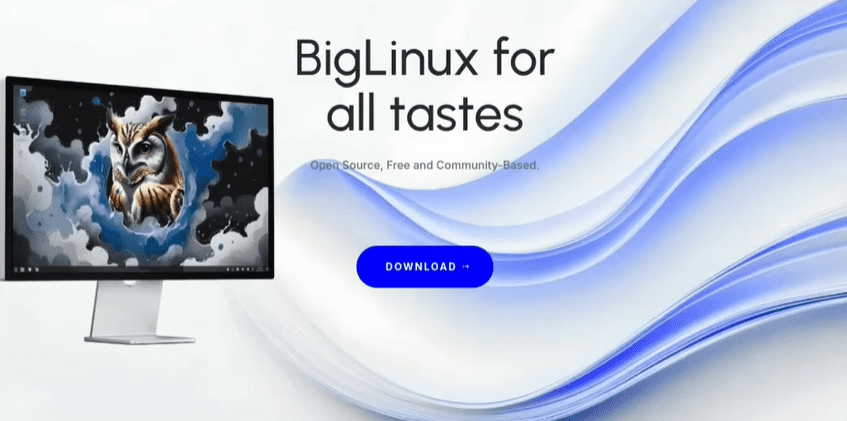
Every once in a while, in the vast and sometimes chaotic world of Linux distributions, you discover something that genuinely makes you pause and say, “Why is nobody talking about this?” That was exactly my reaction when I finally installed and tested BigLinux OS, a Brazilian Linux distribution that has existed for almost 20 years—yet surprisingly remains under the radar for many users worldwide.
If you’re someone coming from Windows, or someone searching for a Linux distribution that “just works” out of the box without forcing you into the terminal on day one, then BigLinux might be the hidden gem you’ve been looking for. And in this article, I’m going to take you through a detailed, step-by-step breakdown of why BigLinux is one of the most underrated Linux distros today.
Before we begin, let me make a quick but important promise about this article:
This is not a promotional piece. It’s a practical review written for people who want an honest, deeply detailed understanding of the distro—what makes it good, where it stands out, and why it may be the perfect choice for new Linux users.
So let’s begin the journey.
⭐ What Exactly Is BigLinux? A Distribution With History, Heart, and Purpose
Before diving into features and steps, it’s essential to build a bit of context around BigLinux, because many readers might be hearing about it for the first time.
BigLinux is a distribution from Brazil, and unlike the many new “overnight distros” that appear and disappear, this one has nearly two decades of development behind it. That alone gives you confidence that you’re not installing something experimental or half-baked.
Originally, BigLinux was based on Kubuntu. But times changed, the Linux landscape shifted, and today BigLinux is built on top of Manjaro Linux, which itself is a user-friendly Arch-based distribution.
This means three important things:
- You get access to Arch’s massive software library (AUR).
- You get regular updates, but with stability.
- You get KDE Plasma—which is one of the most customizable desktops on Earth.
If that’s not a strong foundation, I don’t know what is.
And yes, the official website is available here:
🔗 https://www.biglinux.com.br/
There’s also a community edition offering GNOME, Xfce, and Cinnamon layouts:
🔗 https://communitybig.org/



Now that the context is clear, let’s move toward what makes BigLinux special.
⭐ Why BigLinux Stands Out: The Philosophy Behind It
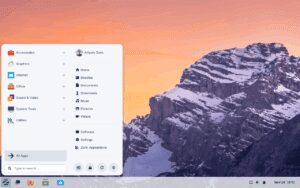
Before we jump into installation steps and features, it’s worth understanding why people compare BigLinux with Zorin OS. In fact, some believe BigLinux does a better job at being a user-friendly distro than Zorin itself.
Let’s move to the next part and understand the philosophy behind the project.
BigLinux isn’t trying to overwhelm you with themes or flashy animations. Instead, the developers focus on something far more meaningful:
✔ Ease of use
✔ Zero learning curve
✔ Minimal terminal usage
✔ Deep but friendly customization
✔ Transparent settings
✔ Practicality instead of unnecessary flash
This is why BigLinux becomes such a good choice for:
- First-time Linux users
- Windows users switching to Linux
- People who want a stable dual-boot solution
- Users who want Arch benefits without Arch headaches
- Gamers who want plug-and-play support
- Professionals who need Docker, SSH, and AUR access
BigLinux hits all these marks beautifully.
⭐ Installation Experience: As Simple As Installing Windows
Now let’s get practical.
If you’re new to Linux, you may have heard stories about complicated partitioning, bootloader issues, and endless terminal commands. But BigLinux takes all that confusion away by offering one of the best installers in the Linux ecosystem.
It uses Calamares, a user-friendly graphical installer used in many great distros.
Before diving into its steps, let’s talk a bit about what makes the installation experience so smooth.
⭐ The Beauty of the Calamares Installer
When you begin the installation process, you immediately notice something reassuring:
everything is clean, simple, and explained in plain language.
Instead of throwing advanced partitioning jargon at you, Calamares guides you like a friendly assistant:
- It helps you choose your region.
- It sets up your keyboard.
- It configures your user account.
- It guides you through dual-boot setup.
Now before moving into the steps, it’s important to address one thing—partitioning.
This is usually the part that scares newcomers the most. But BigLinux ensures it doesn’t become a nightmare for beginners.
Let’s move to the step-by-step installation process so things become clearer.
⭐ Step-by-Step BigLinux Installation Guide (For New Users)
So far we’ve understood the simplicity of the installer. Now let’s see what installing BigLinux actually looks like.
Here are the steps:
- Download the ISO from the official website
➝ https://www.biglinux.com.br/ - Create a bootable USB (using Rufus, Balena Etcher, or Ventoy).
BigLinux works well with any of them. - Boot from USB by changing the boot order from BIOS.
- Select “Install BigLinux” on the welcome screen.
Now you will enter the Calamares installer.
- Choose your language
The installer supports multiple languages. - Pick your region and keyboard layout
Most users stick to their default settings. - Select the installation type
Here you have choices like:- Install alongside Windows (Dual Boot)
- Replace a partition
- Manual partitioning
- Set your username, password, and computer name
- Review the installation summary
- Click Install
After a few minutes, your new Linux OS is ready.
What makes this process impressive is the absence of technical obstacles. There’s no hunting for BIOS settings, no obscure warnings, and no guesswork. Everything is clean and straightforward.
⭐ First Boot Experience: A Pleasant Surprise
Now comes the part that amazed me the most—entering the system for the first time.
You can instantly tell that BigLinux developers understand the pain points of Windows users transitioning to Linux.
The first thing you notice is the BigLinux Control Center.
⭐ BigLinux Control Center: The Best Control Panel You Will See Outside Windows
Let’s talk about this control center before diving into its features, because it deserves special attention.
Every Linux distribution has a settings panel. But many of them are scattered, confusing, or inconsistent. BigLinux fixes this problem by creating a unified, beautiful control center where:
- All configurations are organized
- Tools are grouped logically
- You find everything where you expect it
- Nothing feels out of place
- Every option is explained without jargon
Before listing features, let’s ease into it with a bit more explanation.
BigLinux treats customization like a first-class feature, not an afterthought. As soon as you open the settings, it’s clear that the system is intentionally designed to make you feel comfortable—not overwhelmed.
Now that you have the context, here’s what the control center offers.
⭐ What You Can Do Inside the BigLinux Control Center
Let’s move to the next part and break down its features. These aren’t thrown randomly; each tool is placed with intention.
Here’s what you’ll find:
✔ Desktop layout switching
✔ Theme customization
✔ Driver installation
✔ Kernel management
✔ AUR settings
✔ System snapshots and rollbacks
✔ Docker enabling
✔ SSH setup
✔ Interface backup and restore
✔ BigLinux theme engine
✔ Intelligent window tiling
✔ Custom KDE Plasma tweaks
This level of integration is something you normally see in professional, enterprise-ready systems—yet BigLinux offers it for beginners.
⭐ Desktop Layouts: Six Beautiful Modes for Every Workflow
Now let’s talk about the feature many users absolutely love—the desktop layouts.
Before jumping into the list, let’s understand why this matters.
Windows users expect a familiar interface.
Mac users want a top-bar with global menus.
Linux veterans want tiling features and efficiency.
BigLinux solves all these needs by offering six ready-to-use desktop layouts, each organized, polished, and optimized.
Here’s what you get:
- Vanilla KDE – For those who want a clean, classic Plasma experience.
- MacOS-style layout – With a top bar and dock, ideal for Apple users.
- Windows-style layout – Familiar panel, start menu, and taskbar.
- Unity-inspired layout – A modern, left bar reminiscent of Ubuntu Unity.
- Tiling-supported layout – For productivity-focused users.
- Minimalist layout – Clean, distraction-free interface.
These aren’t cheap theme changes.
Each layout modifies:
- Widgets
- Panel behavior
- Animations
- Global settings
- Plasma configurations
And you can switch between layouts with a single click.
⭐ Pre-Installed Applications: Everything You Need, Ready Out of the Box
Let’s move to the next major part—pre-installed software.
BigLinux does something many distros fail at:
it pre-installs useful applications without adding bloat.
Before listing them, let me explain the philosophy behind this decision.
A new Linux user shouldn’t have to:
- Install drivers
- Configure gaming layers
- Search for browsers
- Manually add multimedia apps
- Add codecs
BigLinux takes that pain away by preparing everything for you.
Now let’s see what’s included.
⭐ Apps You Get Immediately After Installation
Here’s a breakdown of what the distro includes:
✔ Amazon Music
✔ Netflix
✔ Google Web Apps (Drive, Docs, YouTube)
✔ Discord
✔ Steam (with Proton ready)
✔ Multiple browser choices (Brave, Firefox, Chrome, Falkon)
✔ Multimedia tools
✔ System monitoring utilities
The idea is simple:
Install BigLinux → Sign in → Start using your PC immediately.
⭐ Gaming on BigLinux: Shockingly Good Out-of-the-Box
Let’s move on to gaming because this is a make-or-break factor for many people.
Most Linux distros make you:
- Install GPU drivers manually
- Configure Proton
- Enable multilib
- Troubleshoot Steam issues
- Google for hours
BigLinux skips all of this.
You install BigLinux, steam is ready, drivers configure automatically, and Proton is pre-enabled.
This allows you to:
✔ Install games instantly
✔ Skip command-line tweaks
✔ Play Windows games easily
✔ Enjoy smooth performance
For a small distro, this is exceptionally impressive.
⭐ Package Management and AUR Integration: Power Without Complexity
Now let’s talk about something more technical—but very important: packages.
Most Windows users don’t know what a package manager is. But in Linux, it determines how you install apps.
BigLinux is based on Manjaro, which uses pacman as a package manager.
It also gives access to AUR (Arch User Repository).
Before going into the details, let’s explain why AUR matters.
AUR gives you access to:
- Thousands of community packages
- Latest applications
- Niche utilities
- Developer tools
- Proprietary apps
But AUR normally requires manual commands, and that scares beginners.
BigLinux solves this elegantly.
⭐ How BigLinux Makes AUR and Package Management Easy
Here’s what it does:
- Integrates AUR directly in the software center
- Allows installing apps with UI only
- Provides rollback options
- Gives GUI-based update management
- Offers automatic dependency handling
And here’s a clever detail many will appreciate:
BigLinux includes a wrapper that maps apt commands to pacman.
So if you’re coming from Ubuntu and type:
sudo apt install firefox
BigLinux will automatically route it to pacman.
This tiny feature makes the transition unbelievably smooth.
⭐ Advanced Features Made Beginner-Friendly
Let’s move forward and talk about some deeper system tools that BigLinux makes accessible even to non-technical users.
These include:
- Docker activation
- SSH configuration
- Driver installation
- Kernel switching
- Desktop layout backup
- Terminal profiles
- System rollback points
These features are usually found only in advanced distros and require manual configuration. But BigLinux integrates them all into easy-to-navigate GUI panels.
This makes it perfect for:
- Developers
- Server managers
- Linux learners
- Enthusiasts wanting more control
Yet everything remains beginner-safe.
⭐ Performance and Optimization: Fast, Fluid, and Lightweight
Now let’s talk about performance.
Despite being packed with features, BigLinux remains surprisingly light. KDE Plasma is known for being efficient, but here the optimization is even better.
Animations are smooth.
Apps open quickly.
Resource usage stays moderate.
Old machines run surprisingly well.
I tested BigLinux on a mid-range computer and experienced no lag, stutters, or slowdowns. This clearly shows how deeply optimized the system is.
The developers did not simply combine Manjaro + KDE.
They refined and polished it.
⭐ Final Thoughts: BigLinux Is the Best Beginner-Friendly Linux Distro You’re Not Using
After exploring all its features, tools, and design philosophy, one thing becomes crystal clear:
BigLinux is one of the most beginner-friendly, well-polished, deeply customizable Linux distros available today.
It successfully balances:
- Simplicity
- Customization
- Stability
- Power
- Performance
- Aesthetics
- User experience
Whether you’re switching from Windows or are a seasoned Linux user wanting something refined yet flexible, BigLinux is absolutely worth trying.
I genuinely believe this distribution deserves far more attention than it currently gets.
Install it in dual boot, explore it for a week, and there’s a strong chance you’ll be pleasantly surprised—just like I was.
❓ Frequently Asked Questions (FAQs)
1. Is BigLinux good for complete beginners?
Absolutely. It’s one of the most beginner-friendly distros ever created.
2. Is BigLinux stable?
Yes. It’s based on Manjaro, which balances Arch flexibility with stability.
3. Can BigLinux be used for gaming?
Yes. Steam, Proton, and drivers come pre-configured.
4. Does BigLinux require terminal commands?
Not necessarily. You can use the system 100% through GUI tools.
5. Is BigLinux suitable for developers?
Yes. Docker, SSH, AUR, and package tools are integrated.
6. Is BigLinux lightweight?
It runs very efficiently even on older systems.
7. How long has BigLinux existed?
Around 20 years—making it a mature and trustworthy project.
⚠️ Disclaimer
Linux installations, dual boot setups, and system modifications should always be done carefully. Ensure you have backups of important data and understand the risks involved in partitioning or modifying bootloaders. This article is for educational purposes and does not guarantee ideal performance on every hardware configuration.
#Linux #BigLinux #KDEPlasma #Manjaro #LinuxReview #LinuxBeginner #LinuxCustomization #OpenSource #DistroReview








