In today’s digital age, visuals play a huge role in how we consume information, remember memories, and even present ourselves professionally. But what happens when your favorite old video is stuck in 360p, or a cherished photo from years ago looks blurry and faded? This is where AI-powered upscaling and enhancement tools come to the rescue.
One of the leading tools in this space is VideoProc Converter AI, a software solution designed to upscale and enhance both videos and images with advanced artificial intelligence models. In this guide, we’ll explore how to use this software step by step, uncover its powerful features, and even discuss when to use different settings for the best possible results.
The exciting part? Although it’s a premium tool, the developers are currently offering version 7 for free, so you can try out all the features before deciding whether to upgrade to the faster and more advanced version 8.
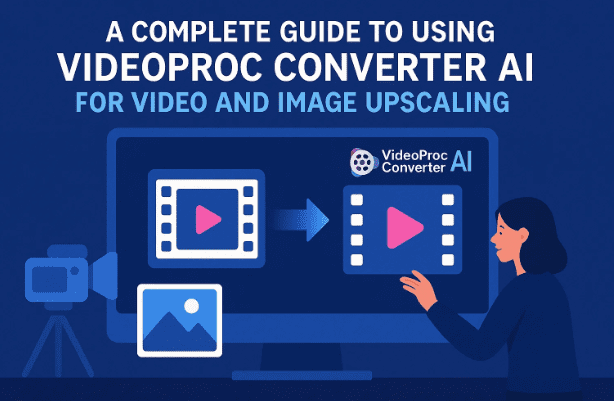
Let’s dive in and explore what makes this tool worth your attention.
1. 🌟 Introduction to VideoProc Converter AI
VideoProc Converter AI is not just another video editing tool—it’s an AI-powered software designed specifically to upscale, enhance, and restore old or low-quality videos and images. Unlike traditional editing methods where sharpening or resizing often introduces noise or pixelation, this software uses deep learning AI models to recreate details, smooth textures, and generate higher resolutions that feel natural.
For example:
- A blurry 720p home video can be transformed into sharp 2K or even 4K quality.
- Old black and white family photos can be colorized with realistic tones.
- Low-resolution internet downloads (like 360p videos) can be cleaned up and brought to life in full HD.
Now that you have a general idea, let’s move forward and look at the main features that make this software shine.
2. ⚙️ Main Features at a Glance
Before going into the step-by-step usage, here’s what VideoProc Converter AI brings to the table:
- Super Resolution Video Upscaling – Upscale videos from 480p, 720p, or 1080p to higher resolutions like 2K, 4K, or even 8K.
- Multiple AI Models – Choose AI models like Gen Detail V3 for sharpness, Real Smooth V3 for smoother textures, or Anime Model for stylized effects.
- Batch Processing – Enhance multiple videos or images at the same time.
- Image Enhancement – Upscale photos to ultra-high resolution (up to 8K).
- Colorization – Bring black and white or sepia images back to life with color.
- Performance Controls – Select CPU, GPU, or integrated GPU for rendering, making it adaptable to different hardware setups.
- Format Support – Works with a wide range of video and image codecs.
With the features clear, let’s now go step by step and actually see how it works.
3. 💻 How to Download and Install VideoProc Converter AI
Getting started is straightforward:
- Visit the official website: https://www.videoproc.com/
- Download the free version (v7): This lets you try all major features at no cost.
- Install the software: Run the installer and follow the on-screen instructions.
- Launch the program: Once installed, open it and explore the dashboard.
At this point, you’re ready to begin transforming your videos and images.









4. 🎥 Upscaling Videos with Super Resolution
Imagine you have an old video recorded in 720p that looks dull on today’s big screens. VideoProc Converter AI can change that.
Steps to Upscale a Video:
- Open the software and click on Super Resolution.
- Drag and drop your video file into the interface.
- Instantly, the software shows a before and after preview. This helps you decide if the changes look good before exporting.
- Choose your AI model (more on that soon).
- Select the upscale factor: 2x, 3x, or 4x.
- Pick the desired resolution (e.g., 1080p, 2K, 4K).
- Hit Run and wait for the processing to complete.
The result is often striking—the difference between a grainy old video and a clean, vibrant modern resolution can feel magical.
5. 🧠 Exploring Different AI Models for Best Results
This is where the real fun begins. VideoProc Converter AI offers several AI models, each designed for a unique purpose:
- Gen Detail V3 (default): Best for adding clarity, sharpness, and fixing blurry details. Great for general videos.
- Real Smooth V3: Softens textures and reduces harsh noise. Perfect for videos where faces or natural textures need to look gentle.
- Anime Model: Ideal for turning videos into anime/cartoon style or improving existing animated content.
- ZYXT Model: Specialized in enhancing ultra-low resolution videos (like 240p/360p).
👉 Tip: If you’re upscaling old family videos, start with Gen Detail V3. If you’re working on animation or artwork, try the Anime Model.
6. 🔍 Choosing the Right Upscale Options
When it comes to upscaling, more is not always better. Here’s how to decide:
- 2x Upscale: Doubles the resolution (e.g., 720p → 1440p). Balanced for speed and quality.
- 3x Upscale: Ideal for very low-resolution content like 360p videos.
- 4x Upscale: Maximum enhancement, but requires more processing power and time.
You can also select a custom resolution such as 1080p or 2K if you don’t want to upscale too much.
7. ⚡ Performance Settings – CPU vs GPU Rendering
AI processing can be heavy on your computer. VideoProc Converter AI allows you to choose the rendering device:
- CPU: Works on all machines but is slower.
- GPU (recommended): Much faster if you have a dedicated graphics card like NVIDIA or AMD.
- Integrated GPU: A middle ground, useful if you don’t have a dedicated GPU.
👉 If you have an NVIDIA RTX card (like RTX 2070), select it for the fastest results.
8. 📂 Batch Upscaling for Multiple Videos
Instead of working on one file at a time, you can import multiple videos into the queue. This is especially helpful if you’re cleaning up an entire collection of old family recordings or converting a series of YouTube clips.
Steps:
- Drag multiple files into the program.
- Apply the same AI model and settings to all.
- Hit Run to process them together.
9. 🖼️ Enhancing and Upscaling Images with AI
The magic of VideoProc isn’t limited to videos—it also works wonders with photos.
For example, a 2K photo can be boosted to 8K resolution with improved sharpness and clarity.
Steps:
- Switch to Image Upscaling.
- Import your photo.
- Preview the before/after.
- Select the AI model and upscale option.
- Click Run to export.
10. 🎨 Colorizing Old Black and White Photos
Perhaps the most nostalgic feature is the ability to add realistic colors to black and white photos.
- Simply import a monochrome photo.
- Select Colorize Monochrome Image.
- Preview the transformation as AI intelligently adds skin tones, clothing colors, and natural shades.
This is a fantastic way to bring history to life—whether it’s your grandparents’ wedding photos or vintage cityscapes.
11. 📏 When to Use Enhance Instead of Upscale
Upscaling is useful when you want higher resolution. But what if your photo is already 4K, just lacking sharpness?
In that case, choose Enhance Image/Video instead of upscaling. This improves clarity without changing resolution, saving time and avoiding unnecessarily large file sizes.
12. 📝 Real-World Examples and Results
- Case 1: 720p Video → 2K: Cleaner edges, reduced blur, and sharper faces.
- Case 2: 360p Video → 1080p: A huge leap, turning unusable footage into watchable quality.
- Case 3: Black and White Photo → Colored: Historical moments feel alive again.
- Case 4: 2K Photo → 8K: Fine details pop out, textures become realistic.
13. ❓ Frequently Asked Questions
Q1. Is VideoProc Converter AI free?
Version 7 is currently offered free, while version 8 is a premium upgrade with faster AI models.
Q2. Can I use it on a low-end computer?
Yes, but processing will be slower. Using GPU acceleration helps a lot.
Q3. Does upscaling always improve quality?
Not always—AI does its best to reconstruct details, but extremely poor inputs may still look artificial if pushed too far.
Q4. Can I use it for anime or cartoons?
Yes, the Anime AI model is designed specifically for that purpose.
14. ✅ Conclusion and Final Thoughts
VideoProc Converter AI is a powerful tool that makes old media feel new again. Whether you want to upscale videos, sharpen photos, or add colors to black and white images, this software has you covered.
The free version 7 is a great starting point, and if you love the results, upgrading to version 8 gives even faster performance with newer AI models.
If you’ve been looking for a way to restore your memories or improve your creative projects, this is definitely worth a try.
⚠️ Disclaimer
VideoProc Converter AI is safe to use, but always download from the official website to avoid malware or unofficial builds. Also note that upscaling cannot create real details beyond the original—it uses AI estimation to improve clarity. Results may vary depending on the quality of your input.
Tags
VideoProc Converter AI, AI video upscaling, image enhancement, AI image colorization, video restoration, 4K upscaling software, GPU accelerated AI
Hashtags
#VideoProc #AIUpscaling #VideoEnhancement #ImageEnhancement #ColorizePhotos #4KUpscale #VideoEditing