Most of us use our Mac keyboard every single day—for typing, searching, and triggering shortcuts. But did you know your keyboard hides a treasure chest of secret functions that can make your workflow faster, easier, and more powerful?
Apple has always packed macOS with little tricks that aren’t widely advertised. Some of them are true time-savers, while others just make life easier when working with text, windows, or menus.
In this article, we’ll explore a wide range of these hidden Mac keyboard features. You’ll discover how to type symbols you didn’t even know existed, modify window resizing behavior, change how your modifier keys work, and even bring back old-school Emacs shortcuts that are still alive in macOS today.
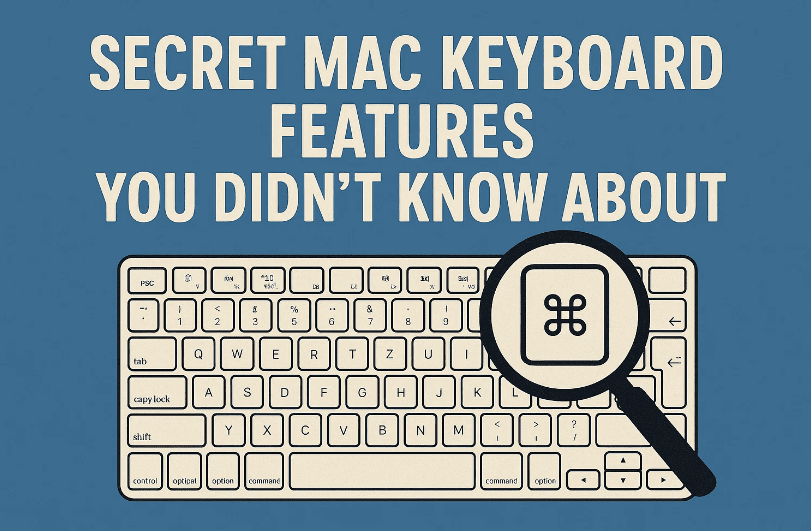
So, let’s dive in. Step by step, we’ll unlock the hidden potential of your Mac’s keyboard.
1. ✍️ Typing Accents and Special Characters
Sometimes you need to type accented letters—maybe for a name, or when writing in another language. macOS makes this very easy:
- Hold down a key. For example, press and hold e. A small popup will appear with é, è, ê, and more.
- Press the number that corresponds to the accent you need.
This works for many letters like a, o, u, and g. If a letter has no alternative (like j), nothing will appear.
👉 A second method: use Option key combinations. For example:
Option + ethene→ éOption + uthene→ ë
This has been around since the early Mac days, but it’s still powerful.
2. 💡 Using Modifier Keys for Hidden Symbols
Your Mac keyboard hides a huge number of characters you never see printed on the keys.
Examples on a U.S. keyboard:
Shift + 4→ $Option + 4→ ¢Option + 7→ ¶ (paragraph mark)Option + 0→ ° (degree symbol)Option + j→ ∆ (delta)Shift + Option + 2→ € (euro sign)Shift + Option + k→ (Apple logo)
These are invaluable when typing documents that require symbols without copying from the web.










3. 😀 Emoji & Character Viewer
Need even more characters? macOS has a full Emoji & Special Character Viewer.
- Shortcut:
Control + Command + Space - Or press the fn (Globe) + e
From here, you can search for symbols, math operators, arrows, or emojis. It’s a complete catalog of what your Mac can type.
4. 🖱️ Option Key Secrets in Menus and Dialogs
Holding the Option key while viewing menus reveals hidden commands.
Examples:
- In Finder, Duplicate changes to Save As.
- In the Sound menu, holding Option shows input controls.
- In Preview’s Export dialog, holding Option reveals more file formats.
These hidden variations often give you pro-level functionality without extra clicks.
5. 📏 Window Resizing Tricks
Dragging window edges is nothing new. But add modifier keys, and you get advanced control:
- Option + drag side → Resizes both sides symmetrically.
- Shift + drag → Resizes proportionally, keeping aspect ratio.
- Option + drag corner → Adjusts all four sides at once.
This works in Finder windows, TextEdit, and even in graphic apps like Pages.
6. 📋 Context Menus with the Control Key
Instead of right-clicking or two-finger tapping, you can:
- Control + Click → Opens context menu.
Handy if your mouse/trackpad gestures aren’t reliable, or if you prefer keyboard control.
7. 🔄 Remapping Modifier Keys
Not happy with the placement of Control, Option, or Command? You can swap them.
- Go to System Settings → Keyboard → Modifier Keys.
- Reassign functions like turning Control into Command.
This is especially useful if you use third-party keyboards where the layout feels awkward.
8. 🔠 Caps Lock & Custom Key Functions
Caps Lock can be annoying if you hit it by accident. In macOS:
- You can disable Caps Lock.
- Or reassign it to Escape, fn, or another modifier.
This customization can free up an otherwise useless key.
9. 🌐 The fn (Function) Key
The fn (or Globe) key is more versatile than people think:
- Single press → Emoji Viewer or Input Source switch.
- Double press → Dictation.
- Use with Function keys → Decide whether F1–F12 act as media keys or standard keys.
10. ⌦ Forward Delete & Navigation Shortcuts
On MacBooks, there’s no dedicated Forward Delete key, but:
fn + Delete= Forward Deletefn + ↑= Page Upfn + ↓= Page Downfn + →= Endfn + ←= Home
Extended keyboards have these as separate keys.
11. 📝 Text Navigation & Selection
Moving around text can be faster with these shortcuts:
Option + ← / →→ Jump word by word.Command + ← / →→ Jump to line start/end.- Add Shift → Extend selection while moving.
This lets you highlight whole words or paragraphs without dragging with a mouse.
12. 🗂️ Finder Selection Shortcuts
In Finder list view:
- Shift + Click → Select a continuous range.
- Command + Click → Add/remove individual items from selection.
This mirrors how text selection works—consistent across macOS.
13. 💾 Keyboard Navigation in Dialog Boxes
In Save/Open dialogs, enable Keyboard Navigation under System Settings → Keyboard.
Then you can Tab through all buttons and fields, not just text boxes.
Useful shortcuts:
Command + .→ CancelCommand + S→ SaveReturn→ Activates the highlighted button
14. ✨ Auto-Capitalization & Double-Space Period
Under System Settings → Keyboard → Input Sources → Edit:
- Capitalize Words Automatically → Saves you from manually pressing Shift.
- Add period with double space → Space Space = “.” + space.
Small time-savers that add up if you type a lot.
15. 👀 Keyboard Viewer & Accessibility Keyboard
The built-in Keyboard Viewer shows what happens when you press modifier keys. Hold Option or Shift, and the on-screen keyboard updates to reveal hidden characters.
For more control, enable the Accessibility Keyboard in System Settings → Accessibility. This floating keyboard can display all combinations of characters and even be resized or styled.
16. ♿ Sticky Keys & Mouse Keys
Accessibility features that benefit everyone:
- Sticky Keys → Lets you press modifier keys (like Option or Command) one at a time instead of holding them.
- Mouse Keys → Lets you move the pointer with keyboard keys (handy if your mouse dies).
17. 🔢 Typing Unicode Characters
Want to type obscure symbols? Add Unicode Hex Input as a keyboard layout:
- Hold Option and type the Unicode code.
- Example: Option + 221E → ∞ (infinity).
This gives you access to any Unicode character without copy-paste.
18. ⌨️ Dvorak Keyboard Layout
For advanced typists, macOS includes the Dvorak layout, designed for speed and efficiency. It’s drastically different from QWERTY, so learning it takes time, but some users swear by it.
👉 Learn more: Dvorak Simplified Keyboard
19. 📜 Emacs Legacy Shortcuts
macOS still supports old Emacs-style shortcuts in text fields:
Control + K→ Kill (cut to end of line)Control + Y→ Yank (paste killed text)Control + F→ Move forwardControl + B→ Move backwardControl + O→ Insert new line without moving cursor
These are leftovers from Unix heritage, but can be surprisingly useful once learned.
20. ↩️ Insert New Lines in Forms
On websites or chat apps, pressing Return often sends the text. To insert a line break instead:
- Try
Shift + ReturnorOption + Returndepending on the app.
21. 🎚️ Fine-Tuning Volume & Brightness
Normally, brightness/volume changes in big jumps. But:
- Hold Shift + Option while adjusting → changes in small increments.
Perfect for fine-tuning.
22. 🔍 Help Menu Keyboard Shortcut
Want to quickly search for any menu command?
- Shortcut:
Command + Shift + /(orCommand + ?).
This opens the Help menu’s search box, where you can type the command you’re looking for and even run it directly.
23. 🖥️ Navigating the Menu Bar with Keyboard
Enable this under Keyboard Shortcuts → Keyboard. Then:
Control + F2→ Moves focus to Menu Bar.- Use arrows to navigate menus without touching the mouse.
24. 🛠️ Custom Keyboard Shortcuts & Text Replacements
In System Settings → Keyboard → Shortcuts → App Shortcuts, you can:
- Add your own shortcuts for menu commands.
- Override existing ones.
Also, under Text Replacements, create shortcuts for long text. Example:
- Typing
;;sigcould expand into your full email signature.
25. 🔤 Alphabet Jumping in Lists
In alphabetical lists (Finder, Launchpad):
- Type letters to jump directly.
- Example: typing “Pe” jumps to “People” instead of just “P”.
This works across macOS wherever items are sorted alphabetically.
26. 🎯 Final Thoughts & FAQs
The Mac keyboard isn’t just for typing—it’s an engine of hidden power. By mastering these shortcuts and features, you can work faster, discover new capabilities, and tailor your Mac to your workflow.
FAQs
Q: Will these shortcuts work on all Macs?
Most work universally, but some (like Forward Delete or extended function keys) require certain keyboards.
Q: Can I break anything by remapping keys?
No—changes are reversible. If something feels off, reset modifier keys to default.
Q: Do Emacs shortcuts interfere with normal typing?
Not really. They only trigger when you press Control combinations intentionally.
Q: Is Unicode typing practical for everyday use?
If you type symbols often, yes. Otherwise, the Emoji Viewer is quicker.
⚠️ Disclaimer
These tips are based on macOS (Sonoma/Sequoia era). Features may evolve in future updates. Always back up important data before changing accessibility or keyboard settings.
Tags
macOS keyboard shortcuts, Mac hidden features, typing accents Mac, Option key tricks, Mac text navigation, Emacs shortcuts Mac, Unicode input Mac, Finder keyboard tips, Apple accessibility
Hashtags
#macOS #AppleTips #MacKeyboard #MacShortcuts #Productivity #TypingTips







