When Microsoft officially ended support for Windows 10 on October 14, 2025, millions of users around the world faced a big question — what next? Enter Zorin OS 18, a Linux distribution that’s been designed specifically to help Windows users transition smoothly into the open-source world.
Built on Ubuntu 24.04 LTS (Long-Term Support), Zorin OS 18 promises reliability, beautiful design, and support through June 2029. This release arrives at a perfect time, giving Windows users a secure and user-friendly alternative.
In this article, we’ll go step-by-step through everything you need to know about Zorin OS 18 — from installation, features, and desktop customization to OneDrive integration, Wine support, and the difference between Core and Pro editions.
1. What is Zorin OS 18?
Zorin OS is a Linux distribution based on Ubuntu, known for its sleek interface and ease of use for Windows migrants. The Zorin team has focused heavily on familiarity, stability, and visual design.
Version 18 is built on Ubuntu 24.04 LTS, meaning it inherits rock-solid performance, excellent hardware compatibility, and 5 years of updates. It’s available in three editions: Core, Education, and Pro — all sharing the same foundation.
2. System Requirements & Editions
Before diving into installation, it’s good to understand the different versions:
| Edition | Price | Description | Ideal For |
|---|---|---|---|
| Core | Free | Main edition with all essential apps | Home & general users |
| Education | Free | Core + educational apps for learning environments | Students, schools |
| Pro | Paid (£47.99 / $59) | Extra desktop layouts, preinstalled software, and priority support | Power users & professionals |
System Requirements:
- CPU: 1 GHz dual-core processor or higher
- RAM: 2 GB minimum (4 GB recommended)
- Storage: 25 GB free space
- USB Drive: 4 GB or larger for installation
3. How to Download Zorin OS 18
You can download it directly from the official website:
👉 https://zorin.com/os/
After visiting the website:
- Choose your desired edition (Core, Education, or Pro).
- Click Download or Buy Now for Pro.
- Save the ISO file to your system — it’s usually around 3 GB in size.
Once downloaded, the next step is to create a bootable USB drive.
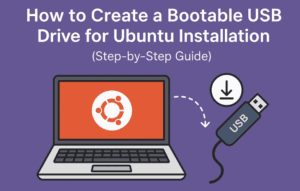
4. Creating a Bootable USB (Using Rufus)
While Zorin recommends Balena Etcher, many users have faced issues running it on Windows 10/11. Instead, we’ll use Rufus, a lightweight and reliable alternative.





Step-by-Step Instructions
Let’s move through the process carefully:
- Download Rufus from https://rufus.ie.
- Insert a 4 GB or larger USB drive into your computer.
- Open Rufus (run it as Administrator).
- In Rufus:
- Under Device, select your USB drive.
- Under Boot selection, choose the downloaded Zorin OS 18 ISO.
- Click Start, choose ISO mode, and confirm that you want to overwrite the USB data.
- Wait until Rufus completes creating the bootable USB.
⚠️ Note: All existing data on the USB drive will be deleted.
Once ready, you can use this USB to boot your computer and start installation.
5. Installing Zorin OS 18 Step-by-Step
Let’s go ahead and install it properly.
- Insert the USB drive and reboot your computer.
- Enter your boot menu (usually by pressing
F12,F9, orEscat startup). - Select your USB drive and boot from it.
- When the Zorin OS menu appears, choose:
- Try or Install Zorin OS (or Install with NVIDIA drivers if you have an NVIDIA GPU).
- Once loaded, you’ll see the Zorin desktop — choose Install Zorin OS to continue.
Installation Steps:
- Language & Keyboard: Choose your preferences.
- Updates & Third-Party Software: Check both boxes (recommended).
- Installation Type:
- Select Erase disk and install Zorin OS (if you want a clean install).
- If dual-booting with Windows, choose Install alongside Windows.
- Time Zone: Select your region.
- User Details: Enter your name, username, and password.
After confirming, the installation will take around 10–15 minutes depending on your hardware. Once done, remove the USB and restart the computer.
And just like that, you’re inside Zorin OS 18 — sleek, modern, and ready to use.
6. First Impressions & Desktop Overview
The default Zorin OS 18 desktop feels immediately familiar to Windows users. A bottom taskbar, a start-menu-style launcher, and a smooth UI with rounded corners give it a professional polish.
At the bottom-left corner, you’ll find the Zorin Menu, which houses applications, system settings, and shortcuts to installed software like LibreOffice, Files, and Videos.
Right-clicking the taskbar opens Taskbar Settings, where you can change alignment, app spacing, and more.
The overall UI balance feels intuitive — you get the flexibility of Linux with the familiarity of Windows.
7. Customizing Appearance & Layouts
One of Zorin’s biggest strengths is its Zorin Appearance app, which allows deep customization.
From Appearance → Themes, you can:
- Switch between Light and Dark mode.
- Change accent colors and desktop icons.
- Enable fun features like Jelly Mode (bouncy window animations) or Desktop Cube (3D workspace switching).
Under Layouts, Zorin 18 Core offers several interface styles:
- Default (Windows-like)
- Touch-friendly layout
- GNOME-like
- Classic Linux layout
Pro users get eight additional layouts, including:
- Windows 11-like layout
- macOS-style dock
- Linux Mint-style layout
💡 Tip: If you enjoy tinkering, Zorin gives just enough customization without overwhelming you with unnecessary settings — perfect for beginners.
8. The New Tiling and Window Management System
Zorin OS 18 introduces a smart tiling system, allowing you to position apps neatly on-screen.
Simply drag a window to a corner or the top, and you’ll see grid suggestions to snap windows side-by-side.
If you don’t like automatic tiling, go to:
Zorin Appearance → Windows → Disable Advanced Window Tiling.
This makes multitasking incredibly efficient, especially on ultrawide monitors or laptops.
9. The Brave Browser Controversy (and How to Replace It)
Zorin OS 18 comes preinstalled with the Brave Browser instead of Firefox — a decision that raised eyebrows.
While Brave is fast and privacy-oriented, it has faced criticism in the past for questionable ad practices. To ensure your privacy and comfort, you can easily replace Brave with Firefox.
How to Install Firefox:
- Open the Software Center.
- Search for “Firefox.”
- Click Install.
- Once installed, right-click the Firefox icon → Pin to Taskbar.
How to Remove Brave Completely:
Open Terminal and run these commands one by one:
sudo apt remove --purge brave-browser -y
sudo apt autoremove -y
sudo apt clean
This ensures Brave and its dependencies are fully removed.
You can now set Firefox as your default browser safely.
10. Running Windows Software Using Wine
For those migrating from Windows, one big concern is — Can I still use my Windows programs?
Zorin OS 18 makes this easier than ever with built-in Wine integration.
How It Works:
When you double-click a Windows .exe file, Zorin will automatically prompt to install Windows App Support (Wine). Once setup completes, compatible Windows apps can be installed and run just like on Windows.
You can find installed Windows programs under:
Menu → Wine → Installed Applications.
However, keep in mind that not all Windows apps work perfectly under Wine. Heavy programs like Photoshop or MS Office desktop versions may face issues.
🧠 Tip: Use online versions of Office or cross-platform alternatives like LibreOffice, OnlyOffice, or WPS Office for smoother experience.
11. OneDrive & Microsoft Account Integration
Zorin OS 18 also allows syncing your Microsoft account and accessing OneDrive directly from the File Manager.
Here’s how:
- Go to Settings → Online Accounts.
- Click Microsoft 365 + OneDrive.
- Sign in with your Microsoft credentials.
Now open Files, and you’ll find a OneDrive folder integrated seamlessly — a big plus for Windows switchers.
You can also access Outlook mail, calendar, and contacts through your linked account.
12. Zorin OS 18 Pro vs Core: What’s the Difference?
Let’s compare both versions side by side:
| Feature | Zorin OS 18 Core | Zorin OS 18 Pro |
|---|---|---|
| Price | Free | £47.99 / $59 |
| Support | Community only | Email support included |
| Desktop Layouts | 4 | 12+ layouts (Windows 11, macOS, GNOME, Mint, etc.) |
| Preinstalled Software | Basic | Includes Blender, Darktable, Inkscape, Krita, VLC, Audacity, Kdenlive, OBS Studio, and more |
| Target Audience | Everyday users | Creators, professionals, power users |
The Pro version essentially provides all creative and productivity tools preloaded — ideal for those who want an all-in-one system without manual setup.
🧩 However, all Pro apps are available for free in Core through the Software Center, so you’re not missing out on functionality — just convenience and support.
13. Final Verdict: Should You Switch to Zorin OS 18?
Zorin OS 18 feels like the bridge between Windows and Linux that users have been waiting for.
It’s visually polished, beginner-friendly, and powerful enough for everyday use. From OneDrive integration to Wine app support and a modern interface, it checks nearly every box for users looking to leave Windows behind.
If you’re ready for a secure, fast, and customizable operating system that respects your privacy, Zorin OS 18 is one of the best Linux distros to try in 2025.
14. FAQs
Q1. Is Zorin OS 18 free to use?
Yes, the Core and Education editions are completely free. The Pro version is paid but optional.
Q2. How long will Zorin OS 18 be supported?
Until June 2029, since it’s based on Ubuntu 24.04 LTS.
Q3. Can I dual-boot it with Windows 10 or 11?
Yes, but dual-boot setups can occasionally cause bootloader issues. A clean install is recommended if possible.
Q4. Does it support gaming?
Yes, through Steam, Lutris, and Proton integration, you can play thousands of Windows games.
Q5. Is Zorin OS suitable for older PCs?
Yes. There’s even a Zorin OS Lite edition (based on XFCE) for low-end hardware.
Disclaimer:
This guide is for informational purposes only. Zorin OS is a registered product of the Zorin Group. The steps and settings described are verified at the time of writing (October 2025). Always back up your data before performing an OS installation.
For official downloads and documentation, visit: https://zorin.com/os/
#ZorinOS18 #LinuxDesktop #WindowsAlternative #UbuntuLTS #LinuxMigration #OpenSource








