Windows has always been known for its flexibility—whether it’s customizing your desktop, tweaking performance settings, or adding third-party utilities. But every once in a while, a new tool comes along that feels like it should have been part of Windows from the start.
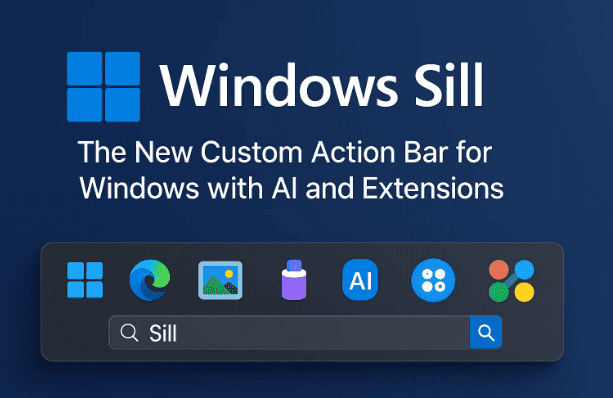
One such tool is Windows Sill, a new app currently available on the Microsoft Store and from its official website. Still in preview (beta), Windows Sill is a versatile bar that works like an extended taskbar but offers far more—clipboard history, quick reminders, music controls, browser functions, image tools, and even AI features.
In this article, I’ll walk you through everything Windows Sill can do, how to set it up, and why it might just become one of your favorite Windows utilities.
1. Introduction to Windows Sill
Windows users often rely on third-party utilities to add small but powerful features—things like enhanced clipboards, music controllers, or taskbars on multiple monitors. Windows Sill combines all these ideas into a single bar.
By default, the bar appears at the bottom of your screen, much like the taskbar. But unlike the taskbar, it adapts dynamically to what you’re doing—browsing, playing music, writing notes, or handling files. It can suggest relevant actions and give you shortcuts to save time.
2. How to Download and Install Windows Sill
Before diving into features, let’s set it up properly:
- Step 1: Download the App
- You can get Windows Sill directly from the Microsoft Store.
- Alternatively, download from the official site: getwindowsill.app.
- Step 2: Install and Launch
- Installation is straightforward—click install, wait a few seconds, and launch the app.
- On first launch, you’ll notice a slim bar positioned at the bottom of your screen.
- Step 3: First Configuration
- The bar will automatically integrate with Windows. You don’t need admin permissions or complex setup.
So far, installation is simple. The real fun begins when you start customizing the bar’s placement and size.
3. Customizing the Bar Placement and Size
Unlike the traditional taskbar, Windows Sill can be placed anywhere:
- Top of the screen (preferred by many users for quick access)
- Bottom of the screen (default, mimicking the taskbar)
- Left or right side (useful for ultrawide monitors)
You can also resize it:
- Tiny mode for minimal space usage.
- Medium or large for more visibility when multitasking.
👉 A nice touch: if you’re running a dual-monitor setup, you can choose which monitor displays the bar. However, at the time of writing, you cannot use it across both monitors simultaneously.
4. Main Features of Windows Sill
Now that we’ve set it up, let’s explore what makes Windows Sill special. Instead of just being an extra bar, it intelligently provides useful tools.




Clipboard History
One of the biggest frustrations in Windows is the limited clipboard. Yes, Windows 10 and 11 have clipboard history (Win+V), but it’s hidden. Windows Sill brings clipboard history front and center:
- Easily see recent copied items.
- Right-click to clear history instantly.
- Quickly paste past items without reopening apps.
This alone saves a lot of repetitive copy-paste hassle.
Quick Reminders
Often while working, we need a lightweight reminder without opening a full app like OneNote or Sticky Notes. Windows Sill has a built-in reminder feature that lets you jot down quick notes and set notifications.
Example use cases:
- Remind yourself to send an email in 30 minutes.
- Create a to-do note during meetings.
- Keep short “don’t forget” messages without cluttering your desktop.
Contextual Actions
Perhaps the most impressive feature is how Windows Sill adapts based on what you’re doing:
- Playing Music? You’ll see playback controls like play, pause, and next track.
- Browsing a webpage? Browser tools appear, such as zoom controls and text summarization.
- Selecting text? Options to analyze, summarize, or translate text are instantly available.
This contextual awareness saves you from switching between apps and menus.
URL Shortening & QR Code Generator
Another neat trick:
- Select a URL → Instantly shorten it.
- Generate a QR code → Share it quickly with another device.
This is especially handy if you often move links between your PC and mobile.
5. AI Integration in Windows Sill
AI is everywhere in 2025, and Windows Sill doesn’t miss out. The app includes AI-powered features for:
- Summarizing selected text.
- Analyzing web content.
- Performing quick actions without leaving your current task.
Free vs Premium AI
- Free Users: You can disable AI completely if you prefer.
- Premium Users: There’s a plan called Windows S Plus for enhanced AI features.
- Custom AI Keys: If you already have an API key for Gemini, ChatGPT, or another AI provider, you can integrate it directly.
- Local AI: Advanced users can run local AI via Ollama if their PC has enough power.
This flexibility is rare—most apps lock you into their own subscription.
6. Managing and Using Extensions
Windows Sill supports extensions, making it modular. This means you can:
- Disable features you don’t use (e.g., clipboard history).
- Add new functionality through downloadable extensions.
Example: Adding an Extension
- Go to Manage Extensions.
- Browse available add-ons.
- Install one (e.g., Performance Counter).
- Restart Windows Sill.
Extensions are still limited since the app is in preview, but the system is open—developers can build and share their own.
7. Performance Monitoring with Extensions
One standout extension is the Performance Counter:
- Shows CPU, RAM, and GPU usage directly on the bar.
- Can display as percentages or animated icons (e.g., “running man” mode).
For gamers, editors, or heavy multitaskers, this real-time monitoring is extremely useful.
8. Customization and Settings Options
Windows Sill gives plenty of ways to fine-tune your experience:
- Bar Position & Size: Top, bottom, left, right, tiny to large.
- Monitor Selection: Choose one monitor for display.
- Disable/Enable Features: Control what modules appear.
- AI Toggle: Turn AI on or off.
- Extensions: Add or remove functionality.
The goal is to make the bar truly yours, instead of forcing you into a fixed layout.
9. Limitations and Current Beta Issues
Since Windows Sill is still in preview (beta), there are rough edges:
- Occasional glitches when resizing the bar.
- Limited multi-monitor support.
- Small number of available extensions.
- Some AI functions may feel experimental.
These issues are expected in early software, and updates are rolling out regularly.
10. Frequently Asked Questions
Q1. Is Windows Sill free?
Yes, the base app is free. Some AI features require a paid Windows S Plus plan, but you can use your own API keys or even local AI for free.
Q2. Can I replace the Windows taskbar with it?
No, Windows Sill is an addition, not a replacement. You can hide the taskbar if you want, but they work independently.
Q3. Will it slow down my system?
No significant slowdown has been reported. Lightweight extensions like clipboard and reminders barely use resources. AI tasks may use more CPU/GPU depending on configuration.
Q4. Can I create my own extensions?
Yes. Developers can build custom extensions to add new tools and share them online.
Q5. Does it work offline?
Yes. Most features like clipboard, reminders, and extensions work offline. AI features require an internet connection unless you use local AI.
11. Conclusion
Windows Sill is more than just a taskbar alternative—it’s a productivity assistant that adapts to your workflow. From clipboard history to performance monitoring, from URL sharing to AI summarization, it covers many small tasks that usually require separate apps.
While it’s still in beta and has a few limitations, the potential is enormous. As more extensions become available, it could turn into a central hub for Windows productivity.
Disclaimer
Windows Sill is currently in preview. Expect occasional glitches and limited features. Always download software from official sources to avoid malware risks.
Tags
windows sill, windows customization, productivity tools, windows extensions, windows ai features, taskbar alternatives, windows 11 utilities, clipboard manager, microsoft store apps
Hashtags
#Windows11 #ProductivityTools #WindowsApps #ClipboardManager #AIIntegration #WindowsCustomization








