For most users who have already updated their system to Windows 11 version 25H2, the excitement quickly turns to confusion when they realize that many of Microsoft’s new experimental features — like the redesigned Start Menu, enhanced File Explorer UI, or live wallpapers — still don’t appear automatically after the update.
That’s because Microsoft is rolling out these features gradually using what it calls Controlled Feature Rollout (CFR). This means even if your build is updated, your system may not immediately show the new features unless you manually activate them.
But don’t worry — in this guide, we’ll walk you through how to unlock and enable all the hidden Windows 11 25H2 features using a small, safe, and open-source command-line tool called ViveTool.
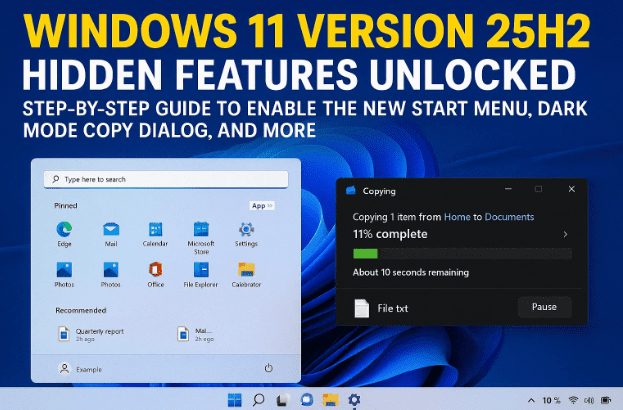
By the end of this article, you’ll be able to enable features like:
- The new Start Menu layout and recommendations
- The Network Speed Test button
- The Modern File Explorer actions and dark mode dialogs
- And even live wallpapers for your desktop!
Let’s get started.
What You’ll Need Before You Begin
Before we move to the setup part, make sure you have these ready:
- Windows 11 25H2 build installed
Go to Settings → System → About → Windows Specifications.
If your version says 25H2, you’re good to go. - Administrative access
You’ll need to run the Command Prompt as an administrator to make system-level changes. - Internet connection
Required to download the ViveTool utility directly from GitHub.
Step 1: Download ViveTool from the Official GitHub Source
The first step is to download the ViveTool utility — a command-line tool created by Windows enthusiasts that allows users to enable or disable hidden Windows features before they’re officially rolled out.
Here’s how to get it safely:
- Open any web browser (preferably Microsoft Edge or Chrome).
- Visit the official ViveTool GitHub repository:
👉 https://github.com/thebookisclosed/ViVe - Scroll down and click on the latest Release version (usually a ZIP file).
- Download it to your system.
Once the file finishes downloading, we’ll extract it in a proper folder so that we can easily access it via Command Prompt later.
Step 2: Extract ViveTool into a Dedicated Folder
To keep things clean and organized, it’s best to create a new folder for ViveTool inside your C drive.
- Go to your Downloads folder and right-click on the ZIP file you just downloaded.
- Select Extract All.
- When asked where to extract, click Browse, then navigate to
C:\and create a new folder called Features. - Select the folder and click Extract.
You’ll now have a folder path like this:




C:\Features\ViveTool-vx.x.x\
(where vx.x.x is the version number).
We’ll need this path in the next step, so copy it to your clipboard.
Step 3: Run Command Prompt as Administrator
Now comes the part where we actually enable the hidden features.
- Click on the Start menu and type
cmd. - When you see “Command Prompt” in the results, right-click it and choose Run as administrator.
- When prompted for confirmation, click Yes.
You’ll now see a black command window open with administrative privileges.
Step 4: Navigate to the ViveTool Folder
In the Command Prompt window, type the following command, then press Enter:
cd C:\Features\ViveTool-vx.x.x
(Replace the path if your folder name is different.)
This tells Windows that we want to run commands inside the ViveTool directory.
If done correctly, your command prompt line should now show something like:
C:\Features\ViveTool-vx.x.x>
Step 5: Enable Hidden Features Using ViveTool Commands
Now that you’re in the right directory, let’s start enabling the new features one by one. Each feature is controlled by a unique Feature ID, and you’ll use a simple command pattern to activate them.
The format of the command is:
vivetool /enable /id:<FeatureID>
Here are some of the most exciting 25H2 hidden features you can unlock today:
🖼️ Enable Live Wallpaper
If you want dynamic wallpapers similar to Android or macOS, enable this:
vivetool /enable /id:57645315
🌐 Enable Network Speed Test Button
Adds a built-in network speed test option under the Network settings:
vivetool /enable /id:57707375
🖱️ Enable Drag & Drop Improvements
Improves the smoothness and precision of drag-and-drop gestures:
vivetool /enable /id:56631583,56632969,58542295
📱 Enable New Mobile Devices Settings Page
Adds a dedicated settings page for pairing and managing mobile devices:
vivetool /enable /id:56845515
🔐 Enable New Privacy and Security Settings Page
Introduces redesigned layouts and additional privacy options:
vivetool /enable /id:57118881
Step 6: Unlock the New Start Menu and Related UI Enhancements
One of the most anticipated updates in Windows 11 25H2 is the modernized Start Menu — featuring better recommendations, cleaner icons, and quicker app grouping.
To enable it, run these commands:
vivetool /enable /id:57048226
vivetool /enable /id:47205210
Once you execute both, you’ll see a confirmation message like:
“Successfully set feature configuration.”
That means it’s been activated, but you’ll need to restart your system to apply the changes.
Step 7: Enable New Actions in File Explorer
The File Explorer has undergone several subtle UI improvements in 25H2, including new right-click actions, performance tweaks, and smoother transitions.
To unlock these hidden updates:
vivetool /enable /id:57479254,55435819
After enabling this, you’ll notice a more consistent and responsive design across all File Explorer dialogs.
Step 8: Enable Dark Mode Copy Dialogs
Windows 11 now brings native dark mode dialogs even for copy, move, and delete operations.
To activate them, run:
vivetool /enable /id:48483719
After restarting, you’ll notice the copy dialogs automatically adapt to your system’s dark mode theme — a much-awaited visual consistency improvement.
Step 9: Restart Your System
Once all commands have been executed successfully, it’s time to reboot your computer.
Restarting applies all pending feature changes. After booting up, you should now see:
- A refreshed Start Menu with improved recommendations.
- Updated File Explorer and dark copy dialogs.
- New network and mobile settings options.
If you don’t see the changes immediately, give your system a few minutes after startup — some features initialize during the background process.
Troubleshooting: If a Command Doesn’t Work
If any command throws an error, double-check the following:
- Make sure Command Prompt is running as Administrator.
- Ensure you copied the correct ViveTool folder path.
- Try restarting your system and running the commands again.
You can also disable a feature later by replacing /enable with /disable in the command. For example:
vivetool /disable /id:57048226
Why Microsoft Hides These Features
Microsoft uses something called A/B testing or Controlled Feature Rollout (CFR). This means new features are distributed only to small groups of users to test stability and user feedback before a full rollout.
By using ViveTool, you’re essentially enabling those “under-development” or “preview” features ahead of time. While these are generally stable, it’s wise to test them carefully and note that they might change or be removed in future updates.
Safety and Reversibility
ViveTool doesn’t modify your system files; it simply toggles internal configuration flags that Windows Update would eventually switch on.
That means you can always:
- Disable any feature anytime.
- Or run Windows Update again to revert your system to official defaults.
So, it’s a safe, reversible way to experience upcoming Windows features early.
Frequently Asked Questions (FAQ)
Q: Is ViveTool safe to use?
Yes, ViveTool is open-source and widely used by Windows enthusiasts and developers. Just make sure to download it from the official GitHub link provided above.
Q: Will this void my Windows warranty or license?
No. These commands only enable pre-existing system features — they don’t hack or alter your license.
Q: Why can’t I see the new Start Menu even after enabling it?
Restart your PC and ensure that Windows 11 build 25H2 (or newer) is installed. Some features may also require cumulative updates to become active.
Q: Can I undo all these changes?
Yes. Use the same commands with /disable to turn off specific features or simply uninstall ViveTool and restart your system.
Final Thoughts
The Windows 11 25H2 update is more than just a performance improvement — it’s quietly laying the foundation for Windows 12’s modular interface. By using tools like ViveTool, you get a glimpse into what’s coming next — from UI refinements to smarter system integration.
These hidden options not only refresh your desktop visually but also improve functionality, speed, and customization.
So go ahead — explore, experiment, and enjoy the cutting-edge Windows experience months before it officially rolls out.
Disclaimer:
This guide is for educational purposes only. ViveTool is an open-source project that modifies experimental Windows feature flags. While it’s generally safe, enabling unfinished features may cause minor interface bugs. Proceed at your own discretion.
Official Source: ViveTool GitHub Repository
#Windows11 #25H2 #HiddenFeatures #ViveTool #WindowsTips #Microsoft #TechGuide #FileExplorer #DarkMode #StartMenu








