Windows 11 has finally overtaken Windows 10 in global user base. As of July 2025, over 52.54% of users have adopted Windows 11, while Windows 10 usage has dropped to 44.08%, confirming the inevitable: Windows 10 is approaching its end of life.
This article explains what you should do next if you’re still using Windows 10, why ignoring security updates is dangerous, how to check Windows 11 compatibility, and what alternatives you have for continuing support.
📉 Windows 10 Is Dying Fast — Here’s Why
Microsoft has officially declared October 14th, 2025 as the end of life (EOL) date for Windows 10. After this, users will no longer receive free security updates unless they join the Extended Security Updates (ESU) program.
Ignoring this deadline is risky — and here’s why.
🚨 Why You Shouldn’t Use Windows 10 Without Security Updates
Each month, Microsoft releases dozens of critical security updates and patches for known vulnerabilities in Windows 10. Skipping these updates leaves your system open to:
- Remote code execution
- Zero-day exploits
- Unpatched backdoors
- Targeted malware attacks
Some users argue that using a good antivirus will protect you even after support ends. Unfortunately, that’s misleading and dangerous.
🔒 Antivirus software only detects malware — not system-level vulnerabilities. Without updates, your operating system becomes a wide-open target for hackers.
Especially if you use your PC for banking, shopping, or storing sensitive data, security updates are non-negotiable.
🧩 Your Options After October 2025
You now have three paths forward if you’re still on Windows 10:
✅ Option 1: Upgrade to Windows 11
If your system is compatible, this is the recommended option.
How to check compatibility:

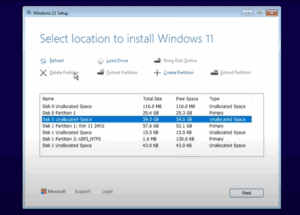





- Go to the Windows Update settings page.
- Click the Windows 11 compatibility link on the right-hand panel.
- Download and run the PC Health Check App:
👉 Download here
If the app shows your system is compatible, backup your data and proceed with the upgrade.
Common upgrade blockers (and fixes):
- Secure Boot disabled – enable it in BIOS settings.
- TPM 2.0 missing – enable in BIOS (if available).
- Unsupported CPU – follow alternate upgrade paths.
If you still want to use a local account and avoid Microsoft integration, Windows 11 still supports that with a few tweaks.
💵 Option 2: Join the ESU Program for One Extra Year of Support
Microsoft is offering one additional year of paid security updates for Windows 10 through the Extended Security Updates (ESU) program.
🔹 3 Ways to Join the ESU Program:
- Pay $30 for a direct subscription (1 license covers up to 10 PCs).
- Use 1,000 Microsoft Rewards points to redeem free access.
- Enable Windows Backup to OneDrive — free method, but requires a Microsoft account.
All methods require a Microsoft account. Local accounts will not receive updates.
🖥️ Option 3: Consider LTSC or Alternative Operating Systems
If you absolutely want to stay on Windows 10 without going through Microsoft’s upgrade or subscription process, consider:
- Windows IoT LTSC 2021 (supported until 2032)
Not officially for home use, but often used by tech-savvy users. - Switch to Linux – distributions like Ubuntu, Mint, or Fedora offer stable, privacy-respecting alternatives.
- Install ZeroPatch – a third-party patching solution (advanced users only).
⚠️ Disclaimer: Using LTSC or ZeroPatch requires technical knowledge and may not be suitable for average users.
🧪 What If You’re Worried About Windows 11 Bugs?
It’s true that Windows 11 introduces more telemetry and includes more “bloatware” out of the box. But many of these can be removed or disabled easily.
Quick tips:
- Use free debloating tools (like O&O ShutUp10++ or BloatyNosy).
- Customize privacy settings during setup.
- Choose “local account” if you don’t want to use a Microsoft account.
Also, if you’re worried about compatibility with certain software like anti-cheat systems or legacy applications, check the Windows 11 Known Issues page before upgrading.
🧠 Frequently Asked Questions
❓ What happens if I stay on Windows 10 and ignore updates?
You risk being exposed to unpatched vulnerabilities and malware. It’s strongly discouraged unless you’re using the OS in a completely offline environment.
❓ Can I stay on Windows 10 using LTSC?
Yes, Windows IoT LTSC 2021 is supported until 2032, but it’s not intended for regular home users and might be harder to find legitimate licenses for.
❓ Do I really need a Microsoft account to get extended updates?
Yes, all current ESU options (paid or free) require signing in with a Microsoft account.
🏷️ Tags
Windows 11 adoption, Windows 10 end of life, security updates, Microsoft ESU, Windows upgrade guide, secure PC, LTSC, ZeroPatch, PC Health Check, BIOS settings, Microsoft Rewards, OneDrive sync
🔖 Hashtags
#Windows11 #Windows10EOL #UpgradeGuide #MicrosoftUpdate #PCSecurity #LTSC #SecureBoot #ESU #WindowsUpgrade #PCHealthCheck
🧭 Final Thoughts
Windows 10 has served us well, but its time is coming to an end. Whether you choose to upgrade to Windows 11, pay for extended updates, or experiment with alternative systems like Linux or LTSC, one thing is clear: using an outdated OS without security patches is a risk not worth taking.
Now’s the time to check your system, explore your options, and prepare for what comes next.
What path are you taking after October 2025? Will you stick with Windows 10, upgrade to 11, or try something else entirely? Drop your thoughts in the comments!
✅ Recommended Tools
If you’re planning to upgrade or backup before switching OS:
- 🎯 Windows 11 Pro License (Cheaper Alternative)
👉 Get from VIP SCDKey – Use code CYBERCPU for 25% off - 💾 Disk Cloning Software
👉 4DDiG Partition Manager - 📦 Backup Before Upgrade
👉 Macrium Reflect Free
⚠️ Disclaimer
Some tools mentioned may be third-party software. Always ensure you’re using legitimate licenses and downloading from official websites. This article is for informational purposes and does not promote the unauthorized use of software or licensing workarounds.








