Windows 11 continues to evolve with every feature update, and the latest release — KB5065789 — quietly adds one of the most requested improvements for multi-monitor users.
If you’ve ever tried opening the Notification Center from your second display and found nothing happening, you’ll be happy to know Microsoft has finally fixed it.
This new update is part of the Windows 11 24H2 and 25H2 builds, both of which share the same core code base. In this detailed guide, we’ll explore what’s new in KB5065789, why it matters, and how to install it safely.
We’ll also explain the difference between enablement packages, how Microsoft labels optional “C” releases, and what to expect in future cumulative updates.
1. Understanding the Windows 11 25H2 and 24H2 Updates
Before diving into the specifics of KB5065789, let’s understand how Windows 11 updates are structured in 2025.
Windows feature updates are labeled by half-year designations:
- 24H2 refers to the update rolled out in the second half of 2024.
- 25H2 refers to the 2025 annual update built on top of 24H2.
Interestingly, both versions — Windows 11 24H2 and 25H2 — share the same base architecture. The newer version, 25H2, is simply an enablement package, meaning it unlocks certain hidden features already embedded in 24H2’s core.
This approach allows Microsoft to roll out large yearly updates much faster, with fewer compatibility issues and smaller downloads.
2. What Is KB5065789 and Why It Matters
The KB5065789 update is part of the October 2025 optional “C” release for Windows 11.
Microsoft usually categorizes updates into:
- “B” releases — The main Patch Tuesday updates (security + fixes).
- “C” releases — Optional preview updates that arrive later in the month, allowing users to test new features before the next cumulative rollout.
KB5065789 falls under the C release, meaning it’s optional but safe to install if you want to experience the latest features early.
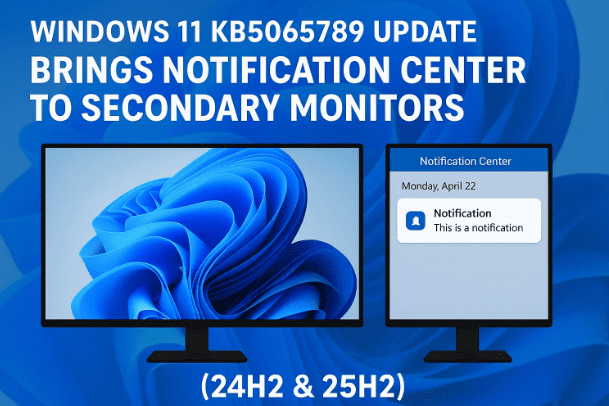
What makes this update special is the addition of Notification Center support on secondary monitors — a long-overdue improvement for users with dual or multi-display setups.
3. The New Feature: Notification Center on Secondary Monitors
Let’s discuss the highlight of this update — a small but impactful enhancement.
Previously:
If you had multiple displays connected to your Windows 11 PC and tried to open the Notification Center (by clicking the date/time tray icon) from a secondary monitor, nothing happened.
Notifications could only be accessed from the primary display, which was frustrating for professionals who work across multiple screens.
Now (Post-KB5065789):
You can finally open the Notification Center from any monitor.
This means no matter where your taskbar or system tray is located — primary or secondary display — the Calendar and Notification panel will respond properly when clicked.
This fix is rolling out gradually with KB5065789 for both 24H2 and 25H2 builds, confirming that Microsoft is listening to user feedback.
4. Why This Feature Was So Important for Multi-Monitor Users
If you use more than one monitor — say a laptop with an external screen or a workstation setup — you already know how inefficient it felt to constantly move your mouse across displays just to check a notification or calendar reminder.
Windows 11 was marketed as a productivity-focused OS, yet for years, the Notification Center was tied to a single monitor.
By enabling this feature on secondary displays, Microsoft finally brings:
- True multi-display parity — Notifications and quick settings are now accessible from any screen.
- Improved workflow — You can check alerts or meeting reminders without disrupting your focus.
- Enhanced ergonomics — Less mouse travel and context switching.
For users with large ultrawide or stacked monitor setups, this small update translates to a big usability boost.
5. How to Check If You Have the KB5065789 Update Installed
Before you go further, it’s worth confirming whether your system already includes the update.
Here’s how you can check:
- Press Windows + I to open Settings.
- Navigate to System → About.
- Scroll to the Windows specifications section.
- Check your OS build number.
If your build reads:
- Windows 11 24H2 — Build 26100.2689, or
- Windows 11 25H2 — Build 26100.2689,
then you already have KB5065789 installed.
Alternatively:
- Go to Settings → Windows Update → Update History
- Look under Quality Updates to see “KB5065789” listed.
6. Step-by-Step: How to Install the KB5065789 Update
If you don’t have the update yet, let’s move on to the installation steps.
Option 1: Install via Windows Update
- Open Settings → Windows Update.
- Click Check for updates.
- You should see an optional preview labeled 2025-10 Cumulative Update Preview for Windows 11 Version 24H2/25H2 (KB5065789).
- Click Download & install.
- Restart your PC once installation completes.
Option 2: Manual Installation
If Windows Update doesn’t show it, you can manually download it from Microsoft’s official site:
👉 Microsoft Update Catalog – KB5065789
- Visit the link and search for “KB5065789.”
- Download the correct package for your system (x64 or ARM64).
- Run the installer and follow on-screen instructions.
- Restart your PC after installation.
Option 3: Use Windows PowerShell
For advanced users:
- Open PowerShell (Admin).
- Run:
Get-WindowsUpdate -KBArticleID KB5065789 -Install(Requires the PSWindowsUpdate module.)
This ensures the update installs directly via PowerShell commands without going through the Settings UI.
7. Enablement Packages Explained: Why 25H2 Is Built on 24H2
Many users wonder why Microsoft releases identical updates for both 24H2 and 25H2.
The answer lies in enablement packages — small updates that “flip the switch” to unlock already-present features in Windows.
Think of 25H2 as a feature flag update built on 24H2’s base.
Instead of replacing gigabytes of system files, the enablement package activates dormant code paths, saving bandwidth and ensuring faster rollouts.
So when you install KB5065789 on either version, you’re essentially updating the same OS core. That’s why both changelogs are identical.
This model, first introduced during Windows 10’s later years, allows Microsoft to push annual updates faster and more efficiently — a win for both users and system admins.
8. Other Fixes and Improvements in KB5065789
While the Notification Center update grabs the spotlight, KB5065789 includes several under-the-hood fixes and reliability enhancements as well. Let’s summarize some of them here.
- Improved Taskbar Responsiveness: General stability improvements ensure smoother animations and quicker icon refresh.
- Bug Fixes in File Explorer: Addresses intermittent crashes reported when accessing large folders or network drives.
- Enhanced Copilot Integration: Updates underlying components for better performance when using Microsoft Copilot on 24H2/25H2 builds.
- Game Mode Tweaks: Optimizations to reduce frame rate drops during background updates.
- Security Hardening: Includes additional protections for kernel-level APIs and improved credential handling.
So far, the update has been stable across both consumer and enterprise deployments.
9. Known Issues and Cautions Before Updating
No Windows update is complete without a few caveats.
Microsoft has acknowledged some known issues you should be aware of before installing KB5065789:
- Third-Party Taskbar Customization Tools
Tools like ExplorerPatcher or StartAllBack may temporarily break certain UI elements. Always update them after installing KB5065789. - Optional Update Behavior
As a “C” release, this update is optional. If you skip it, its contents will automatically roll into the next Patch Tuesday (B) update — so you won’t miss out permanently. - Restart Delays
Some users may notice extended restart times on older SSDs or hybrid drives. This is normal for first-time installations after a long idle update gap. - Feature Visibility Delay
If you don’t see the Notification Center on secondary monitors immediately, give it 24 hours or restart Explorer using Ctrl + Shift + Esc → Windows Explorer → Restart.
10. Frequently Asked Questions (FAQ)
Q1. What exactly is the Notification Center?
It’s the panel that appears when you click the date/time area on the taskbar — showing notifications, calendar, and reminders.
Q2. Which Windows editions are eligible for KB5065789?
Both Windows 11 24H2 and 25H2 (Home, Pro, and Enterprise editions).
Q3. Is KB5065789 a mandatory update?
No. It’s an optional C release, so you can choose to install it now or wait until it merges into the November cumulative update.
Q4. Will this update affect my performance?
No negative performance reports so far. In fact, some users report smoother taskbar and notification transitions post-update.
Q5. Do I need to re-enable the feature manually?
No. The Notification Center improvement activates automatically once the update is installed.
Q6. What if I don’t use multiple monitors?
You’ll still benefit from the performance and bug fixes included with this update — it’s not limited to multi-display systems.
11. Final Thoughts
With KB5065789, Microsoft continues refining Windows 11 in small but meaningful ways.
While this update might look minor at first glance, the Notification Center on secondary monitors represents a step forward in multi-display usability — something professionals, gamers, and creators have been asking for since the OS’s launch.
It also reinforces Microsoft’s trend toward rolling feature updates through enablement packages rather than massive version overhauls. This not only simplifies deployment but also keeps systems stable.
If you rely on multiple screens for productivity, this update is worth installing today.
Otherwise, it’ll automatically arrive as part of next month’s regular cumulative patch cycle.
Disclaimer:
This article is for informational purposes only. The features and changes described are based on Microsoft’s official release notes for Windows 11 24H2/25H2 as of October 2025. Users should review Microsoft’s support page for the latest known issues and fixes before updating.
Tags: Windows 11 KB5065789, Windows 11 25H2 update, Windows 11 24H2 update, Notification Center, multi-monitor feature, Windows 11 enablement package, Windows cumulative updates, Windows update guide, Microsoft Windows 11 improvements
Hashtags: #Windows11 #KB5065789 #MicrosoftUpdate #Windows11Tips #WindowsUpdate #TechNews #Windows11Features








