Microsoft continues to push AI integration deeper into Windows 11, and with the 24H2 update, a new feature has started appearing in File Explorer: the “Ask Copilot” option in the right-click context menu. This powerful addition allows users to interact with Microsoft Copilot directly from their files — including documents and images — by simply right-clicking and selecting the option.
While the rollout is still partial and not all systems may have this feature yet, it’s an exciting step forward in making AI assistance more accessible and useful during daily computing tasks.

🆕 What Is the “Ask Copilot” Option?
After updating to Windows 11 24H2, some users have begun to notice a new item in the right-click context menu inside File Explorer: “Ask Copilot.”
This option appears when you:
- Open File Explorer
- Navigate to a folder like Downloads
- Right-click on any file (image, document, etc.)
- See and select “Ask Copilot”
Once selected, Microsoft Copilot attempts to analyze the file and provide useful feedback, summaries, or suggestions based on the file’s content.
🧠 What Can Copilot Do with Your Files?
Microsoft Copilot, powered by advanced AI models, can interpret the contents of various files. Here are some real-world examples of what it can do:
📷 Analyzing Images
If you right-click on a screenshot or picture, Copilot can:
- Identify what’s in the image
- Provide a descriptive summary
- Suggest related topics or assistance
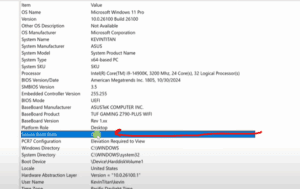
For instance, right-clicking on a screenshot of system information prompted Copilot to offer help with system upgrades and troubleshooting. Another example with a photo of a cat and a radio led Copilot to describe the scene with charming and artistic observations — even pointing out the cat as the star of the picture!
📄 Summarizing Documents
Copilot also works on text documents. For example, opening a utility report or a newsletter document lets Copilot:
- Summarize key points
- Identify the document’s purpose
- Highlight calls to action, like a funding drive or project update
This kind of AI-assisted reading can save time and help users quickly understand large documents at a glance.
📈 Use Cases: How This Feature Helps
Here’s why this feature might be genuinely useful:









- Productivity Boost: Quickly understand file contents without opening them fully.
- Accessibility: Summarize and interpret content for users with visual or cognitive challenges.
- Organization: Get instant context for old files you’ve forgotten about.
- Creative Support: Receive feedback or prompts on images and text that inspire further work.
⚠️ But Not Everyone May Like It
Despite its benefits, some users might not appreciate the Copilot integration in their right-click menu. It may feel intrusive or unnecessary, especially for users who don’t rely on AI features or prefer a minimalist File Explorer interface.
The good news? There’s a registry tweak that can remove the “Ask Copilot” entry from the context menu. While that’s a more advanced process involving changes to the Windows Registry, it gives power users the flexibility to customize their experience.
💬 Final Thoughts
The addition of Ask Copilot in Windows 11 File Explorer is a significant leap toward context-aware AI assistance baked directly into the OS. It’s especially useful for summarizing documents and understanding images without manually opening and inspecting files.
However, Microsoft should provide a simple toggle for users to enable or disable the feature based on preference — rather than relying on registry hacks.
As Windows evolves with more AI features, the focus will need to remain on user control, privacy, and choice.
🔗 Related Resource
📌 Tags
Windows 11 update, Ask Copilot, File Explorer AI, Microsoft Copilot, Windows 11 24H2, Windows AI tools, image analysis AI, file summarization, contextual menu AI, registry tweak Windows
🏷 Hashtags
#Windows11 #MicrosoftCopilot #AskCopilot #WindowsUpdate #FileExplorer #AIAssistance #CopilotFeature #TechTools #AIinWindows #ProductivityTips
⚠️ Disclaimer
This article is based on the latest features introduced in the Windows 11 24H2 update. The “Ask Copilot” option may not yet be available on all systems as the rollout is gradual. All AI-generated responses from Microsoft Copilot should be reviewed for accuracy, especially when used for critical or professional tasks.







