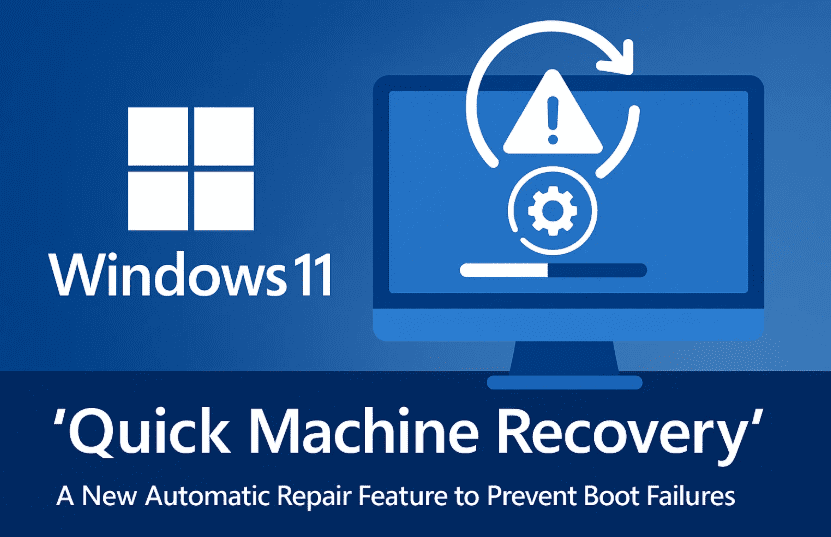
Microsoft has started rolling out a new feature in the latest Windows 11 24H2 Update Preview, aimed at reducing boot failures and helping users recover from system crashes — all without needing advanced technical skills or recovery media.
This feature, called Quick Machine Recovery, is part of Microsoft’s long-term plan to make Windows devices more self-healing, especially in situations where a bad update, faulty driver, or third-party software (like the recent CrowdStrike bug) can render a PC unbootable.
Let’s walk through what Quick Machine Recovery does, how to enable it, and why it’s a significant addition to Windows 11’s recovery and update system.
💡 What is Quick Machine Recovery in Windows 11?
Quick Machine Recovery is a new built-in recovery feature introduced in the 24H2 update for Windows 11. When enabled, it allows Windows to automatically:
- Detect if your PC fails to boot properly
- Attempt to diagnose and fix the problem without user interaction
- Periodically search for fixes from Microsoft’s servers
- Retry a fix and restart the PC on a schedule until the issue is resolved
This feature could have helped significantly during recent events like the CrowdStrike Falcon sensor update, which caused mass outages. Had Quick Machine Recovery been active, many affected systems could have auto-recovered within minutes.
✅ How to Enable Quick Machine Recovery in Windows 11
Let’s move to the next step and explore how you can enable this feature on your system — assuming you’ve installed the latest optional update or will be receiving it via Patch Tuesday in August 2025.
Step-by-Step Instructions:
- Open Windows Settings
- Use shortcut
Windows + Ior click Start > Settings.
- Use shortcut
- Navigate to Windows Update
- From the sidebar, select Windows Update.
- Click on Advanced Options
- Scroll down and click on Advanced Options.
- Select Recovery
- In Advanced Options, click on the Recovery section.
- Enable Quick Machine Recovery
- Find the toggle for Quick Machine Recovery and switch it ON.
- Enable Scheduled Solution Search (Optional but Recommended)
- Once Quick Machine Recovery is turned on, you’ll see another option: “Continue searching if a solution isn’t found”
- Turn this on to allow your system to search for a fix every 30 minutes and restart every 180 minutes (3 hours) until it’s resolved.
⚙️ How Does It Work Behind the Scenes?
Once enabled, Quick Machine Recovery integrates into Windows’ boot diagnostics and update infrastructure.
Here’s what it does:
- If your system fails to boot normally, Windows will trigger the Quick Machine Recovery mechanism.
- The system sends diagnostic information to Microsoft’s recovery servers.
- If a fix is available — such as a patch, driver rollback, or registry recovery — Windows attempts to apply it automatically.
- If no immediate fix is found, it continues retrying on the schedule you selected.
All of this happens without requiring the user to enter Safe Mode or Recovery Console, making the process seamless even for non-technical users.
🔄 When Will You Get This Feature?
There are two ways you can access Quick Machine Recovery:
- Right Now: If you’ve installed the Windows 11 24H2 optional update preview from July 2025.
- Automatically in August 2025: During Microsoft’s official Patch Tuesday updates, it will be rolled out broadly.
If you haven’t received the update yet, the feature will appear under Recovery settings once it’s available.








🧠 Why It Matters: Learning from the CrowdStrike Crash
Microsoft appears to have fast-tracked this feature in response to the CrowdStrike update fiasco in July 2025, where an antivirus signature update caused thousands of PCs to crash and enter boot failure loops.
In such scenarios, Quick Machine Recovery could have:
- Automatically identified the faulty driver
- Removed or rolled back the problematic update
- Restored the device to a usable state in a few reboots
For enterprise users and IT departments, this means reduced downtime and manual recovery efforts.
You might be intrested in these topics too!
- How to Boot Windows 11 into Safe Mode (2025 Guide): Step-by-Step for Beginners and Experts
- Fixyfier: The All-in-One Free Windows Repair Tool for Everyone
- The Ultimate Guide to Troubleshooting 30 Common Desktop PC Problems
- 5 Best Way to Automatic Repair Loop and “Startup Repair Couldn’t Repair Your PC” Error
- How to Debloat Windows 10 and 11 Without Any Third-Party Software
❓ Frequently Asked Questions (FAQ)
Q: Will this feature work if my PC has no internet connection?
A: No. Quick Machine Recovery relies on connecting to Microsoft’s servers to fetch diagnostics and solutions. Without internet, it can’t download fixes.
Q: Will it fix hardware issues?
A: No. Quick Machine Recovery is designed to address software-related boot failures — such as bad drivers, corrupt registry entries, or incompatible updates — not hardware failures.
Q: Can I configure the retry intervals?
A: Yes. After enabling the “continue searching” option, you can select:
- Check for solution every 30 minutes
- Restart every 180 minutes (3 hours)
You may see other intervals depending on future updates.
Q: Is this a replacement for System Restore or Reset This PC?
A: Not entirely. Quick Machine Recovery is preventative and automatic. It attempts to resolve boot problems before you ever reach the stage where you’d need System Restore or a full reset.
🛡️ Disclaimer
Quick Machine Recovery is a cloud-based feature introduced in Windows 11 24H2 and requires an active internet connection to operate. It does not guarantee 100% recovery success but provides an automated mechanism for resolving common boot failures. Users should still maintain proper backups and system restore points for full protection.
📝 Final Thoughts
So far, we’ve done a good job understanding this new feature and why it might be a lifesaver for future Windows 11 users.
While Quick Machine Recovery won’t replace a full backup strategy, it represents a smart step toward self-healing PCs, reducing panic during boot failures, and saving time during update-related crashes.
If you’ve ever felt helpless seeing your system stuck at startup, this is the kind of invisible upgrade that might one day quietly save the day — and you won’t even know it.
Tags: Windows 11 24H2, Quick Machine Recovery, Windows boot fix, PC crash recovery, Windows 11 August update, Windows 11 Patch Tuesday, self-healing Windows, recovery options
Hashtags:
#Windows11 #QuickMachineRecovery #SelfHealingPC #WindowsUpdate #BootFailureFix #MicrosoftPatchTuesday #dtptips #PCRecovery #TechExplained







