🖥️ Introduction: A Rare Monday Patch from Microsoft
Microsoft typically releases updates for Windows on Patch Tuesdays, but occasionally, a serious issue demands an out-of-band (emergency) update — one that arrives outside the regular schedule.
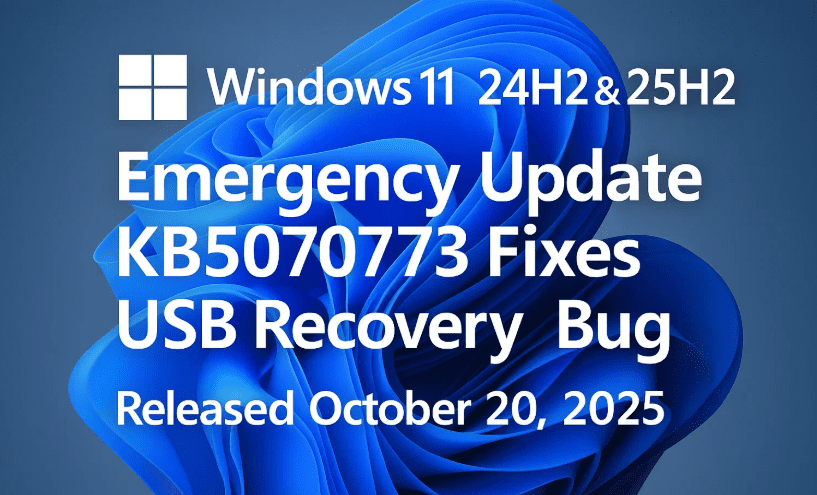
On October 20, 2025, Microsoft released just such an update: KB5070773, aimed at fixing a critical USB issue that was preventing users from using their keyboard and mouse in Windows Recovery mode.
This update affects both the Windows 11 24H2 and 25H2 builds and ensures that users can now interact normally with the recovery environment using standard USB peripherals.
Let’s go step by step to understand what this update does, why it matters, how to install it, and how to verify that it’s working correctly.
🔍 1. Understanding the Issue: The Windows Recovery USB Bug
Before the KB5070773 fix, users running Windows 11 24H2 or 25H2 Insider builds faced a frustrating problem:
When booting into Windows Recovery Environment (WinRE) — the troubleshooting mode used for resetting, repairing, or reinstalling Windows — the USB keyboard and mouse stopped responding.
This meant users couldn’t navigate menus, enter commands, or reinstall Windows without using non-USB input devices or workarounds.
Such a bug is particularly serious because the recovery environment is critical when:
- Restoring a corrupted installation
- Resetting Windows after malware or system crashes
- Reinstalling the OS via USB media
That’s why Microsoft took the unusual step of issuing this emergency patch outside its normal cycle.
⚙️ 2. What the KB5070773 Update Fixes
This update addresses the USB driver recognition issue in Windows Recovery mode for both 24H2 and 25H2 builds.
In short, it:









- Re-enables USB support in WinRE so that all connected keyboards, mice, and other peripherals work as intended.
- Updates the underlying USB host controller drivers used by the recovery environment.
- Prevents potential system lock-ups when booting into WinRE from a recovery partition or USB boot media.
The fix ensures that users no longer need to worry about being “locked out” of their own recovery tools.
🧩 3. Version Details and Build Numbers
After installing KB5070773, your Windows 11 build number will change slightly:
| Version | Previous Build | New Build After Update |
|---|---|---|
| Windows 11 24H2 | 26100.6899 | 26100.6901 |
| Windows 11 25H2 | 26200.6899 | 26200.6901 |
This minor bump confirms the update has been successfully applied.
You can check your Windows version and build number by:
- Pressing Win + R, typing
winver, and hitting Enter. - The dialog will show your current version and build (e.g., Version 25H2, Build 26200.6901).
🪟 4. How to Install the KB5070773 Update
Usually, out-of-band updates are optional and need to be installed manually. However, because this fix addresses a core recovery issue, Microsoft has pushed it automatically via Windows Update.
Here’s how you can check for and install it manually if needed:
Step-by-Step Installation
- Open Settings using Win + I.
- Navigate to Windows Update on the left sidebar.
- Click Check for updates.
- Look for the entry: Cumulative Update for Windows 11 Version 24H2 or 25H2 (KB5070773)
- Click Download & Install.
After the update installs, your system will ask for a restart to complete the process.
Once rebooted, the build number should reflect the updated value (as shown earlier).
🔄 5. Verifying That the USB Fix Works
After applying the patch, you can easily verify if the fix is active.
Test Procedure
- Restart your PC.
- Press F11, F8, or Shift + Restart to enter the Windows Recovery Environment.
- Once inside, test your keyboard and mouse in the recovery menus.
If both devices now respond correctly, your system has successfully received the USB fix.
If they still don’t work, ensure:
- The update installed correctly (check under Settings → Windows Update → Update History).
- You’re using official USB ports (not hubs or adapters).
- No BIOS-level USB blocking is enabled.
🧰 6. How to Confirm the Update in Windows History
If you’re unsure whether KB5070773 was installed automatically, you can manually check it in your system logs:
- Open Settings → Windows Update → Update History.
- Under Quality Updates, look for: KB5070773 – Cumulative Update for Windows 11 (Released October 20, 2025)
You can also confirm via Command Prompt:
wmic qfe list brief /format:table
This command lists all installed updates; check the “HotFixID” column for KB5070773.
🧠 7. Why This Update Was Unusual
This patch stands out for two key reasons:
- It was released on a Monday — something Microsoft rarely does. Most updates are delivered on the second Tuesday of each month (“Patch Tuesday”).
- It was automatically pushed despite being an out-of-band fix. Normally, such patches are “on-demand” (you have to click “Download and install manually”).
Microsoft clearly prioritized this update due to the critical nature of the bug — if users can’t use USB peripherals during system recovery, they can’t fix or reinstall Windows at all.
🧩 8. Who Should Install It?
This patch primarily applies to users running:
- Windows 11 24H2 (stable channel or preview)
- Windows 11 25H2 (Insider Beta or Release Preview channel)
If you’re still on older versions like 23H2 or 22H2, you don’t need this fix — those builds use a different WinRE USB configuration.
However, if you plan to upgrade soon, installing this patch ensures your recovery environment will already be functional.
🧭 9. What to Do If the Update Fails
If Windows Update fails to install KB5070773 automatically, you can manually download the patch.
- Visit the Microsoft Update Catalog:
👉 https://www.catalog.update.microsoft.com/ - Search for KB5070773.
- Download the version corresponding to your Windows edition (24H2 or 25H2, x64 or ARM64).
- Double-click the downloaded
.msufile to install manually.
If you encounter an error during installation, temporarily disable your antivirus or run the update in Safe Mode.
🧾 10. Microsoft’s Official Note on the Update
According to Microsoft’s release documentation:
“This update addresses an issue in which USB devices including keyboards and mice may not function as expected within Windows Recovery Environment (WinRE). This update ensures normal input functionality when using system recovery tools.”
In simple terms — your keyboard and mouse will now work again in system recovery.
💬 Frequently Asked Questions
Q1: Do I need to install KB5070773 manually?
If you have automatic updates enabled, it should install automatically. You can check your update history to confirm.
Q2: Is it safe to install?
Yes. It’s a small, targeted update focused solely on the USB recovery issue.
Q3: Will it affect my existing files or apps?
No. This update modifies only the recovery environment and does not change user data or application files.
Q4: What if I never use Windows Recovery — should I still install it?
Yes. It’s best to have a functional recovery environment in case you ever need it in emergencies.
Q5: Does this apply to Windows 10?
No, this issue only affects Windows 11 builds 24H2 and 25H2.
⚡ Additional Tip: Back Up Your System
While you’re updating your system, it’s a good idea to create a System Restore Point or use Windows Backup (under Settings → System → Backup).
That way, if any update causes issues in the future, you can easily roll back.
📅 Summary
| Detail | Information |
|---|---|
| Update Name | KB5070773 |
| Type | Out-of-band emergency update |
| Release Date | October 20, 2025 |
| Affected Builds | Windows 11 24H2 (26100.6899 → 26100.6901), 25H2 (26200.6899 → 26200.6901) |
| Fixes | USB keyboard and mouse not working in Windows Recovery |
| Delivery Method | Windows Update (automatic) |
| Manual Download | Microsoft Update Catalog |
🧭 Final Thoughts
This emergency patch may be small, but it solves a critical usability issue. Without working USB input during recovery, even experienced users couldn’t reinstall or repair their Windows installations.
By acting quickly, Microsoft avoided a situation where millions of users might have been locked out of recovery functions — especially those using modern systems without legacy PS/2 ports.
So, even though this was an unusual Monday release, it’s a reminder that sometimes, a single hotfix can make all the difference.
⚠️ Disclaimer
This article is for informational and educational purposes only. Always install updates from official Microsoft sources and verify KB numbers from the official Windows Update History page.
#Windows11 #KB5070773 #MicrosoftUpdate #WindowsRecovery #USBFix #25H2 #24H2 #TechNews #WindowsPatch #UpdateGuide








