🧭 A Difficult Update for Long-Time Windows 10 Users
For a long time, Windows 10 users have been living in a strange middle ground. The operating system officially reached its end-of-life phase, yet millions of people are still using it daily — for work, gaming, studies, and everyday tasks. Many delayed the shift, some due to hardware limitations, others simply because Windows 10 felt familiar and stable.
But now, a new development has made things much more uncomfortable.
This is not a small or harmless change. It’s a major and permanent shift in how Microsoft wants Windows 10 users to behave going forward — and it directly affects your control over updates and system safety.
⏳ Windows 10 Is Officially Expired — What That Really Means
Before going any further, it’s important to clear one thing up.
Microsoft has officially ended mainstream support for Windows 10.
That means regular security updates are no longer guaranteed for most users.
If you are still on Windows 10 today, your system is only considered safe under one condition:
you are enrolled in the Extended Security Updates (ESU) program.
Without ESU, staying on Windows 10 is no longer recommended. Vulnerabilities discovered after the support deadline may remain unpatched, and that puts your data, privacy, and even your network at risk.
🔐 What Is the ESU Program, and Why It Matters
To soften the blow, Microsoft introduced the Extended Security Updates (ESU) program. This allows Windows 10 users to receive security patches for a limited time after official support ends.
The key points most users miss are:
- ESU extends Windows 10 security for one additional year
- There are multiple activation methods
- At least two methods are free, if you follow the right steps
- One method is paid — and can safely be ignored by home users
If you are still using Windows 10 normally and haven’t enabled ESU, you are effectively running an unsupported operating system on the internet.
That’s a serious risk.







🚫 The Big Change: Microsoft Removed “Pause Updates” in Windows 10
Now comes the part that shocked many users.
One of the most popular Windows 10 features — Pause Updates — has been completely disabled in recent Windows 10 updates.
Earlier, users could pause updates for 7 days (and repeatedly extend it). This feature was widely used to:
- Avoid forced upgrade prompts to Windows 11
- Prevent accidental update installs
- Maintain system stability
With the latest Windows 10 updates, this option no longer works.
Even if you click pause, the system will not respect it anymore.
This is not a bug. This is intentional.
🎯 What Microsoft Is Clearly Trying to Do
The intention is now obvious.
If your system is capable of running Windows 11, Microsoft no longer wants you to stay on Windows 10. The company has effectively removed your ability to delay the inevitable.
If your hardware meets Windows 11 requirements, you are being nudged — or rather, pushed — to upgrade.
From Microsoft’s perspective, this makes sense. Maintaining security for an old OS while promoting a new one is expensive and complex.
From a user’s perspective, though, it removes freedom of choice.
🖥️ What If Your PC Is NOT Compatible With Windows 11?
This is where things get slightly less dramatic.
If your system does not meet Windows 11 hardware requirements, then Windows 11 will not install — even if Microsoft wants you to move.
In such cases:
- You won’t suddenly be upgraded to Windows 11
- Your system stays on Windows 10
- But security risks still remain unless ESU is enabled
So while the forced-upgrade pressure reduces, the security responsibility shifts entirely to you.
🔄 Your Realistic Options Going Forward
At this point, Windows 10 users are left with very limited and very clear choices.
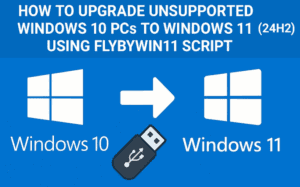
Option 1: Move to Windows 11 (If Your PC Supports It)
If your system is compatible, upgrading to Windows 11 is actually the safest and simplest path forward. It ensures:
- Continued security updates
- Official support
- Compatibility with modern apps and games
For many users, delaying this upgrade no longer makes practical sense.
Option 2: Enable ESU and Stay on Windows 10 (Strongly Recommended If You Stay)
If you absolutely want or need to remain on Windows 10, ESU is not optional anymore.
You only need to follow a few steps to activate it, and the process is free if you use the correct methods. Once enabled, you gain one more year of security patches — buying you time to plan your next move.
Skipping ESU while staying on Windows 10 is extremely risky.
Option 3: Switch to Linux (A Practical Long-Term Alternative)
For systems that can’t upgrade to Windows 11 and where ESU feels like a temporary patch, Linux becomes a very realistic option.
Distributions like Zorin OS are designed specifically for Windows users. They offer:
- A familiar desktop experience
- Active security updates
- Excellent performance on older hardware
Many users even run dual-boot setups, keeping Windows 10 for games while using Linux for daily work.
This approach provides flexibility without sacrificing security.
⚠️ Why Ignoring This Situation Is Dangerous
If this feels familiar, that’s because we’ve seen it before.
Windows 7 users faced a similar situation — and today, its source code leaks and lack of updates have made it extremely unsafe for internet use. Modern apps, games, and services have already dropped proper support.
Windows 10 is heading down the same road.
An unpatched Windows system connected to the internet is a perfect target for malware, ransomware, and data theft.
🧠 Final Thoughts — Don’t Delay This Decision
Microsoft removing the Pause Updates feature is not a small UI tweak. It’s a clear signal.
Windows 10 is no longer meant to be a long-term daily driver unless you take extra steps to secure it. Whether that means upgrading, enabling ESU, or moving to Linux — doing nothing is no longer safe.
This change may feel harsh, but ignoring it could cost far more in the long run.
⚖️ Disclaimer
This article is for informational purposes only. Security risks depend on system usage, installed software, network exposure, and user behavior. Always back up important data before upgrading, switching operating systems, or enabling advanced system changes.
#Windows10 #Windows11 #MicrosoftUpdates #PCSecurity #OperatingSystem