Windows is one of the most customizable operating systems, but much of that customization is hidden behind complex registry edits, group policies, or obscure system settings. For the average user, digging into these areas is intimidating. Even for advanced users, editing the registry manually can be risky.
That’s where WinAero Tweaker comes in. It’s a free, lightweight tool that acts as a central dashboard to manage Windows features, hidden options, and tweaks that normally require manual digging. Instead of spending hours searching for registry keys or commands, you can flip switches with a simple interface.
This article takes you through everything you need to know about WinAero Tweaker: how it works, what it can do, the most important tweaks, and the safety measures you should take before using it.
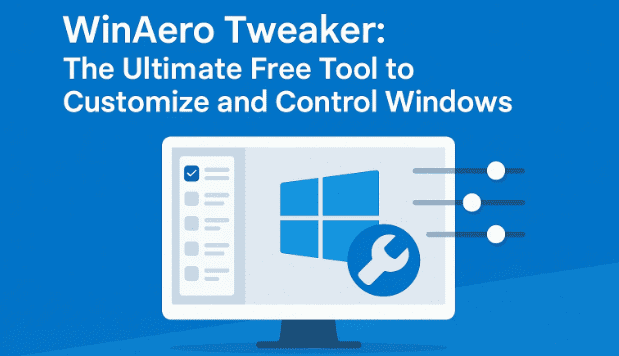
👉 Official Website: WinAero Tweaker
1. What Is WinAero Tweaker?
At its core, WinAero Tweaker is a GUI-based tool that exposes hidden Windows features and lets you toggle them without touching the registry. Think of it as a control panel on steroids — not just adjusting visible options, but unlocking the features Microsoft doesn’t want the average user to access.
It works on multiple versions of Windows, including Windows 7, 8.1, 10, and 11. The interface is divided into categories like Appearance, Behavior, Windows Defender, Privacy, Edge, Power & Battery, and more. Within each category, you’ll find dozens of switches that can instantly transform how your PC behaves.
2. Why Should You Use It?
You may wonder — why not just leave Windows as is? After all, Microsoft designs it to “just work.” The truth is, Windows today is packed with ads, bloatware, background tasks, telemetry, and forced updates.
Here’s where WinAero Tweaker shines:
- Control: Take back control from Microsoft’s “default” choices.
- Performance: Free up CPU cycles by disabling background apps and services.
- Privacy: Stop data collection and targeted ads.
- Customization: Bring back old features, adjust appearance, or unlock settings Microsoft has hidden.
- Testing/Benchmarking: Keep a stable environment without unexpected updates or background activity.
In short: if you want a faster, leaner, and less intrusive Windows experience, this tool is invaluable.
3. Safety First: Resetting and Exporting Tweaks
Before you dive into all the fun switches, let’s talk about safety.
Like any powerful tool, WinAero Tweaker gives you the ability to change things that could affect system behavior. That doesn’t mean it’s dangerous, but you should know how to undo changes:

- Reset All Tweaks: This option restores everything back to Windows defaults.
- Export Tweaks: Once you set up your system the way you like, you can export your tweaks into a file. Later, if Windows updates override your settings, you can simply import the file to restore everything instantly.
Think of exporting as creating a backup profile of your preferred setup. Always do this after a session of tweaking.
4. Main Categories in WinAero Tweaker
The software is neatly organized into sections. Some of the major categories include:
- Windows 11 Appearance
- Advanced Appearance Settings
- Behavior
- Desktop and Taskbar
- Microsoft Edge
- Settings and Control Panel
- File Explorer
- Networking
- User Accounts
- Windows Defender
- Windows Apps
- Power and Battery
- Privacy
- Shortcuts
- Tools
- Classic Apps
Each tweak comes with a description box explaining what it does. Some require you to restart Explorer or even your entire system before changes take effect.
5. Most Popular and Useful Tweaks
Now let’s go through the tweaks that most users find valuable. Instead of just listing them, let’s understand why they matter.
Disable Ads and Unwanted Apps
Windows now comes with built-in advertising — suggestions in the Start menu, app recommendations, and bundled apps you didn’t ask for.
With WinAero Tweaker, you can disable all of this:
- Suggested apps in Start
- Lock screen tips and tricks
- Preinstalled apps (Candy Crush, Xbox bloat, etc.)
- Windows Store ads
This immediately makes Windows feel cleaner and less intrusive.
Disable Windows Updates and Driver Updates
One of the biggest frustrations with modern Windows is forced updates. Sometimes updates bring more bugs than fixes.
- Disable Driver Updates: Prevent Windows from automatically reinstalling outdated drivers. Instead, you choose what’s installed. This avoids conflicts and keeps your GPU/CPU drivers clean.
- Disable Windows Update: Stop Windows from auto-updating entirely. This is especially useful for benchmarking or testing systems, where you need consistency.
Note: If you disable updates, remember to re-enable them occasionally to manually install security patches.
Disable Microsoft Edge Annoyances
Microsoft really wants you to use Edge, but many prefer Chrome, Firefox, or Brave. Edge constantly nags you to switch, auto-sync, and link Microsoft accounts.
WinAero Tweaker has a special tab called “Disable annoyances and bloat in Edge.”
Here you can:
- Disable “Follow creators” suggestions.
- Disable shopping recommendations.
- Disable auto sign-in with Microsoft accounts.
- Disable restore pages nag screens.
- Disable Edge Rewards and Sidebar.
Even if you don’t use Edge, it’s good practice to toggle these off so they don’t interfere.
Taskbar and Desktop Customization
Miss the old right-click context menus or classic taskbar? WinAero Tweaker lets you:
- Disable the Copilot icon and taskbar clutter.
- Bring back classic context menus.
- Adjust transparency, spacing, and alignment.
For those nostalgic about Windows 7/10 layouts, these tweaks are perfect.
Advanced Power and Privacy Settings
You can go beyond the standard “Power Saver” or “Balanced” plans. WinAero Tweaker allows fine-grained control of sleep, hibernation, and battery behaviors.
For privacy-conscious users:
- Disable background telemetry.
- Disable targeted ads.
- Limit app permissions.
This is one of the most impactful categories because it directly reduces how much data Windows sends to Microsoft.
Windows Defender and UAC Control
Here’s where you need to be careful.
- Disable Windows Defender: Useful for benchmarking, but not recommended for daily use unless you have another antivirus.
- Disable UAC (User Account Control): Removes those confirmation popups when you run programs, but also lowers protection against auto-running malware.
👉 Best practice: keep UAC and Defender enabled on your daily PC. Disable them only for testing rigs or offline systems.
6. Why Power Users and Benchmarkers Love It
If you’re into overclocking, benchmarking, or reviewing hardware, WinAero Tweaker is a must-have.
Why? Because background tasks, updates, and Windows Defender can interfere with benchmark scores. Disabling them ensures:
- Maximum CPU/GPU overhead.
- Stable test environments.
- Consistency between runs.
For everyday gamers, this translates into a leaner OS with less resource hogging.
7. What WinAero Tweaker Cannot Do
While it’s powerful, it’s not a magic wand.
- It doesn’t install new features — it only toggles existing ones.
- It can’t protect you from user error (e.g., disabling Defender and browsing unsafe websites).
- It’s not a replacement for updates or antivirus.
Think of it as a tuning tool, not a repair tool.
8. Frequently Asked Questions
Q1. Is WinAero Tweaker safe?
Yes, if used responsibly. Always export tweaks before experimenting.
Q2. Can I uninstall it after applying changes?
Yes. Once changes are applied, you can uninstall WinAero Tweaker and your settings remain.
Q3. Does it work on Windows 11?
Yes, it fully supports Windows 11 (including 24H2 and beyond).
Q4. Will disabling updates make my PC unsafe?
If you never update, yes. That’s why you should re-enable updates occasionally to patch vulnerabilities.
Q5. Does it affect gaming performance?
Yes — especially when you disable background tasks, Defender, and ads. Benchmarkers report smoother runs and more consistent FPS.
9. Conclusion
WinAero Tweaker is one of those rare tools that gives back full control over your Windows environment. Whether you want to stop ads, disable forced updates, tweak Edge, or optimize your system for benchmarking, this free software makes it all possible with a simple interface.
But with great power comes responsibility. Use it wisely, always back up tweaks, and remember that some protections exist for a reason.
👉 Download here: WinAero Tweaker
Disclaimer
Some tweaks, such as disabling Windows Defender, UAC, or Windows Updates, can lower system security. Use them only if you understand the risks. For daily-use PCs connected to the internet, it’s recommended to leave critical protections enabled.
Tags: WinAero Tweaker, Windows customization tools, disable Windows ads, tweak Windows 11, disable Windows Defender, Windows performance optimization, Edge bloat removal
Hashtags: #Windows11 #WinAeroTweaker #WindowsTips #PCOptimization #PrivacyTools #Benchmarking








