Microsoft has taken a firm stance on integrating AI into its ecosystem, with Windows Copilot being a central feature in recent updates of Windows 11, particularly version 24H2. While AI-driven tools can offer productivity benefits, the forced implementation of Copilot across multiple components in Windows has stirred discomfort among users who feel stripped of choice and control.
In this article, we’ll explore where Copilot shows up, why it’s hard to fully remove, and how you can disable or bypass it using built-in settings, alternatives, and system tweaks.
What Is Microsoft Copilot?
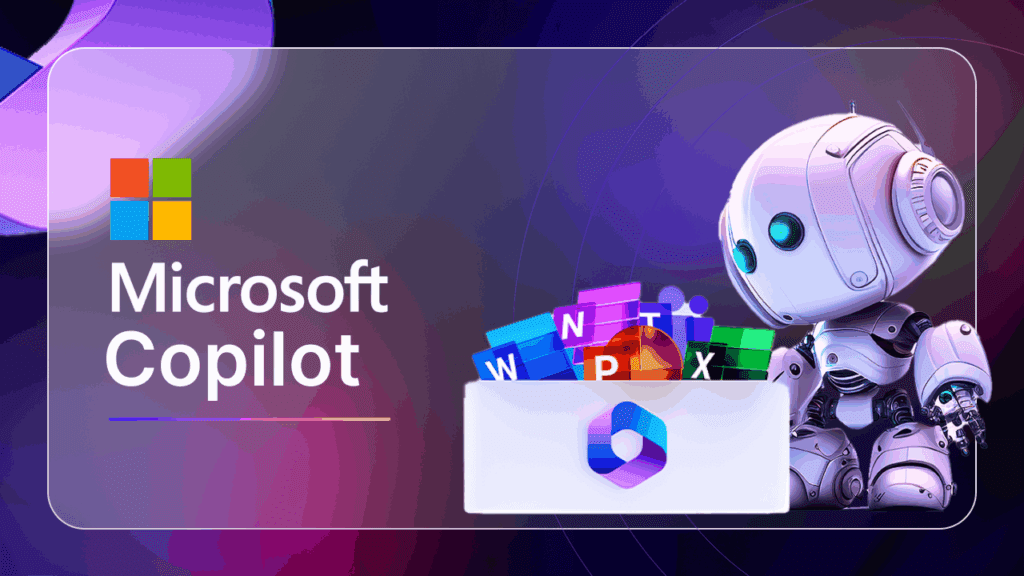
Copilot is Microsoft’s AI assistant integrated into Windows 11 and several Microsoft apps. It aims to help users with suggestions, content generation, and task automation across Outlook, Notepad, Edge, Paint, and more.
You can learn more about it on the official Microsoft Copilot page.
The Growing Presence of Copilot in Windows 11
Microsoft has embedded Copilot deeply into its ecosystem:
- Taskbar: Even if you “remove” Copilot, you’re mostly just hiding its icon—not uninstalling the underlying functionality.
- Outlook: The new Outlook has Copilot built in. While the classic version is still available, Microsoft makes it less obvious how to revert.
- Notepad: Copilot is integrated here too, though it can be toggled off via the settings gear icon.
- Paint and Snipping Tool: AI features are gradually being added, and unlike Notepad, these don’t offer an easy disable switch.
- Microsoft Edge: Copilot is in the sidebar, and while you can disable it in settings, the code remains.
The biggest concern? Microsoft gives the illusion of removal, but in many cases, the software remains embedded in the system.
The Problem with Forced Integration
The issue isn’t necessarily Copilot itself. It’s the lack of control over whether to use it. Uninstalling Copilot via Settings > Apps only removes it from the taskbar—not from Notepad, Paint, or Edge.
Additionally, many features tied to Copilot can’t be fully removed or even disabled without digging into advanced system tools like the Registry Editor or Local Group Policy Editor.
This approach mirrors Microsoft’s long-standing tendency to limit user autonomy—such as enforcing Microsoft accounts during setup or restricting Edge removal in certain regions.
How to Disable or Minimize Copilot’s Presence
1. Toggling Off Copilot in Apps
- Notepad: Open Notepad > Click the gear icon > Turn off Copilot.
- Edge: Go to Edge Settings > Sidebar > Turn off Copilot.
- Taskbar: Right-click Taskbar > Taskbar settings > Toggle off Copilot.
Unfortunately, apps like Paint don’t currently have any off-switch.
2. Use Alternative Software
Replace Microsoft tools with third-party, less-intrusive alternatives:









- Notepad++ instead of Notepad (Download Notepad++)
- Paint.NET instead of Microsoft Paint (Download Paint.NET)
- Classic Outlook in place of the new AI-integrated version
These apps provide similar (and often better) functionality without embedded AI tools.
3. Group Policy Editor (Windows 11 Pro)
If you’re using Windows 11 Pro, you can disable Copilot system-wide:
- Press
Win + R, typegpedit.msc, and press Enter. - Navigate to:
User Configuration > Administrative Templates > Windows Components > Windows Copilot - Set the policy to Disabled.
This doesn’t uninstall Copilot but helps prevent it from launching or showing up in most areas.
4. Use Registry Edits (Windows 11 Home or Pro)
For advanced users, registry tweaks can also disable Copilot:
⚠️ Disclaimer: Always back up your registry before making changes.
You can find community-contributed .reg files on trusted Windows forums that disable Copilot-related features. These files can be run to automatically apply the necessary changes.
What About Windows 11 24H2?
Windows 11 version 24H2 further embeds Copilot, Recall, and other AI-centric features. However, some of these won’t run on standard consumer PCs—yet. It’s clear Microsoft is pushing toward more AI-native computing experiences in future updates.
One major pain point is that Microsoft forces users to install 24H2 when downloading Windows 11 from their official site, hiding 23H2 even though it’s still supported.
Final Thoughts
Microsoft’s approach with Copilot has reignited familiar concerns about control, privacy, and user autonomy. While AI can enhance productivity, it should be optional, not forced. Users should be able to easily opt out or uninstall features they don’t want—especially when these are integrated at the OS level.
Until Microsoft offers a more transparent and flexible experience, users will need to rely on workarounds, third-party apps, or even downgrades to maintain control over their systems.
Tags:
windows 11, copilot, microsoft copilot, disable copilot, uninstall copilot, windows 11 24h2, outlook copilot, notepad copilot, paint copilot, microsoft edge copilot, windows tweaks, privacy settings, remove bloatware, group policy, registry edits
Hashtags:
#Windows11 #Copilot #Microsoft #WindowsTips #TechGuide #DisableCopilot #ProductivityTools #Privacy #GroupPolicy #WindowsSettings #Notepad #Paint #EdgeBrowser








