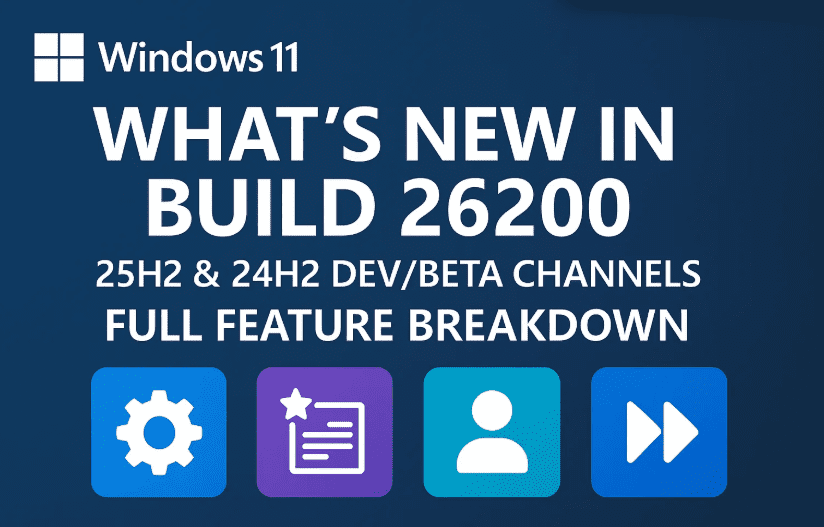
Windows 11 continues to evolve rapidly, and with the latest insider build 26200.5722 now rolling out to Dev and Beta Channels (25H2 and 24H2), Microsoft is making some serious improvements — especially for Copilot+ PCs. This blog post walks you through all the new features, visual changes, and backend updates included in this release.
Whether you’re a Windows enthusiast, developer, or just someone who loves trying the latest features, this post will help you understand exactly what’s changing and how these improvements might affect your daily use.
🧠 AI Agent Support Expands to AMD and Intel Copilot+ PCs
Let’s start with one of the biggest highlights of this update — the expansion of the AI Agent (AA Agent). Previously, this powerful Copilot+ feature was limited to devices using Snapdragon processors, but now Microsoft is rolling it out to Intel and AMD-powered Copilot+ PCs as well.
So, what exactly is the AI Agent?
💬 What is the AI Agent?
The AI Agent is a smart assistant baked into the Windows Settings system. Instead of navigating endless settings pages, you can now use natural language queries to perform tasks or get help.
For example:
Type “My mouse pointer is too small” into the search, and the AI Agent will offer to increase the pointer size — with a one-click “Apply” button.
This makes troubleshooting and configuration easier, faster, and more intuitive, especially for beginners or non-technical users.
🔐 When Will It Be Available?
Even if you’re not in the Dev or Beta channel, Microsoft plans to start rolling out this AI Agent more broadly with the August 2025 security update, bringing this functionality to a wider range of systems.
📘 New Interactive Tutorial for the Click-To-Do Feature
Next up, Microsoft has added a new onboarding tutorial to help users understand and use the AI Agent better.
To access it:

- Press Windows + Q to bring up the Click-To-Do interface.
- You’ll see a guided tutorial, designed for new users to explore what this tool can do.
The tutorial includes:
- Search examples
- Visual walk-throughs
- Interactive suggestions
This is especially helpful for people migrating to Windows 11 or those who aren’t yet familiar with natural language input in system tools.
📅 Auto Lock Setup Page Improvements
Moving on, let’s look at how Microsoft has refined the Auto Lock setup process, often referred to as the Second Chance out-of-box experience (OOBE).
What’s Changed?
Previously, you had to click through multiple individual screens to finalize your account recovery setup or security settings. But now:
- All these recommendations and settings appear on a single consolidated page.
- This streamlines the process for enabling lock screen recovery, account verification, and backup options.
It’s a small but meaningful update for anyone who needs to reconfigure their system or access a locked account.
🖼️ Taskbar Search Now Supports Grid View for Images
This is a welcome visual tweak: Microsoft is experimenting with a new Grid View layout for image searches from the taskbar.
When you search for images using the taskbar search box:
- Instead of a linear list, results now appear in a grid-style visual layout, similar to what you’d expect from an image search engine.
This makes it easier to preview and select visual content quickly — especially helpful for creators or students who frequently work with media.
📆 Calendar Flyout Now Works on Secondary Monitors
Another practical improvement is for multi-monitor setups.
Previously:
- The calendar flyout and notification center only worked on the primary monitor.
Now:
- You can open the calendar and notification center on any secondary monitor just by clicking the time/date area on that specific display.
This small tweak makes a big difference for productivity — especially for those using ultrawide or dual-screen setups.
🔧 Lock Screen Widgets Settings Enhanced
Let’s shift our attention to the lock screen. In this build, Microsoft has made it easier to manage widgets on the lock screen.
What’s New:
- All pinned widgets now show a “pin” icon to visually differentiate them.
- If you try to add more than the allowed number of widgets, Windows will display a message alerting you that the widget limit has been reached.
This makes the widget system more predictable and user-friendly. Power users will especially appreciate knowing their customization boundaries.
📊 Task Manager Now Uses Industry-Standard CPU Metrics
If you use Task Manager regularly, there’s a big change in how CPU usage is displayed.
Microsoft has updated Task Manager to show CPU usage using standardized industry metrics, aligning more closely with what third-party performance tools (like HWMonitor or HWiNFO) show.
You’ll notice the change in:
- Processes
- Performance
- Users tabs
Want the Legacy CPU View?
If you still prefer the older style metrics:
- Go to the Details tab in Task Manager.
- Right-click any column header → Select “Select columns”.
- Enable “CPU Utility” to see the legacy performance values.
This dual-option system ensures both average users and power users can choose the view that suits them best.
🛠️ Other Fixes and Improvements
Aside from these major features, build 26200.5722 also includes:
- Bug fixes and UI consistency tweaks
- Backend changes to prepare for the 25H2 public rollout
- Compatibility updates for newer hardware
While they aren’t all visually apparent, these under-the-hood changes are essential for improving system stability and ensuring feature parity across devices.
🆚 Comparison: Windows 11 25H2 vs 24H2 vs 23H2
With Windows evolving so quickly, it’s important to understand how each major version stacks up — especially if you’re deciding whether to join the Insider Preview builds or wait for public releases. Let’s break it down in terms of AI features, UI improvements, multitasking, and performance tools.
🧠 AI & Copilot Integration
| Feature | Windows 11 23H2 | Windows 11 24H2 | Windows 11 25H2 (Build 26200.5722) |
|---|---|---|---|
| AI Agent | ❌ Not available | ⚠️ Limited to Snapdragon PCs | ✅ Expanded to Intel & AMD Copilot+ PCs |
| Copilot Integration | ✅ Sidebar tool only | ✅ Sidebar + app hints | ✅ Deeper OS-level interaction |
| AI-powered Settings Fixes | ❌ Manual configuration | ⚠️ Early tests | ✅ Natural language fixes (mouse, widgets, etc.) |
Takeaway: 25H2 is the first build to offer Copilot and AI Agent support on mainstream x86 hardware, making AI truly a part of the Windows core.
📅 Taskbar & Notification Improvements
| Feature | 23H2 | 24H2 | 25H2 |
|---|---|---|---|
| Calendar Flyout on Second Monitor | ❌ Only on primary | ❌ Only on primary | ✅ Now works on secondary monitors |
| Image Search Grid View | ❌ List-style only | ⚠️ A/B testing began | ✅ Fully supported in taskbar search |
| Notification Consistency | ⚠️ Inconsistent across monitors | ⚠️ Same | ✅ Unified and multi-display aware |
Takeaway: If you use multiple monitors, 25H2 finally fixes the long-standing limitation with taskbar utilities being bound to one screen.
🔧 Settings & Onboarding Experience
| Feature | 23H2 | 24H2 | 25H2 |
|---|---|---|---|
| Second Chance Setup (OOBE Recovery) | ❌ Multi-page | ✅ Present | ✅ Now unified in single page |
| Lock Screen Widget Customization | ❌ None | ⚠️ Manual pinning only | ✅ Visual pins, widget limits enforced |
| Interactive Onboarding for AI Features | ❌ Not included | ⚠️ Early stage | ✅ Step-by-step Click-to-Do tutorial |
Takeaway: 25H2 is the most user-friendly release so far for onboarding new users, offering a complete tutorial + guided widget customization.
📊 Task Manager & System Tools
| Feature | 23H2 | 24H2 | 25H2 |
|---|---|---|---|
| CPU Usage Metrics | 🟡 Legacy view only | 🟡 Legacy view | ✅ Updated to industry standards |
| Option to View Legacy CPU Stats | ❌ No | ❌ No | ✅ Optional “CPU Utility” toggle |
| Task Manager UI | 🟢 Refreshed | 🟢 Same | 🟢 Same layout, better data accuracy |
Takeaway: If you rely on Task Manager for performance monitoring, 25H2 offers the most flexible and accurate metrics — matching tools like HWMonitor.
🔐 Security & Hardware Compatibility
| Feature | 23H2 | 24H2 | 25H2 |
|---|---|---|---|
| Copilot+ PC Support | ❌ No | ✅ Snapdragon only | ✅ Expanded to Intel & AMD |
| August 2025 AI Rollout | ❌ Not included | ⚠️ Scheduled | ✅ Previewed in Dev/Beta Channels |
| Secure Settings Suggestions | ❌ Not available | ⚠️ Experimental | ✅ AI Agent recommends security fixes |
Takeaway: 25H2 is ready for the future of AI-driven secure experiences, even offering intelligent configuration support through natural language.
🧪 Should You Upgrade or Wait?
Let’s quickly answer the biggest question:
💬 Is It Worth Joining the Dev/Beta Channel for 25H2?
✅ Yes — if you:
- Have a Copilot+ PC or newer AMD/Intel laptop with NPU.
- Are interested in AI-assisted settings and search.
- Want to test newer taskbar/calendar/grid-view features.
❌ Wait — if you:
- Have older hardware not optimized for AI (no NPU).
- Rely on stability for daily work or critical tasks.
- Prefer polished features and stable long-term support.
🤔 Frequently Asked Questions
Q: What are Copilot+ PCs?
A: These are specially designed Windows 11 devices that include dedicated hardware acceleration for AI tasks, often featuring NPU (Neural Processing Units). Copilot+ PCs get exclusive AI features, including real-time AI Agent support.
Q: Do I need to be in the Insider Program to get this build?
A: Yes, currently build 26200.5722 is only available in the Dev and Beta Channels. You can join the Windows Insider Program to test it out.
Q: Can I use the AI Agent on a regular Windows 11 PC?
A: As of now, the AI Agent is only enabled for Copilot+ devices, but it will expand to more PCs in August 2025, according to Microsoft.
Q: What’s the difference between 25H2 and 24H2 builds?
A: 25H2 is the newer development cycle and will eventually replace 24H2 as the standard build later in 2025. Many features in 25H2 are now also being backported to 24H2 via the Beta Channel.
Q: How do I enable the calendar flyout on a secondary monitor?
A: Just click on the clock area on your second (or third) monitor. The calendar and notifications will now appear there — previously limited to just the main display.
🔗 Official Resource Link
For more technical details and direct release notes from Microsoft, visit the official Windows Insider Blog:
👉 https://blogs.windows.com/windows-insider/
📌 Final Thoughts
So far, this update feels focused and forward-looking. By improving AI integration, refining visuals like grid views, and addressing real user pain points (like multi-monitor support), Microsoft is proving that Windows 11 is no longer just playing catch-up — it’s innovating in subtle but impactful ways.
Whether you’re a casual user, developer, or power user, these updates are designed to make your daily workflow smoother, more intuitive, and just a bit smarter.
Tags:
Windows 11, 25H2, Windows Insider, Copilot+ PC, Taskbar updates, Task Manager, Lock Screen, Grid View, AI Agent, Dev Channel, Beta Channel
Hashtags:
#Windows11 #WindowsInsider #25H2 #CopilotPlus #AIinWindows #TaskbarUpdate #WindowsSettings #DevChannel #BetaChannel #TaskManager #MicrosoftUpdate








