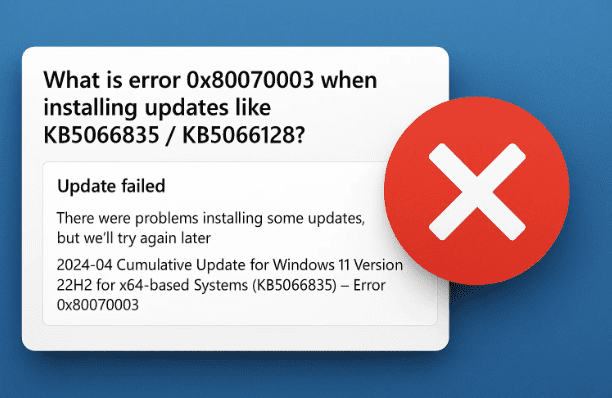
When Windows Update tries to install one of these updates and fails, you may see a message such as:
“We couldn’t install this update (KB5066835/KB5066128). Error code 0x80070003.”
The code 0x80070003 is a generic Windows error meaning “The system cannot find the path specified.” In the context of updates it often means that required update files, folders or components are missing, corrupted, or inaccessible.
In short: Windows sees the update, attempts to apply it, but cannot find or properly access some of the needed files or paths to complete the install. That’s why it fails and rolls back.
Before you proceed with deep fixes, let’s note that this kind of update error has multiple possible root causes and that some of the steps carry a modest risk (e.g., altering system files). Always back up important data before proceeding.
Why does this happen? (Common causes)
Here are some of the frequent underlying causes for error 0x80070003 with updates:
- Corrupted update components: The SoftwareDistribution folder or other Windows Update components may have bad files.
- Missing or damaged system files: The OS may be missing a driver, library, or update file path.
- Permissions or path issues: The system can’t access a folder (path) it expects during the update.
- Conflicting software or services: Antivirus, third-party disk utilities or other services may block or interfere.
- Insufficient disk space or storage errors: If the target folder/path has an issue (disk error, full space).
- Problems with the update itself: Sometimes the update package or metadata is bad, or the update isn’t compatible with your build.
For example Microsoft’s Q&A shows that many users got 0x80070003 when Windows Update or BITS services were stopped/misbehaving or when update component resetting was needed.
Step-by-step fixes
Okay — now that we know the “why”, let’s move to the how. I’ll walk you through the steps in increasing order of complexity. After each heading, there will be clear instructions. If one step solves it, you don’t need to do the next ones (though sometimes you might need a combination).
1. Run the Windows Update Troubleshooter
First up: use the built-in Windows tool.
- Open Settings → System (or Windows Update) → Troubleshoot → Other troubleshooters.
- Find Windows Update, click Run.
- Follow the on-screen instructions.
- After it finishes, restart your PC and try installing the update again.
This is simple and often solves basic issues. For example the article I found lists this as a first fix.
2. Check Windows Update service + BITS
Sometimes the services required for updating are stopped or hung.





- Press
Windows + R, typeservices.msc, hit Enter. - Find Windows Update service. Make sure its Startup Type is Manual or Automatic, and that the service is running (if not, right-click → Start).
- Find Background Intelligent Transfer Service (BITS) — similar check.
- After verifying/running them, try the update again.
One of the replies in the official forum indicated this resolved 0x80070003 for certain users.
3. Clear/Reset Windows Update Components
If the update components have become corrupted, you can manually reset them. This is more advanced, so proceed carefully:
Manual Reset Steps
- Open Command Prompt as Administrator.
- Stop the services:
net stop wuauserv net stop bits - Rename the SoftwareDistribution and Catroot2 folders (where updates are stored):
ren C:\Windows\SoftwareDistribution SoftwareDistribution.old ren C:\Windows\System32\catroot2 Catroot2.old - Restart the services:
net start wuauserv net start bits - Reboot your PC and try updating again.
This clears out old download cache and can fix path/file issues.
4. Run System File Checker (SFC) and DISM
Corrupted system files can block updates. Use these built-in tools:
- Open Command Prompt as Administrator.
- Run:
sfc /scannow - After it completes, run:
DISM /Online /Cleanup-Image /RestoreHealth - Once both complete, reboot and retry the update.
This is a fairly standard no-cost diagnostic and repair. As noted in community threads for error 0x80070003.
5. Ensure Enough Disk Space & Check Storage Health
- Make sure you have at least a few GB free on your system drive (typically C:).
- Run
chkdsk /fon your system drive or use Windows Tools → Storage Sense → Run a health check. - If any drive errors show up or free space is very low, clean up (remove large unused files/apps) and retry.
6. Download & Install the Update Manually
If Windows Update repeatedly fails, you can try the manual route:
- Go to the Microsoft Update Catalog (search “KB5066835” or “KB5066128” plus your Windows version).
- Download the correct package for your system (e.g., x64).
- Run the installer file directly, follow prompts, and reboot.
- After reboot, check Windows Update again to see if it shows as installed.
7. Repair Install / In-Place Upgrade
If nothing else works, you may perform an in-place upgrade (re-install Windows but keep your files/apps) to fix deeper OS corruption:
- Download the official Windows 11 ISO or use the Windows Media Creation Tool from Microsoft.
- Run the setup, choose “Keep personal files and apps.”
- Follow the wizard. Once complete, retry the update.
This is more time-consuming but often succeeds when other methods fail. Based on Microsoft’s own advice for persistent 0x80070003 errors.
What to do and check if a step fails
- After each major step, restart your PC, then attempt the update.
- Keep note of which step fixed the issue (if any) — this helps if you need follow-up help.
- If you get a different error code after any step, stop and check that new code specifically (it may need a different fix).
- If you manually installed the update and it still fails, note the exact failure point (percent number, error message) and search for that.
- If you have important data or customization, backup first before major operations like reset or in-place upgrade.
Frequently Asked Questions (Q&A)
Q: Will resetting SoftwareDistribution delete my personal files?
A: No — it only renames the folder where Windows stores update files. Your personal files, documents, apps remain untouched.
Q: Is it safe to perform an in-place upgrade?
A: Generally yes — it keeps your personal files and apps. However, there’s always a small risk (conflicts with apps, third-party drivers). Backup before proceeding.
Q: Why does the update keep failing at exactly x % (e.g., 7%)?
A: Often means the update process encountered a file or path it cannot access or load. That’s indicative of either missing/corrupt data or service problems. The forum discussion for 0x80070003 mentions that scenario.
Q: If I manually install the update and it succeeds, will Windows Update still show it?
A: Usually yes — after manual install, the update shows as installed in Windows Update history. But sometimes Windows Update might still show “Check for updates” if dependencies are missing, so check for other pending updates.
Q: Could this error mean my PC is infected with malware?
A: Not necessarily — while malware can interfere with updates, 0x80070003 is more often about missing files or services. Still, it’s wise to run a full virus scan if you suspect infection.
Final thoughts & wrap-up
We’ve covered what error 0x80070003 means in the context of updates like KB5066835 / KB5066128, why it happens, and how to fix it step-by-step. The key takeaway: when Windows can’t find or access required update paths/files, the update fails. Fixing the problem involves ensuring services work, clearing corrupted components, and repairing any underlying OS issues.
If you follow the steps above in order (Troubleshooter → services → reset components → SFC/DISM → manual install → in-place upgrade) you’ll address most of the common root causes.
#Windows11 #WindowsUpdate #KB5066835 #KB5066128 #Error0x80070003 #WindowsFix #Troubleshooting #Microsoft #UpdateError #TechGuide #WindowsSupport








