Photoshop is a powerhouse when it comes to editing, but did you know that you can automate repetitive tasks using something called Photoshop Actions? Whether you’re a professional designer, photographer, or just someone trying to speed up their workflow, Photoshop Actions can be a major time-saver.
In this article, we’ll explain what Photoshop Actions are, how to install them, how to create your own, and what their limitations are. Let’s get started.

What is a Photoshop Action?
A Photoshop Action is a pre-recorded series of steps or commands that can be saved and reused to automate a task in Adobe Photoshop.
Once you hit the Record button in the Actions panel, Photoshop starts saving every menu item you use, every setting you apply, and every operation you perform—until you hit the Stop button.
These actions can be as simple as resizing an image or as advanced as complex retouching workflows involving layers, masks, filters, and blend modes.
Typical use cases for Photoshop Actions include:
- Image resizing and saving
- Applying color grading or film looks
- Adding watermarks
- Complex retouching steps (excluding manual brushwork)
How to Install a Photoshop Action
Installing a Photoshop Action is a quick and easy process. Follow these steps:
- Download the Action file you want to use. Photoshop Actions come with a
.atnfile extension. - Open Adobe Photoshop (Get it here: https://www.adobe.com/products/photoshop.html)
- Open the Actions Panel:
Go to Window > Actions or pressAlt + F9(Windows) /Option + F9(Mac).

- Load the Action:
In the Actions panel, click the menu icon (≡) in the top right corner, then choose Load Actions… - Select the
.atnfile and click Open.
That’s it! The action will now appear in your Actions panel, ready to use.
What Can You Record with Photoshop Actions?
Photoshop Actions can record most menu commands and dialog-based options—things like:
- Adjustments (Brightness, Contrast, Curves, etc.)
- Filter applications
- Layer effects
- Transformations
- Saving and exporting settings

However, there are limitations:
- You cannot record freehand tools such as the Brush Tool, Eraser, or manual masking.
- Any task requiring manual precision or interaction (like selecting a face or painting specific areas) must be done outside the action or with additional manual effort.
How to Record Your Own Photoshop Action
Creating your own Photoshop Action is straightforward and can save you tons of time. Follow these steps:
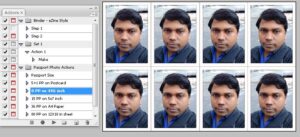


Step-by-Step Guide to Recording an Action:
- Open the Actions Panel: Go to Window > Actions or press
Alt + F9. - Create a New Action Set(optional but recommended):
- Click the folder icon to create a new set (this helps organize your actions).
- Create a New Action:
- Click the + icon.
- Name your Action and choose the set it belongs to.
- Click Record.
- Perform the steps you want to automate:
- Resize, add filters, adjust layers, etc.
- Photoshop will record every eligible step.
- Click the Stop button (the square icon) once finished.
Your action is now saved and ready to be reused.
Need to Make Changes While Recording?
If you make a mistake or want to redo a step:
- Hit Stop.
- Undo the steps back to your starting point.
- Press Record again to resume from where you left off.
This flexibility allows you to tweak and perfect your action until it works just right.
Why Use Photoshop Actions?
Here are a few great reasons:
- Consistency: Apply the exact same process to multiple files.
- Efficiency: Speed up your workflow with one-click automation.
- Reusability: Once created or downloaded, they can be used across multiple projects.
Where to Find Photoshop Actions?
There are thousands of free and premium Photoshop Actions available online. From cinematic effects to product mockup setups, you can find nearly anything.
You can start exploring actions on the official Adobe Exchange or marketplaces like Envato Elements and Creative Market.
I hope you have love reading this article about photoshop actions. Now, how about reading a great tool called Id Card Maker in Coreldraw and many more such posts. With this id card maker you can add photo and details direct with in Coreldraw using this free marco.
- Coredraw Id Card Maker Macro with Barcode and Photograph
- How to Edit and Export layered PSD image from CorelDraw to Photoshop – CorelDraw Macro
- Convert Text into Curves – CorelDraw Macro
- Guides and Crop Marks Maker – CorelDraw Macro
- Arrange Visiting Card (Any Page Size) – CorelDraw Macro
- What is a Photoshop Action and How to Use It Efficiently
Disclaimer
⚠️ Note: Photoshop Actions cannot replicate precise, manual brushwork or content-aware tools that require user interaction. They’re best suited for standardized, repeatable processes.
Conclusion
Photoshop Actions are a hidden gem for anyone who wants to save time and bring consistency to their editing workflow. Whether you’re applying a look to hundreds of photos or just simplifying your editing routine, Actions can be a game changer.
Take a moment to explore the Actions panel today—record a few steps and see how much time you can save!
Tags
Photoshop, Photoshop Actions, Adobe Photoshop, Photoshop Tutorial, Automate Photoshop, Photoshop Tips, Graphic Design, Photo Editing, Photoshop Automation
Hashtags
#Photoshop #PhotoshopActions #PhotoEditing #GraphicDesign #PhotoshopTips #AdobePhotoshop #DesignTools #ProductivityHacks