If you’re tired of bloated browsers, intrusive ads, or limited customization options, it’s time you give Vivaldi a serious look. Developed by former Opera CEO Jon von Tetzchner and headquartered in Norway, Vivaldi is a feature-packed browser built for power users—without compromising privacy.
In this guide, we’ll explore Vivaldi’s standout features, from tab tiling to built-in VPN, and show you why it might be the perfect alternative to Chrome or Firefox.
🧭 What is Vivaldi?
Vivaldi is a privacy-focused web browser built on Chromium (the same engine used by Chrome). But unlike Chrome, Vivaldi strips out Google’s tracking and replaces it with a rich set of features tailored to give you full control over how your browser looks, feels, and performs.
Available for Windows, macOS, Linux, Android, and iOS, it blends performance with customization, privacy with productivity.
🚀 Key Features of Vivaldi Browser (Explained in Detail)
1. 📌 Speed Dial on Start Page
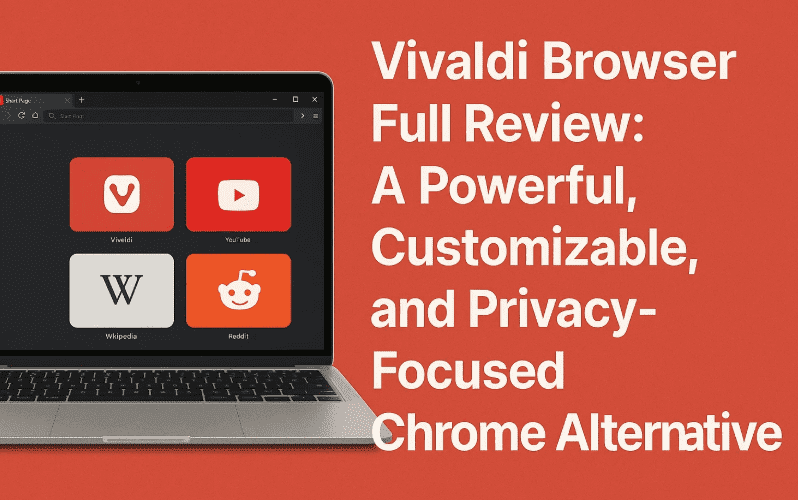
When you launch Vivaldi, you’re greeted by the Speed Dial page, which serves as a customizable dashboard of your favorite websites.
- To add a website: Click “Add a Speed Dial”, enter the URL and title.
- To remove one: Click the minus icon on the tile.
You can also add dashboard widgets like clocks, weather, and RSS feeds for quick access.
2. 🔒 Built-in Tracker & Ad Blocking
Vivaldi respects your privacy by offering built-in tracker and ad blocking.
To enable:
- Click the menu icon in the top-left corner.
- Go to Settings > Privacy & Security.
- Under Tracker and Ad Blocking, choose:
- No Blocking
- Block Trackers
- Block Trackers and Ads
No third-party extension needed.
3. 🗂️ Tab Stacking & Tiling
- Tab Stacking allows you to group related tabs together. Simply drag one tab over another to stack.
- To unstack, right-click the tab group and choose Unstack Tabs.
- Tab Tiling lets you view multiple pages side by side—perfect for research or multitasking.
To use:




- Select multiple tabs.
- Click the Page Tiling icon in the status bar.
- Choose from:
- Tile Vertically
- Tile Horizontally
- Tile to Grid
4. 💾 Save Tabs as Sessions
Want to resume your work later?
- Save your current tabs as a session:
- Ctrl/Shift + select tabs
- Right-click > Save Selected Tabs as Session
- Give it a name
- To reopen: Menu > File > Open Saved Session
5. 🖼️ Tab Thumbnails
Get a visual preview of open tabs.
To enable:
- Go to Settings > Tabs > Tab Display
- Check “Show Tab Thumbnails”
- Adjust size by dragging the divider below the tabs
6. 🌍 Free Built-in VPN (Powered by ProtonVPN)
Vivaldi offers free VPN integration—a rarity among browsers.
To use:
- Click VPN on the top-right corner
- Log in with a Vivaldi or ProtonVPN account
- Click Connect
🔐 Note: You can’t manually select countries with the free version, but it still encrypts traffic and hides your IP.
7. 🎨 Themes & UI Customization
Bored of the default look? Vivaldi offers themes galore.
- Switch between Light, Dark, and Auto mode
- Explore themes at themes.vivaldi.net
- Or create your own!
You can also move the side panel to the right via Settings > Panel.
8. 🎹 Custom Keyboard Shortcuts
For productivity ninjas, nearly every action in Vivaldi can be triggered by custom keyboard shortcuts.
Go to:
- Settings > Keyboard
- Assign or modify shortcuts
- Advanced categories are expandable for power users
9. 📷 Built-in Screenshot Tool
Take quick screenshots directly from the browser.
- Click the camera icon near the bottom toolbar
- Choose:
- Full Page
- Selection
- Save as PNG, JPEG, or copy to clipboard
All captures go to your Downloads folder.
10. 📖 Reader View for Distraction-Free Reading
Tired of cluttered web pages?
- Click the Reader View icon near the address bar
- Customize font, spacing, and background theme
- Choose between Light, Dark, or default theme
Perfect for reading articles without ads or sidebars.
11. 📚 Reading List
Save articles to read later—built directly into Vivaldi.
To use:
- Open the Side Panel > Reading List
- Click the “+” icon to save an article
- Right-click entries to mark as read or remove
12. 📌 Web Panels for Multitasking
Web Panels are mini browsers pinned to your side panel.
- Ideal for keeping YouTube, Reddit, Twitter, or chat apps open
- To add a page: Right-click > Add Page to Web Panel
You can even move the panel from left to right.
13. 🧩 Chrome Extension Support
Yes, Vivaldi supports Chrome extensions.
To install:
- Go to Menu > Tools > Extensions
- Open the Chrome Web Store
- Install just like in Chrome!
Thanks to its Chromium base, most extensions work flawlessly.
🔐 Is Vivaldi Browser Safe?
Absolutely. Here’s why:
- No telemetry or Google tracking
- Encrypted sync across devices
- Optional VPN
- Built-in ad & tracker blocking
- Frequent security updates
For extra security, pair Vivaldi with a good VPN like NordVPN and a password manager like Bitwarden.
🤔 FAQs About Vivaldi Browser
Q. Is Vivaldi faster than Chrome?
In many cases, yes—especially when tabs and trackers are managed efficiently.
Q. Can I sync Vivaldi across devices?
Yes, Vivaldi Sync lets you sync bookmarks, passwords, sessions, etc. securely.
Q. Does Vivaldi work on mobile?
Yes, it’s available on Android and iOS with slightly fewer features than desktop.
Q. Can I use it without a Vivaldi account?
Yes, but features like Sync and VPN require one.
✅ Final Verdict: Should You Use Vivaldi?
If you’re looking for a browser that combines power, flexibility, and privacy, Vivaldi is easily one of the best choices in 2025.
Use Vivaldi if:
- You want more customization than Chrome or Firefox
- You prefer privacy-focused tools without third-party add-ons
- You enjoy productivity features like tab grouping, web panels, and built-in sessions
It may feel overwhelming at first, but for anyone who spends serious time online, Vivaldi rewards exploration.
🏷️ Tags & Hashtags
Tags: Vivaldi browser, chrome alternative, open source browser, vivaldi features, tab tiling, vivaldi VPN, secure web browser, productivity browser, vivaldi extensions, browser customization
Hashtags:
#VivaldiBrowser #BrowserReview #PrivacyFirst #ChromeAlternative #SecureBrowsing #TechTools #BuiltInVPN #CustomizableBrowser #OpenSourceBrowser #WebTools






