Imagine being able to carry not just one, but multiple Android devices in your pocket—without ever physically owning them. Sounds futuristic? That’s exactly what cloud phones make possible. Just like cloud gaming lets you stream high-end games without a console or gaming PC, cloud phone services allow you to rent and use Android devices that run entirely on the internet.
In this article, we’ll take a deep dive into how cloud phones work, why they’re useful, and how you can get started with a service like VMOS Cloud. By the end, you’ll understand how to set up, manage, and even control multiple Android devices in the cloud for tasks like app testing, multitasking, and managing multiple accounts—all without needing extra hardware.
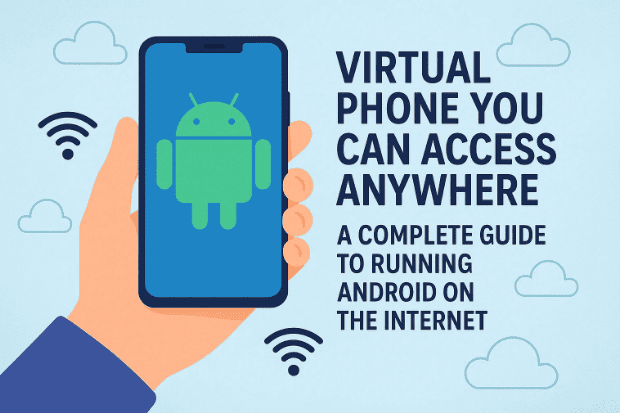
📱 1. What is a Cloud Phone?
Before jumping into the steps, let’s clarify what we’re dealing with. A cloud phone is essentially a remote Android device that runs on a server instead of your local hardware. You connect to it via a web browser or an application, and it behaves just like a physical Android phone.
Think of it as:
- A virtual phone you can access from your laptop, PC, or even another smartphone.
- A real Android device hosted in a data center that you can rent and use remotely.
- A tool for app developers, digital marketers, and everyday users who need multiple accounts, secure environments, or country-specific devices.
Now that we know what it is, let’s look at how you can actually use one.
☁️ 2. Introduction to VMOS Cloud
The service highlighted in this tutorial is VMOS Cloud, often referred to as W OS Cloud. It offers both virtual and real Android devices that you can rent on demand.
Some key points about VMOS Cloud:
- Works on Windows, Linux, macOS, and web browsers.
- Available via a dedicated app or directly in a browser tab.
- Lets you run multiple phones simultaneously.
- Each device has its own IP address, which can be country-specific.
- Provides features like file upload, app installation, and group control for bulk operations.
This flexibility makes it appealing to anyone from casual users to professionals who need cloud-based Android devices.
🛠️ 3. Getting Started with a Cloud Phone
So, how do you begin using VMOS Cloud? The setup process is straightforward, but let’s break it down step by step.
- Create an account on VMOS Cloud.
- Download the app for your platform (Windows, Android, or simply use your browser).
- Log in to your account.
- Click the “Purchase +” icon to rent a device.
- Select your preferences: Android version, device type, and country.
- Once purchased, your device will appear on the dashboard, ready to launch.
At this point, you’re essentially holding a phone inside your PC, ready to use as if it were in your hands.
🔄 4. Choosing Between Virtual and Real Devices
When renting a device, VMOS Cloud gives you two options:



- Virtual Device: Simulated Android environment, usually lighter and cheaper.
- Real Device: A physical Android phone hosted in their data center.
If you’re testing apps or want maximum realism (like hardware-specific behavior), go for a real device. For basic multitasking or account management, a virtual phone is often enough.
🌍 5. The Importance of Unique IP Addresses and Country Selection
Each cloud phone comes with its own IP address, which is especially useful if you:
- Need to run multiple accounts without triggering “same device” detection.
- Want to test apps from a specific region (e.g., a US-based Play Store account).
- Require access to geo-restricted content.
For example:
- Rent a US-based device if you’re targeting American users.
- Rent a Hong Kong device if you want to test availability in Asia.
This makes VMOS Cloud a handy tool for global testing and digital marketing.
🎁 6. How to Use the Free Trial for Testing
If you’re skeptical about whether this service suits you, VMOS Cloud offers a free 10-minute trial.
- Go to Real Device Test.
- If devices are available, click Start Debugging.
- You’ll be given access to a live phone for 10 minutes.
This is great for quick app compatibility checks or just to experience what a cloud phone feels like.
📂 7. Installing Apps and Uploading Files
One of the most powerful aspects of cloud phones is the ability to upload your own files or apps.
- Upload APKs directly from your computer.
- Install apps via the built-in Play Store.
- Test open-source tools like LocalSend to share files between devices.
For developers, this means you can quickly test apps across multiple devices without owning them physically.
👥 8. Using Group Control to Manage Multiple Devices
Here’s where things get really interesting. VMOS Cloud has a feature called Group Control.
With Group Control:
- You can select multiple devices and control them from one “master” device.
- Any action you perform on the master phone is replicated across all others.
- This includes opening apps, browsing, or installing software.
For example:
- Open Settings on the master phone → it opens on all devices.
- Install WhatsApp → it installs on all devices at once.
This is especially useful for digital marketers, QA testers, or businesses managing large-scale device operations and ofcourse being a virtual devie it works very fast and no lags. But what if you are experience slow performance on your real phone, in this case you can Boost Your Phone’s Speed Instantly With These 4 Smart Settings.
⚡ 9. Practical Uses: Multitasking, Testing, and More
So far, we’ve covered the mechanics. But let’s look at real-world scenarios:
- App Development: Test your app on multiple Android versions and devices.
- Social Media Management: Run multiple accounts without needing separate physical phones.
- Game Testing: See how games perform across different hardware.
- Digital Marketing: Simulate devices from different regions to test campaigns.
- Education & Training: Demonstrate apps in classrooms without needing dozens of phones.
The possibilities are vast, and it all runs on your laptop or browser.
💰 10. Understanding Pricing and Rental Options
Pricing is flexible and scalable. You can rent:
- For 1 day (~$0.75) if you need quick access.
- For 30 days (~$9) if you want a longer project.
- For 90 days or 1 year if you need consistent testing environments.
This flexibility makes it affordable for short-term testers and practical for long-term developers.
❓ 11. Frequently Asked Questions (Q&A)
Q1: Is a cloud phone safe to use?
Yes, but remember that the phone is running on a remote server. Avoid storing sensitive data unless necessary.
Q2: Can I play games on a cloud phone?
Yes, but performance depends on your internet connection. These phones are better suited for apps, multitasking, and testing.
Q3: How many devices can I run at once?
You can rent and run multiple devices simultaneously. Group Control makes managing them easier.
Q4: Do I need a powerful computer?
No. Since everything runs in the cloud, even a basic PC or Chromebook can handle it.
Q5: What happens after the rental period ends?
The device is released back to the server pool. Make sure to back up your files before it expires.
🏁 12. Conclusion
Cloud phones are more than just a cool concept—they’re a powerful tool for developers, testers, and digital workers. With services like VMOS Cloud, you can rent Android devices on demand, control multiple phones at once, and even test apps across countries—all without leaving your desk.
Whether you’re managing social media, developing apps, or just exploring the idea of having a “phone in the cloud,” this technology opens new possibilities.
⚠️ Disclaimer
Cloud phone services should be used responsibly. Do not use them for illegal activities or to bypass app policies, as this can result in account bans or legal issues. Always follow the terms of service of both the cloud provider and the apps you use.
Tags
cloud phone, VMOS Cloud, Android in browser, app testing, virtual phone, real device testing, cloud computing, mobile development, remote devices, group control
Hashtags
#CloudPhone #VMOS #Android #AppTesting #CloudComputing #VirtualDevices #TechGuide #MobileDevelopment








