If you’ve ever worked with audio on a Windows machine, you’ve likely heard of Voicemeeter, an incredibly powerful audio mixer and virtual routing application. But what if you don’t need the mixing console, effects, or complex processing — just clean, powerful, and flexible audio routing?
Enter VB-Audio Matrix, the newest tool from the developers of Voicemeeter. This application is designed exclusively for routing audio, offering advanced control over audio flow between devices and channels. If you’re an audio engineer, live streamer, content creator, or just someone who wants more precise control over system audio — VB-Audio Matrix is made for you.
🧩 What Is VB-Audio Matrix?
VB-Audio Matrix is a lightweight, high-performance audio router built specifically for Windows. Unlike Voicemeeter, which includes EQ, compression, and other DSP tools, VB-Audio Matrix focuses solely on channel-based audio routing.
It allows you to route any input (source) to any output (sink) on a per-channel basis, supporting:
- ASIO
- WDM (WASAPI)
- MME
- Kernel Streaming
- Virtual Audio I/O (VAIO)
- Network audio via VBAN
Whether you’re connecting audio devices, separating game audio from microphone input, or sending your DAW output to streaming software, this tool gives you complete matrix-style control.
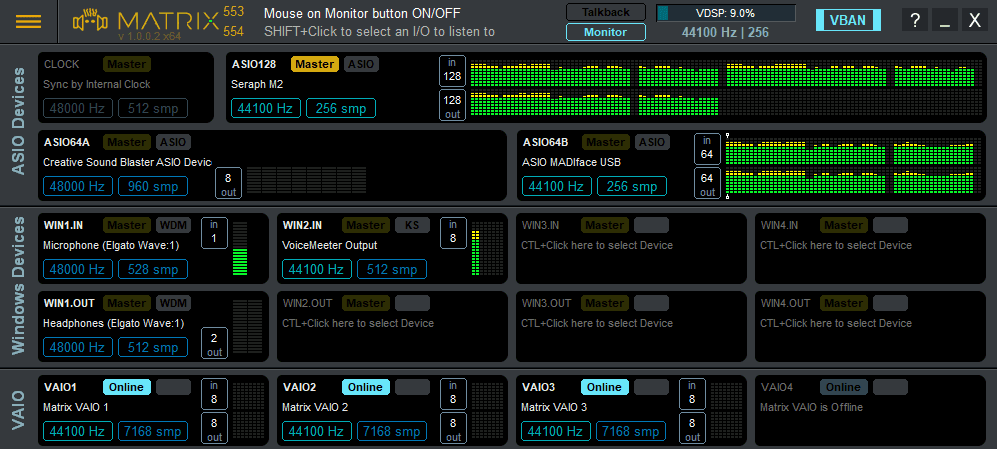
🎛️ Interface Overview
When you launch VB-Audio Matrix, you’ll find:
- Device View: A simple layout where you can connect and manage your audio devices.
- Matrix View: A powerful grid where you can route individual channels between devices.
To access the routing grid, click on the VB-Audio logo in the Device View. This opens the Matrix View where each channel can be cross-connected with just a Ctrl + Click on the desired block.
🔌 Connecting Devices
VB-Audio Matrix supports various types of audio devices and provides virtual ones for your routing needs. The main sections include:
- ASIO Devices: Low-latency professional audio devices. Up to 128 channels supported.
- Windows Devices: WDM, MME, KS types that Windows apps usually use.
- Virtual ASIO Devices: For routing audio within DAWs like Reaper.
- Virtual Audio Devices: Similar to the VAIO cables in Voicemeeter.
- VBAN Network Streams: For routing audio across computers on a network.
Example:
To connect your Focusrite interface (ASIO) to Reaper:
- Ctrl + Click on an ASIO slot (e.g., ASIO 64A).
- Select your Focusrite USB audio interface.
- Open the Matrix View.
- Connect the input channels to the virtual ASIO (Reroute ASIO) channels used by Reaper.
Done! Your mic or any input now flows directly into your DAW.
🧠 Internal Clock & Master Configuration
By default, VB-Audio Matrix runs on its internal clock set at 48 kHz and 512 buffer size. But it also supports external master clock sources:







To switch:
- Ctrl + Click on the “Master” label and choose your preferred hardware device (e.g., Focusrite ASIO).
This ensures clock synchronization across all devices, preventing audio drift or latency.
🧪 Virtual Devices for Advanced Routing
VB-Audio Matrix includes both Virtual ASIO and Virtual Audio Devices, giving you even more routing flexibility:
- Enable Virtual Devices: Ctrl + Click “Online” next to the device in the Device View.
- These devices appear in your DAW or system as standard input/output devices.
For instance, you can:
- Use VB Matrix 1-4 to route browser or media player audio.
- Send that audio to Voicemeeter for processing or OBS for streaming.
📡 Network Audio (VBAN)
VB-Audio Matrix also integrates VBAN, allowing you to send and receive audio over your local network.
This is ideal for:
- Studio setups using multiple PCs.
- Remote collaboration.
- Sending clean audio to a streaming PC.
🛠️ Practical Example: VLC to Voicemeeter
- In VLC, select VB Matrix 1 as the output.
- In the Matrix View, find VB Matrix 1 and route it to “Cable D” (connected to Voicemeeter).
- Adjust left/right channel gain via scroll wheel over the Matrix blocks.
Now your VLC output is routed into Voicemeeter for mixing, processing, or streaming.
🚀 Getting Started with VB-Audio Matrix
VB-Audio Matrix is currently in beta, but available for testing via the official VB-Audio Discord server. You can also explore the VB-Audio Matrix website for more details and documentation.
Official Website: https://vb-audio.com/Matrix/
📌 Final Thoughts
VB-Audio Matrix is an incredibly powerful tool for users who need precise control over their audio routing without the bulk of traditional mixing software. Whether you’re building a podcast studio, streaming setup, or just organizing audio from multiple apps — this tool provides surgical precision.
With support for professional ASIO devices, virtual interfaces, and network audio — VB-Audio Matrix is poised to become the go-to router for Windows audio professionals.
⚠️ Disclaimer
VB-Audio Matrix is currently in beta testing. While it’s stable for many use cases, it may still undergo changes. Always download from official sources and join the VB-Audio Discord for the latest updates and community support.
🏷️ Tags
VB-Audio Matrix, audio routing, Windows audio, virtual audio cable, ASIO, Focusrite, Voicemeeter alternative, Reaper routing, DAW setup, virtual ASIO device, VBAN, VB-Audio tools, audio setup for streaming
📢 Hashtags
#VBAudioMatrix #AudioRouting #WindowsAudioTools #VoicemeeterAlternative #VirtualAudio #ASIORouting #DAWSetup #StreamingAudio #VBAN #FocusriteRouting








