As the end of life (EOL) date for Windows 10 draws near—October 14th, 2025—it’s essential that users prepare now to avoid future complications. After this date, Microsoft will officially stop supporting Windows 10, which includes critical security updates, feature patches, and even access to download Windows 10 installation files from their website.
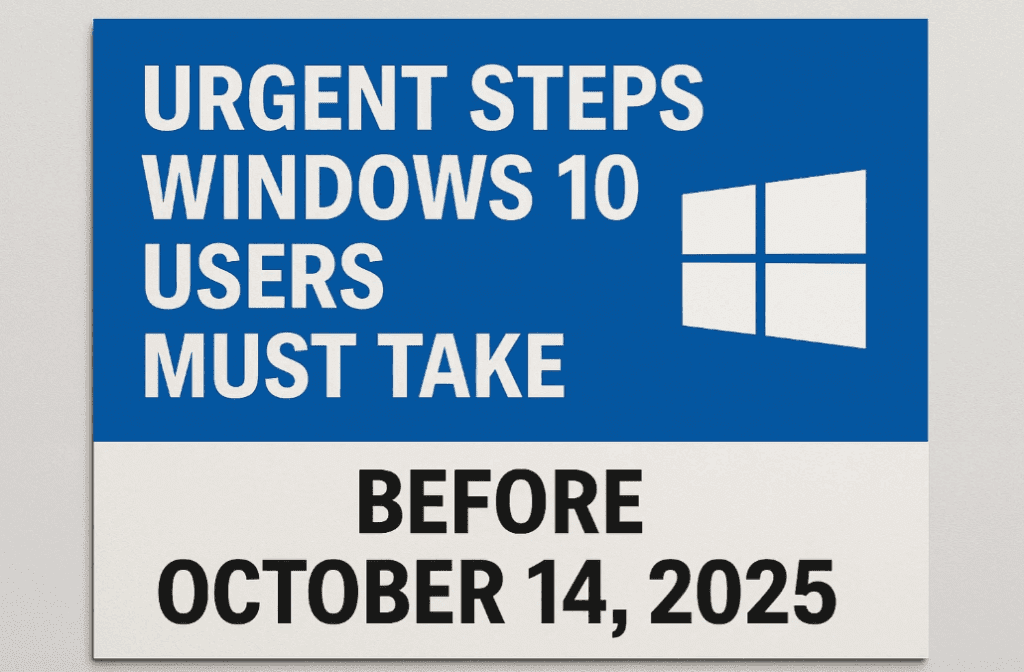
If you’re planning to continue using Windows 10 beyond its EOL, this guide will walk you through the necessary steps to create a bootable USB flash drive, download the ISO file safely, and use tools like Rufus for more customization.
🛑 Why This Matters
Once Microsoft discontinues official support:
- No security or bug fix updates will be available.
- The Windows 10 download page will be removed.
- You won’t be able to download the Media Creation Tool or the official Windows 10 ISO file.
This means if your system crashes or needs to be reinstalled after October 14, 2025, you won’t be able to get clean installation files from Microsoft.
✅ What You Need Before You Begin
- A USB Flash Drive (at least 8 GB, 16 GB recommended)
- A Windows 10 PC to create the bootable media
- Internet connection (for downloading tools and ISO)
🔧 Step-by-Step: Create a Bootable Windows 10 USB Flash Drive
1. Download the Media Creation Tool
Visit Microsoft’s official Windows 10 download page:
👉 https://www.microsoft.com/en-gb/software-download/windows10
Click on “Download tool now” under Create Windows 10 installation media.
2. Run the Tool and Create USB Installation Media
- Launch the MediaCreationTool.exe file.
- Accept Microsoft’s license terms.
- Select “Create installation media (USB flash drive, DVD, or ISO file) for another PC” and click Next.
- Choose your:
- Language (e.g., English – UK)
- Edition (Windows 10)
- Architecture:
- Use Both if you’re unsure (covers both 32-bit and 64-bit systems).
- Choose “USB Flash Drive” and insert your USB.
- Select your USB drive and click Next.
- The tool will now format the USB and create the bootable drive.
✅ Keep this USB in a safe place—it will be your rescue tool for Windows 10 after EOL.
💾 Step-by-Step: Download Windows 10 ISO Separately
You may also want the ISO file for use with tools like Rufus for more control.
- Re-run the Media Creation Tool.
- Select the same options for language, edition, and architecture.
- Choose “ISO file” instead of USB flash drive.
- Select a folder to save the file and rename it something like:
Windows_10_22H2.iso
This ensures you have a copy of the operating system even if Microsoft removes download access.
🛠️ Advanced Option: Create Bootable USB with Rufus
Rufus is a free tool that gives more customization options when creating bootable USB drives.
How to Use Rufus:
- Download and install Rufus from https://rufus.ie.
- Launch the program and insert your USB flash drive.
- Click “Select” and choose the
Windows_10_22H2.isofile you saved earlier. - Configure the following:
- Partition scheme:
- GPT for UEFI systems
- MBR for older BIOS systems
- File system: NTFS
- Enable Custom Windows Installation Settings:
- Create a local user account
- Disable forced Microsoft account sign-in
- Skip data collection and privacy questions
- Disable BitLocker automatic encryption
- Partition scheme:
- Click Start to create your customized bootable USB.
🔁 Why You Should Do This Now
Microsoft has a history of quickly removing download pages once a version of Windows reaches EOL. If you wait too long:





- You may be forced to download unofficial or unsafe ISO files from third-party sites.
- You could lose the ability to repair, recover, or reinstall Windows 10 on your PC.
By following these steps, you’re future-proofing your system.
🧠 FAQ (Frequently Asked Questions)
❓ What happens after October 14, 2025?
Microsoft will stop releasing updates, security patches, and may remove download links for Windows 10.
❓ Can I still use Windows 10 after the end of life?
Yes, but you do so at your own risk. You won’t receive updates or security patches.
❓ Is it legal to use the ISO or media creation tool after the EOL?
Yes, as long as you’re using tools and files downloaded from Microsoft before the EOL.
❓ What if I don’t have a USB flash drive?
You can store the ISO on an external hard drive for now and create the bootable drive later with tools like Rufus.
🧰 Bonus Tip: Keep a Second Backup USB
Consider creating a second bootable USB drive or storing a copy of the ISO on an external drive or cloud storage, just in case the first one gets damaged.
🛡️ Final Thoughts
Don’t wait until it’s too late. Act now—before October 14, 2025—to create your Windows 10 bootable USB and download the ISO. Whether you plan to continue using Windows 10 or just want a fallback option, this is your best chance to do it safely and officially.
🔗 Useful Links:
Tags:
windows 10, bootable usb, windows 10 iso, rufus, end of life, microsoft, media creation tool, pc recovery, usb installer
Hashtags:
#windows10 #bootableusb #rufus #windows10iso #windows10eol #microsoft #pcsupport #techguide #windowsinstallation
Disclaimer:
This guide is for educational purposes only. Always use official Microsoft tools and files. Downloading unofficial ISOs from unknown sources can put your PC at risk of malware or data loss.








