Most smartphones have hidden settings and dialer codes that your mobile operator won’t tell you about. But knowing how to access and tweak these can dramatically improve your call quality, mobile internet speed, and signal strength—without using any third-party apps. This article will walk you through these hidden settings and show you how to apply them effectively.
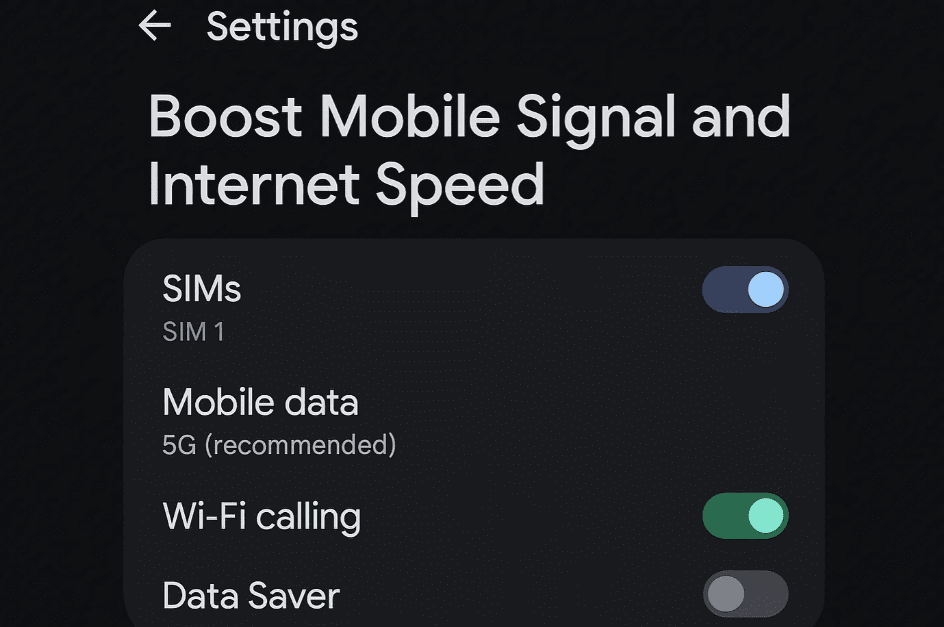
📶 Step 1: Check Your Mobile Signal Strength
Knowing your signal strength can help you decide whether to switch network types (like from 5G to 4G) for a more stable connection.
✅ Method 1: Using Hidden Code
Open your Phone app and dial the following:
*#*#4636#*#*
- After this, select the SIM card you’re using (e.g., SIM 1 or SIM 2).
- Look for Signal Strength, RSRP, or similar terms—depending on your device brand.
✅ Alternate Code
If the above code doesn’t work, try:
*#0000*11#
✅ Method 2: Via Phone Settings
If both codes fail:
- Open Settings.
- Use the search bar to type SIM Card Status.
- Tap SIM Card Status, then tap again to view signal strength.
Once you know your signal level (usually shown in dBm), you can compare it using this general guide:
| Signal (dBm) | Quality |
|---|---|
| -70 or better | Excellent |
| -71 to -85 | Good |
| -86 to -100 | Fair |
| Below -100 | Poor/Unstable |
📲 Step 2: Improve Network Connectivity by Switching from 5G to 4G
By default, your phone may connect to a weak 5G signal. In many cases, switching to 4G (LTE) improves speed and saves battery.
How to switch:
- Go to Settings.
- Search for Network Mode or Preferred Network Type.
- Select 4G or LTE Only.
💡 Why this helps: 4G networks often offer stronger and more stable connections, especially in areas with limited 5G coverage. Plus, it conserves battery power.
⚙️ Step 3: Tweak Access Point Names (APN) Settings for Better Internet Speed
Incorrect APN settings can slow down your mobile internet. Here’s how to optimize them:
- Go to Settings.
- Search for Access Point Names.
- Tap your current internet APN.
- Scroll to the Bearer section.
Optimize Bearer Selection:
- Uncheck Unspecified.
- Check only these options:
✅ LTE, eHRPD, HSPAP, HSPA, HSDPA, UMTS, NR (5G)
(Skip older technologies like EDGE, GPRS, etc.)
Tap OK after selecting.
🔐 Step 4: Adjust Authentication Type for Best Speed
Still under the APN settings:









- Find and tap Authentication Type.
- You’ll see options like:
- PAP
- CHAP
- PAP or CHAP
⚠️ Different operators and phone models perform better with different types. So test each:
How to Test:
- Choose PAP, save, and test speed (use SpeedTest or Google “internet speed test”).
- Try CHAP, then PAP or CHAP and compare.
- Keep whichever gives you the best speed.
📌 Don’t forget to save your changes: Tap the three dots in the top-right and select Save.
🧠 Final Thoughts
By applying these small changes, you can:
- Improve call clarity
- Stabilize mobile internet
- Extend your phone’s battery life
- Get the most out of your mobile network—even on low-end phones
These hidden settings are often overlooked, but once configured properly, your smartphone’s performance can drastically improve.
⚠️ Disclaimer:
These changes are completely safe and can be reversed anytime. However, if you’re unsure about APN settings, consider noting down your original settings before making changes.
📌 Tags:
android hidden settings, improve mobile signal, boost internet speed, APN settings tweak, LTE network optimization, mobile network tips, Android internet fix, better call quality Android, hidden USSD codes
📢 Hashtags:
#AndroidTips #InternetSpeedBoost #HiddenSettings #NetworkOptimization #ImproveSignal #LTESettings #MobileHacks #FasterInternet #AndroidTricks #TechGuide
Unlock the full potential of your phone by using these lesser-known but powerful settings. Your connection will thank you!








