Capturing a perfect photo isn’t just about owning an expensive phone — it’s about knowing how to use its camera settings smartly. Many people complain that their smartphone pictures don’t look professional, but the truth is that around 90% of users never explore the powerful camera features already available in their phones.
If you’ve ever wondered why your photos lack clarity, sharpness, or realistic color even with a good camera, this article is for you. We’ll go through hidden camera settings and advanced features that can turn your phone into a near-DSLR device.
By the end, you’ll know how to:
- Capture crystal-clear shots in low light
- Use the volume buttons as camera controls
- Enable AI enhancements for professional-quality photos
- Shoot bursts and HDR images like a pro
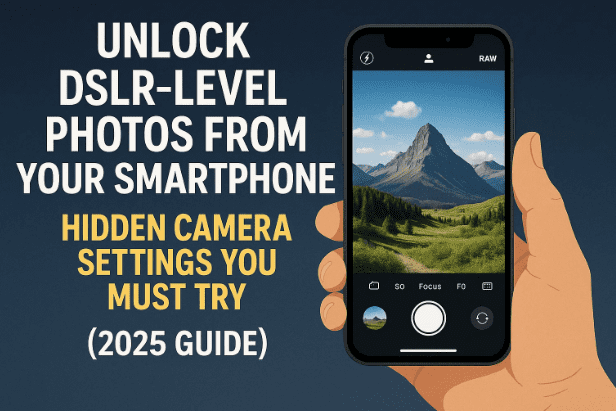
So grab your phone, open the camera app, and let’s begin.
1. Why Your Photos Don’t Look Great Yet
Let’s start with the basics. Most smartphone users simply open their camera app and press the shutter button without adjusting any setting. But modern camera apps (from Samsung, Xiaomi, Realme, Vivo, and others) offer dozens of professional-grade options.
By tweaking just a few of them, you can dramatically improve lighting, sharpness, and focus — even without editing apps.
2. Step 1 – Open and Explore Camera Settings
When you open your camera app, look for the gear-shaped Settings icon — usually found at the top or corner of the screen. Tap it to reveal advanced options.
This is where most of the magic happens. You’ll find sections like Volume Button Action, Advanced Settings, Shooting Methods, and more.
Before diving into each, make sure your app is up to date (via Google Play Store or your phone’s built-in update system).
3. Step 2 – Master the Volume Button Action
Many users don’t realize that the volume keys can double as camera controls. Once you open Settings › Volume Button Action, you’ll see three useful options:
- Volume – Adjusts sound normally.
- Shutter – Pressing the volume button takes a photo.
- Zoom – Lets you zoom in/out using volume up/down.
👉 Tip: If you often take selfies or group photos, set it to Shutter. It’s much easier to press a side button than to stretch your finger to the on-screen shutter.









4. Step 3 – Enable Flip Selfie for Perfect Mirror Images
Ever taken a selfie where the text on your T-shirt appears backward? That happens when the Flip Selfie option is turned off.
- Go to Advanced Settings › Flip Selfie and turn it ON.
- Now all selfies will appear as you see yourself in the mirror, with readable text and correct orientation.
It’s a small change that instantly improves your portrait consistency.
5. Step 4 – Customize Shooting Methods for Comfort
Smartphone cameras now include accessibility options for effortless shooting. Under Shooting Methods, you’ll find:
- Tap to Capture: Take a photo by tapping anywhere on the screen.
- Show Palm to Capture: Simply raise your palm to trigger the shutter — great for group selfies!
So next time you’re struggling to press the button at arm’s length, enable these features and click with ease.
6. Step 5 – Always Use HDR Mode for Sharp Detail
HDR (High Dynamic Range) mode balances the light and shadows in your photo by combining multiple exposures into one.
When HDR Mode is ON:
- Bright skies won’t look washed out.
- Faces remain well lit even in backlight.
- Overall image quality improves drastically.
Find it under your camera’s quick settings or shooting modes. Keep it enabled by default for outdoor or high-contrast scenes.
7. Step 6 – Turn On AI Mode for Automatic Scene Detection
Most phones today include AI (Artificial Intelligence) Camera support. It analyzes the scene — whether it’s a face, food, plant, or landscape — and adjusts the color and exposure automatically.
By enabling AI Mode, you let your camera:
- Detect subjects instantly
- Boost colors intelligently
- Maintain accurate focus
📎 Tip: For phones that support it, look for icons like “AI”, “Scene Optimizer”, or “Smart Camera” and keep them active.
8. Step 7 – Manually Adjust Brightness and Contrast
Sometimes AI can’t decide what you want — that’s where manual control helps.
If your photo looks too dark, tap on the subject and slide your finger upward to increase brightness (or downward to decrease it).
This feature lets you balance the exposure instantly without editing apps. In dim light, raising brightness can bring hidden details to life.
9. Step 8 – Use AI Retouching for Sharper Images
If your phone offers AI Retouching or Image Enhancer, turn it on and set it around 80–100%.
This ensures your photos are captured in higher sharpness and clarity. Edges become crisp, and skin tones remain natural.
⚠️ Note: Don’t confuse this with beauty filters that overly smooth skin — AI Retouching preserves texture while refining small imperfections.
10. Step 9 – Night Mode Photography for Low Light
If you love taking pictures at night or indoors, Night Mode is a game-changer.
When enabled, the camera takes multiple shots at varying exposures and merges them, creating a bright, noise-free image — even in near darkness.
📷 To use it:
- Switch to Night Mode in your camera.
- Hold your phone steady for a few seconds.
- Let the AI process the light.
The results often rival DSLR night photography!
11. Step 10 – Capture Moments with Burst Mode
When capturing fast-moving subjects — kids, pets, sports — one photo isn’t enough.
Hold the shutter button (or volume key if configured). The phone captures up to 20 frames per second, ensuring you don’t miss the perfect shot.
After capturing, review the sequence, choose the sharpest frame, and delete the rest.
12. Step 11 – Shoot at Full Megapixel Resolution
Many phones, especially 48 MP or 64 MP models, take lower-resolution photos by default to save storage.
If you want true full-quality images:
- Tap Resolution or Full MP Mode in your camera settings.
- Choose the highest megapixel option (e.g., 48 MP or 108 MP).
This ensures:
- Ultra-sharp detail when zooming
- No pixel breakage during editing or cropping
Remember, these images are larger in size, so use this mode for special shots rather than everyday photos.
13. Bonus Tips for Professional-Looking Shots
Let’s add a few finishing touches before you go snapping away:
- Clean your lens regularly — even minor smudges ruin clarity.
- Avoid digital zoom; move closer instead.
- Use gridlines for perfect composition.
- Keep steady — use both hands or a small tripod.
- Experiment with portrait, panorama, and pro modes.
So far, you’ve done a great job learning these settings. With just a little practice, you’ll notice your photography skills improve dramatically.
14. Common Questions and Answers
Q 1. Do these settings work on all Android phones?
Yes. Most Android devices (Samsung, Xiaomi, Vivo, Oppo, Realme, Motorola, etc.) have similar options. The exact menu names might differ slightly.
Q 2. Can I apply these on iPhone too?
Some features like HDR, AI mode, and burst mode exist on iPhones too, though Apple hides advanced controls within the Settings › Camera section.
Q 3. Why are my photos still grainy in low light?
Ensure Night Mode and AI Retouching are enabled, and clean your lens. Also, avoid heavy digital zoom — it amplifies noise.
Q 4. Does using high-megapixel mode slow my phone?
Slightly, yes — since the file size and processing increase. Use it selectively for important or scenic shots.
15. Final Thoughts
Smartphone photography has evolved massively. What once required expensive cameras can now be achieved with a simple set of smart settings.
By following the steps above, you’ll not only improve photo quality but also understand your phone’s full potential. Next time someone says, “You must have a great camera!” — you’ll know it’s your skill, not just your device, doing the magic.
Disclaimer:
Settings names and locations may differ slightly depending on your phone brand and Android version. The features described here are general recommendations for most modern smartphones (Android 10 and above). Always refer to your phone’s official camera-app documentation or website for exact details.
Tags: phone camera settings, DSLR-style photos, smartphone photography, HDR mode, AI camera, night photography, burst shots, megapixel mode
Hashtags: #SmartphonePhotography #CameraSettings #MobileTips #PhotographyGuide #AndroidCamera #HDRmode #AImode








