Choosing the right storage device can be confusing, especially with all the different terms like SSD, HDD, M.2, NVMe, and mSATA being thrown around. Whether you’re upgrading a laptop, building a custom PC, or just trying to understand what’s inside your device, it’s important to grasp the differences — not just in shape, but in performance, lifespan, and compatibility.
In this guide, we’ll walk you through the core concepts of storage devices in a way that’s easy to follow. From the classic hard disk drive (HDD) to the blazing-fast NVMe SSDs, we’ll explain everything — how they work, how they connect, and what suits your needs best.
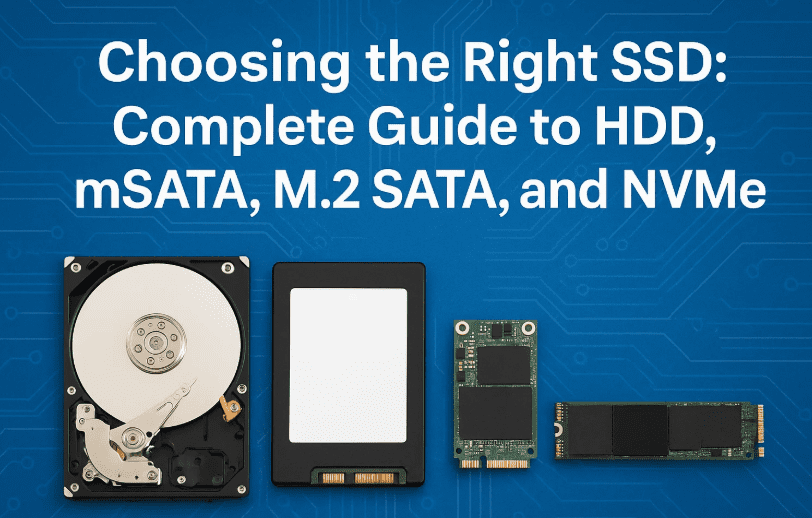
🔹 Form Factors: 2.5-inch SATA, mSATA, and M.2 Explained
Before we dive into speed and performance, let’s start with the basics — the physical size and shape of storage drives, also known as their form factor.
The form factor determines how a storage drive fits inside your system. It includes the device’s dimensions, connector type, and how it mounts inside your laptop, desktop, or gaming console. Choosing the wrong form factor can make your upgrade a frustrating experience.
- 2.5-inch Drives: The most common format for both SSDs and HDDs in laptops and some desktops.
- 3.5-inch HDDs: Standard size for desktop hard drives and servers.
- mSATA (Mini-SATA): A compact card-sized SSD used mainly in older ultrabooks and embedded systems.
- M.2 Drives: Slim, powerful, and highly versatile. M.2 can support both SATA and NVMe interfaces, depending on the specific drive.
🔗 Storage Interfaces: SATA vs. NVMe
While form factor is about how a drive fits physically, the interface defines how data travels between your drive and motherboard — and this makes a massive difference in speed.
- SATA (Serial ATA): An older standard that works with HDDs, mSATA, and some M.2 SSDs. It maxes out at ~550 MB/s.
- NVMe (Non-Volatile Memory Express): A newer protocol built for SSDs using PCIe lanes. It supports data speeds of up to 14,000 MB/s (with PCIe Gen 5). That’s nearly 25x faster than SATA.
Many drives share the same form factor but use completely different interfaces. For example, an M.2 drive may be either SATA or NVMe — and installing the wrong type in an unsupported slot will prevent it from working.
💽 HDD vs. SSD: What’s the Real Difference?
If you’ve ever wondered why your older computer feels slower, chances are it’s still running on a traditional HDD (Hard Disk Drive). These drives have spinning disks (platters) inside and a read/write head — think of it like a record player storing data magnetically.
On the other hand, SSDs (Solid State Drives) use NAND flash memory chips, which have no moving parts. This makes them:
- Faster: SSDs can read/write at 5x to 30x the speed of HDDs.
- More Durable: No moving parts means better resistance to physical shock.
- Quieter & More Energy Efficient
Still, HDDs offer a huge amount of storage at a lower price per gigabyte, making them great for long-term backups or mass media storage.
🧩 What is mSATA SSD?
As laptop design shifted toward thinner and lighter builds, mSATA SSDs emerged as a compact alternative to traditional 2.5″ SATA drives. These miniaturized drives use the same SATA interface, meaning they top out around 550 MB/s.
They connect via a mini PCIe socket and are available in full-size and half-size variants. Though still usable in some older laptops, mSATA is now considered largely obsolete, replaced by the more flexible M.2 format.










🔄 M.2 SATA vs. M.2 NVMe: What’s the Difference?
M.2 SSDs are often confusing because they look nearly identical — but under the hood, M.2 SATA and M.2 NVMe are drastically different.
- M.2 SATA: Uses the older SATA interface, with speeds maxing out around 550 MB/s.
- M.2 NVMe: Uses PCIe lanes and the NVMe protocol, delivering much higher speeds depending on the PCIe generation (Gen 3: ~3,500 MB/s, Gen 4: ~7,000 MB/s, Gen 5: ~14,000 MB/s).
Visually, you can tell them apart by their connector notches:
- M.2 SATA = B+M key (two notches)
- M.2 NVMe = M key (one notch)
Always check your motherboard or laptop specs before buying — some devices support both, others support only one.
🚀 NVMe Generations: Gen 3 vs. Gen 4 vs. Gen 5
Modern NVMe SSDs evolve quickly with each PCIe generation:
- Gen 3: Perfect for everyday tasks and gaming.
- Gen 4: Ideal for professionals editing 4K/8K video, 3D rendering, or high-end gaming.
- Gen 5: Meant for enterprise workloads and extreme performance scenarios.
Every generation is backward compatible, meaning a Gen 5 drive can work in a Gen 3 slot — but at Gen 3 speeds.
🔬 Memory Types in SSDs: SLC, MLC, TLC, QLC
Not all SSDs are created equal. The memory type inside the SSD determines how long it lasts, how fast it writes data, and how much it costs.
- SLC (1 bit/cell): Fastest and most reliable — great for servers and mission-critical work.
- MLC (2 bits/cell): Balanced performance and durability.
- TLC (3 bits/cell): Most common for consumers. Good for everyday tasks and gaming.
- QLC (4 bits/cell): High capacity at low cost — but slower and with reduced endurance.
Additionally, most SSDs now use 3D NAND or V-NAND (Samsung’s branding), which stack memory vertically to increase performance and lifespan.
🧊 How to Extend Your SSD’s Lifespan
Worried about SSDs wearing out? You shouldn’t be — most modern SSDs can last over a decade of daily use.
For example, a Samsung 970 EVO Plus (2TB) has a TBW rating of 1,200 TB, meaning you could write 336 GB/day for 10 years before hitting its limit.
What does shorten SSD lifespan? Heat. The memory controller in M.2 drives can run hot — even above 100°C — which leads to early failure.
Here’s how to protect your SSD:
- Use an aluminum or copper heatsink, especially in laptops.
- Keep at least 10–20% free space for better performance.
- Avoid running full writes constantly (e.g., rendering or server caching on cheap QLC drives).
🏆 Most Reliable SSD Brands
When choosing an SSD, brand matters. The most trusted manufacturers include:
- Samsung: Known for high-endurance drives, excellent software, and full in-house manufacturing.
- Western Digital (WD): Owns SanDisk, offers quality across budget and premium tiers.
- Crucial (by Micron): Great value, solid performance, low failure rates.
Avoid no-name brands or ultra-cheap drives unless you’re okay with potential risks.
🧠 How to Choose the Right M.2 SSD (Step-by-Step)
- Identify your current storage device:
- Press Windows + X, choose Device Manager > Disk Drives.
- Google the drive model to find out if it’s SATA or NVMe, and which size (e.g., 2280).
- Check motherboard or laptop specs:
- Does it support SATA, NVMe, or both?
- What M.2 length does it accept (2230, 2242, 2280, etc.)?
- Choose the generation:
- Gen 3 is enough for most users.
- Gen 4 is ideal for creatives and gamers.
- Gen 5 is for future-proofing and enterprise tasks.
- Pick your memory type:
- TLC 3D NAND is the sweet spot for most users.
- Avoid QLC unless you’re buying bulk storage at a budget.
- Install a heatsink if needed, especially for laptops or high-performance drives.
📌Best SSD on AMAZON:
M2 NVMe SSD: https://amzn.to/44qjipO
M2 SATA SSD: https://amzn.to/44EmNrr
SSD 2.5-Inch SATA: https://amzn.to/44A1rLK
SSD heatsink: https://amzn.to/4kzEIp6
HowFixit Pro Max: https://amzn.to/4615Hqa
Pro Tool Kit: https://amzn.to/44IcLWt
❓ FAQ Section
Q: Can I use an NVMe drive in a SATA M.2 slot?
A: No. NVMe and SATA use different protocols and are not interchangeable unless the slot supports both.
Q: Is TLC memory bad?
A: Not at all. TLC is the most common and perfectly suitable for gaming and daily use.
Q: Do I need a heatsink for my SSD?
A: For NVMe drives in laptops or performance desktops, yes. They help prevent thermal throttling and extend lifespan.
📌 Tags:
ssd types, hdd vs ssd, m2 nvme explained, ssd memory types, sata vs nvme, m2 ssd compatibility, nvme generations, choose right ssd
📢 Hashtags:
#SSDUpgrade #M2NVMe #HDDvsSSD #StorageExplained #TechTips #PCUpgrade #LaptopSSD #SSDLifespan
🛡️ Disclaimer:
This guide is intended for informational and educational purposes. Always verify compatibility with your device before purchasing or installing an SSD. Use manufacturer documentation or contact support for hardware-specific questions.
If you’ve made it this far — congratulations! You now have a solid understanding of storage types and how to choose the best one for your needs. Whether you’re a gamer, video editor, student, or casual user, picking the right drive can dramatically improve your PC or laptop’s performance.
💬 Got questions about your laptop or motherboard? Drop your model name in the comments, and I’ll help you choose the right SSD upgrade.








